Chapter 2 Invoicing
This chapter explains how Odoo creates customer invoices and vendor bills, how invoice accounts are determined, how credit notes work, and how payment terms and invoice numbering should be understood.
Customer Invoices
Start with a sales order.
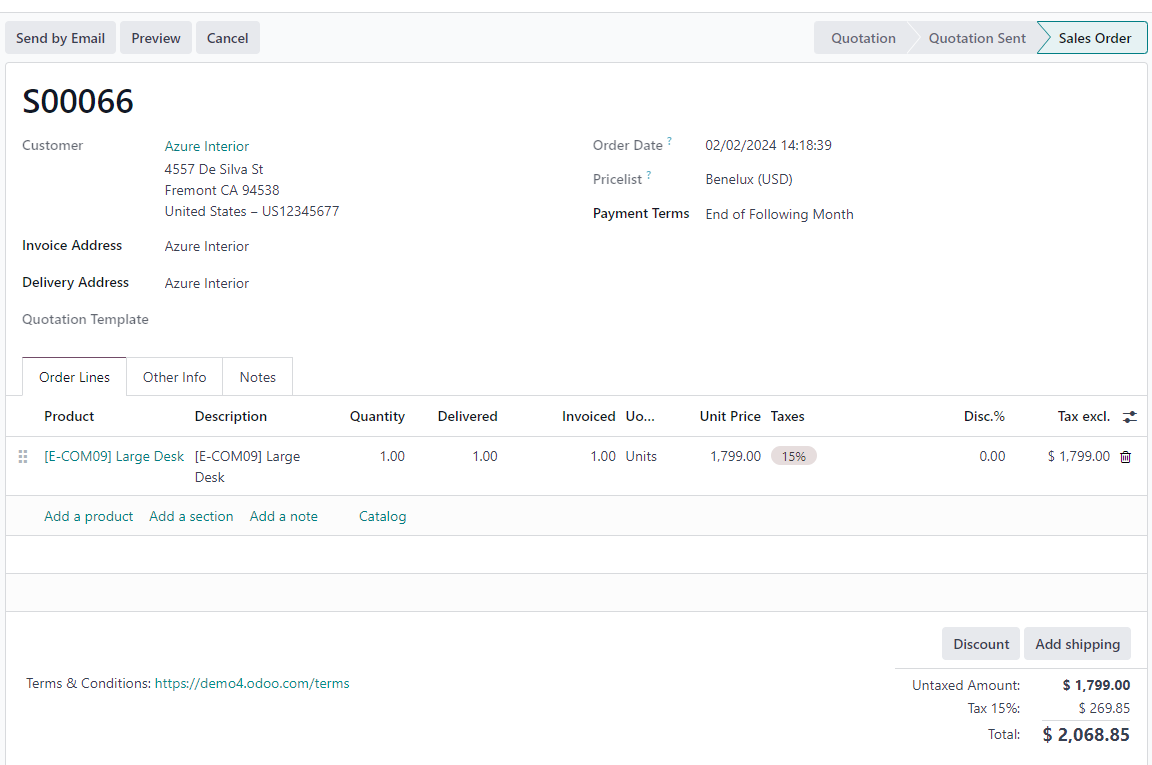
After confirming the order, create an invoice. The account used on invoice lines is determined by product and accounting configuration.
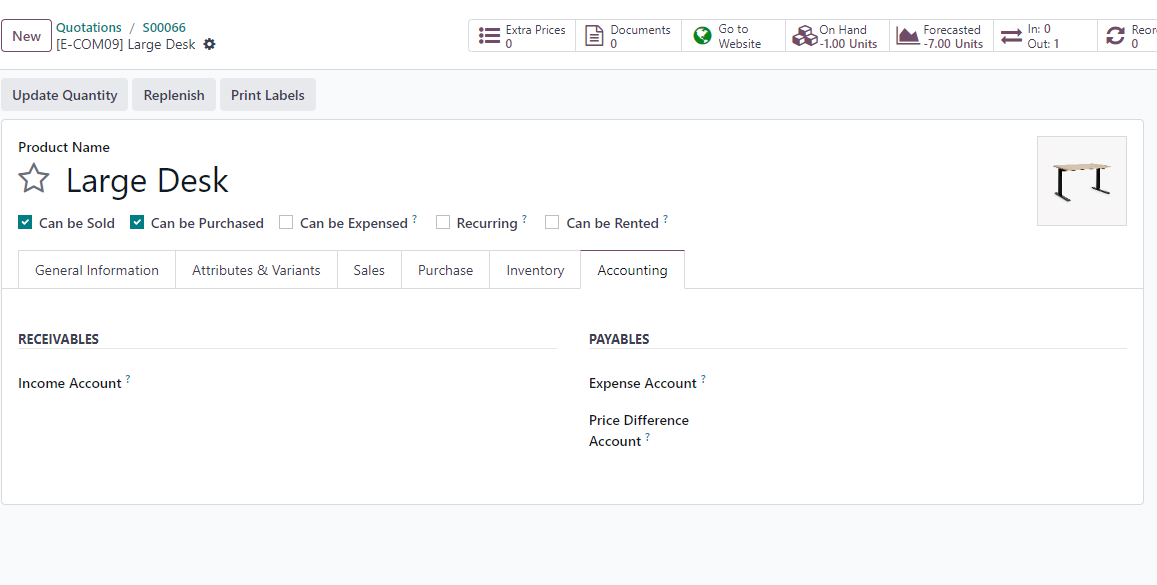
Odoo checks accounting properties in this order:
- Product income or expense account.
- Product category account.
- Journal default account.
If the product does not define an income account, Odoo uses the product category setting. If the product category is also empty, the journal default setting may be used.
Product Invoicing Policy
As explained in the Sales section, product invoicing policy determines when a sales order can be invoiced.
| Policy | Meaning |
|---|---|
| Ordered quantities | Invoice can be created without delivery |
| Delivered quantities | Delivery must be completed before invoiceable quantity appears |
On sales order lines, green text usually indicates that the line can be invoiced. Otherwise, it is not yet invoiceable.
Notes
Sales order lines can include sections and notes. Sections and notes are usually carried into invoice lines together with the nearest product line.
Credit Notes
If the company needs to refund a customer, create a Credit Note from the posted invoice.
Open the invoice and click Credit Note.
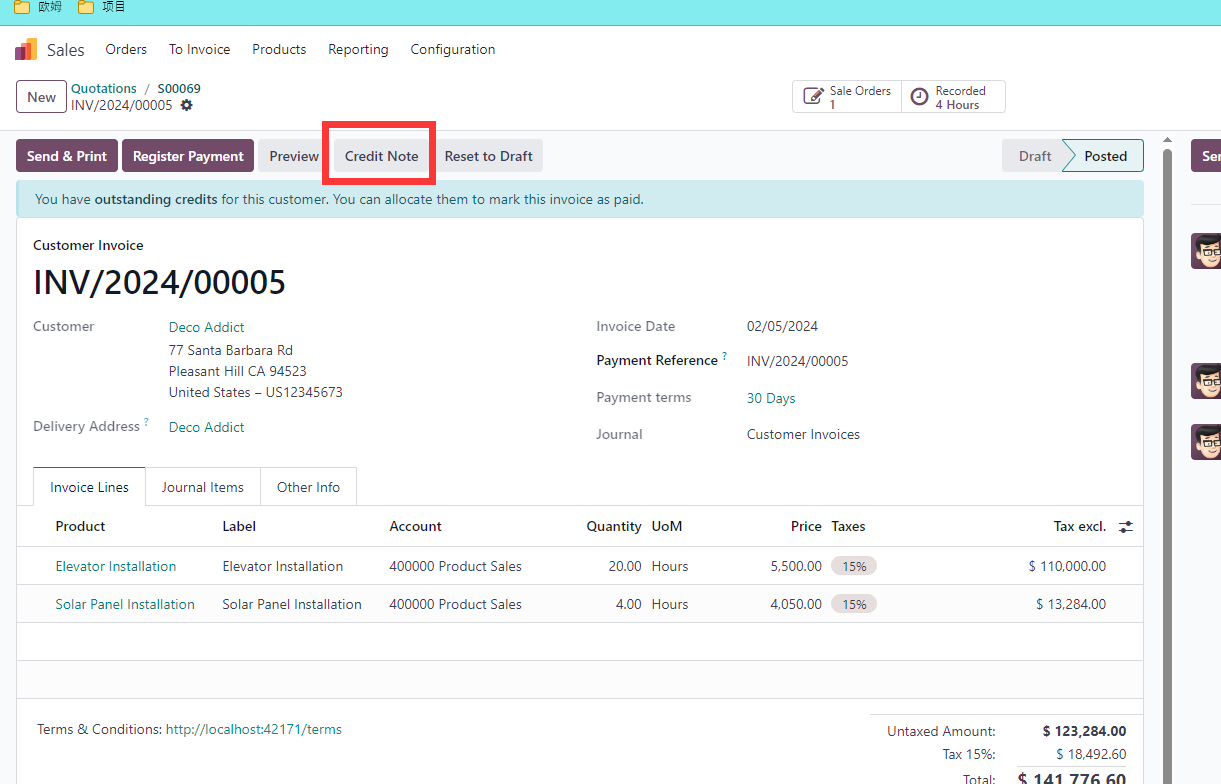
Confirm the generated credit note.
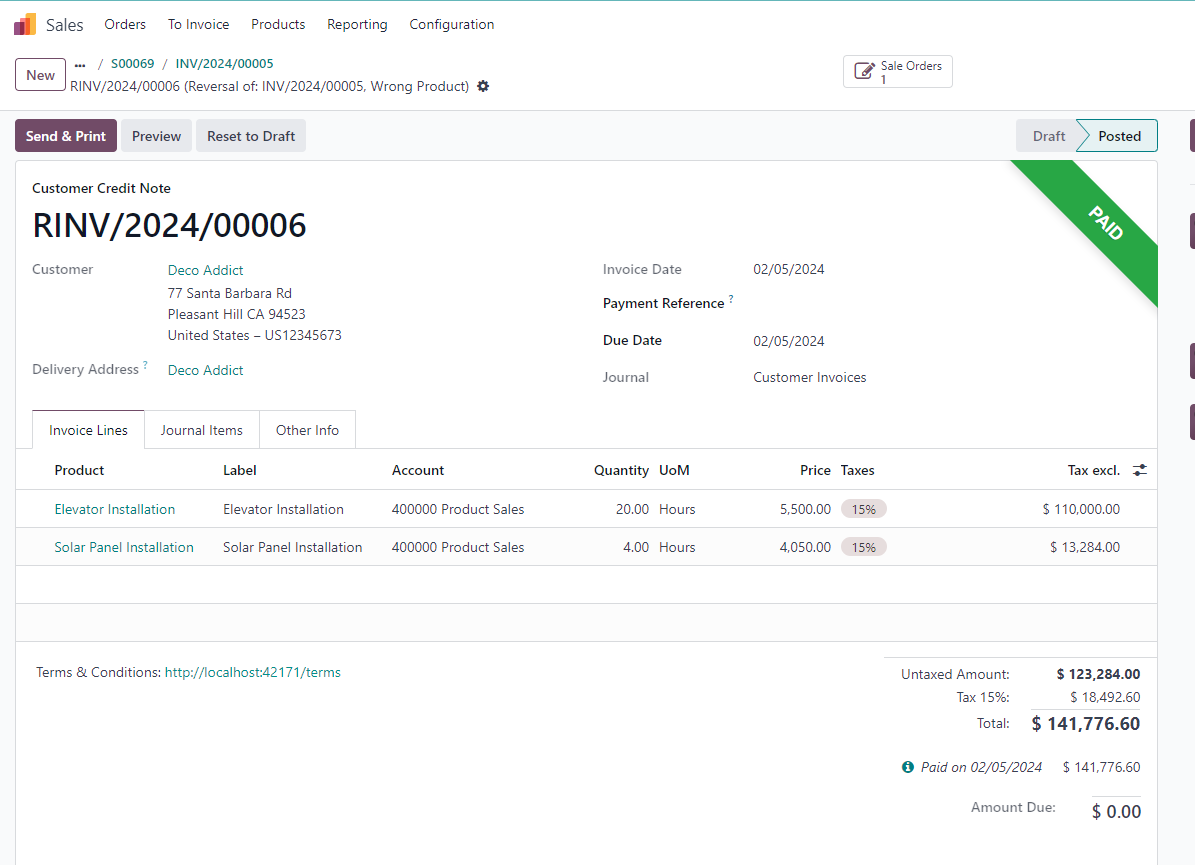
Then complete the refund payment if money needs to be returned to the customer.
Use A Different Sequence From INV
The sales journal includes a setting to use a dedicated credit note sequence.
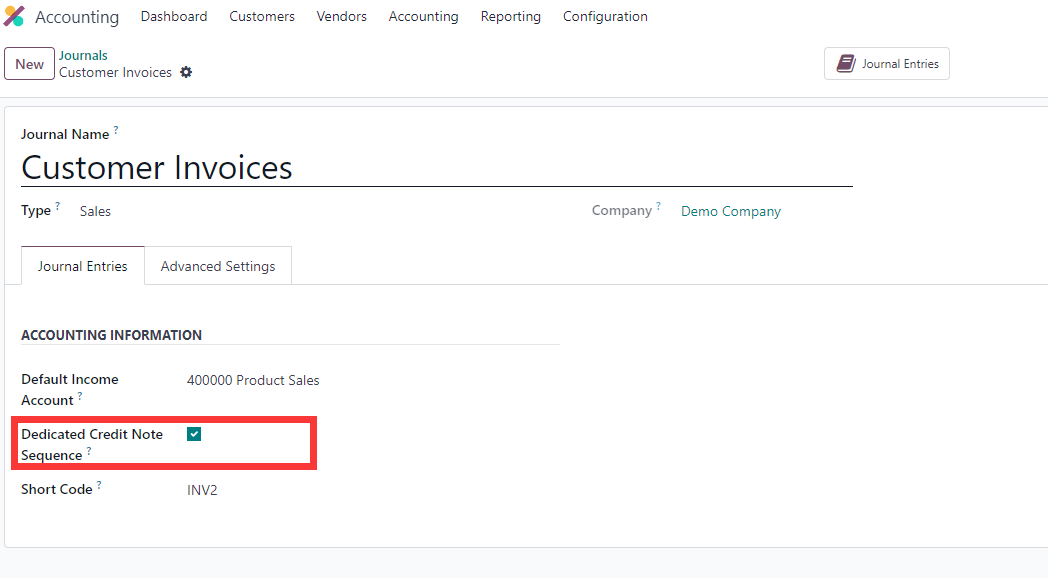
This lets refunds use a sequence different from ordinary customer invoices.
Partial Refunds
In Odoo 16 and earlier, refunds supported partial refund behavior.
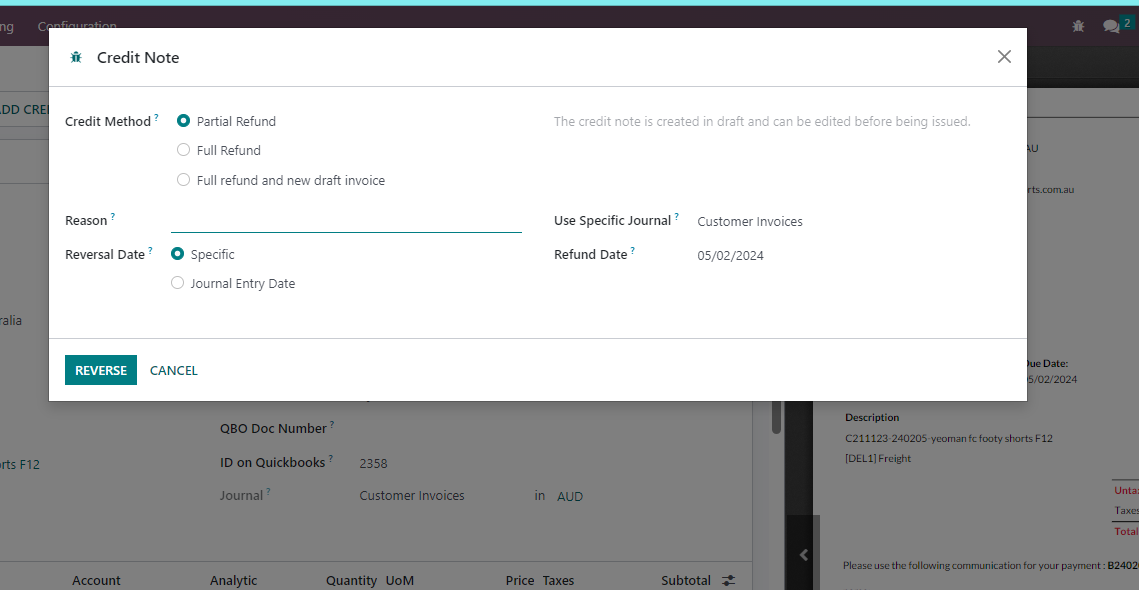
In Odoo 17, partial refund was removed from this wizard and only full refund behavior is available in that specific flow.
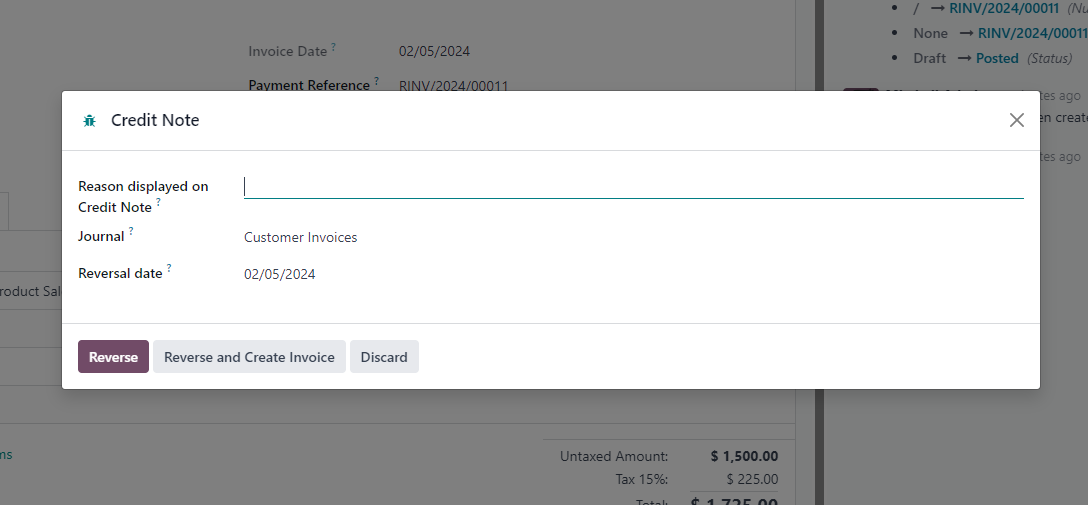
When version differences matter, test the exact target version before writing the final customer procedure.
OCR Invoice Recognition
Odoo can upload received invoices by scanning. Multiple invoices can be uploaded together, automatically split, and converted into vendor bills.
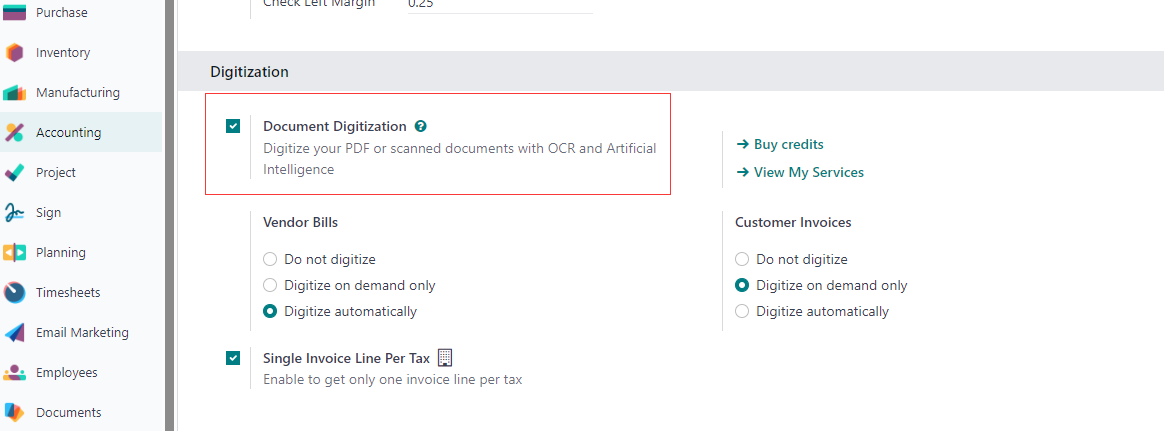
To use OCR, enable it under Accounting -> Settings -> Digitization.
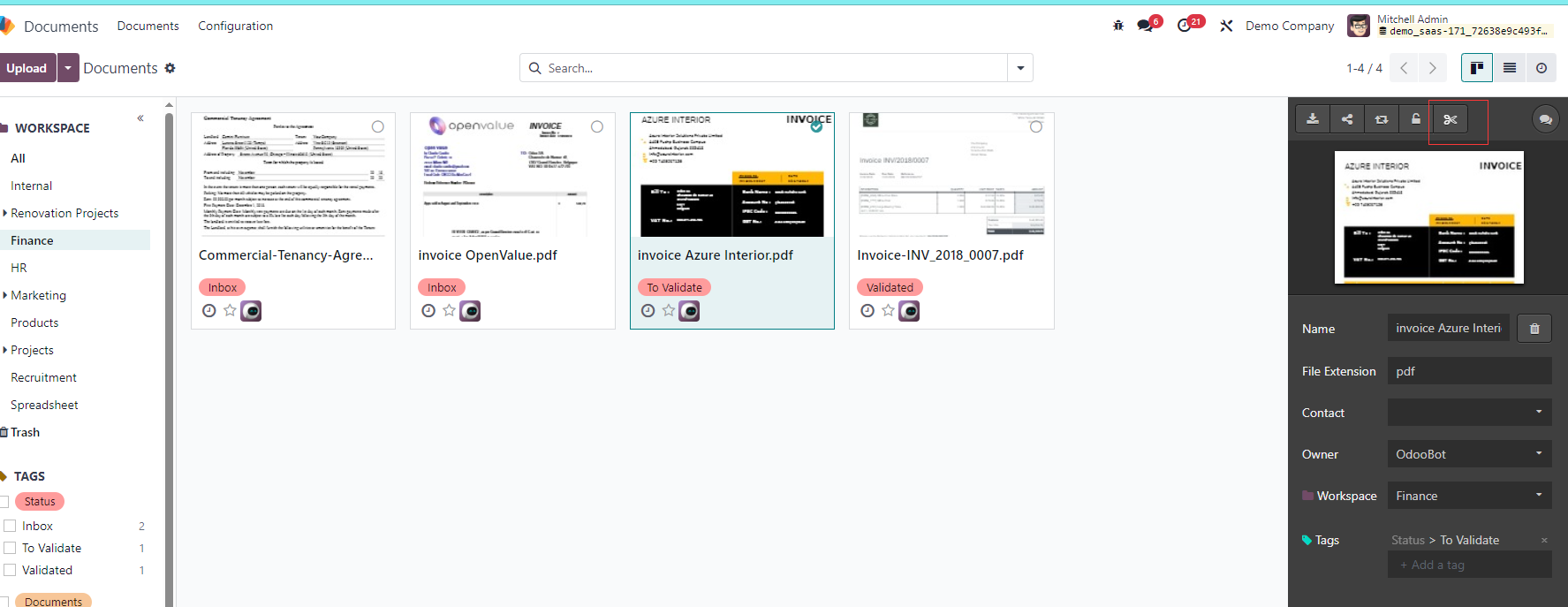
With Documents, one file containing multiple invoices can be split into separate documents, then converted into vendor bills.
Vendor Bills
Vendor bills work similarly to customer invoices, but in the opposite direction. A supplier PDF can be uploaded, and Odoo can generate a vendor bill.
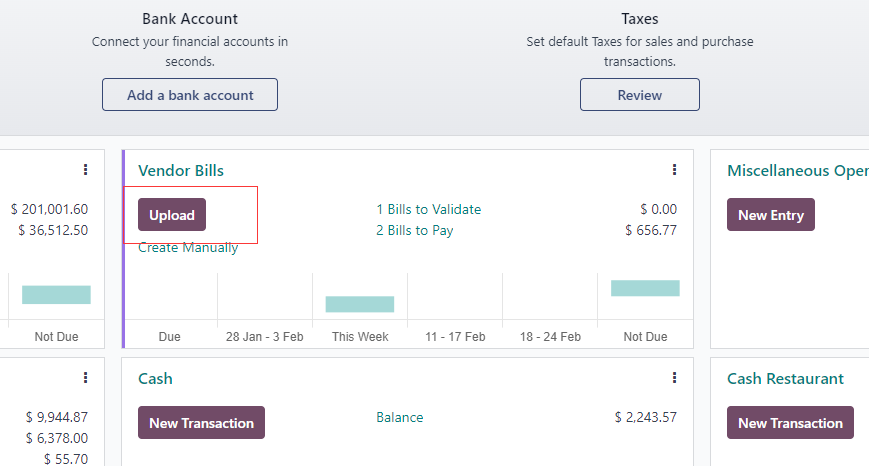
Vendor bills affect payables, while customer invoices affect receivables.
Payment Terms
Payment terms define when the customer should pay. Create payment terms under Accounting -> Configuration -> Payment Terms.
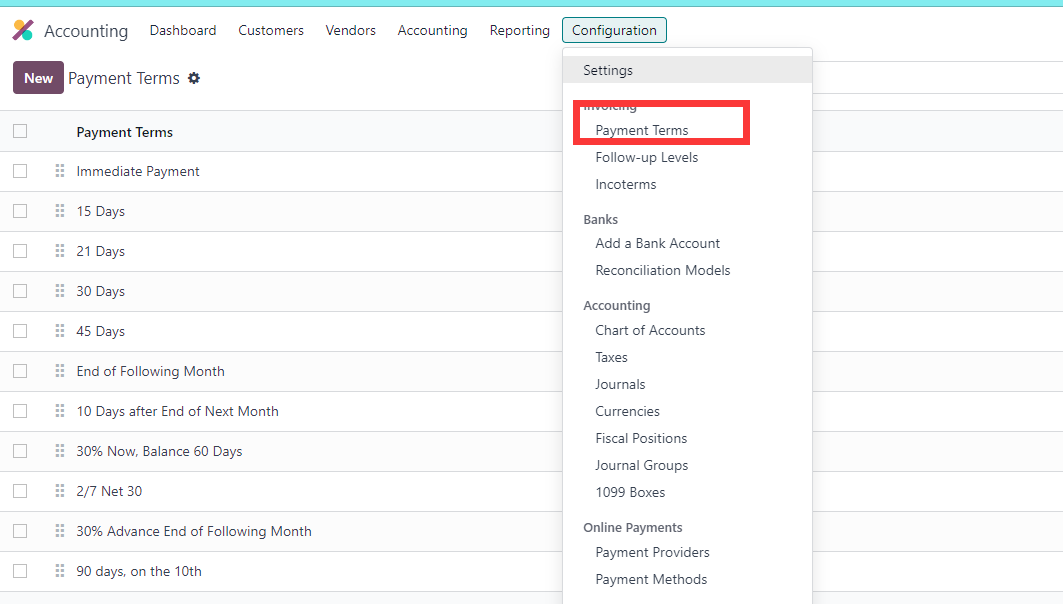
If the company field is empty, the payment term can be used by all companies. If a company is set, only that company can use it.
For example, create a payment term: 40% immediately and 60% after 30 days.
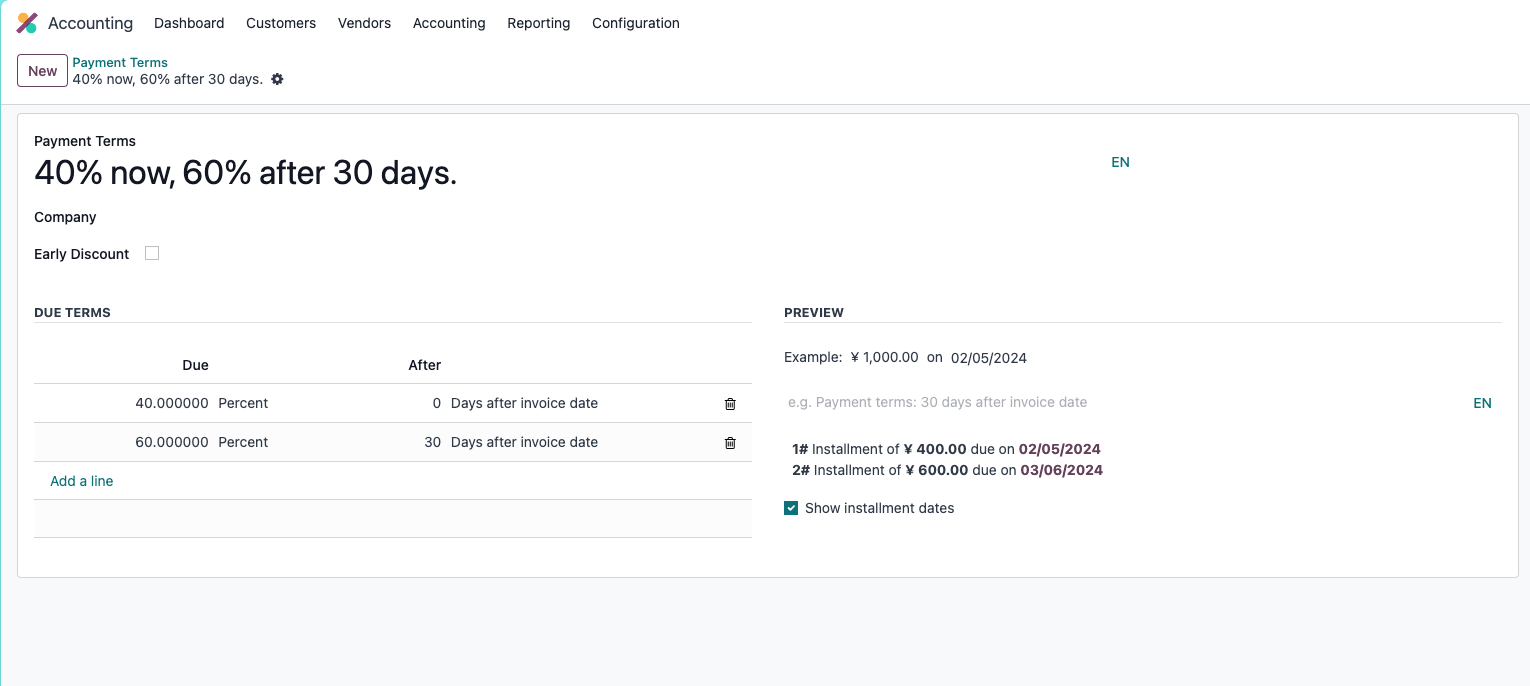
In Odoo 16, payment term line types included Balance. In Odoo 17, this line type was removed.
Create a customer invoice using this payment term.
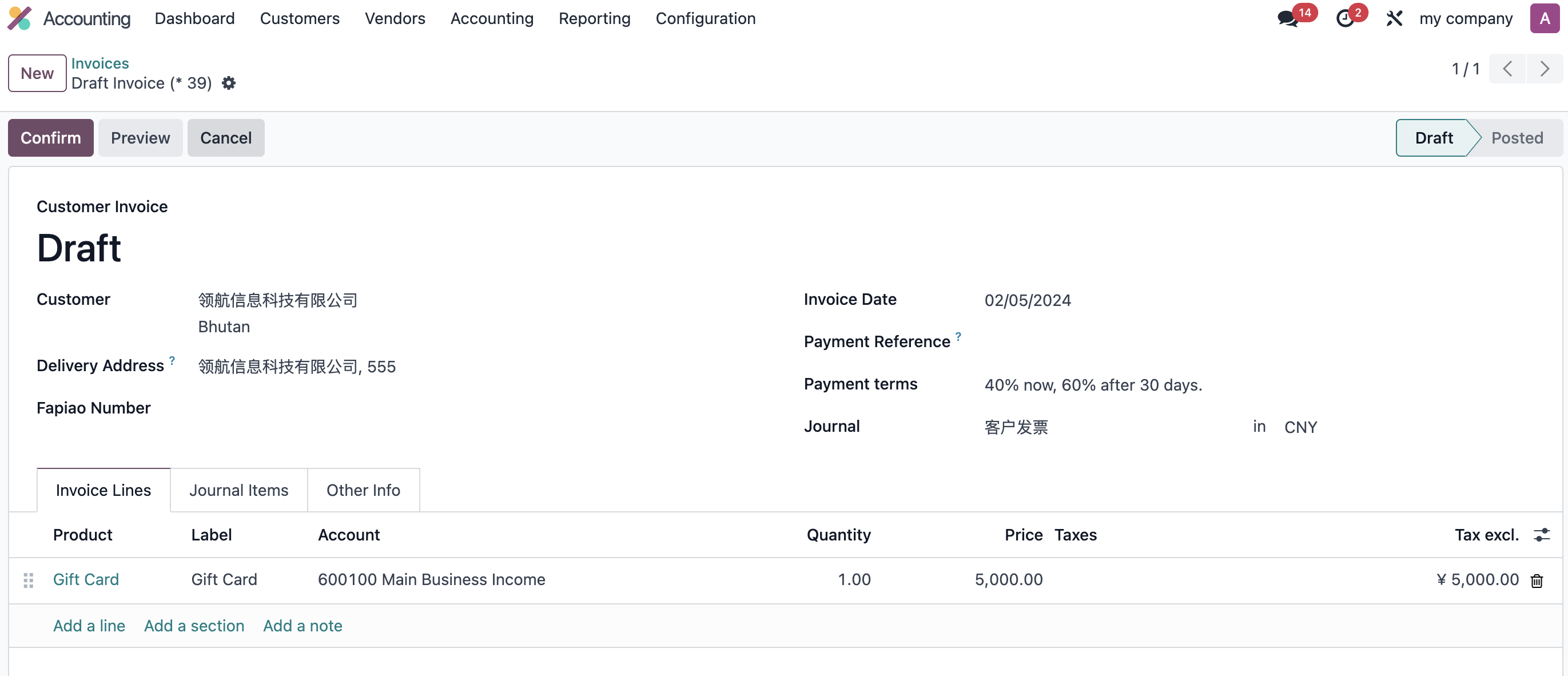
Review the generated journal entry.
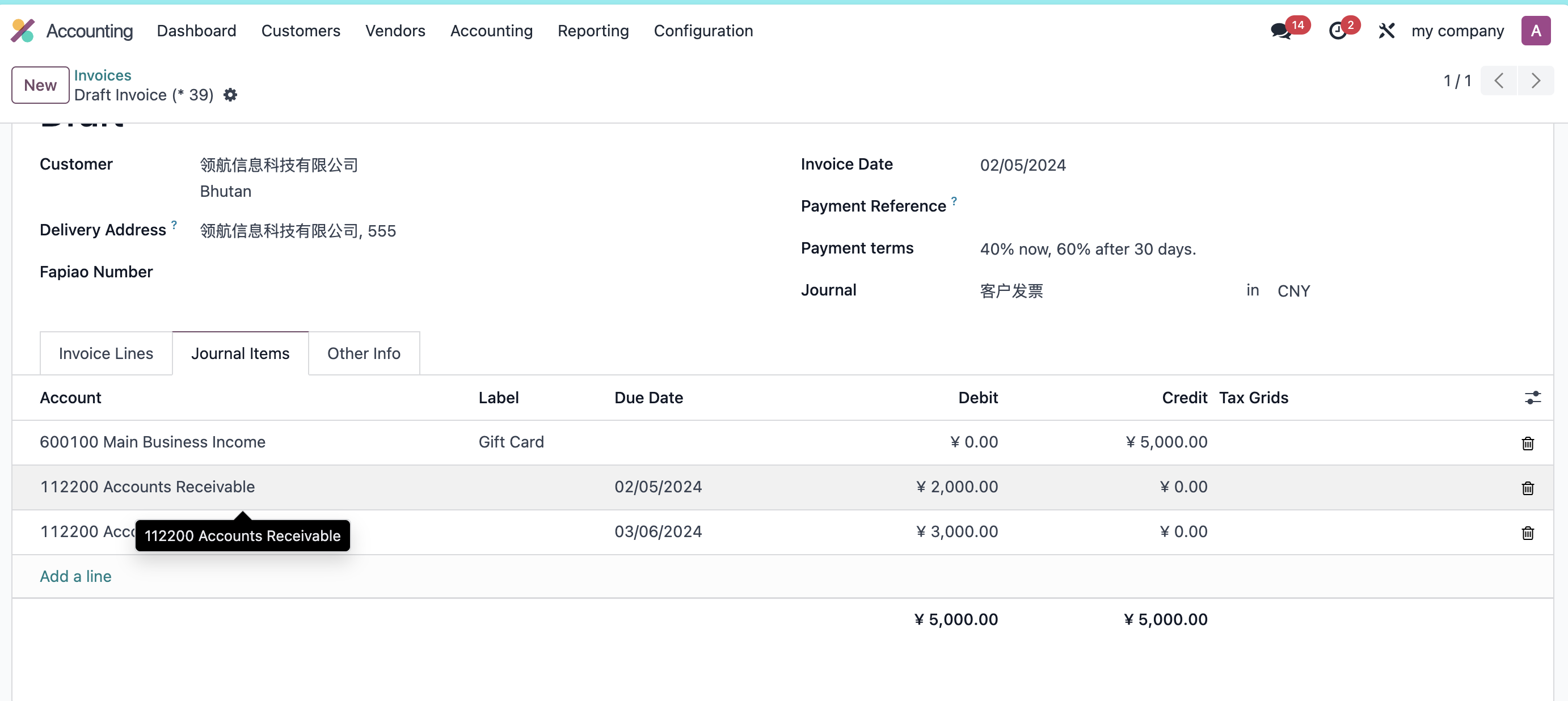
The journal items show two due-date lines: one due immediately and one due 30 days later.
Customer Due Amounts
Customer due amounts can be viewed from partner reports, such as aged receivable.
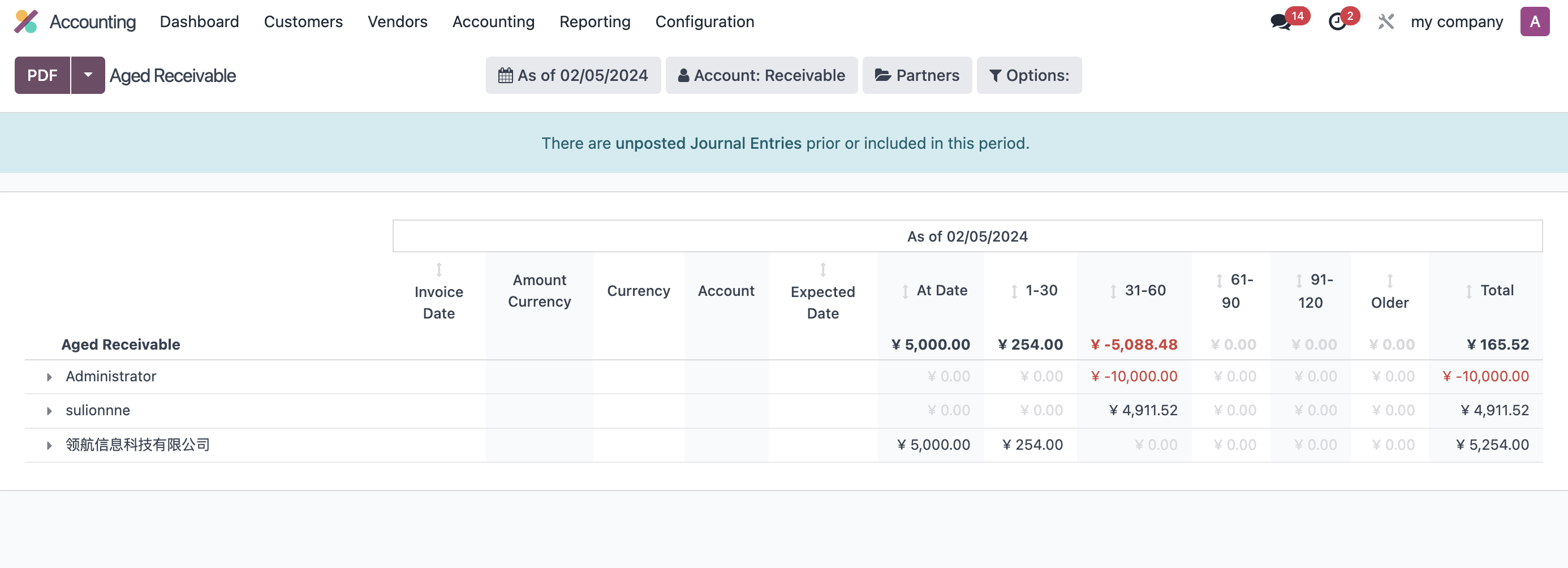
This helps finance follow up overdue balances.
Default Terms And Conditions
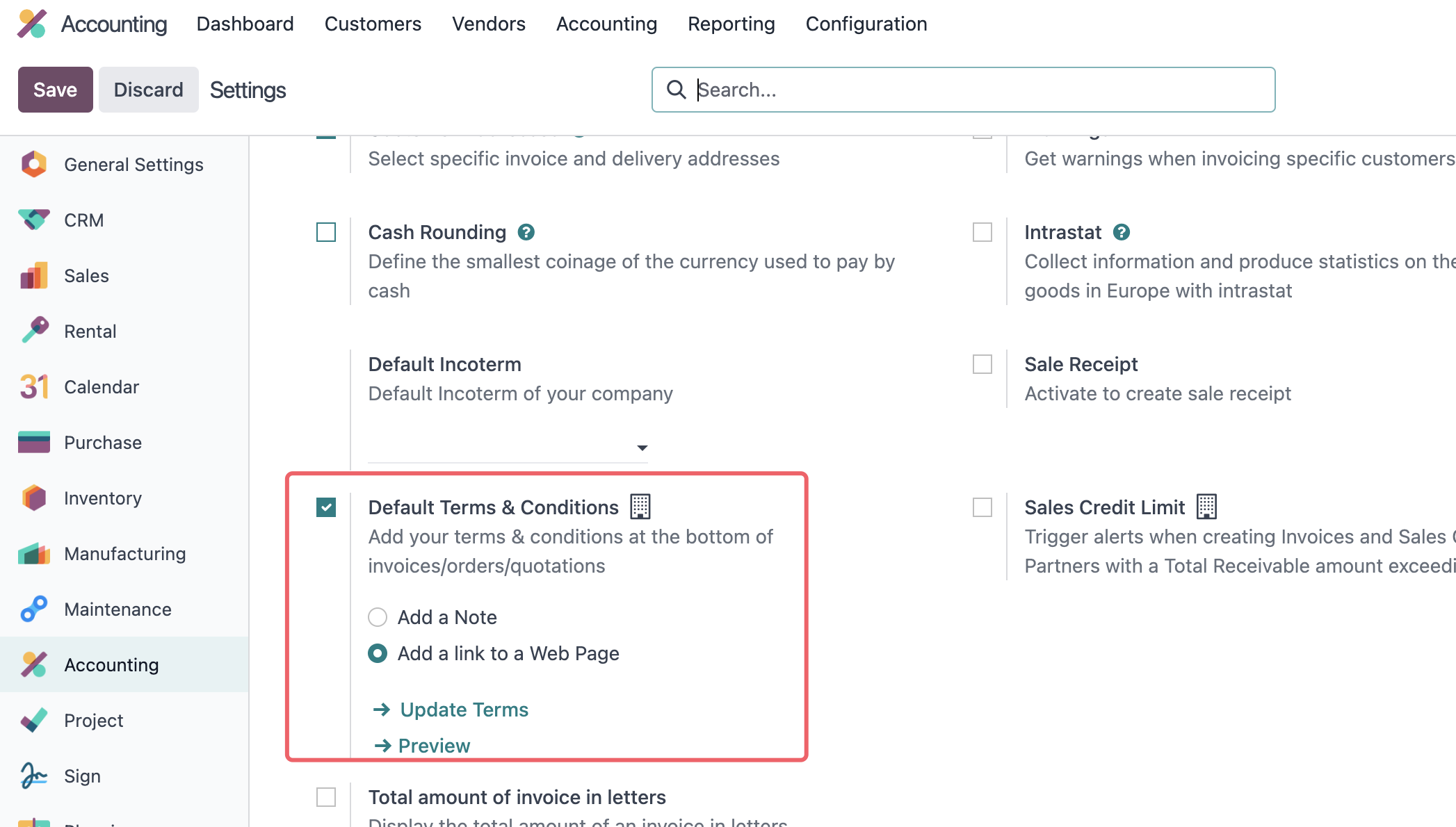
Payment terms and conditions can be displayed on customer invoices. Odoo supports either text displayed on the invoice or an online terms link.
Configure this under Accounting -> Settings -> Customer Invoices -> Default Terms and Conditions.
Invoice Numbers
By default, invoice numbers are continuous. If a gap appears in invoice numbering, the next invoice number may be displayed in red in list view.
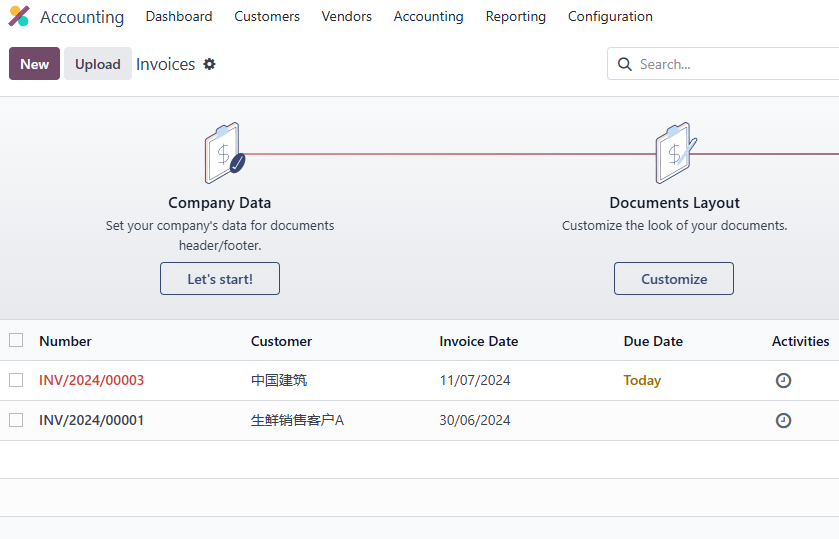
The customer invoice journal contains invoice number configuration.
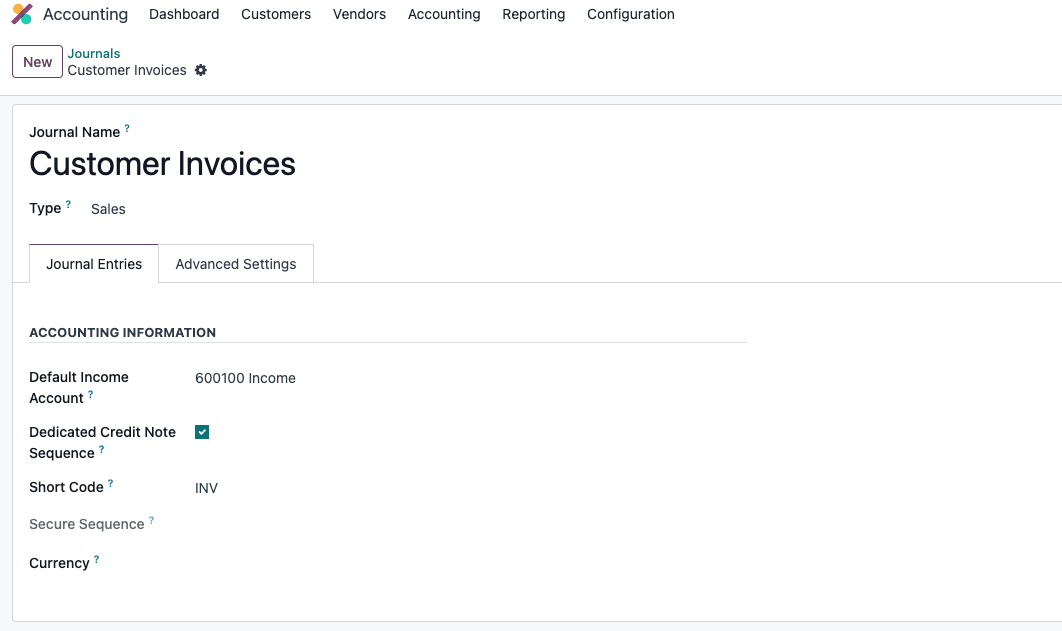
In Odoo 16 and earlier, invoice numbering used sequence objects. Odoo 17 changed the mechanism. This chapter is based on Odoo 17 behavior.
By default, invoice numbers use a format such as:
INV/2019/0001
The next number is generated by increasing the largest current sequence pattern. For example, if the current invoice is INV/2019/001, the next number becomes INV/2019/002.
If the prefix is changed to FACT, and the database contains both INV/2019/001 and FACT/2019/001, the next generated invoice may become FACT/2019/002.
This may or may not match business expectations.
Example: create two invoices in the customer invoice journal.
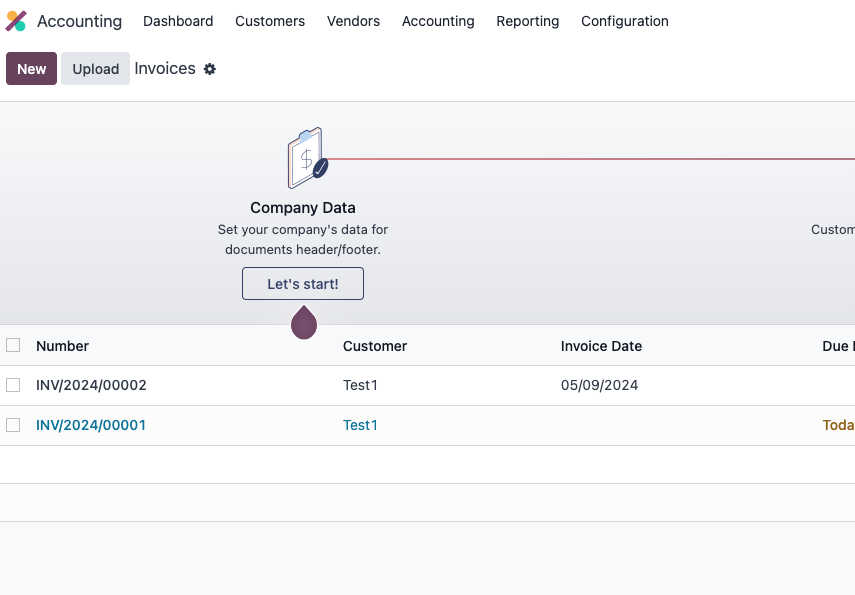
Rename INV/2024/00002 to SINV/2024/00001.
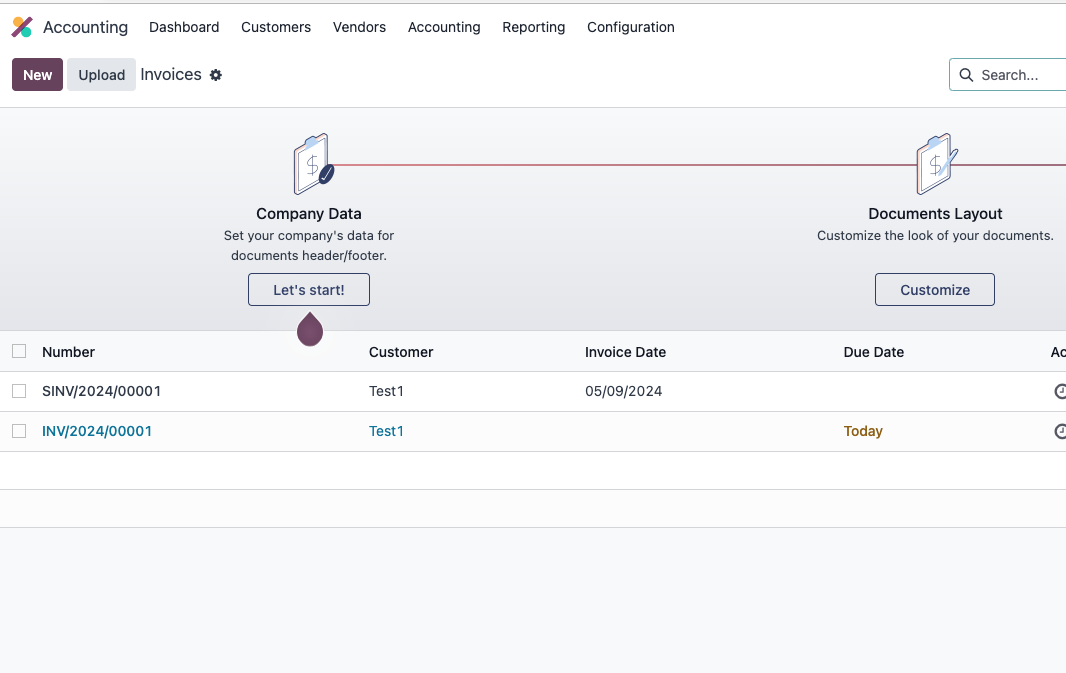
Now both INV and SINV exist. The next invoice becomes SINV/2024/00002.
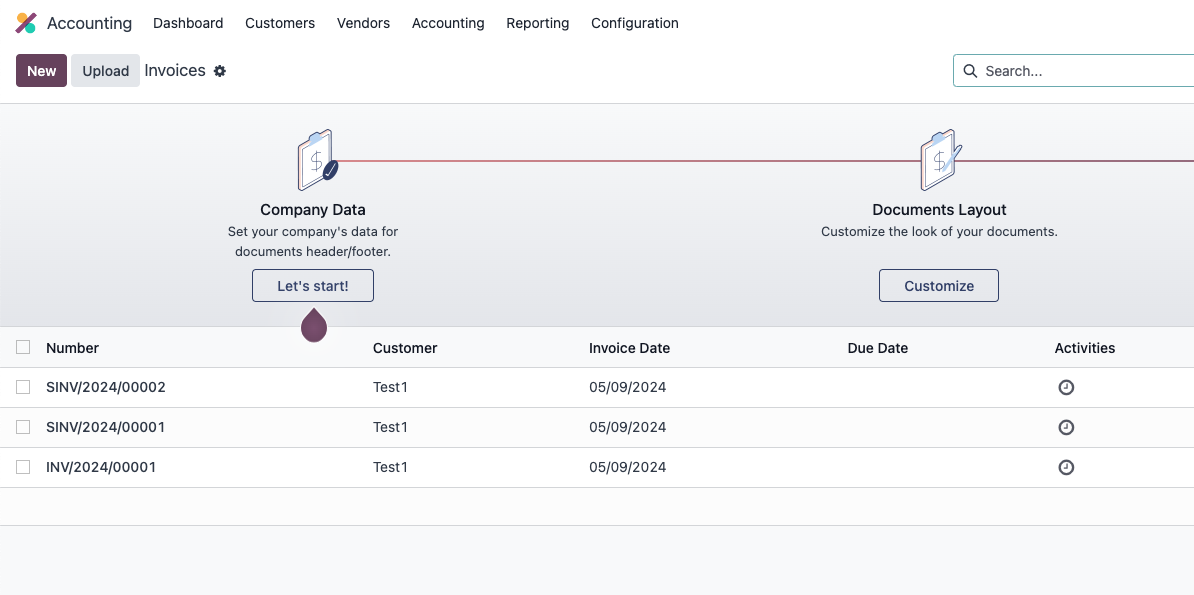
Invoice numbering increments according to the most recently generated sequence pattern.
Journal-Code-Based Invoice Numbering
If the company wants invoice numbering to be strictly bound to the journal code rather than this semi-smart pattern, Qingdao Ohm's accounting solution adds journal-based invoice numbering.
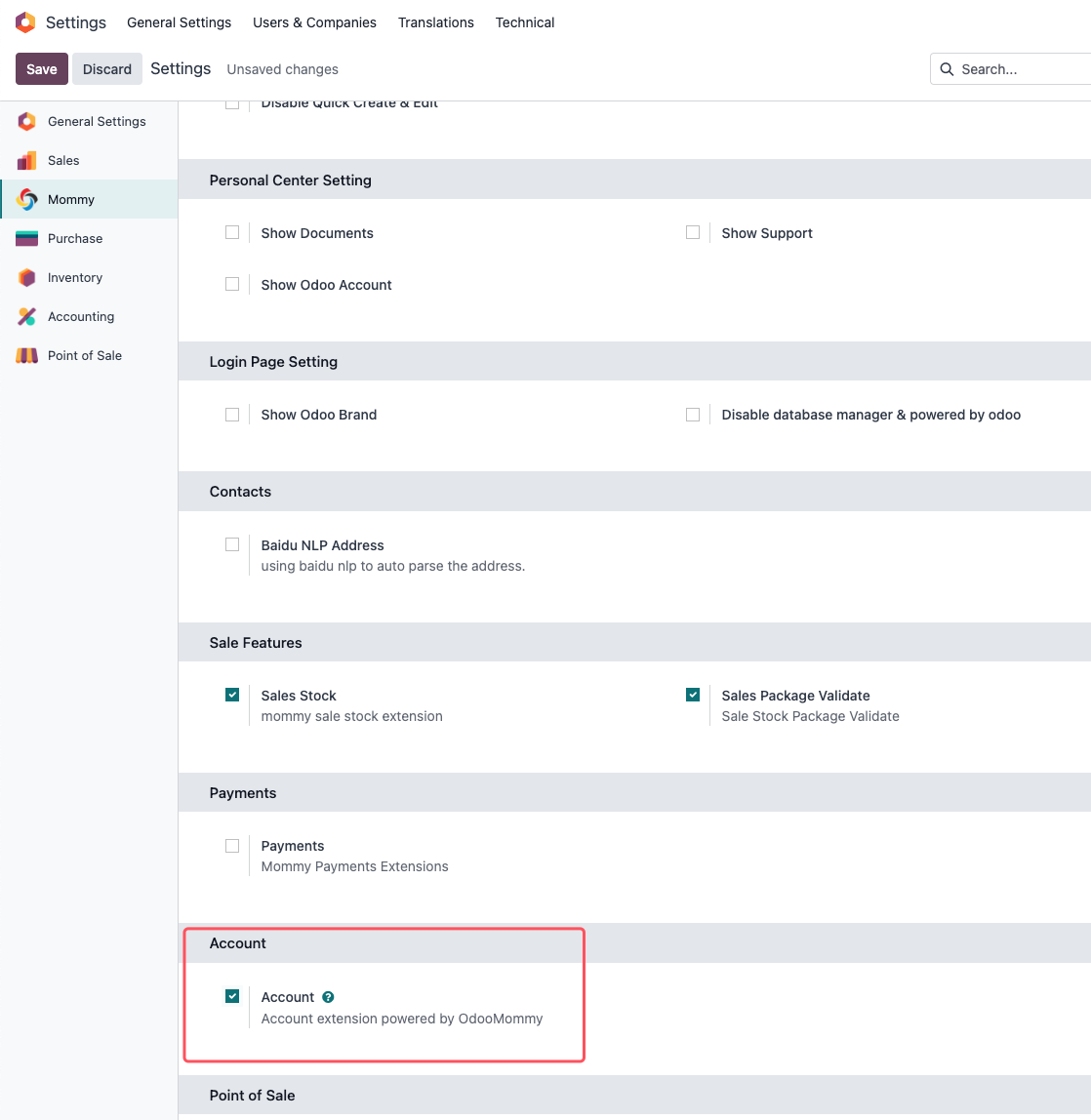
First enable the accounting extension in Ohm settings.
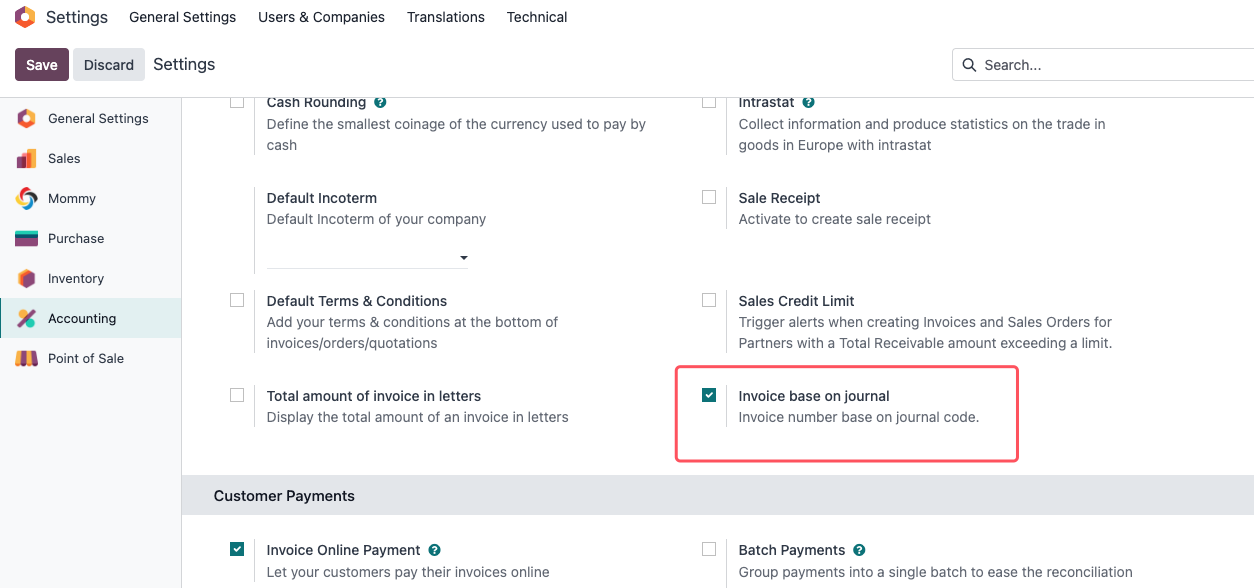
Then enable journal-based invoice numbering under Accounting settings.
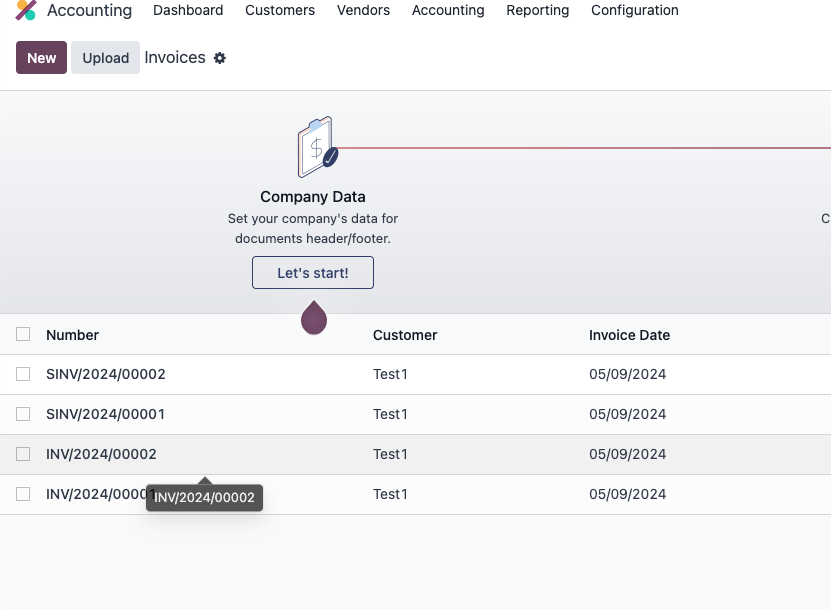
After that, new invoice numbers remain tied to the journal code.
This chapter covered customer invoices, credit notes, OCR, vendor bills, payment terms, terms and conditions, and invoice numbering. The next chapter explains customer and vendor payments.