Shopline Integration
Shopline, founded in 2013 and originally headquartered in Hong Kong, is a leading smart eCommerce SaaS platform in Asia. It helps merchants “sell from anywhere, to anywhere” across eCommerce, social commerce, offline POS, and cross-border operations.
This chapter explains how to connect Shopline with Odoo so Shopline merchants can manage ERP operations inside Odoo.
This article applies to Shopline HK, JP, and TW.
Supported versions:
15.6/18.0.1.3.
Shopline-Side Setup
There are two setup approaches:
| Approach | Description |
|---|---|
| Register as a developer | Create and deploy your own Shopline application. |
| Use Qingdao Ohm's extension | Install our app directly from the Shopline app center and avoid custom deployment work. |
Register A Developer Account
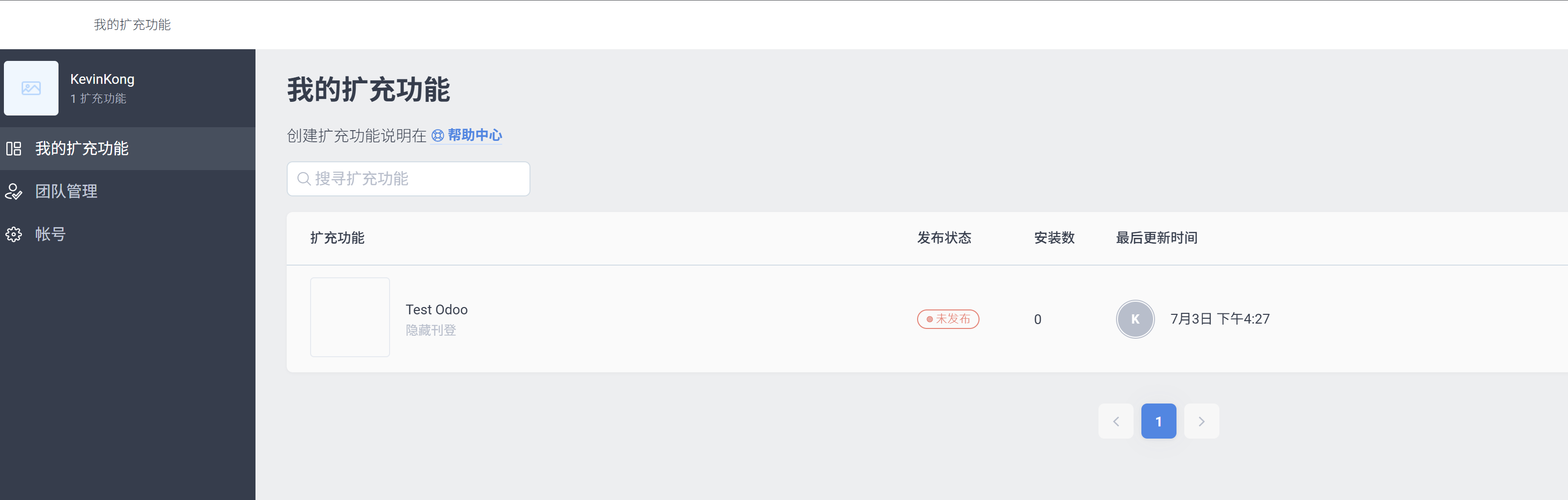
Register a developer account in the Shopline Developer Center and create an application.
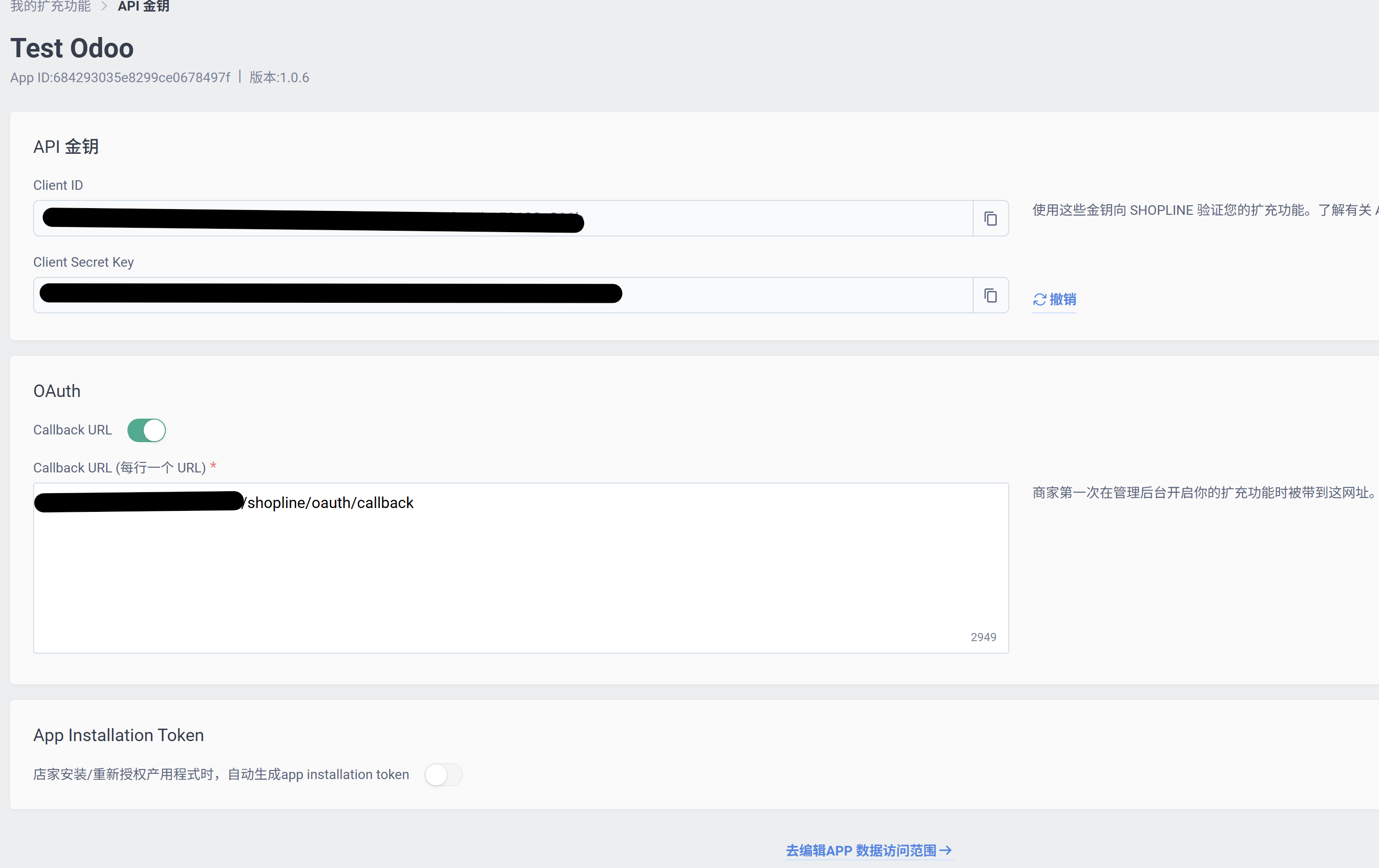
Callback URL
Shopline callback URLs must pass whitelist verification. Only whitelisted callback URLs can be used successfully.
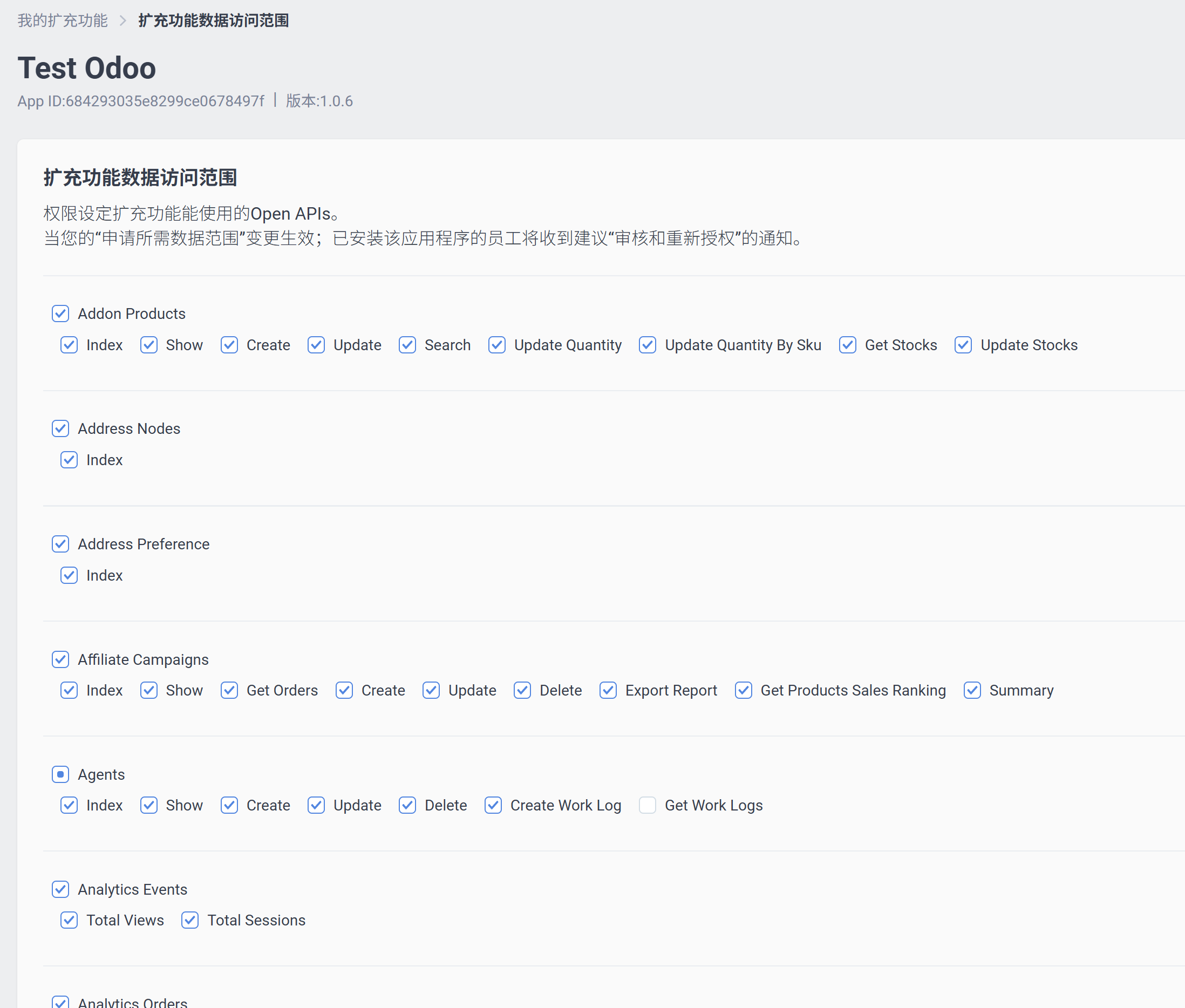
Access Permissions
Shopline uses detailed permissions for resource access. Select the permission scopes needed by the integration.
Deploy And Publish The App
After configuration, submit the application for review before it can be installed and used officially.
Install The App
After the app is published, install it from the Shopline merchant backend.
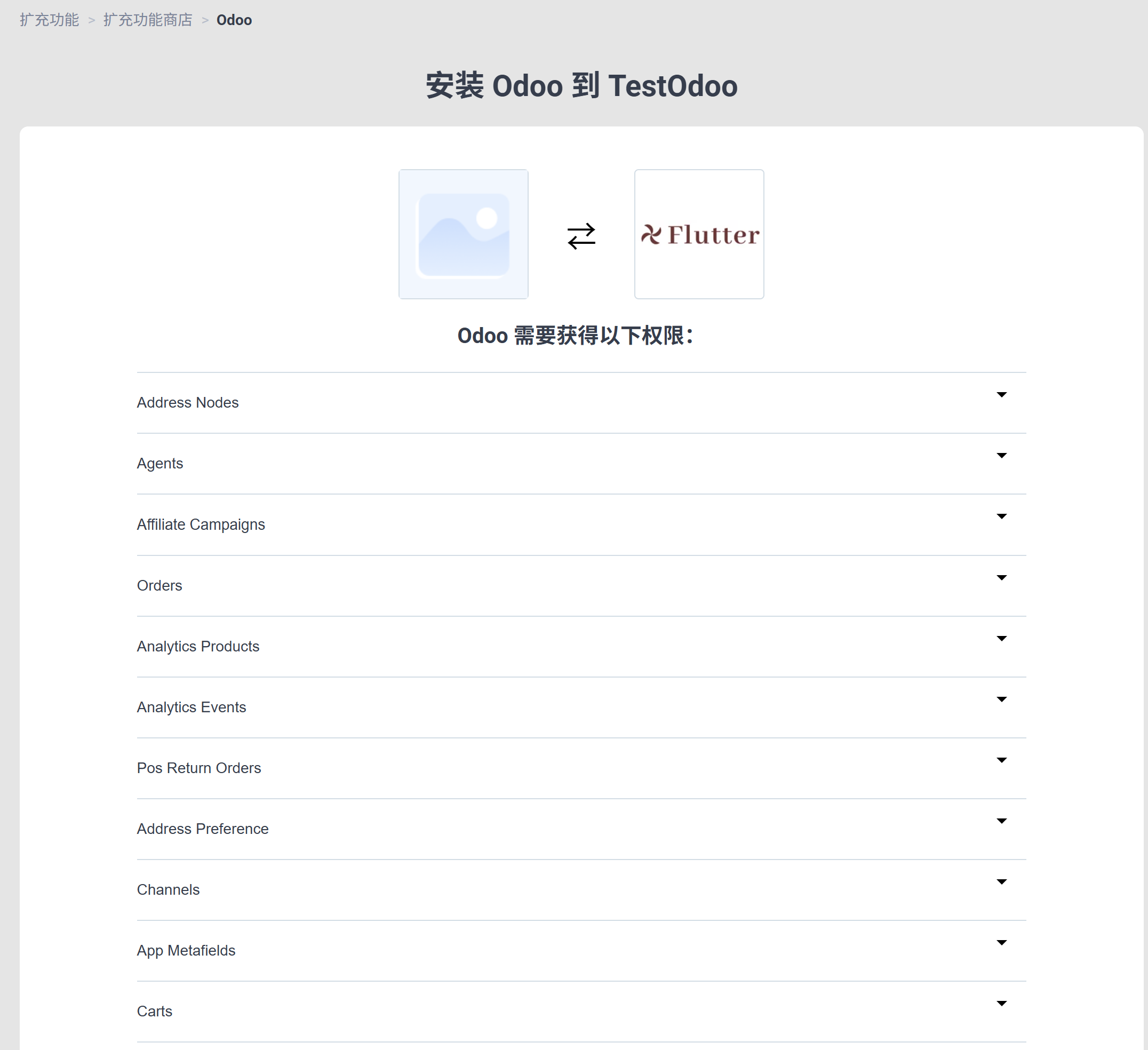
Use Qingdao Ohm's Extension
Using our extension avoids the manual app deployment process. Search for Odoo in the Shopline App Center and install it directly. Contact our support team to add your website callback URL to the app whitelist.
Odoo-Side Setup
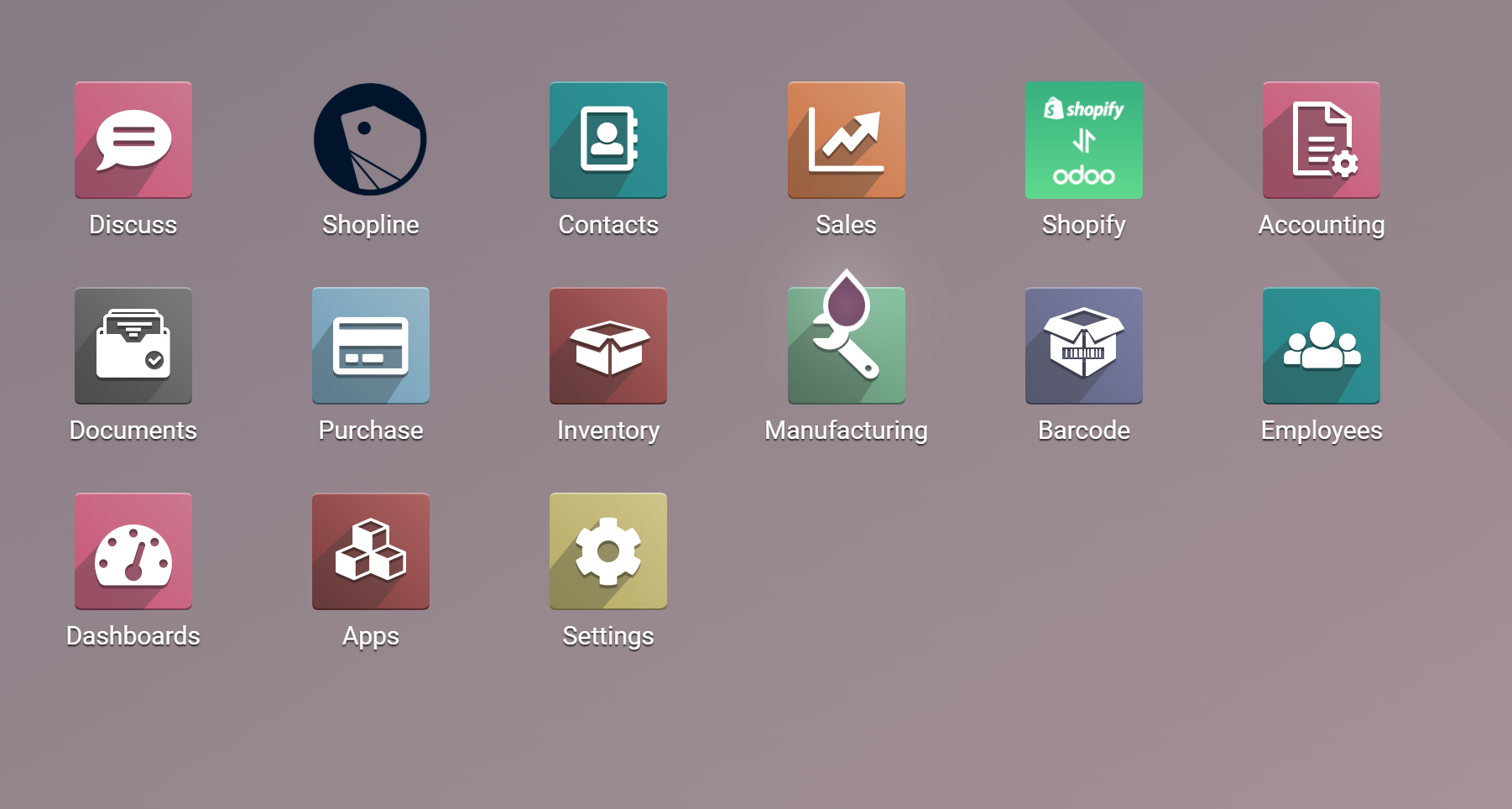
Install the mommy_shopline module and open the Shopline app from the Odoo main page.
Create A Shopline Application
Go to Settings > Apps and create a Shopline application. Enter the Client ID, secret, and merchant ID obtained earlier.
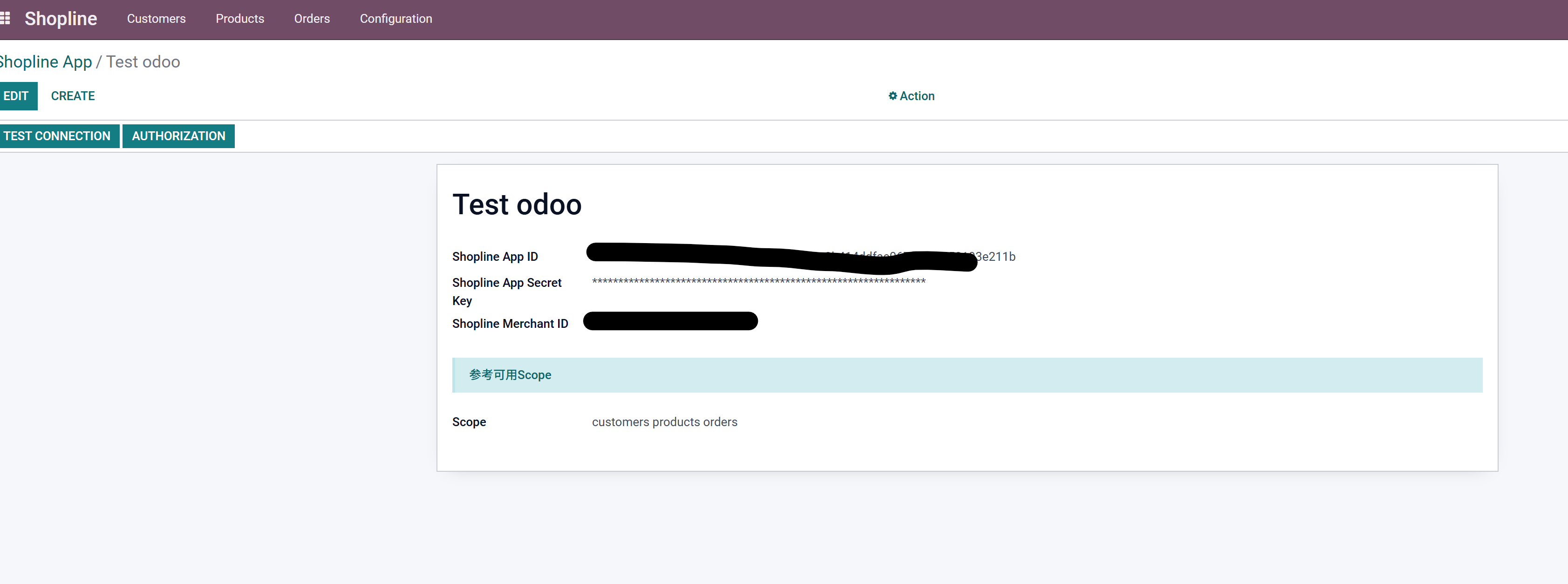
Click the test connection button to check whether the configuration is correct.
Authorization
After settings are valid, click the authorization button. Odoo redirects to Shopline for authorization and returns to Odoo after success. The Shopline functions can then be used normally.
Synchronize Customers
Click synchronize customers in settings to import Shopline customers into Odoo.
Available option:
| Option | Description |
|---|---|
| Bind Company | If enabled, synchronized customers are linked to the current company. |
Synchronize Products
After customers, synchronize products from the settings menu.
Product synchronization includes:
| Field |
|---|
| Name |
| Image |
| Weight |
| SKU |
| Barcode |
| Sales price |
| Cost price |
If Shopline products have variants, variants are synchronized into Odoo as well. Shopline supports up to three variant dimensions per product. Shopline variant SKUs may duplicate, but Odoo SKUs should not; if duplicated SKUs exist in Shopline, the synchronized Odoo SKU may be empty.
Product Synchronization Logic
Shopline supports custom attributes, up to three. During product synchronization, Odoo first synchronizes the product template. If variants exist, Odoo synchronizes the variant attributes and then synchronizes variants.
For variant attribute names, English names are preferred. If English names do not exist, Traditional Chinese (zh-hant) names are used.
Bind Company
Products can also be bound to the current company during synchronization.
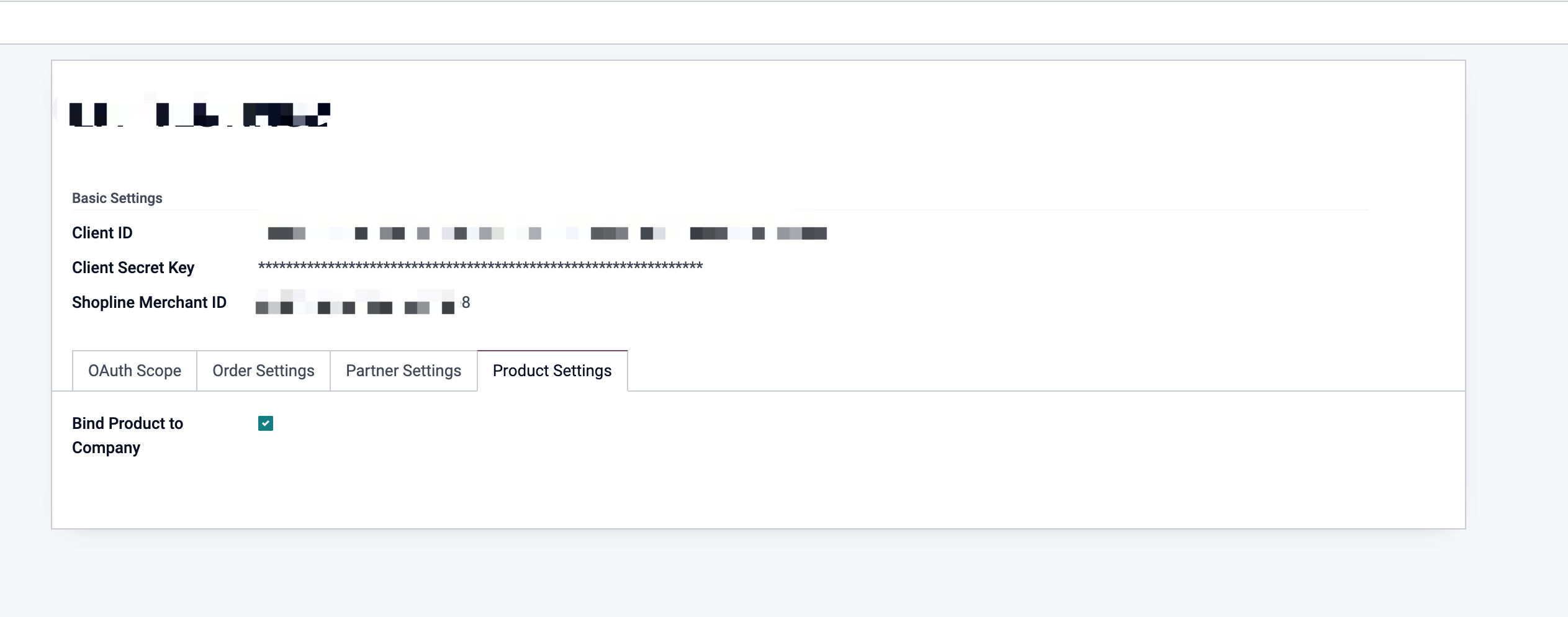
When enabled, products synchronized from Shopline are only available to the current company.
Synchronize Orders
Order synchronization includes several options.
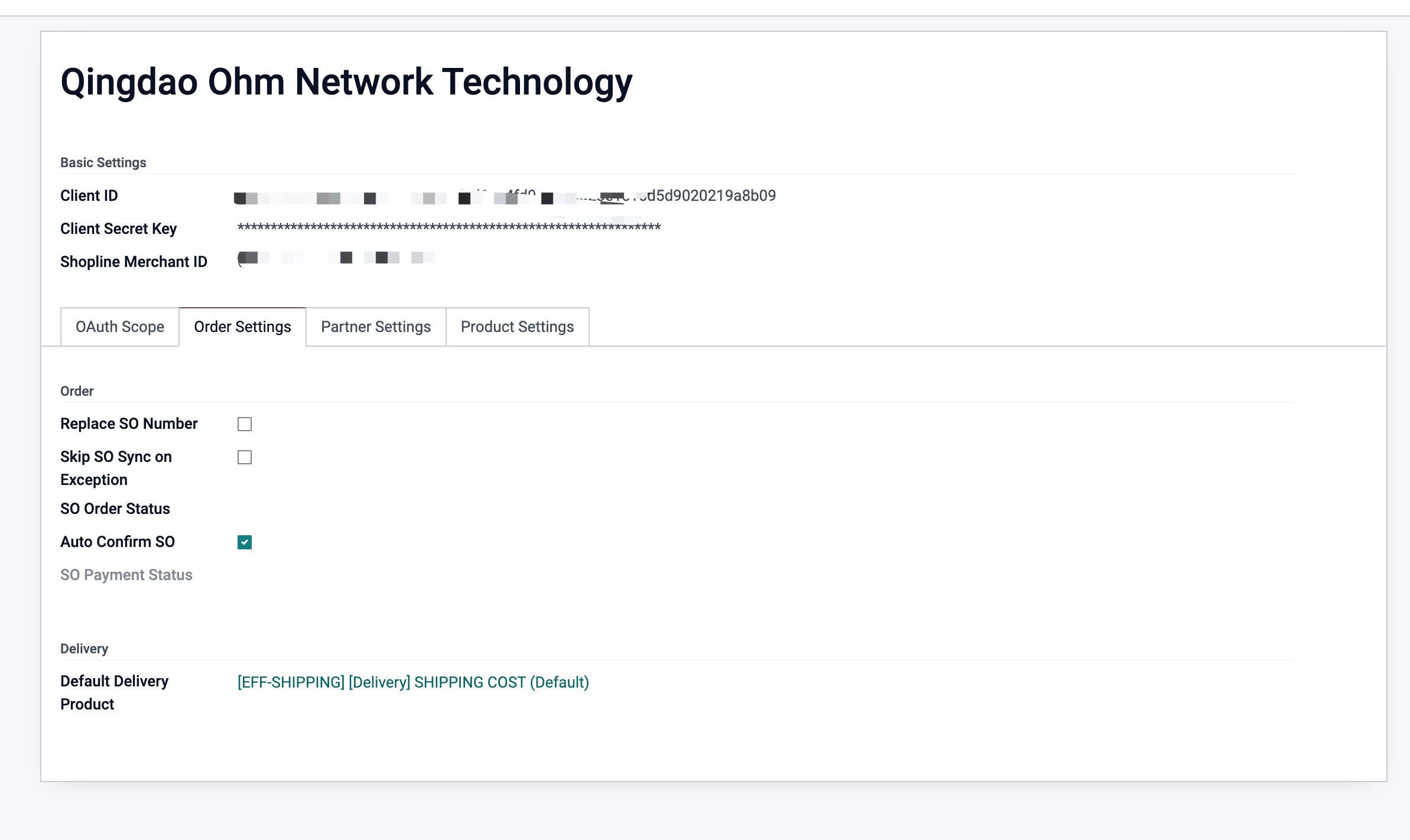
| Option | Description |
|---|---|
| Replace Order Number | Use Shopline's order number as the Odoo order number. |
| Silent Exception | Do not interrupt users with errors during synchronization. |
| Order Status | Synchronize only selected Shopline statuses; if empty, synchronize all statuses. |
| Auto Confirm | Automatically confirm synchronized orders. Existing confirmed orders are skipped. |
| Payment Status | Synchronize only selected payment statuses; if empty, synchronize all orders. |
If the Shopline order includes a delivery method, Odoo can also synchronize it. Configure a default shipping product first.
Click synchronize orders.
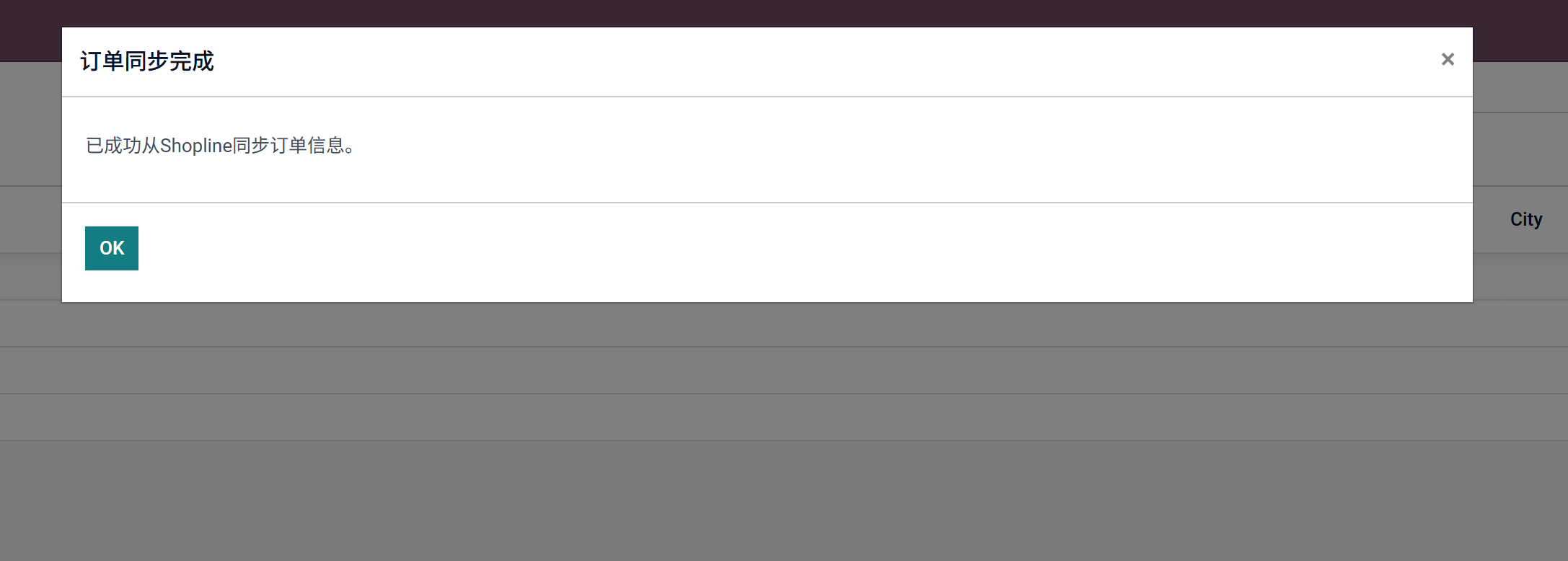
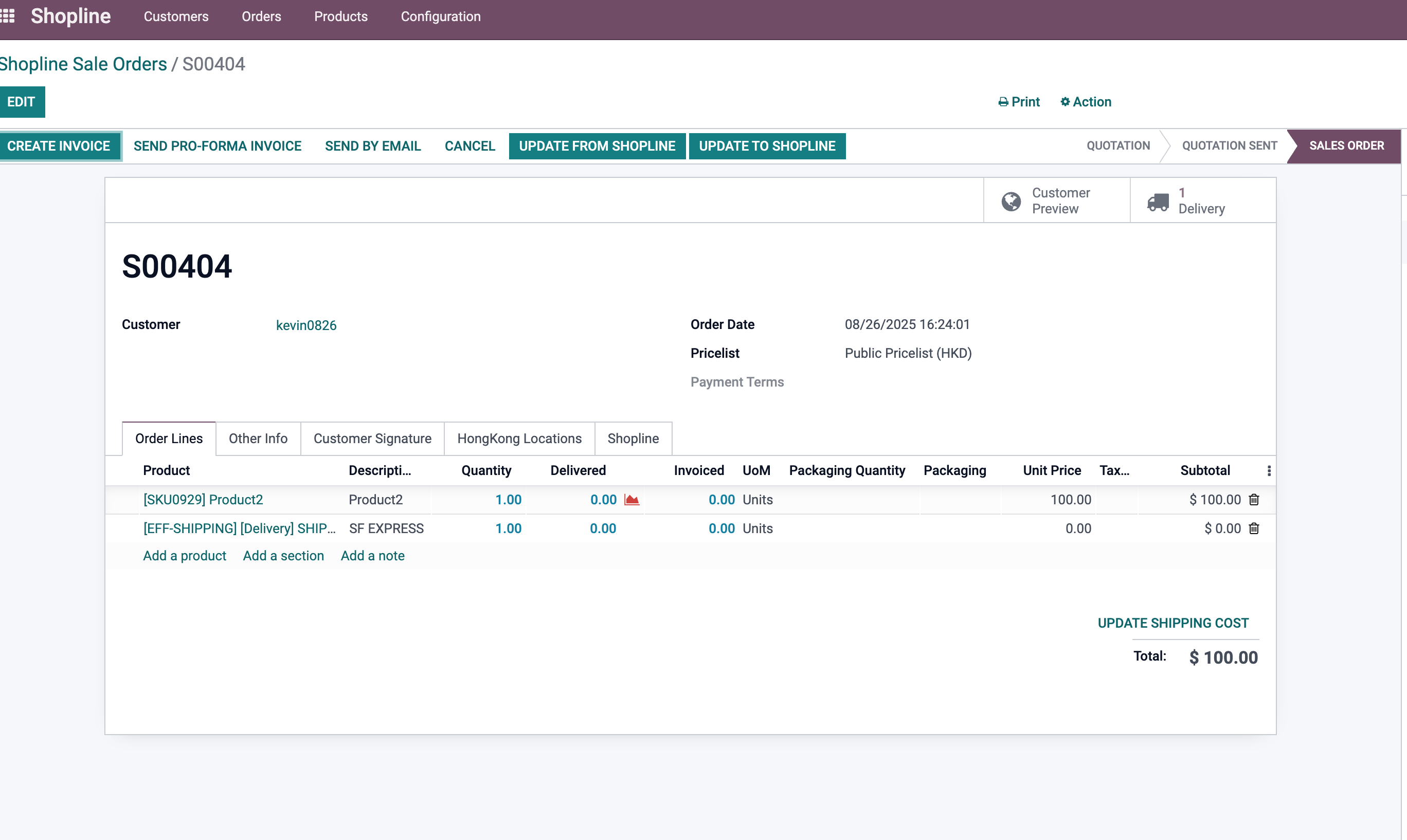
Shopline shipping methods may not map directly to Odoo carriers. Users can synchronize the shipping method first and then match it to Odoo delivery carriers manually.
Upload Shipment Status And Tracking Number
After completing delivery in Odoo, upload shipment status and tracking number back to Shopline by clicking the upload button on the order.
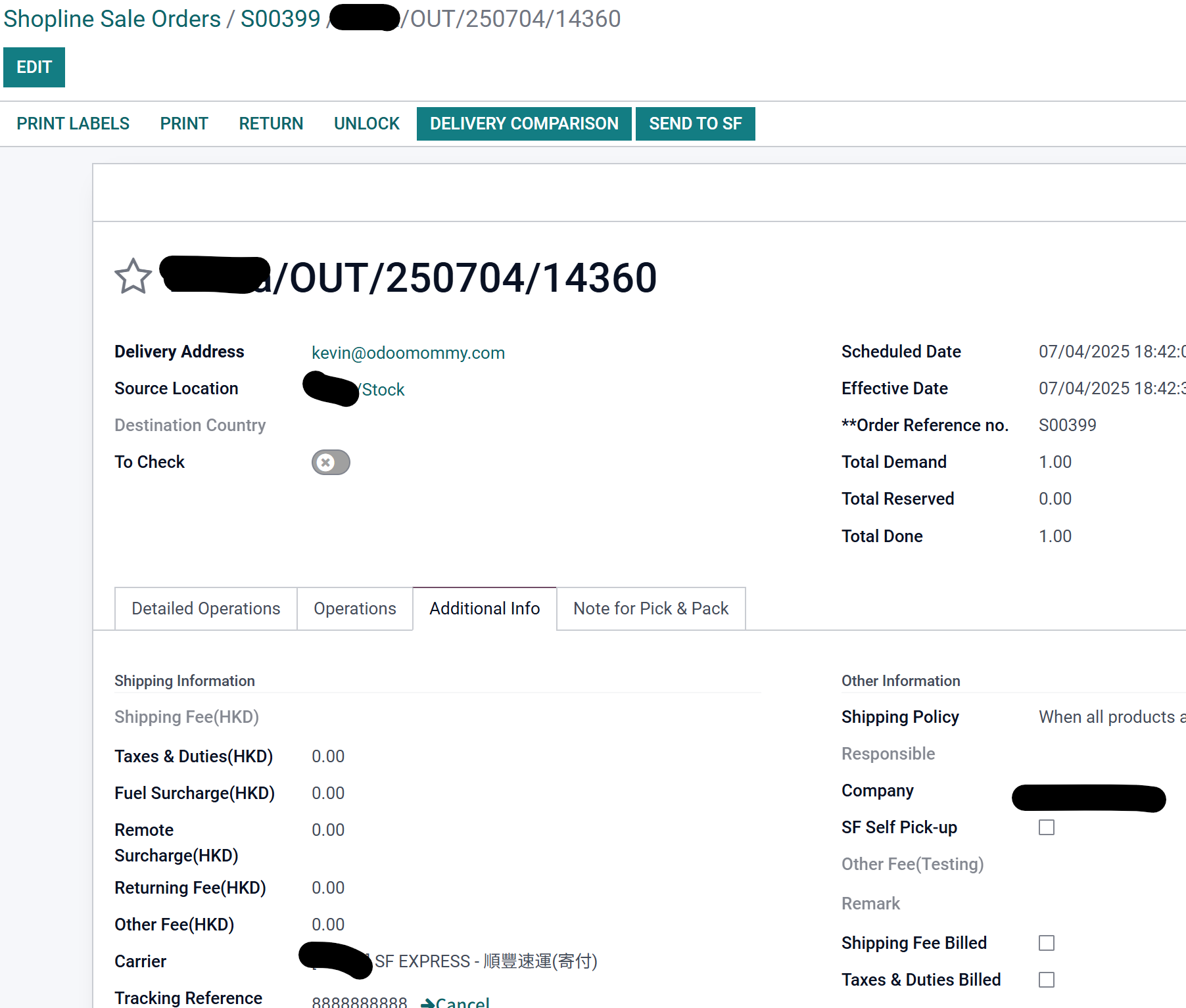
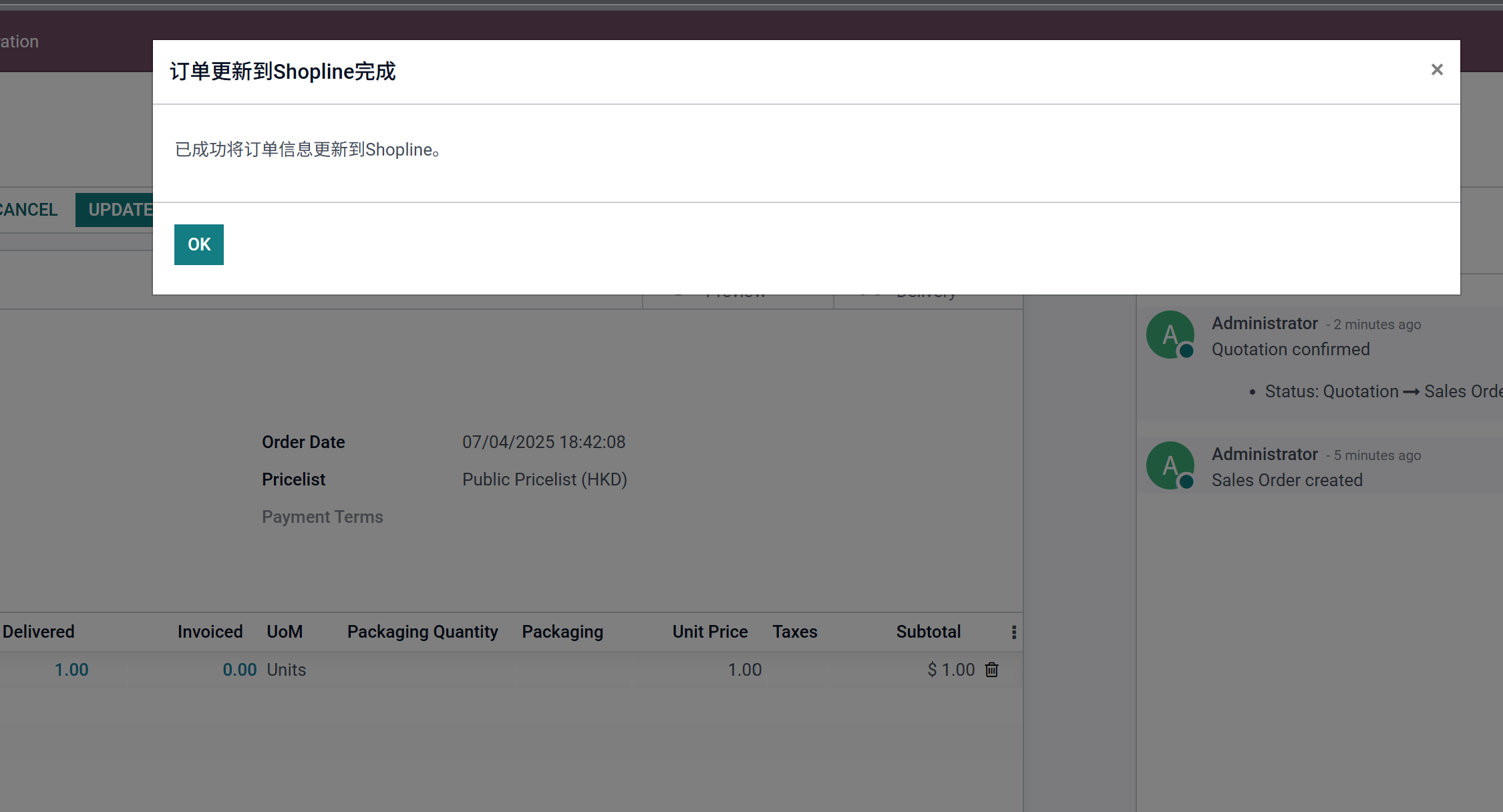
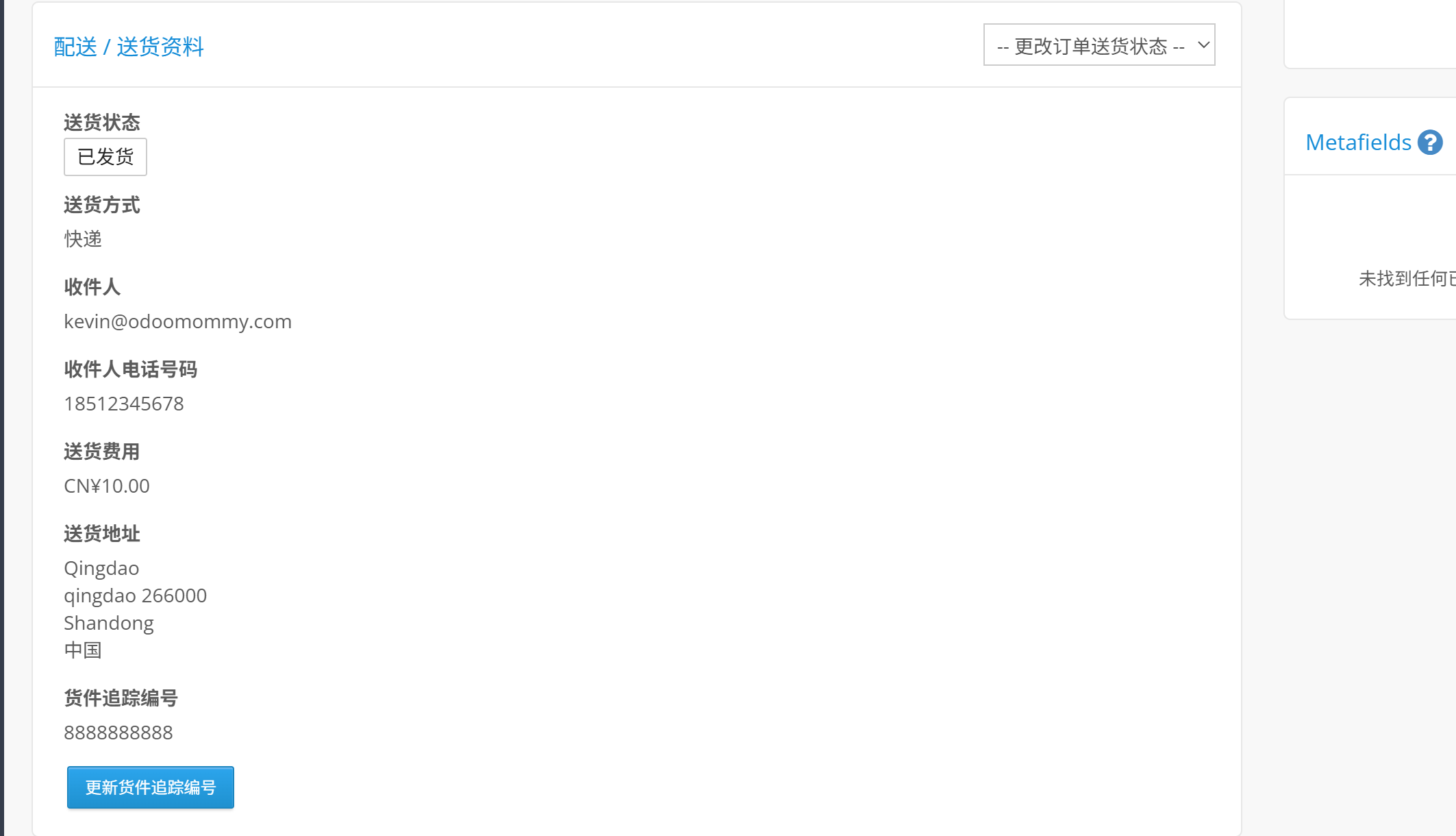
In the Shopline merchant backend, the order is marked as shipped and the tracking number is available.
Conclusion
The current integration covers foundational Shopline operations: authorization, customer synchronization, product synchronization, order synchronization, and shipment status upload. More practical features can be added as business requirements grow.