Chapter 8 Messages And Discuss
Odoo natively embeds communication into business documents. Sales quotations, customer invoices, project tasks, purchase orders, and contacts often have a message area on the right side, commonly called the chatter. It can send messages, record internal notes, schedule activities, manage attachments, track followers, and keep key records from document creation to completion.
For companies, the chatter is not just a chat box. It is an entry point for business traceability and collaboration. It reduces information loss caused by WeChat groups, personal email, and verbal handover, and helps new colleagues quickly understand what happened on a document. This chapter explains how to use Odoo chatter, which content may notify customers, which content should remain internal, and how domestic projects can extend notifications with WeCom, Lark, and similar tools.
Where The Chatter Is
On forms such as quotations, sales orders, customers, invoices, and project tasks, the chatter usually appears on the right side.
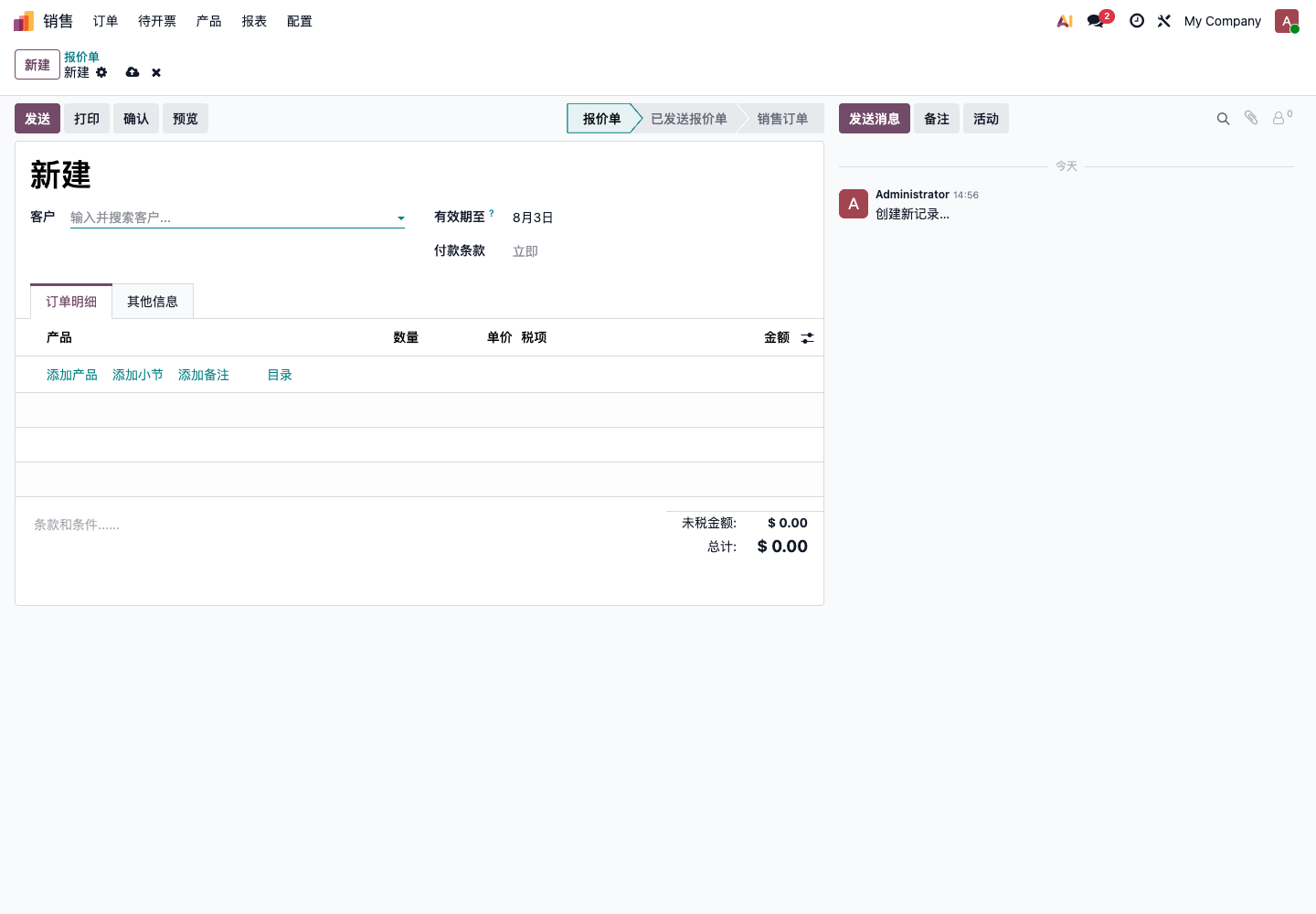
Common buttons and areas:
| Feature | Usage |
|---|---|
| Send Message | Send formal messages to customers, followers, or selected recipients |
| Log Note | Record internal notes, usually not sent to customers |
| Activities | Schedule calls, emails, meetings, to-dos, and follow-up actions |
| Attachments | Upload, view, and manage attachments for the current record |
| Followers | Control who follows this record and who may receive notifications |
| History | View changes, communication, attachments, and activities |
Different modules may display the chatter differently, but the core logic is the same. If a document has chatter, communication can be stored around that document.
What Problems The Chatter Solves
Without chatter, internal communication often looks like this:
Customer requirements are in WeChat
Quotation attachments are in email
Contract versions are on someone's computer
Collection records are in finance Excel
After-sales issues are in group chat
When the owner asks for progress, everyone searches records again
The value of Odoo chatter is to bring scattered information back to the business object.
For example, a sales order can record:
- When the quotation was sent to the customer;
- Whether the customer replied by email;
- Whether sales followed up by phone;
- Whether internal notes mention special delivery requirements;
- Whether finance uploaded a payment proof;
- Whether warehouse saw delivery instructions;
- Which employees followed the order;
- Whether the customer viewed the document through the portal.
From a management perspective, the document is no longer only fields and status. It has context.
Difference Between Send Message And Log Note
This is the most important distinction for employee training.
| Type | May Be External? | Typical Usage |
|---|---|---|
| Send Message | May be sent to customers, followers, or selected recipients | Explain quotations, send order updates, answer customer questions |
| Log Note | Usually internal only | Internal handover, risk notes, phone records, processing notes |
Simple rule:
- Use Send Message when the customer should see it;
- Use Log Note for internal traceability;
- If unsure whether the customer can see it, do not write sensitive content first.
Examples:
| Scenario | Recommended Method |
|---|---|
| "The quotation has been updated. Please confirm the attachment." | Send Message |
| "Customer verbally requested delivery before Friday. Warehouse please note." | Log Note |
| "This customer pays slowly. Require advance payment next time." | Log Note, with careful wording and permission awareness |
| "The invoice has been issued. Please check." | Send Message |
During implementation, explain this clearly. Many first-time users worry about whether internal comments will be visible to customers. This should be tested with email configuration, followers, message type, and recipients, not guessed.
Relationship Between Email And Chatter
The previous chapter covered email configuration. Here we connect email with chatter.
If email is configured correctly, messages sent from a document are recorded in the chatter. Customer replies may also return to the same document.
Sales order chatter -> Send quotation email -> Customer mailbox
Customer reply -> Incoming server / catch-all -> Odoo mail routing -> Sales order chatter
This chain depends on:
- Outgoing mail server can send properly;
- Incoming server, catch-all, or mail gateway can receive replies;
- Reply address is not blocked by the email provider;
- Email headers can match the original document;
- Followers and recipients are set properly.
If mail configuration is incomplete, chatter can still record internal notes, activities, and attachments, but customer replies may not automatically return to Odoo. For self-implementation, internal collaboration can start first, then customer reply archiving can be improved gradually.
Check Recipients Before Sending
Odoo uses a mail composer wizard in many business objects.
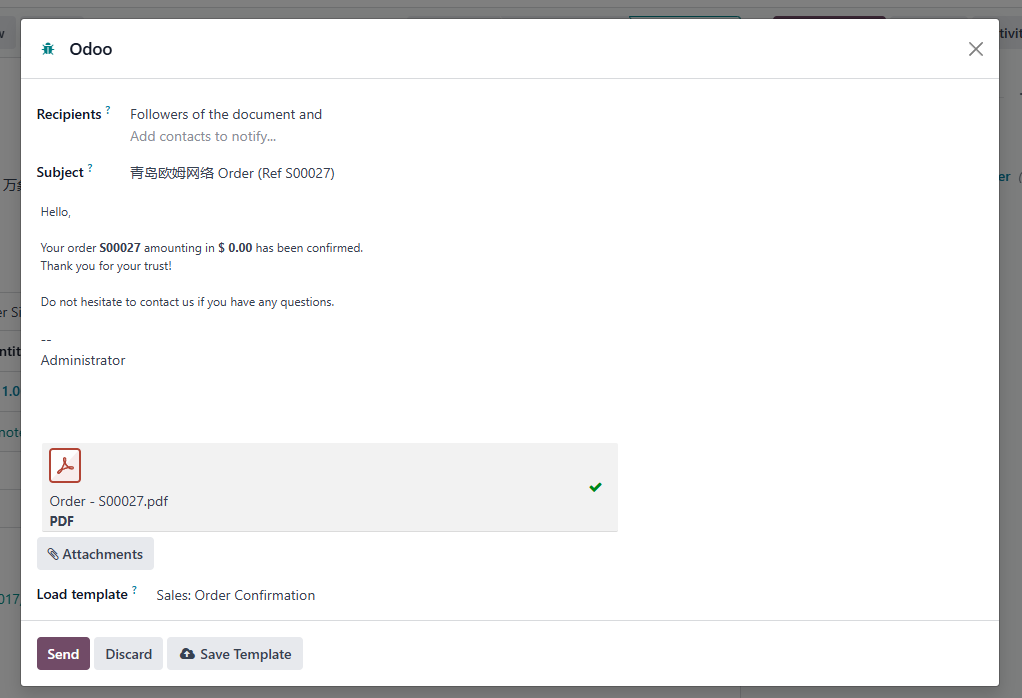
The wizard usually includes:
- Recipients;
- Subject;
- Body;
- Template;
- Attachments;
- Send button.
The composer may work in different modes, such as comment mode and mass mailing mode. Comment mode posts the message to the current document chatter and may notify followers. Mass mailing mode is more oriented toward batch sending and may not use the same message subtype.

If a customer asks, "Why did this person also receive the email?", usually check three things:
- Recipients in the mail composer;
- Followers of the current record;
- Message subtype and notification preferences.
Before sending, employees should check not only the body but also recipients and attachments, especially for quotations, invoices, contracts, and after-sales disputes.
Followers
Followers are people who follow messages on the current record. Depending on the situation, the system may automatically add the creator, responsible person, customer, salesperson, or related users.
Followers are suitable for:
- Sales following their quotations and customers;
- Finance following customer invoices and collection records;
- Project members following task progress;
- Purchase following vendor orders;
- Customers receiving order and invoice updates through the portal.
But more followers are not always better.
| Problem | Impact |
|---|---|
| Too many notifications | Employees gradually ignore Odoo reminders |
| Unclear boundary | People who should not receive messages may receive business information |
Implementation advice: whoever is responsible for the document should follow it; whoever needs to collaborate should follow it; people who only occasionally view it do not necessarily need to follow.
What Are Activities
Activities are Odoo to-do reminders. They are not ordinary notes. They have a responsible user, due date, and activity type.
Activities can be created on records with chatter and can also be scheduled from kanban, list, or activity views.
Common activity types:
- Call;
- Send email;
- Schedule meeting;
- Upload document;
- Follow up quotation;
- Collect payment;
- Review information;
- Handle after-sales issue.
For example, after creating a quotation, a salesperson can schedule a follow-up call three days later. When due, the system reminds the salesperson.
The value of activities is to turn "remember to follow up" into a trackable system task. Managers can also see overdue activities, opportunities needing follow-up, and invoices needing collection.
How To Use Activities
Do not overuse activities. They are suitable for items with a clear owner and deadline.
| Scenario | Suitable For Activity? | Description |
|---|---|---|
| Contact customer in three days to confirm quotation | Yes | Has owner, date, and action |
| Finance collects an overdue invoice next week | Yes | Builds a collection rhythm |
| Project manager reviews requirement document tomorrow | Yes | Clear task and deadline |
| Write a casual customer background note | No | Better as internal note |
| Upload contract attachment | No | Better as attachment and note |
At go-live, start with sales follow-up, finance collection, and project task activities. Do not create activities for every action from day one, or employees will feel the system keeps chasing them everywhere.
Attachments
The chatter can also manage attachments.
Common attachments:
- Customer contracts;
- Quotation PDFs;
- Invoice PDFs;
- Payment proofs;
- Delivery receipts;
- Customer images;
- Project files;
- After-sales photos.
After upload, attachments are linked to the related document. Later, when opening the order, invoice, or task, users can see the related files.
Attachment management suggestions:
- Upload files to the correct document, not all to the customer profile;
- Use understandable filenames, such as
2026-06-quotation-confirmed.pdf; - Upload key documents such as contracts, invoices, and signed delivery slips to business records;
- Do not upload many unrelated files;
- Pay attention to permissions for private or sensitive documents.
Attachments are part of business evidence, not just file storage.
Value Of Message History
The greatest value of chatter is traceability.
It can answer:
- When was this quotation sent?
- Did the customer reply?
- Who changed the document?
- Who internally noted a risk?
- Which attachments relate to this document?
- Which employee should follow up next?
- Did the customer receive the portal link?
- Has finance already collected payment?
- What is the status of after-sales handling?
These records are valuable for sales, projects, after-sales service, and finance collection. During employee handover, the new owner does not need to ask everywhere what happened before; the chatter already provides much of the context.
Message Subtypes
After a team uses chatter heavily, a common question appears: why do some messages notify customers while others are internal only? This is related to Odoo mail threads, followers, and message subtypes.
Technically, many Odoo models have chatter because they inherit mail thread capabilities. The right side of the form then provides send message, log note, activities, attachments, and followers.
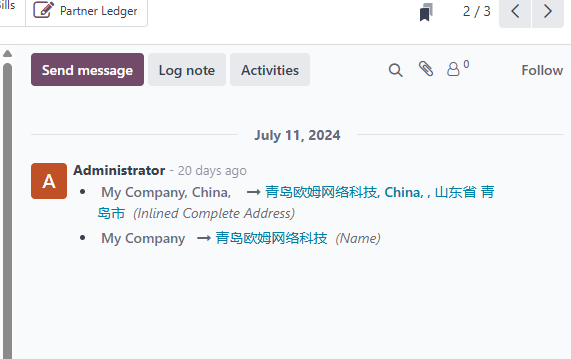
Odoo uses message subtypes to distinguish different kinds of messages and notifications.
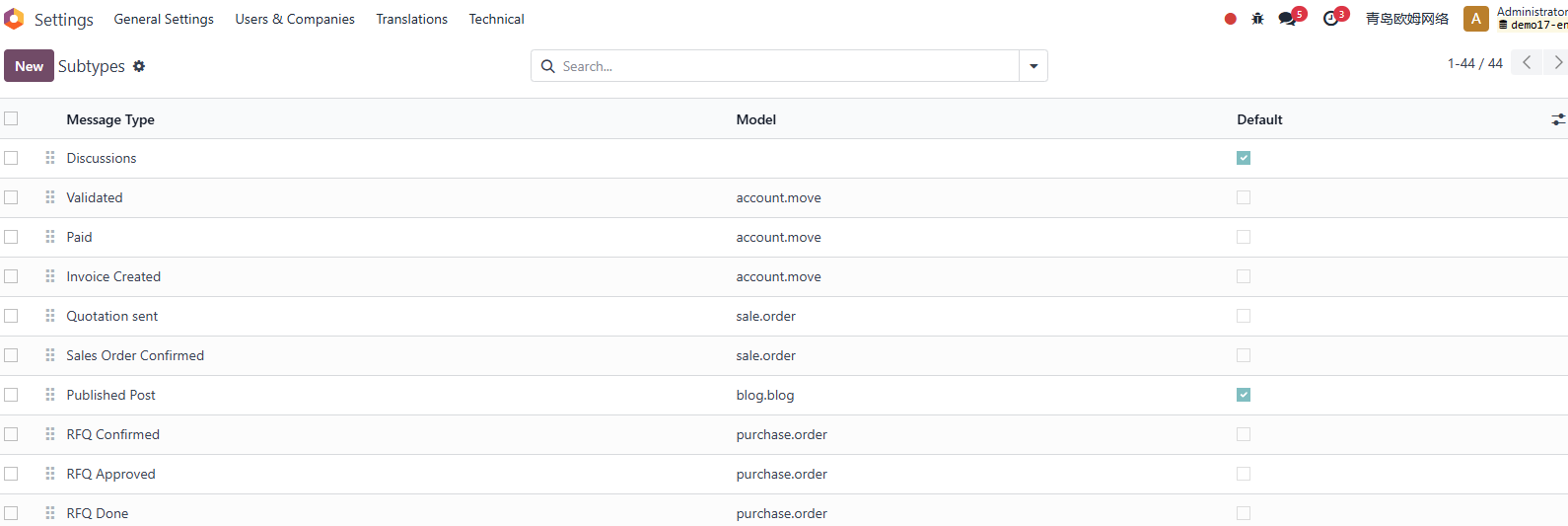
Message subtype details:
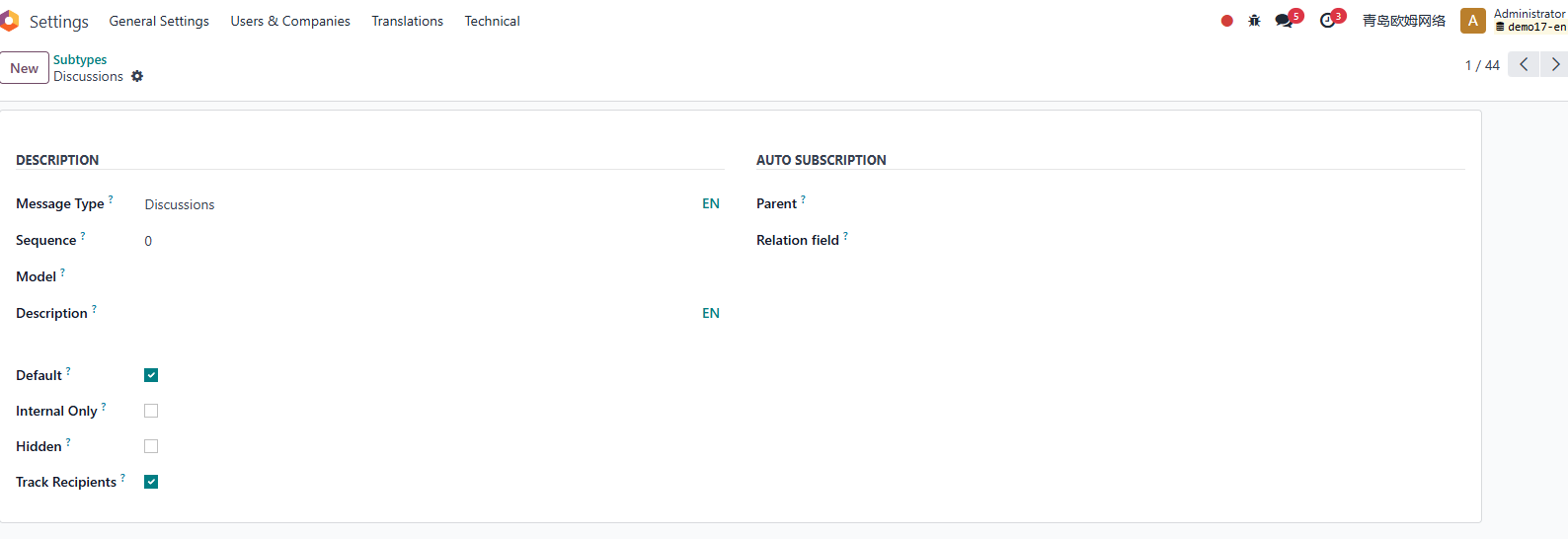
Common fields:
| Field | Description |
|---|---|
| Message Type | Subtype name |
| Sequence | Display order |
| Model | Model where the subtype applies; empty means more general |
| Default | Whether it is subscribed by default when following |
| Internal Only | Whether it is visible only to internal users |
| Hidden | Whether it is hidden in follower settings |
| Parent | Whether subscribing to the parent also subscribes to the child |
Most customers do not need to modify message subtypes directly. Consultants and developers should understand them because many notification issues eventually come down to followers, subscribed subtypes, and whether a message is internal.
Notification Preferences
Odoo users can have their own notification preferences. Depending on version and configuration, notifications may appear as:
- Odoo top-right notifications;
- Messages in the Discuss app;
- Email notifications;
- Activity reminders;
- Mobile app notifications.
This is why the same message may send an email to one user but only show a system reminder to another.
Implementation explanation:
Who receives a message is decided by recipients, followers, and subtypes.
How the message is notified is decided by user notification preferences and system configuration.
Do not understand every notification as email. Odoo itself is a collaboration system. Email is only one notification channel.
Discuss App And Chatter
Odoo also has a Discuss app for chats, channels, and system notifications.
Relationship:
| Feature | Suitable Content |
|---|---|
| Document chatter | Business communication around a quotation, invoice, task, or customer |
| Discuss app | Team channels, direct messages, cross-module notifications |
If content relates to a specific order, write it in that order's chatter. If it is only daily team discussion, put it in a Discuss channel.
This makes business evidence easier to find later. Instead of searching through massive chats, users can open the related document.
WeCom And Lark Notifications In China
Domestic customers often prefer receiving notifications in WeCom, Lark, DingTalk, or similar tools. Odoo's native collaboration center is still chatter, activities, and Discuss. In implementation projects, key notifications can also be pushed to enterprise office tools.
Qingdao Ohm Network Technology already has WeCom and Lark related solutions for employee synchronization, OAuth login, message push, robot notifications, and similar scenarios. This chapter does not expand configuration details; it only reminds customers that if employees want to receive key Odoo messages in WeCom or Lark, these integrations can be evaluated after the native message mechanism is stable.
Suitable scenarios:
- Employees do not open Odoo frequently but check WeCom or Lark;
- Approvals, to-dos, and exception reminders need timely delivery;
- Notifications from multiple systems should be unified into company office tools;
- Management wants key business reminders to arrive faster.
However, message push is not a replacement for Odoo chatter. A better approach is: Odoo keeps business records and permission boundaries, while WeCom/Lark provides timely reminders.
Common Usage Rules
After enabling chatter, set a few simple team rules:
- Be careful with content customers may see;
- Use internal notes for internal discussion, not customer messages;
- Record important phone communication as a note;
- Schedule follow-up activity after sending a quotation;
- Record collection communication when finance follows up payment;
- Name attachments clearly;
- Do not add everyone as a follower;
- Before employee handover, check key customer and unfinished document message history.
These rules are simple but useful. When used well, chatter becomes the company's business memory. When used poorly, it becomes another pile of ignored messages.
Common Issues
| Issue | Common Cause | Direction |
|---|---|---|
| Customer did not receive email | Email configuration, spam, template, or recipient issue | Check mail configuration and mail records |
| Employees receive too many reminders | Too many followers or subtype subscriptions | Clean followers and notification preferences |
| Internal note sent to customer | Used Send Message, or template/recipient configured incorrectly | Train employees to distinguish send message and log note |
| Cannot find attachment | Uploaded to wrong document or filename is unclear | Standardize attachment naming and upload location |
| Activity not handled | No owner, no due date, or no management rhythm | Define activity type and owner |
| Customer reply does not enter document | Incoming server, catch-all, or mail routing not configured | Troubleshoot from the email configuration chapter |
| Communication is scattered | WeChat, email, and Odoo all used randomly | Bring key business information back to the related document |
When troubleshooting, do not only ask whether the system is broken. First check how the message was generated, who received it, which channel notified them, and whether an email server was involved.
Implementation Advice
Messages and Discuss do not need to wait until all modules are live. Start from the scenarios that create value most easily.
| Stage | Recommendation |
|---|---|
| Stage 1 | Use chatter and notes on sales quotations, customer invoices, and project tasks |
| Stage 2 | Use activities for sales follow-up, finance collection, and project collaboration |
| Stage 3 | Standardize followers, attachment naming, and customer-visible content |
| Stage 4 | Based on employee habits, evaluate WeCom, Lark, and other reminder integrations |
For beginners, remember three actions first: use Send Message for external communication, Log Note for internal traceability, and Activities for future tasks. Once the team gets used to putting key communication back into Odoo, sales, finance, project, and after-sales records naturally become clearer.
This chapter covered Odoo chatter, Send Message, internal notes, activities, followers, attachments, message subtypes, and domestic message integration ideas. The next chapter moves to Reports and explains how Odoo turns daily business data into management information that can be viewed, filtered, and exported.