Chapter 3 Payments
After understanding customer invoices and vendor bills, the next step is payment. Odoo supports customer payments, vendor payments, partial payments, manual matching with existing payments, cash payments, online payments, and customer follow-up reminders.
Customer And Vendor Payments
After customer or vendor invoices are created, waiting payments can be seen from the Accounting dashboard.
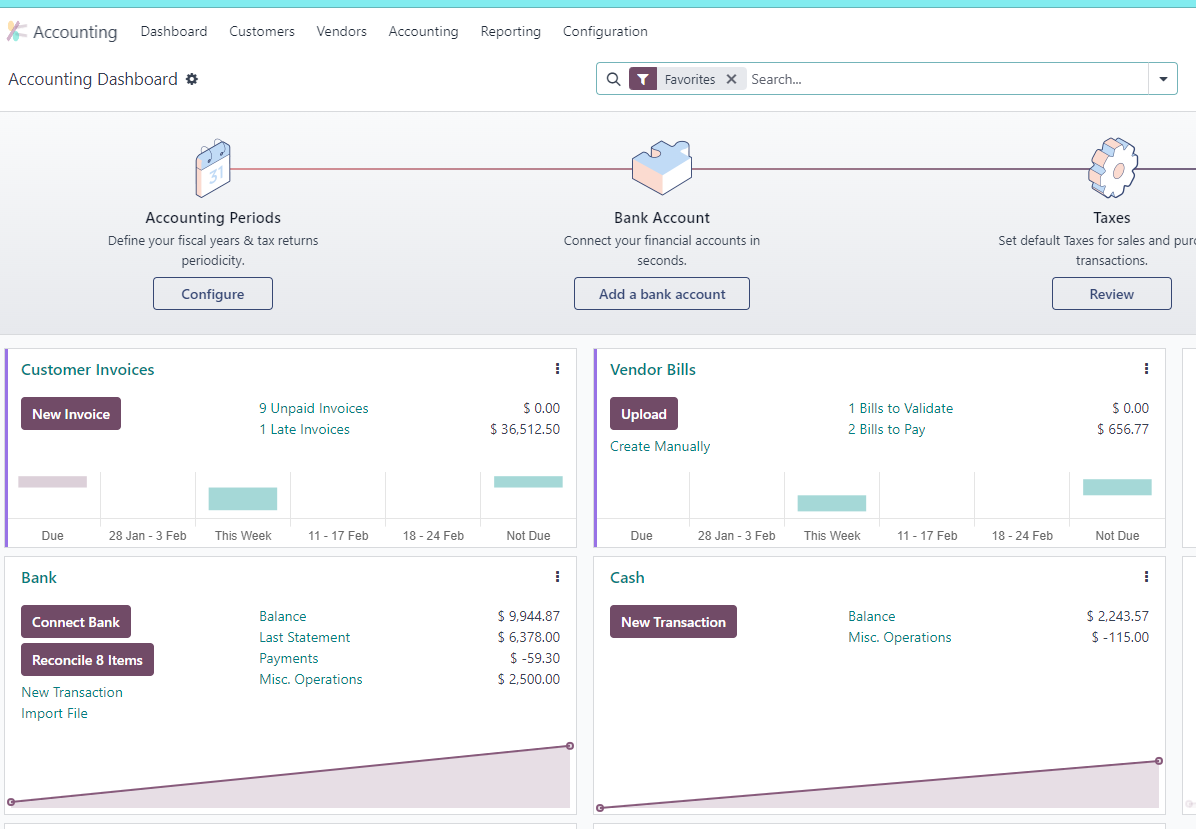
In normal cases, select the invoice or bill and click Register Payment.
Multiple Payments
By default, the payment amount equals the full invoice or bill amount. To pay in multiple installments, change the payment amount.
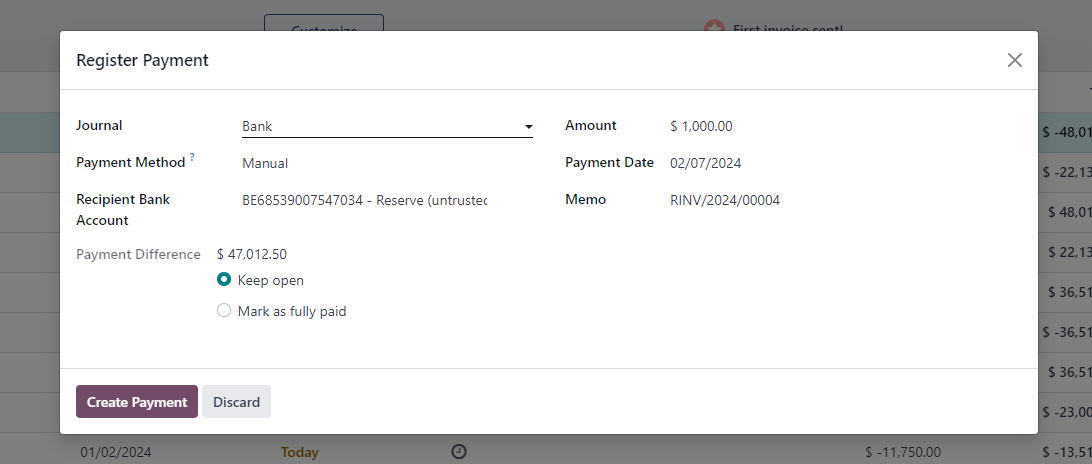
Odoo offers two choices:
| Option | Meaning |
|---|---|
| Keep open | The invoice or bill remains partially unpaid |
| Mark as fully paid | The remaining amount will not be paid for some reason and the document is treated as fully paid |
Use "Mark as fully paid" carefully because it affects receivable or payable follow-up.
Match A Bill With Existing Payment
Register Payment from an invoice automatically links the payment and invoice. However, sometimes payments and invoices are separate. For example, a customer may have credit from a previous refund or a balance paid earlier.
In this case, manually match the extra payment with the invoice.
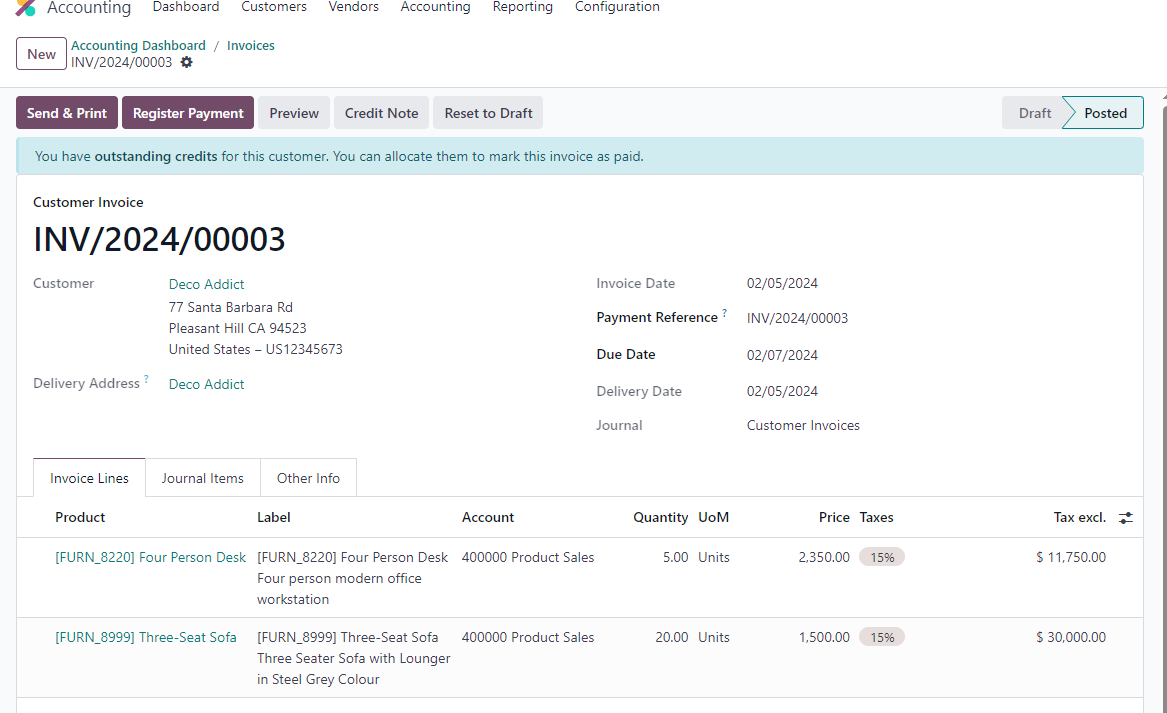
Odoo shows a light-blue suggestion box on the invoice when available payments can be matched. Select the payment from the list and click Add to reconcile it with the invoice.
Pay With A Cash Account
Normally, when paying a vendor bill from a bank journal, the bill may become In Payment until bank reconciliation is completed. If a cash journal is used, can the bill skip this state and become Paid directly?
Yes.
Open Accounting -> Configuration -> Journals, find the cash journal, and show the Outstanding Payments Account in outgoing payment settings.
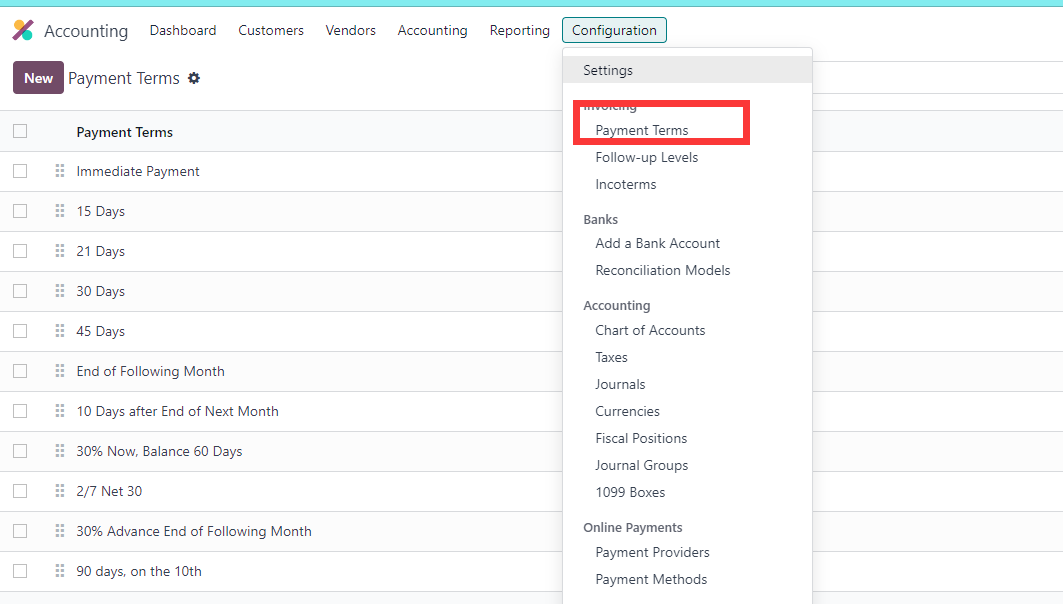
Set it to the cash account. Then when paying a vendor bill with the cash journal, the payment result can become Paid directly.
Online Payments
Besides cash and bank payments, Odoo supports online payment providers.
Enable online payment in Settings -> Sales -> Quotations and Orders -> Online Payment.
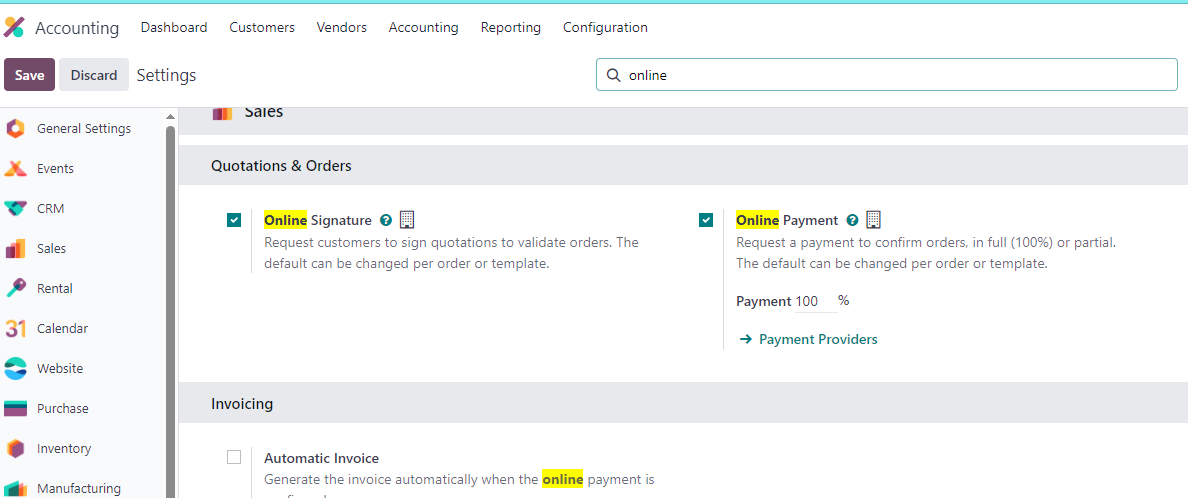
Odoo shows the default list of supported online payment providers.
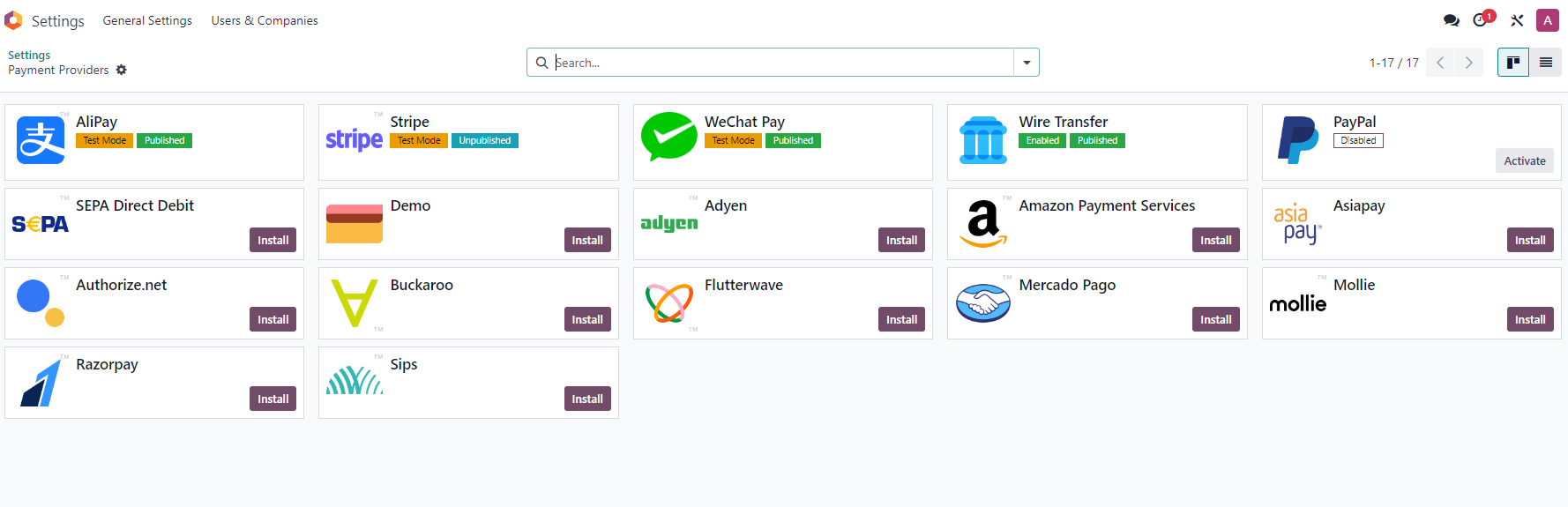
Activate the provider needed by the company.
Alipay And WeChat Pay
For Mainland China users, Alipay and WeChat Pay are common requirements. Qingdao Ohm's general solutions include support for Alipay and WeChat Pay.
Readers can learn more through OdooHub or the developer tutorial appendix.
Customer Payment Follow-Up
After setting payment terms, Odoo can remind customers to pay according to due dates. In Customers -> Follow-up Reports, users can see the list of customers who need payment reminders.
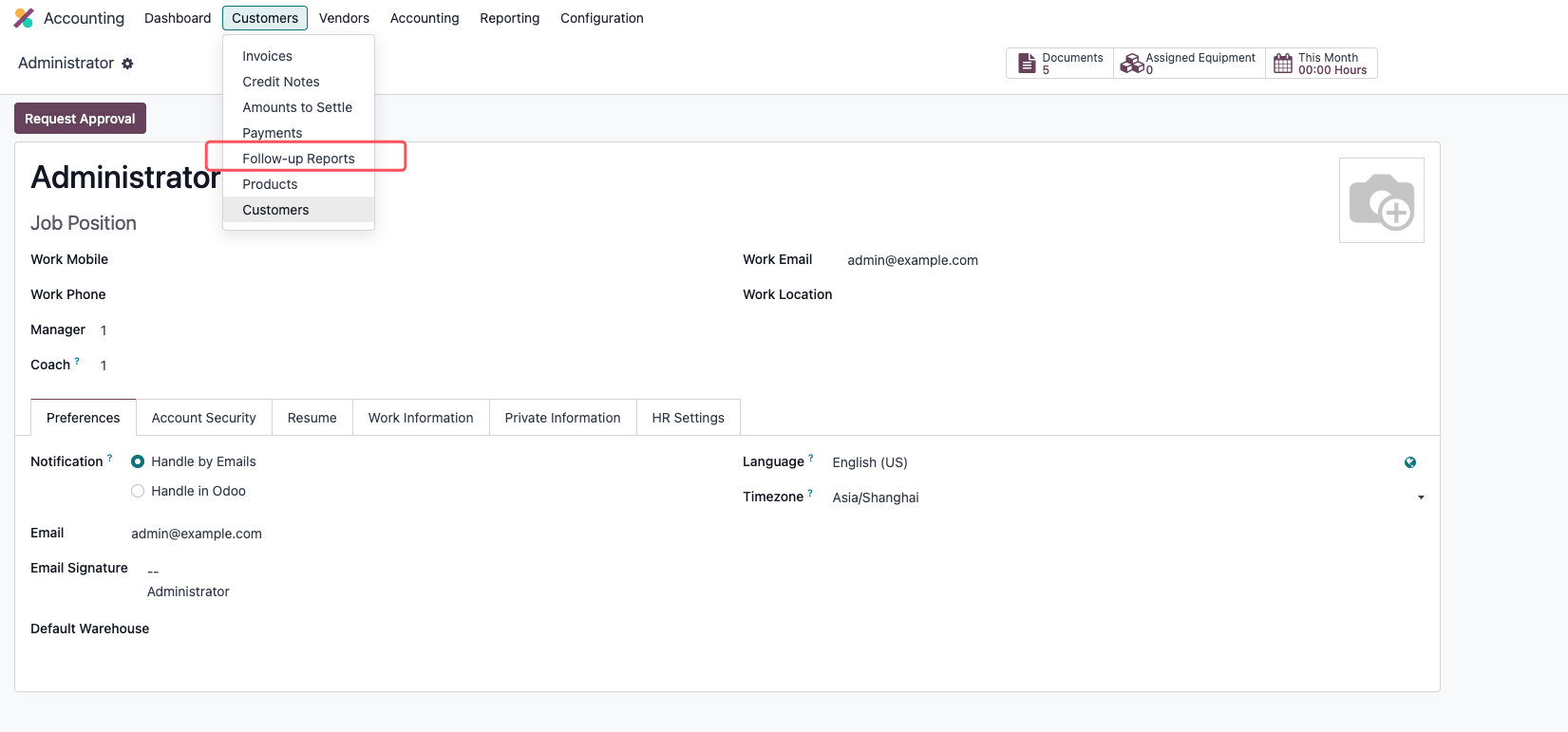
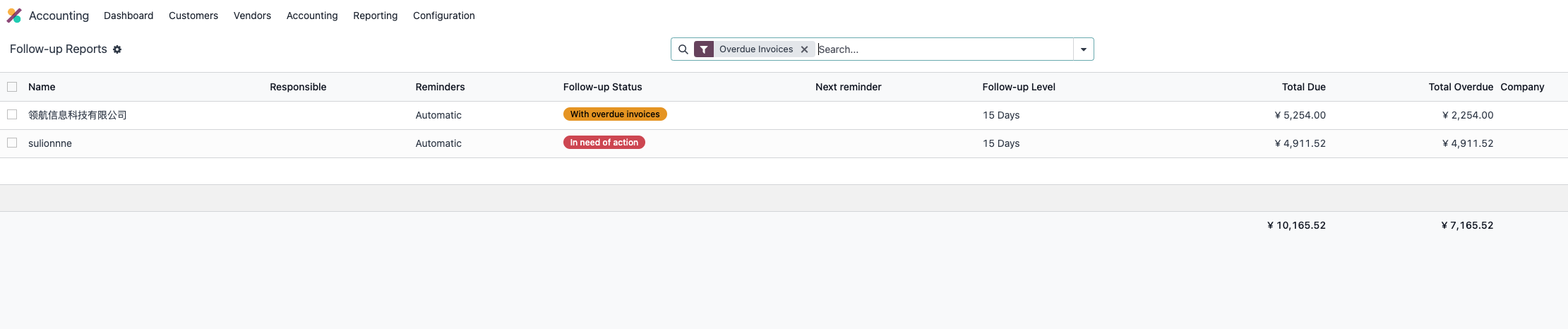
Open one record and click Follow Up to choose a reminder method.
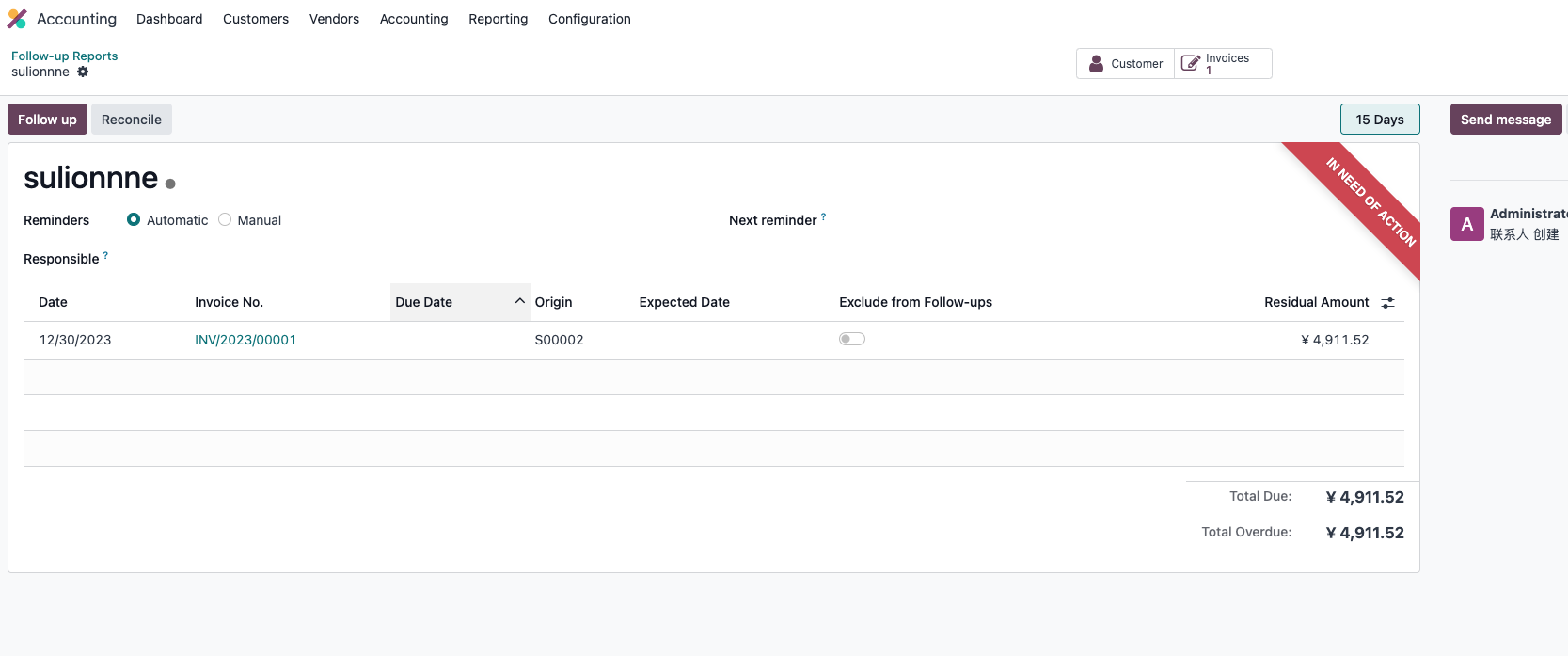
Follow-up methods include:
- Email.
- Print.
- SMS.
- Post.
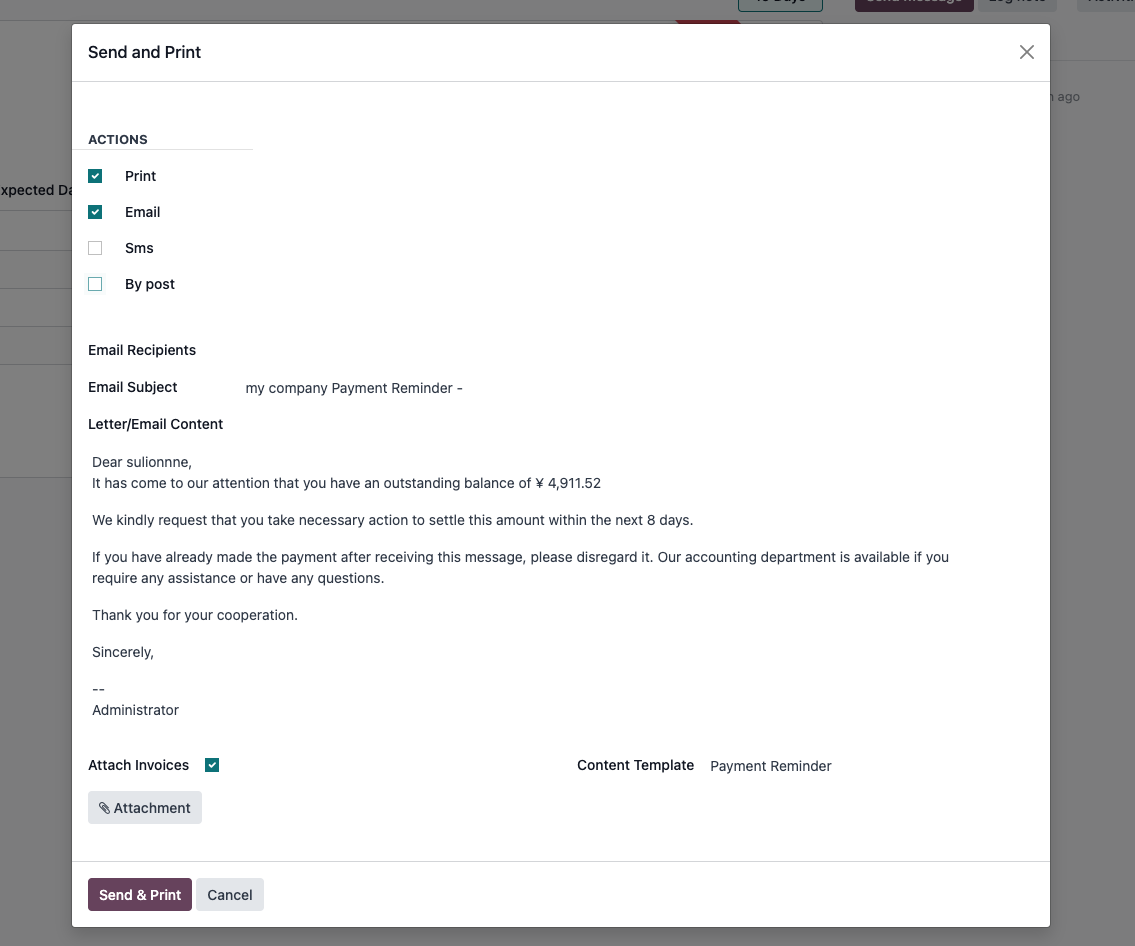
Choose the method according to the company's collection process.
Follow-Up Levels
Follow-up levels can be configured under Settings -> Invoicing -> Follow-up Levels.
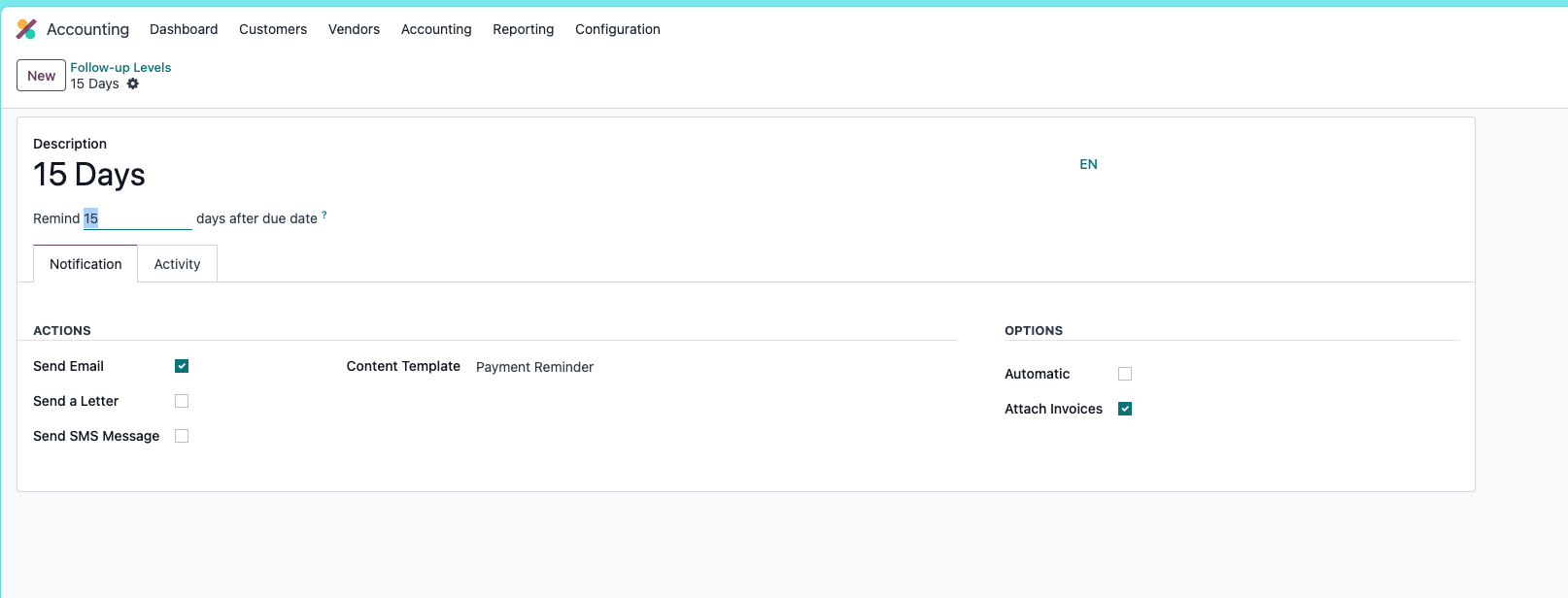
For example, the company can remind customers a few days before due date, then send another reminder after overdue days, and continue with third or fourth reminders.
This chapter explained payment registration, partial payments, matching existing payments, cash payments, online payments, and customer follow-up reminders. The next chapter explains customer statements.