Chapter 1 POS Product Management
Products are the foundation of POS operation. Before cashiers can sell an item in the POS interface, the product must be configured correctly in Odoo: it must be available in POS, have the right product type, price, category, barcode, variants, and in some cases combo options.
This chapter explains how to prepare products for POS sales.
Create POS Products
To make a product available in POS, open the product form and enable Available in POS.
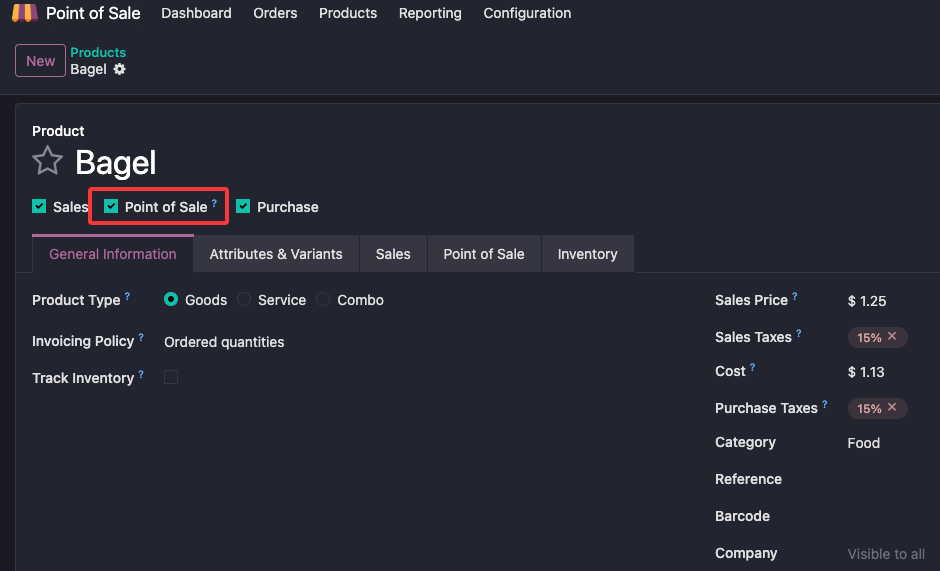
After this option is enabled, the product can be loaded into the POS frontend according to the selected POS configuration and product filters.
Quick Create POS Products
Odoo also provides a quick product creation flow directly from the POS interface. In the POS screen, click the product creation menu in the upper-right corner.
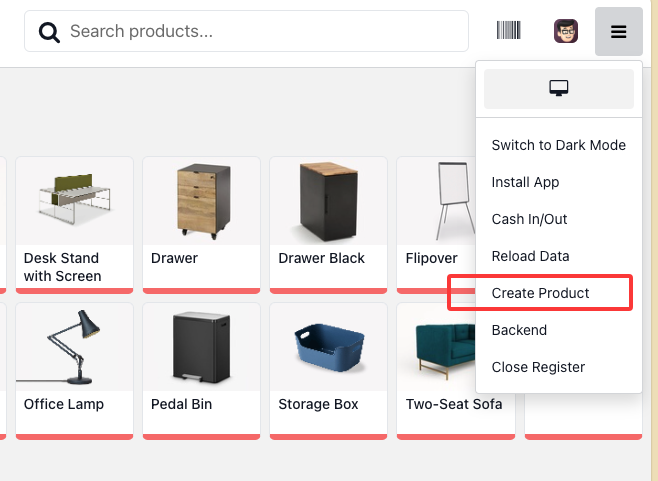
Odoo opens a quick product creation dialog. Users can scan a barcode to add the product quickly.
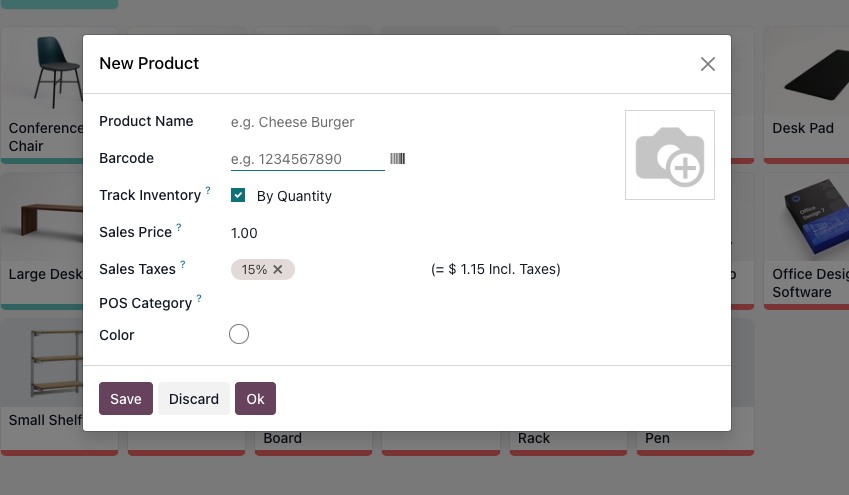
If the scanned barcode exists in the global database, Odoo can automatically fill in the matched product name, price, and product image. Users can still adjust the values according to their actual business needs.
This feature is useful for small stores that add new retail items frequently and do not want every product to be created from the backend product form first.
Product Types
POS products can use different product types:
| Type | Meaning |
|---|---|
| Goods | Stockable products that can affect inventory. |
| Service | Non-stock service products, such as labor, booking fees, or service charges. |
| Combo | A product composed of several selectable items, such as meal sets or bundled products. |
Choosing the correct product type matters because it affects stock movement, accounting, delivery, and how the product behaves in POS.
Product Variants
Product attributes can create variants in different ways:
| Variant Creation Mode | Meaning |
|---|---|
| Instantly | Variants are created immediately in the product catalog. |
| Dynamically | Variants are created when the attribute combination is used in a sales document. |
| Never | No product variants are created. |
Once a product attribute has been used, its variant creation mode can no longer be changed.
For retail POS, variants are common for size, color, flavor, material, and packaging. The key is to keep the product structure simple enough for cashiers to search and sell quickly.
Combo Products
A combo product allows users to combine multiple products into one sellable product. Common examples include restaurant meal sets, bundled computer packages, gift boxes, and promotional sets.
Define Combo Choices
First, define combo choices under Products > Combo Choices.
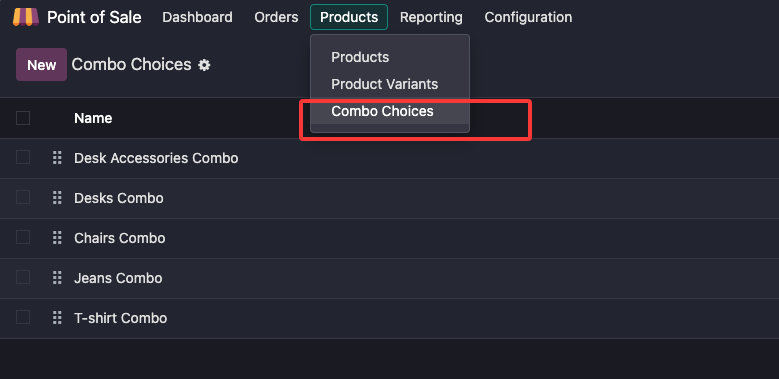
Combo choices define what options the cashier or customer can select when selling the combo product.
Define The Combo Product
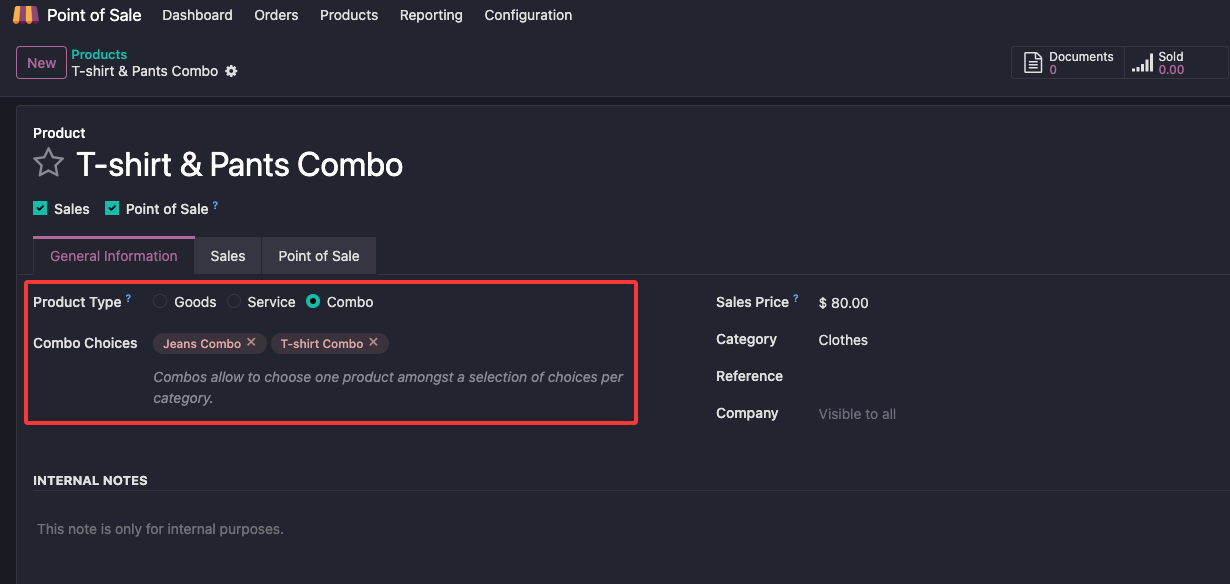
Then configure the combo product on the product form:
- Set the product type to Combo.
- Select the relevant combo choices.
Extra Price
Different combo choices can have different extra prices.
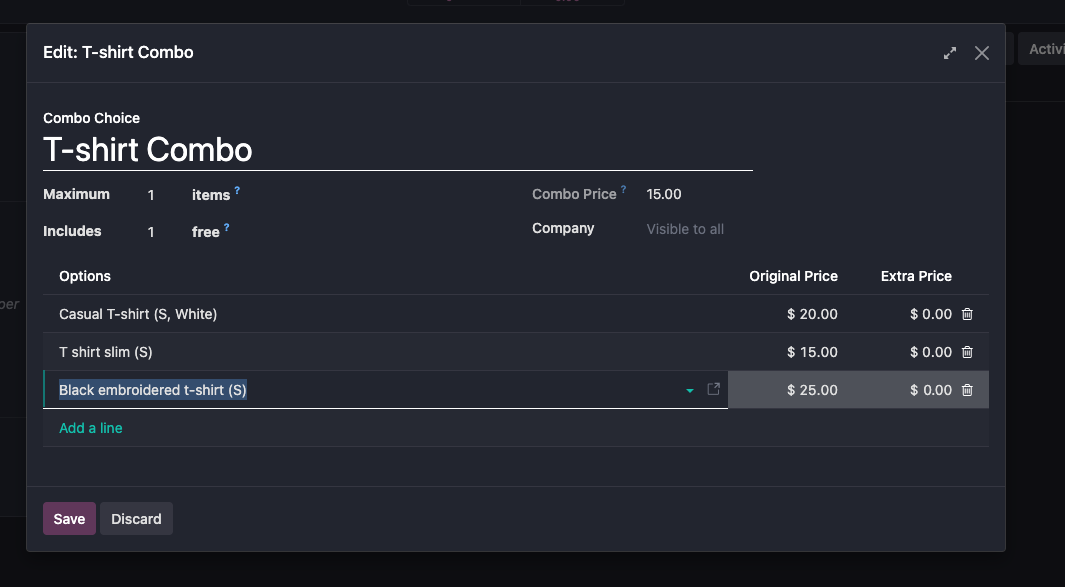
This is useful when the base set has standard options, but some premium choices require an extra charge.
POS Categories
Odoo supports POS categories that are separate from ordinary product categories. On the product form, open the POS tab and select the POS category.
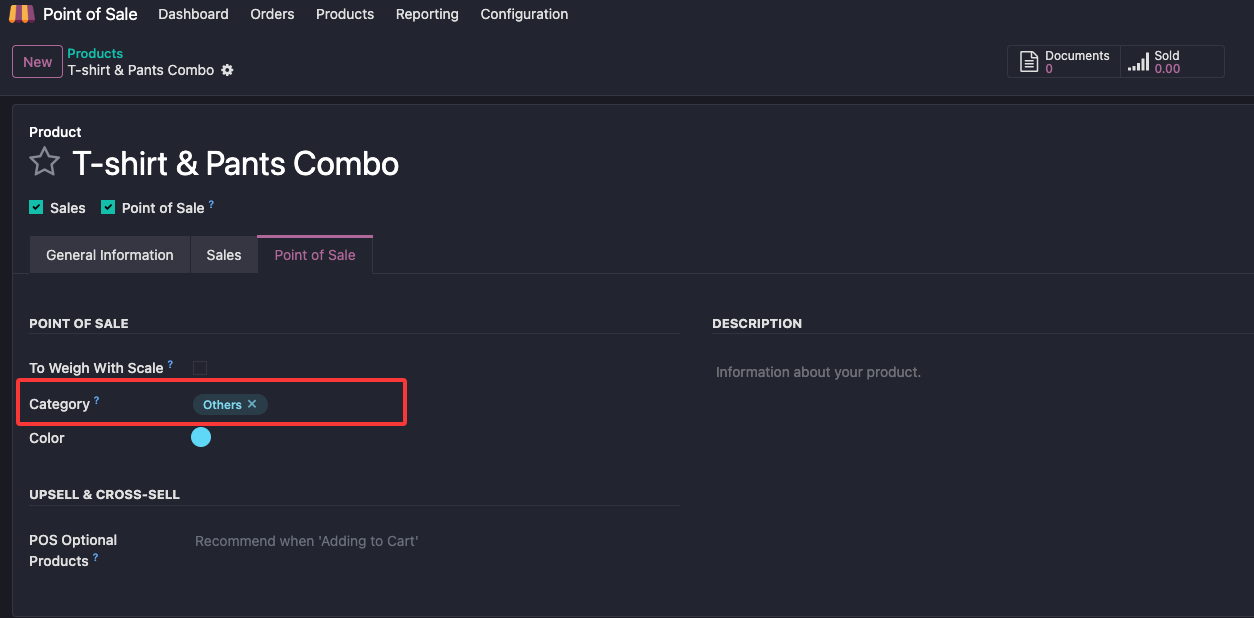
POS categories control how products are displayed in the POS interface. A well-designed category structure makes cashier operation faster and reduces search time.
Parent And Child POS Categories
POS categories can also have parent-child relationships. Go to Settings > POS Categories, open a POS category, and set its parent POS category.

You can also set category colors to make the POS interface easier to read.
This chapter introduced POS product availability, quick product creation, product types, variants, combo products, and POS categories. The next chapter explains kiosk and self-ordering, where customers interact with the POS flow directly.