WeChat Official Account Solution
This module applies to Odoo 16.0.
WeChat Official Accounts are widely used in China for customer service, marketing, self-service inquiry, and service notifications. For Odoo projects, an Official Account can become a lightweight customer service入口: users can query information, receive template notifications, open menu links, and interact with business data without entering the backend.
This chapter introduces the WeChat Official Account solution developed by Qingdao Ohm Network Technology.
Business Background
When customers send inquiries, companies often spend repeated manual effort answering simple questions. Besides enterprise IM tools such as WeCom, a WeChat Official Account can handle part of the automatic inquiry workload.
For example, customers can follow the account, click menus, send keywords, receive service messages, or even query serial numbers and warranty information through automatic replies. This reduces operating cost and makes service more accessible.
Official Account Basic Configuration
After applying for a WeChat Official Account, configure its basic settings before connecting it to Odoo.
First, obtain the following parameters:
| Parameter | Description |
|---|---|
| Developer ID / AppID | Usually starts with wx, for example wx123456678. |
| Developer Password / AppSecret | A one-time secret. The Official Account platform does not display it again after creation; reset it if lost. |
| Server URL | The Odoo URL used by WeChat to send messages and authentication callbacks. |
| Token | Optional authentication token for communication between WeChat and the server. |
| EncodingAESKey | Optional encryption key used when message encryption is enabled. |
These parameters are available under Settings & Development > Basic Configuration.
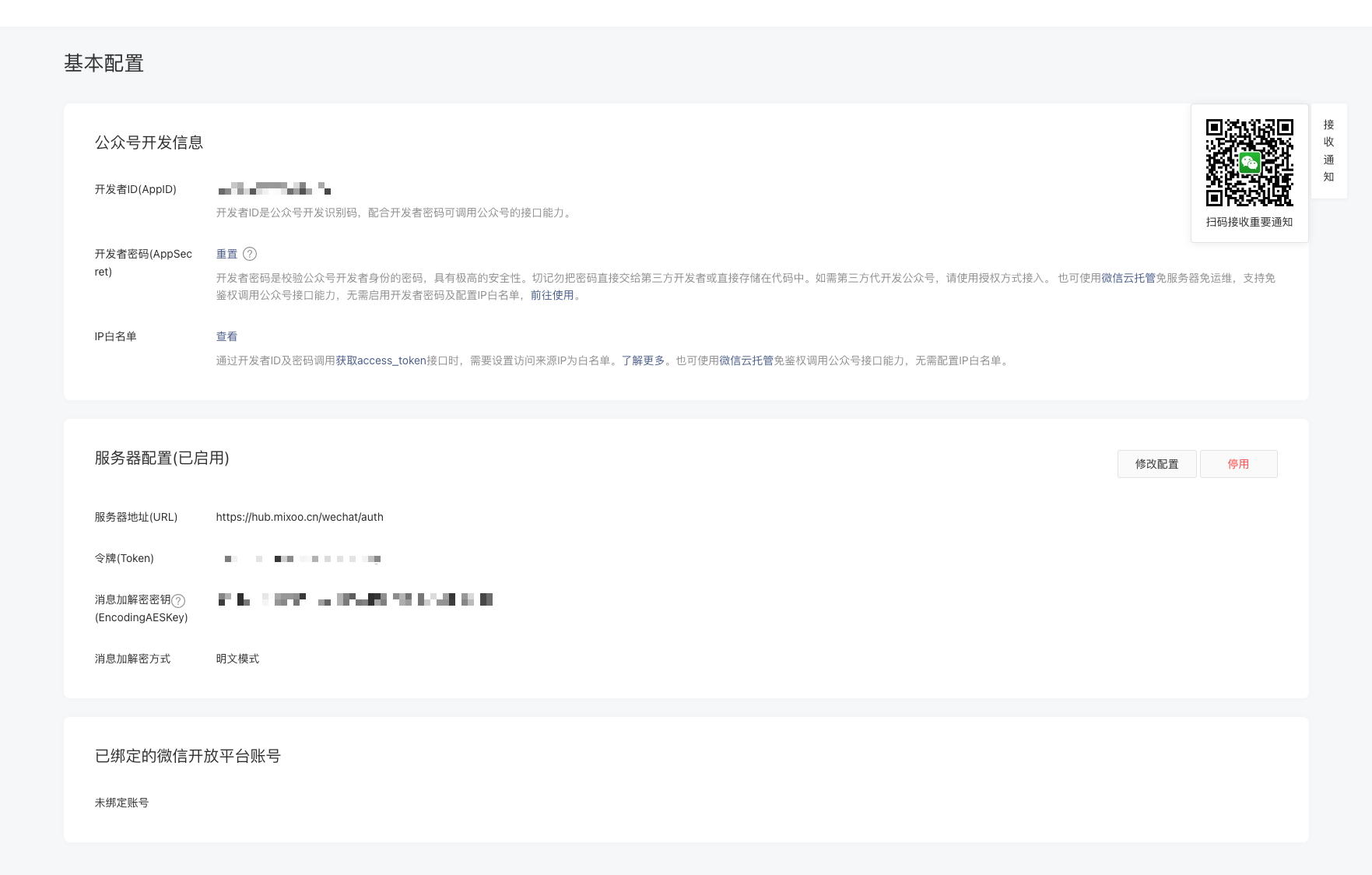
The server URL should use your Odoo domain plus the fixed path /wechat/auth.
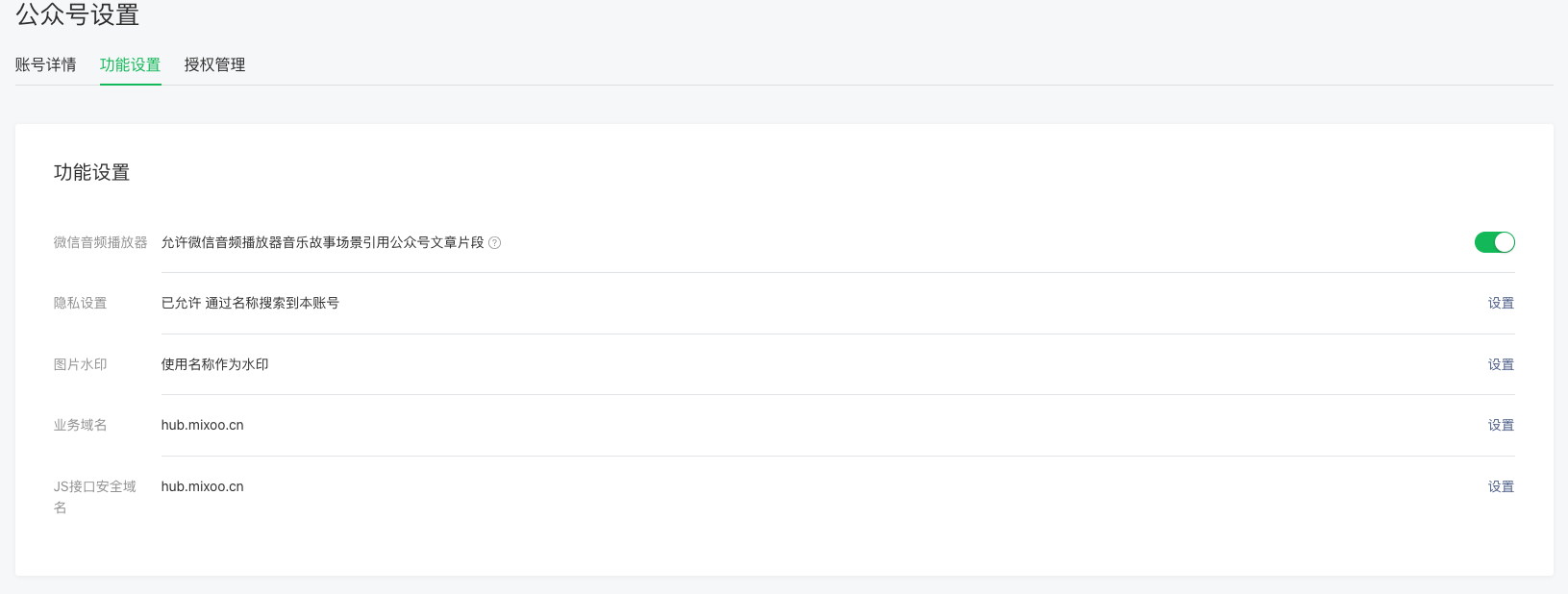
Business Domain And JS API Secure Domain
If the Official Account needs to open custom web pages or avoid WeChat web security warnings, configure the JS API secure domain. The path is Official Account Settings > JS API Secure Domain.
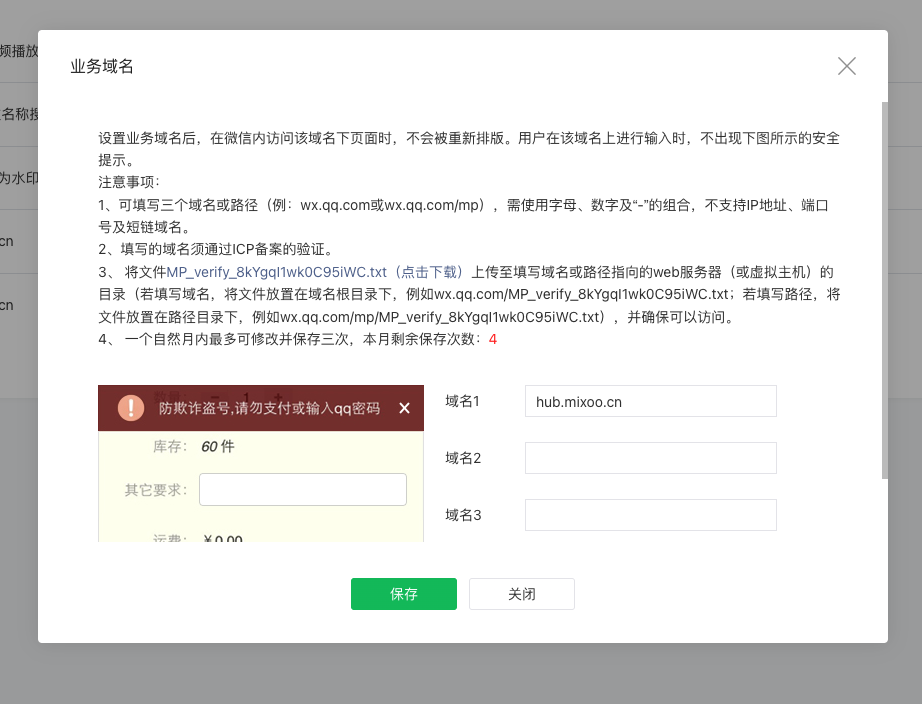
When configuring the business domain, WeChat requires server-side verification. To make this easier, the module provides fields for the verification filename and file content. Users only need to enter the filename and text content in Odoo.
Odoo WeChat Module Configuration
After the Official Account is configured, install the Odoo WeChat module mommy_wechat. Then go to Official Account > Settings > Official Account.
Create an Official Account application and enter the parameters obtained from WeChat.
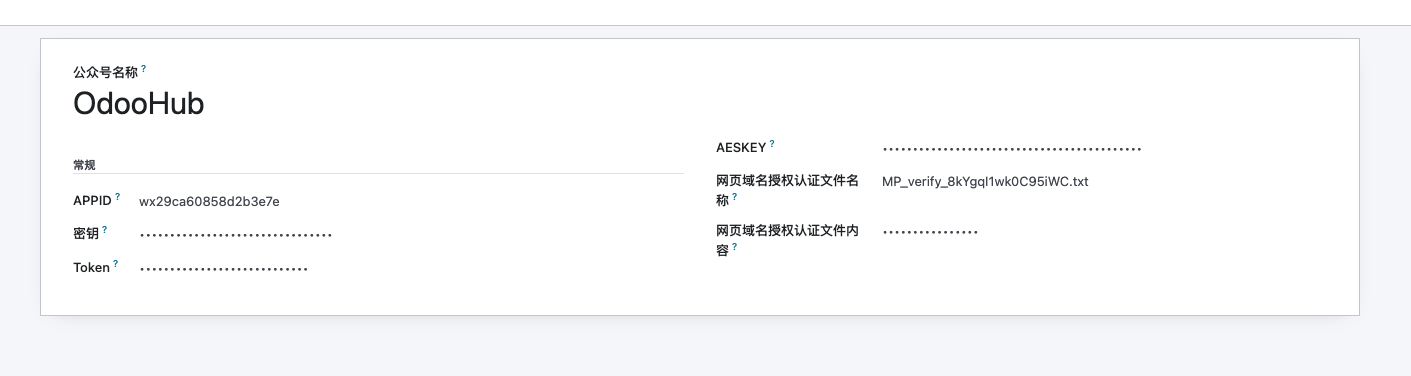
The web authorization verification filename is the text file mentioned earlier, and the content is the string inside that file.
Bind Company
The module supports multi-company scenarios. In company settings, select the Official Account application created above.
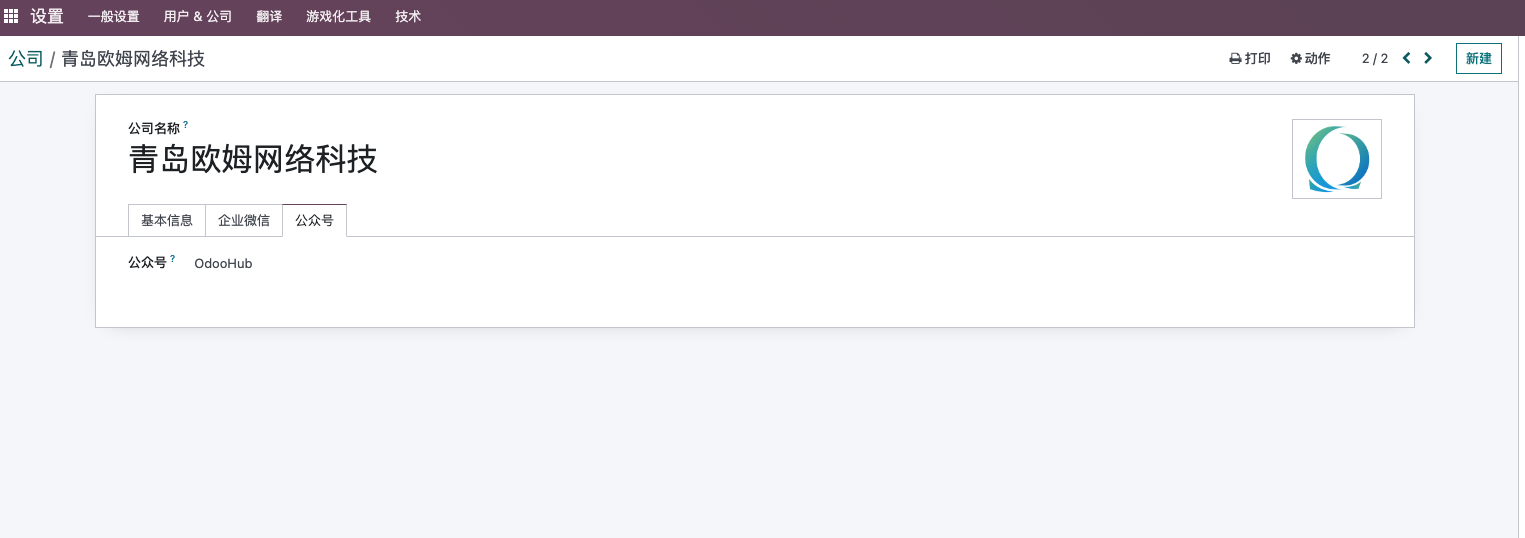
After this, the required preconditions are complete.
Solution Features
Menu Management
Menus are the entrance of an Official Account. A well-designed menu can provide a smooth customer experience.
Menu management is available under Official Account > Basic Configuration > Menu Management. WeChat supports up to three top-level menus, and each top-level menu supports up to five submenus.
Each menu can use a different response type, including:
| Response Type | Typical Use |
|---|---|
| Click event | Trigger a backend action by key. |
| URL redirect | Open an Odoo page or external page. |
| Scan code push | Trigger scan-code interaction. |
| Scan code message | Receive scan-code result as a message. |
| Photo | Open camera. |
| Photo or album | Let the user choose a photo source. |
| WeChat album | Choose from WeChat album. |
| Location | Let the user send location. |
| Media message | Send media content. |
| Article URL | Open news/article content. |
| Mini Program | Open a WeChat Mini Program page. |
Here is the menu creation interface.
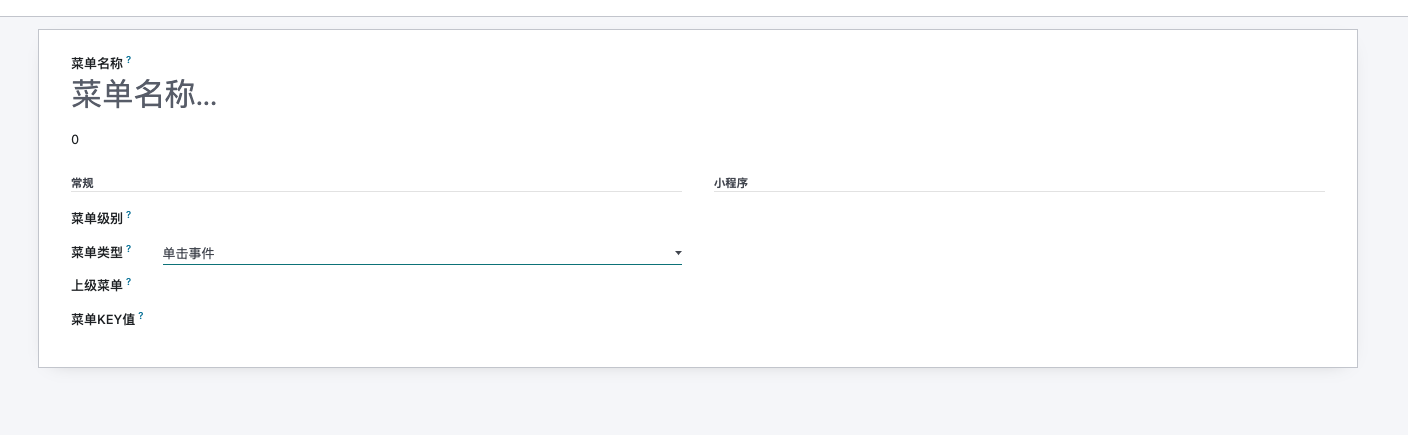
When creating submenus, create the top-level menu first. A menu can bind a key value, which is passed to the backend application. Developers can then customize business responses according to the key.
The following screenshot shows the OdooHub Official Account menu configuration.
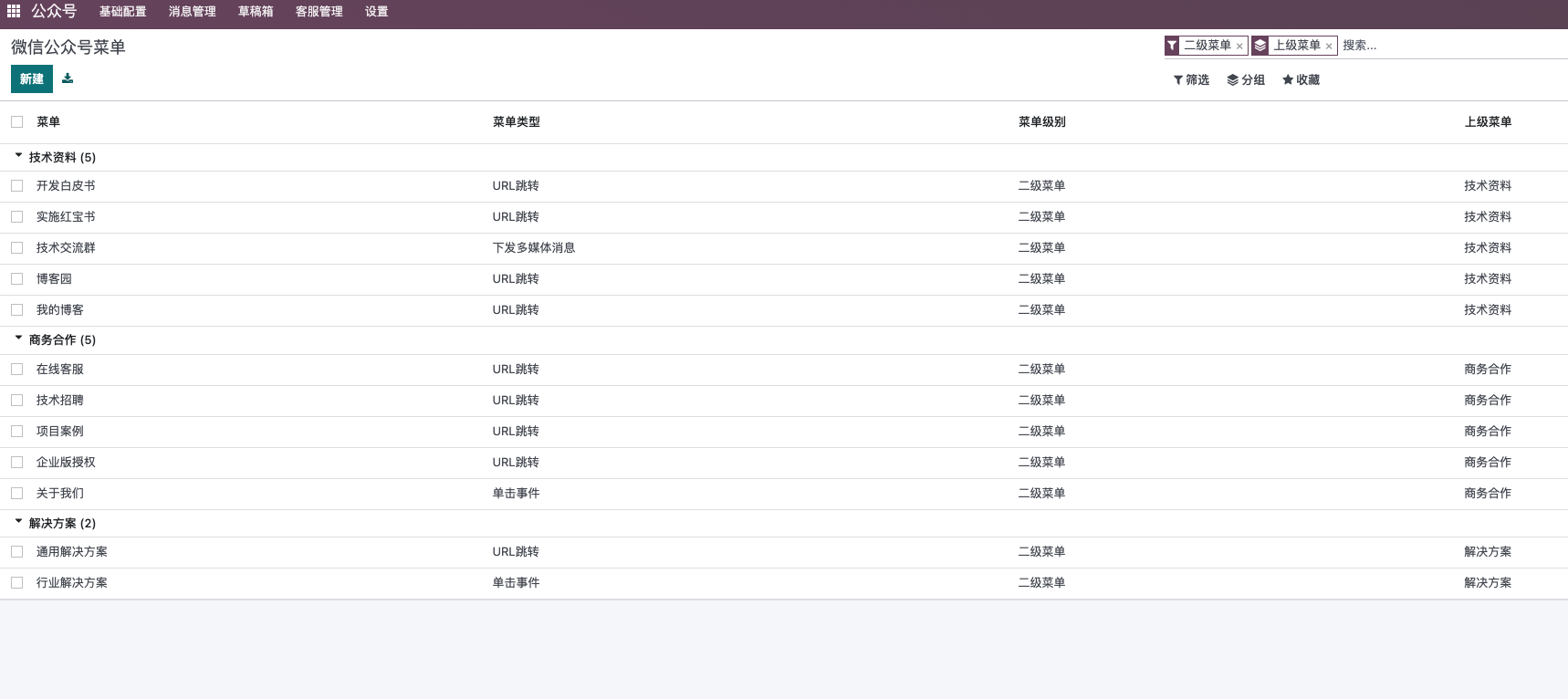
Menus also support sequence sorting. A larger sequence number places the menu closer to the bottom of the Official Account menu area.
Automatic Replies
Automatic reply is one of the most common Official Account scenarios. For example, when a user follows the account, the system can send a welcome message. When a user sends a keyword, Odoo can reply with text, media, template messages, or business query results.
Create automatic reply rules under Official Account > Message Management > Auto Reply.

Supported trigger conditions include:
| Trigger | Meaning |
|---|---|
| Follow reply | Triggered when a user follows the Official Account. |
| Keyword reply | Triggered when message content matches a keyword. |
| Message reply | Triggered when a message is received. |
| Click event | Triggered by a custom menu click event. |
Supported response formats include no reply, text, image, voice, video, music, news/article, code reply, and template message.
Code reply is especially flexible. It allows business logic to be written and executed from the interface, then packaged into a message and sent to the user. For example, when we send echo to the OdooHub Official Account, it returns a real-time calculation result showing current follower statistics and the user's subscription sequence.
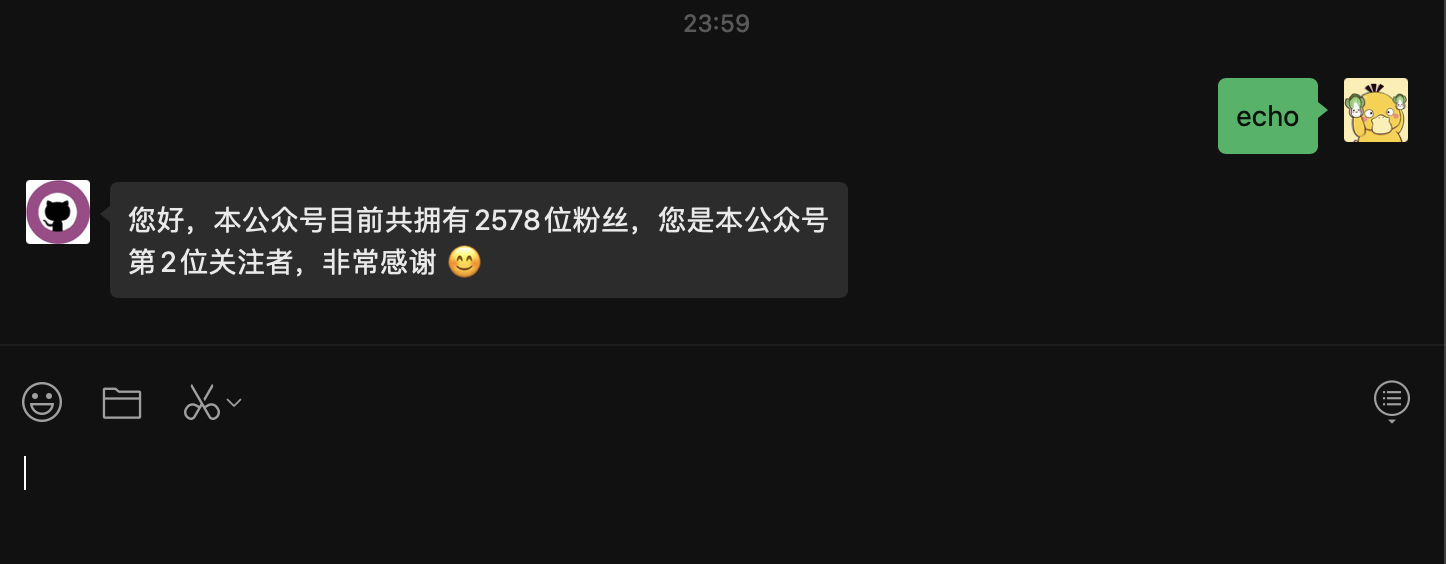
The logic is implemented with code reply.
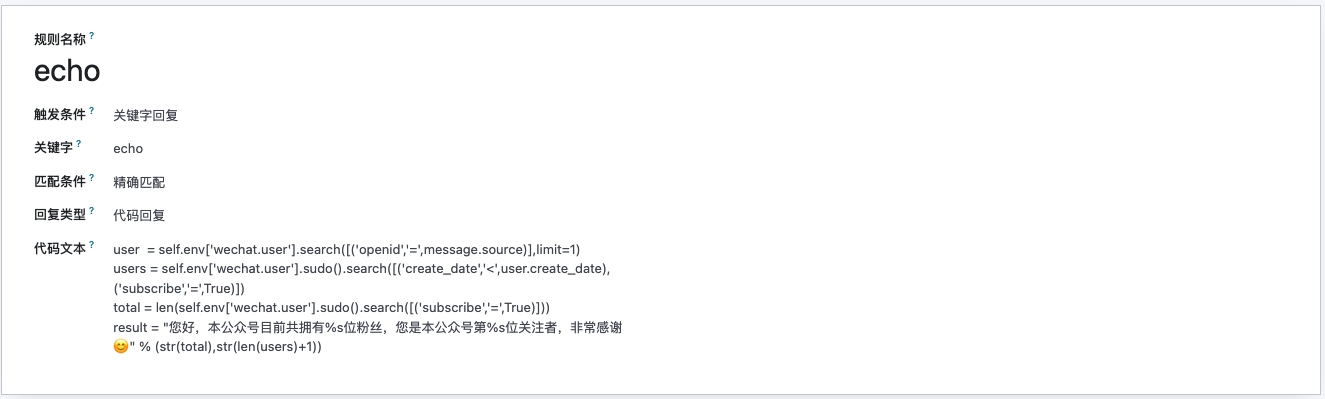
The advantage is that small logic adjustments can be made from the interface without updating server code every time.
Template Messages
Template messages are often used by service accounts to send service notifications to users who follow the Official Account. Bank transaction notifications and delivery notifications are typical examples.
Message Templates
Before sending template messages, create or apply for message templates in the WeChat Official Account backend. These templates are similar to SMS templates.
Template creation must use templates provided by WeChat or go through WeChat review. This module does not create Official Account templates directly; users should apply for them in the WeChat backend.
In Odoo, use Settings > Sync Message Templates to synchronize templates.
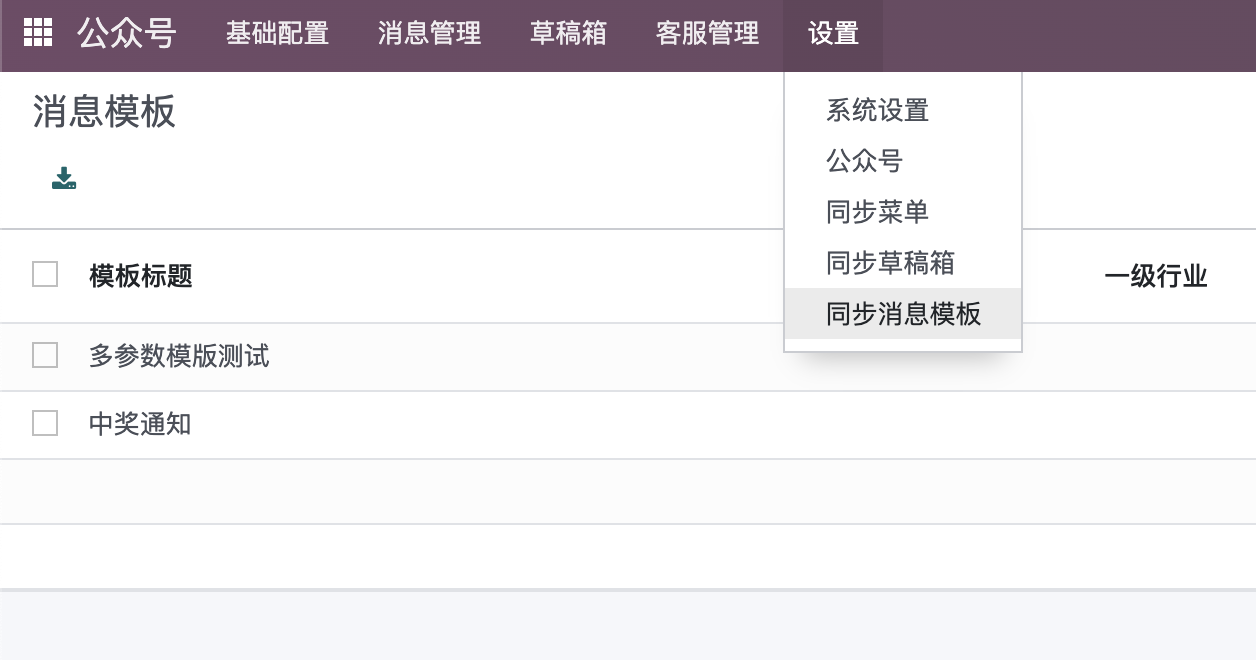
After synchronization, templates are visible under Message Management > Message Templates.
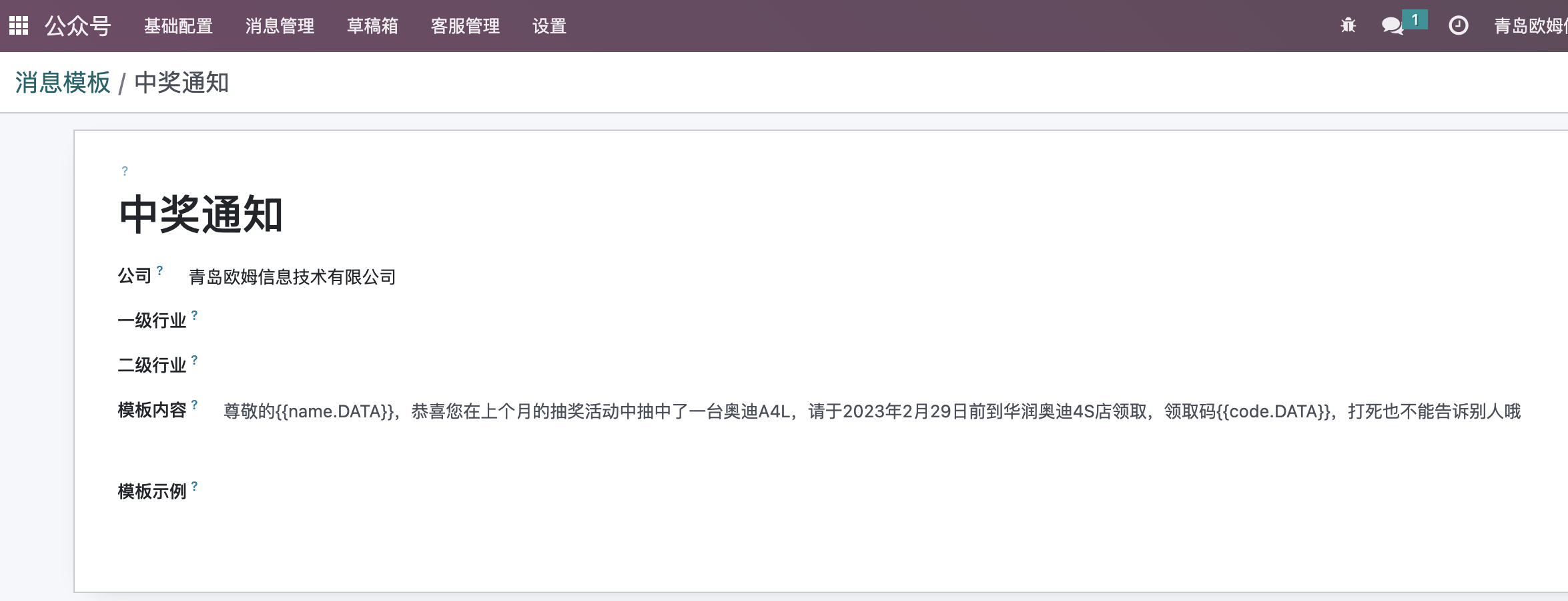
Template body data uses text plus variables. Variables are wrapped in {{ }} and follow the variable.DATA format.
Send Template Messages
Go to Message Management > Template Messages and create a template message.
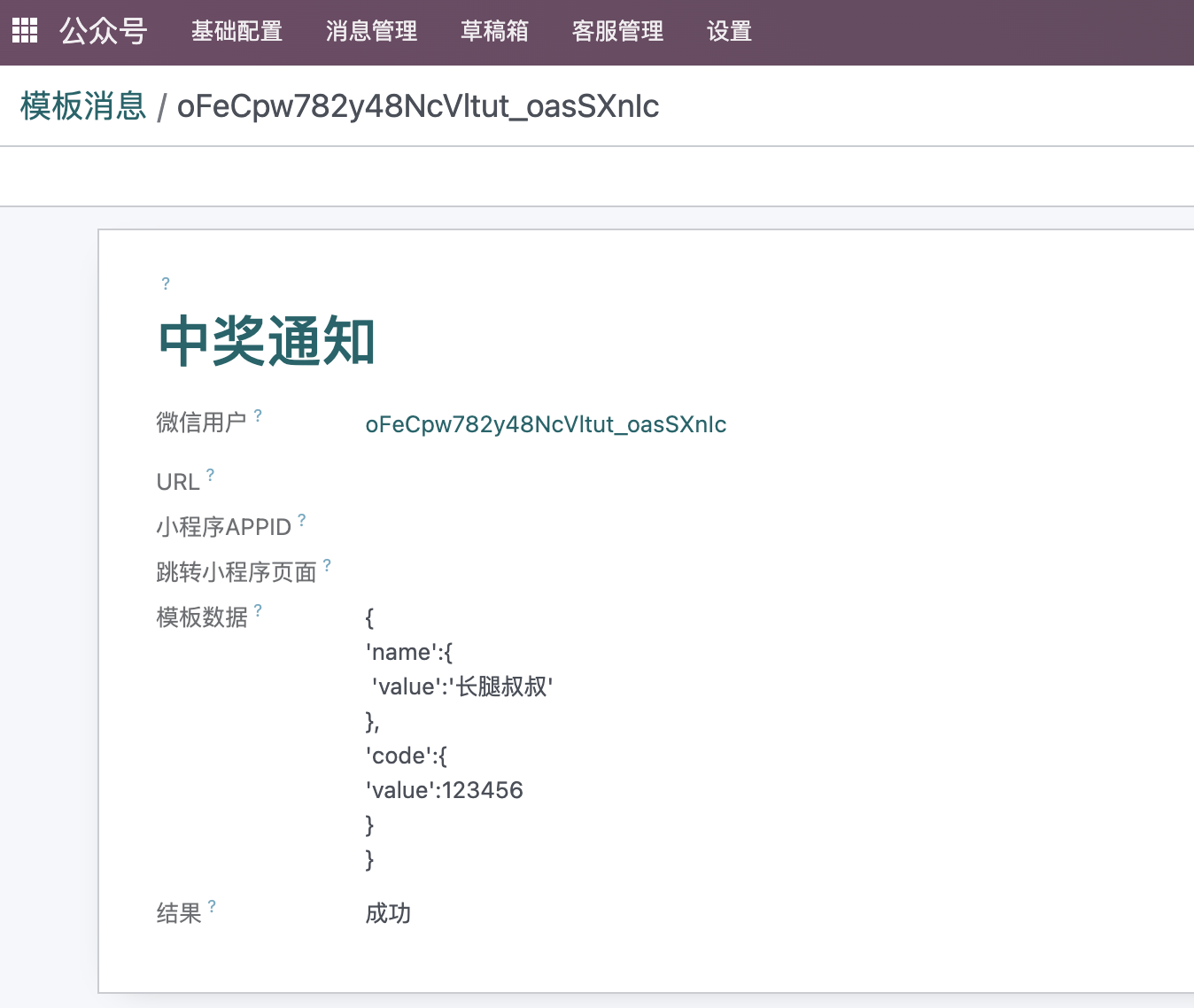
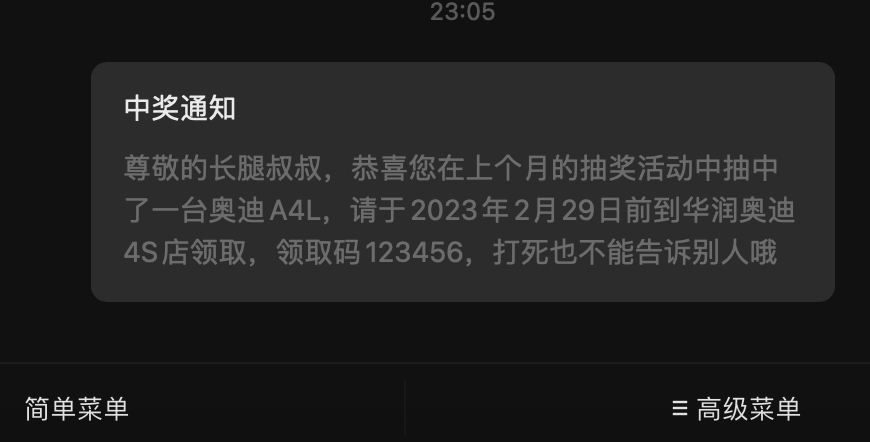
Select the template, target user, optional link, optional Mini Program page, and template data. The data format is:
{
    'name': {
        'value': 'John'
    },
    'code': {
        'value': 123456
    }
}
The name and code keys correspond to variables in the template, and their values are placed under value.
After sending, the user receives the message in WeChat.
Programming Interface
In real implementation, template messages are rarely created manually one by one. The module provides programming interfaces so developers can embed template message sending into business flows.
Because this part is more technical, it is not expanded here. Customers who purchased the module can contact support or reply with the relevant keyword in the Official Account to receive developer guidance.
This chapter introduced the WeChat Official Account solution. The next chapter explains WeChat Pay, which connects Odoo sales, invoices, and website checkout with domestic mobile payment.