Chapter 10 Storage Categories
Before starting, consider this scenario. A warehouse has locations A, B, C, and D under the same parent location S. Each location can store at most 100 units of product P. A purchase order receives 200 units of P. How should Odoo be configured to respect the maximum storage capacity of each location?
Storage Category is designed for scenarios like this. It helps Odoo decide where products can be stored according to storage capacity and rules.
Storage Category
To use storage categories, enable the option under Inventory -> Configuration -> Settings -> Warehouse -> Storage Categories.
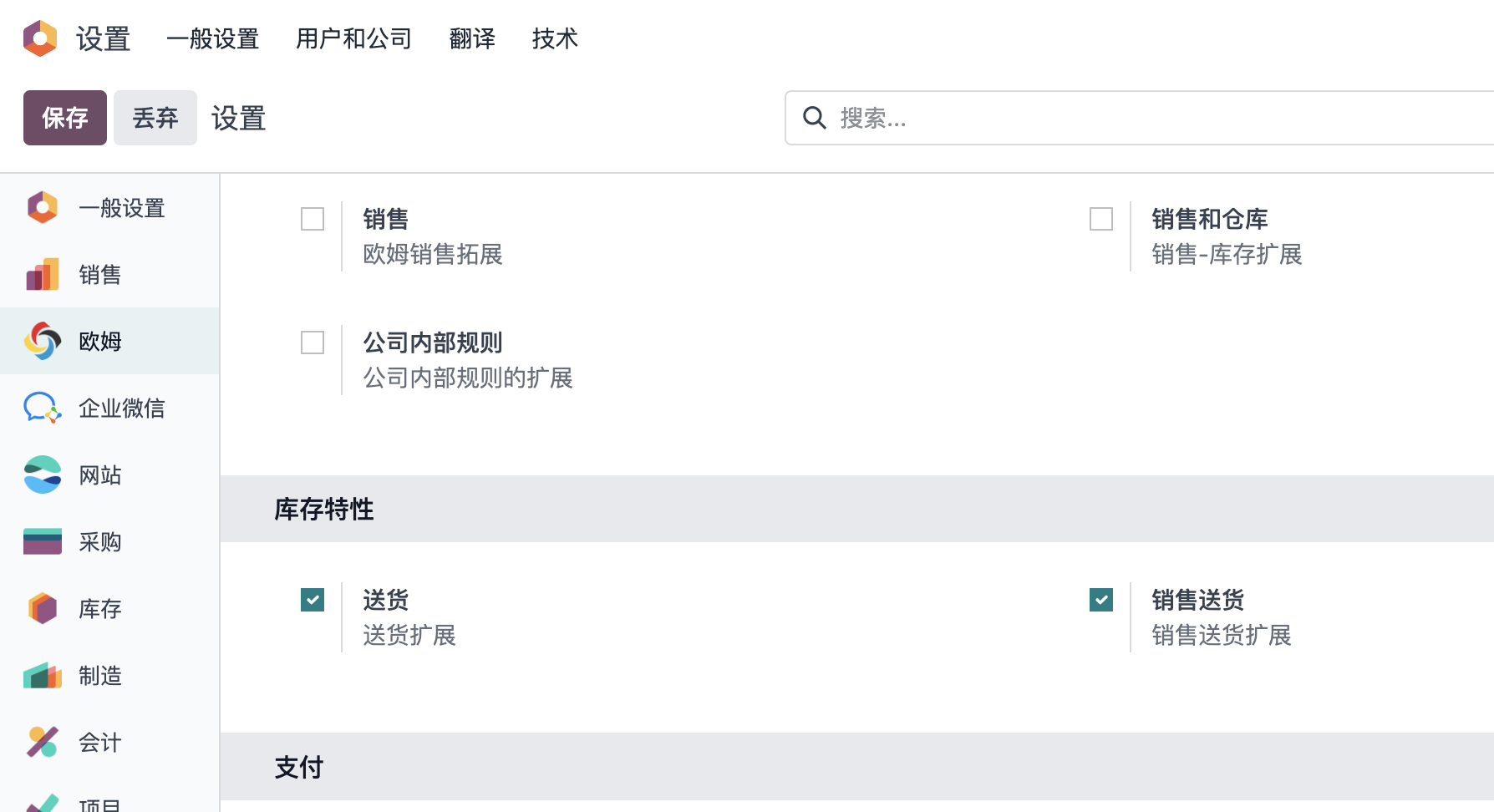
After enabling it, go to Inventory -> Configuration -> Storage Categories.
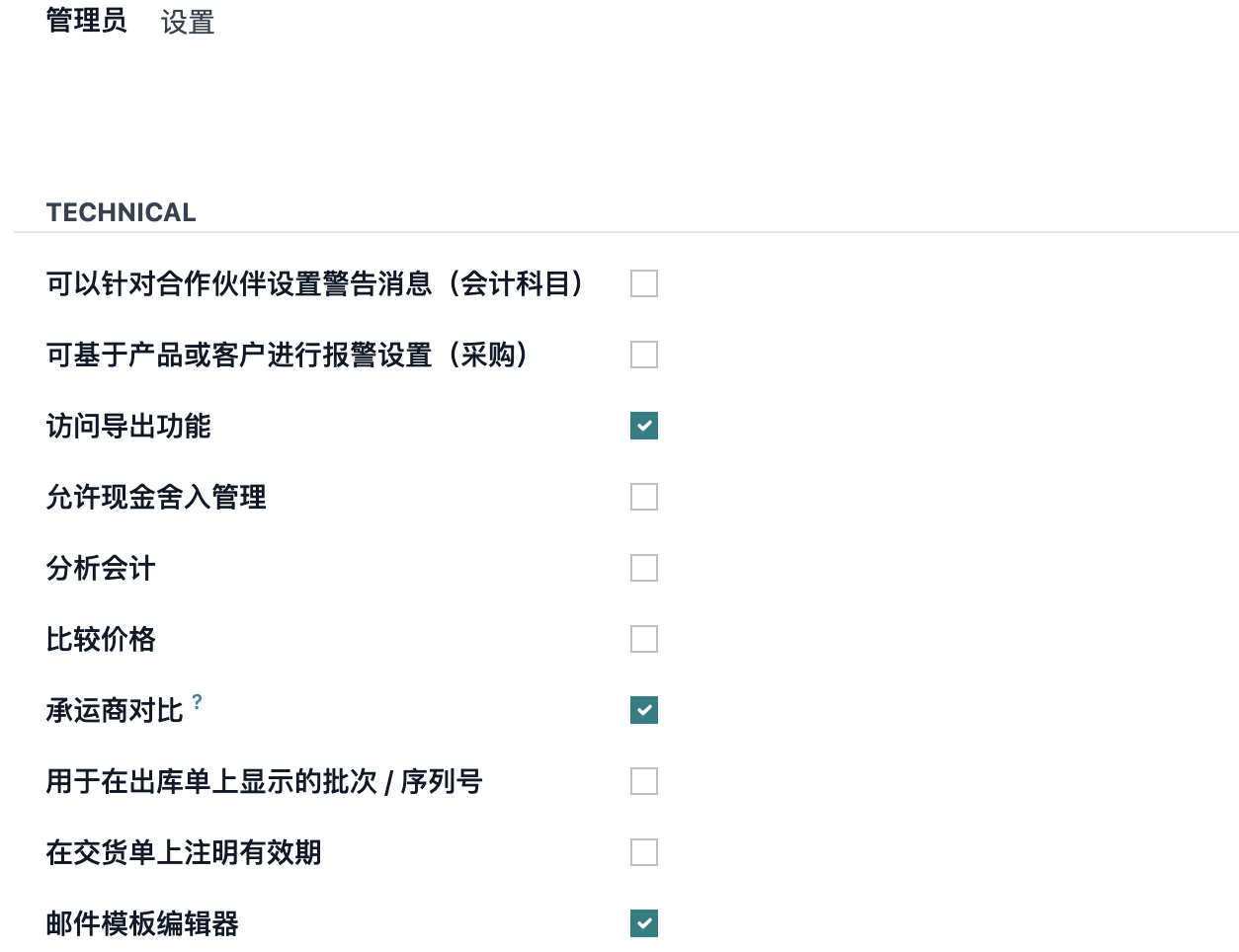
Important fields include:
| Field | Meaning |
|---|---|
| Storage Category | Name of the storage category |
| Max Weight | Maximum weight accepted by this category |
| Allow New Product | Policy for accepting products, such as when empty, same product, or mixed products |
Because the same location may support different quantities for different products, capacities are defined in the product capacity list:
| Field | Meaning |
|---|---|
| Product | Product controlled by this capacity rule |
| Quantity | Allowed quantity |
| Unit of Measure | UoM used for the capacity |
Then bind this storage category to locations.
Storage categories cannot work alone. After creating them, they must be connected with putaway rules.
Bind Putaway Rules
Using Sprite as an example, create a putaway rule.
The rule means: when the product arrives in the Stock location, put it into the Sprite location. Because the Sprite location has four child locations A, B, C, and D, these child locations can be used for storage.
After products arrive at Stock, Odoo uses the putaway rule and storage category to place the product into a suitable child location.
For example, after the rules are configured, create a purchase order for 100 units of Sprite.
After confirmation, Odoo automatically stores the stock in child location A under the Sprite location.
If another purchase order is created, Odoo automatically stores it in child location B.
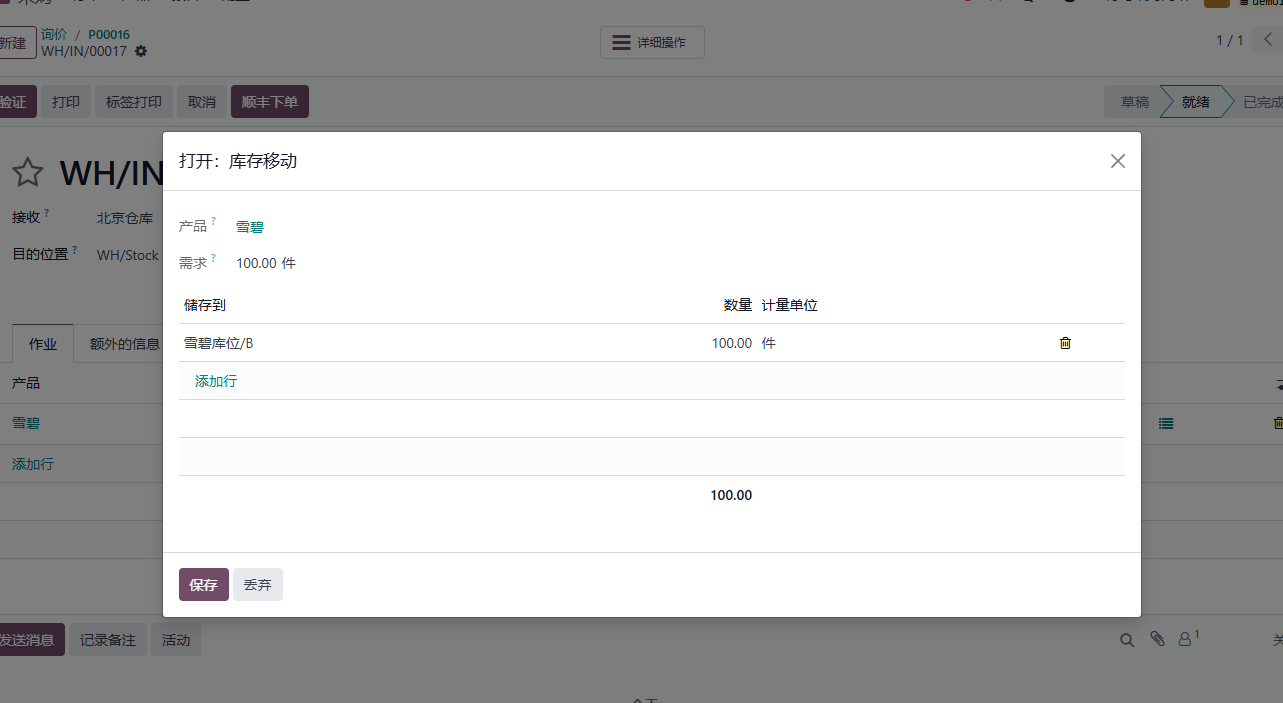
This happens because the first receipt has already reserved location A. When the second receipt is processed, Odoo detects that A is already used and moves to B.
Storage Category Usage Rule
Now consider another question: if all four locations are full, where will the fifth receipt be stored?
The answer is the Stock location.
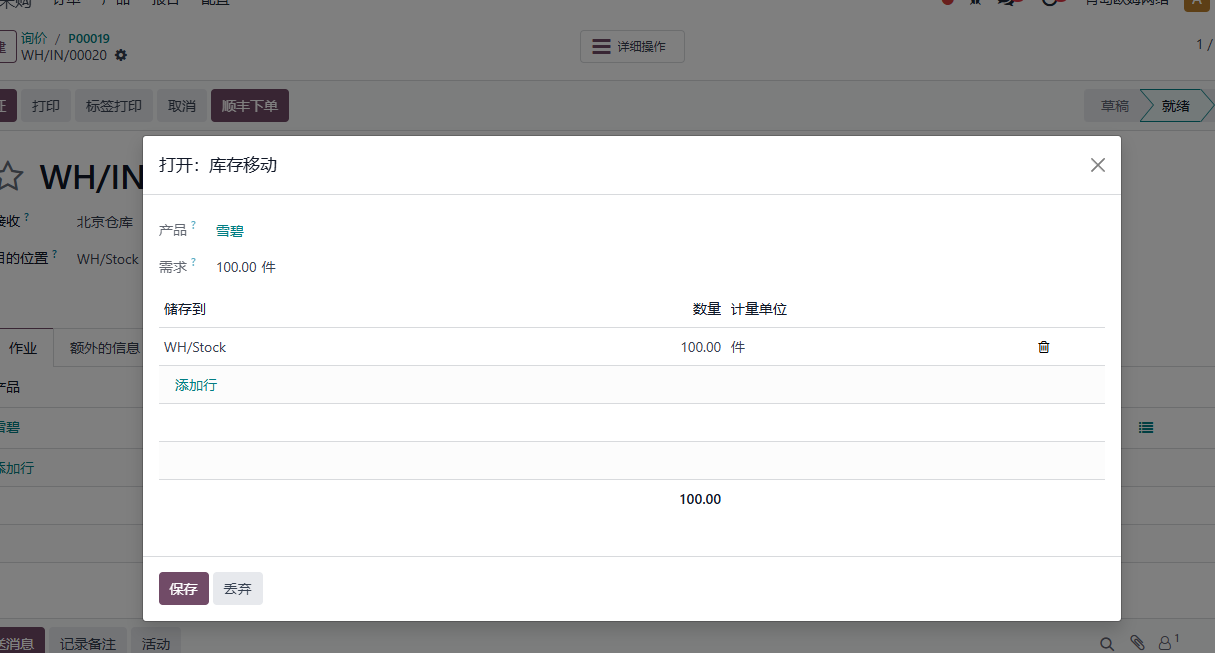
This demonstrates an important usage rule: storage category locations are used in sequence. When no suitable location can be found, Odoo falls back to the operation type's default destination location.
Over-Capacity Allocation
Now return to the opening problem: if the incoming quantity is 200 and each child location can store 100, how can the system automatically split the receipt into two locations?
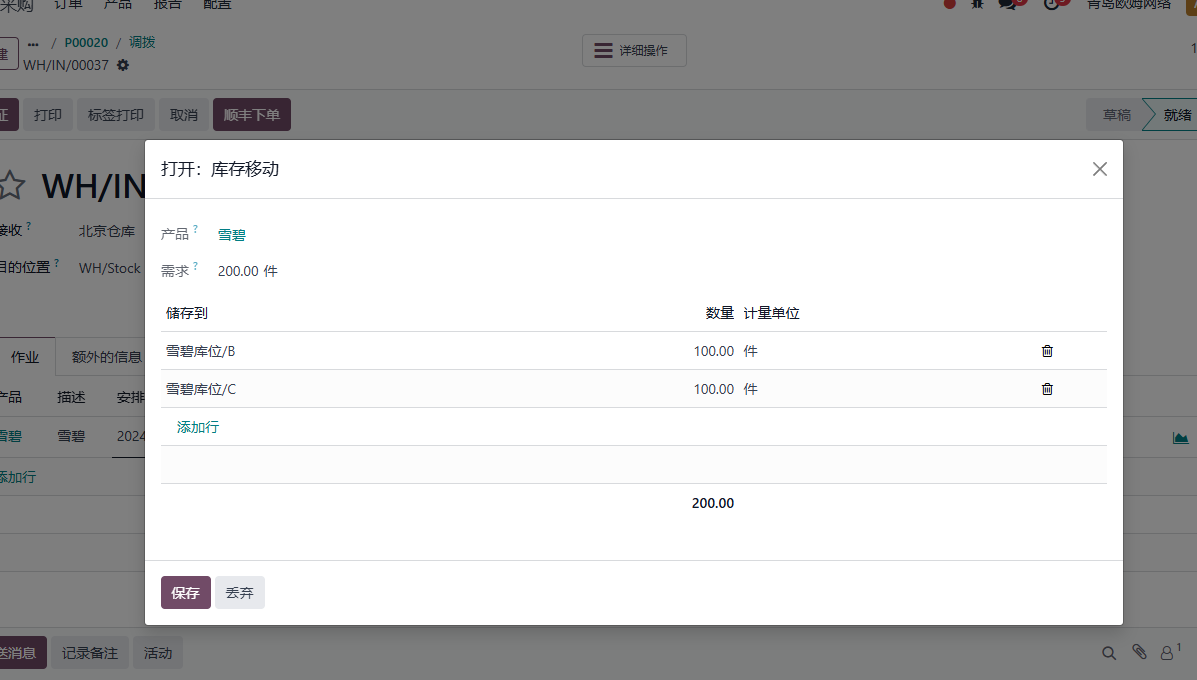
Native behavior may fall back to the default location when the quantity exceeds storage category capacity. To solve this, Qingdao Ohm's inventory solution adds an automatic split option. When enabled, Odoo can split a 200-unit incoming line into two 100-unit lines and assign them to suitable destination locations.
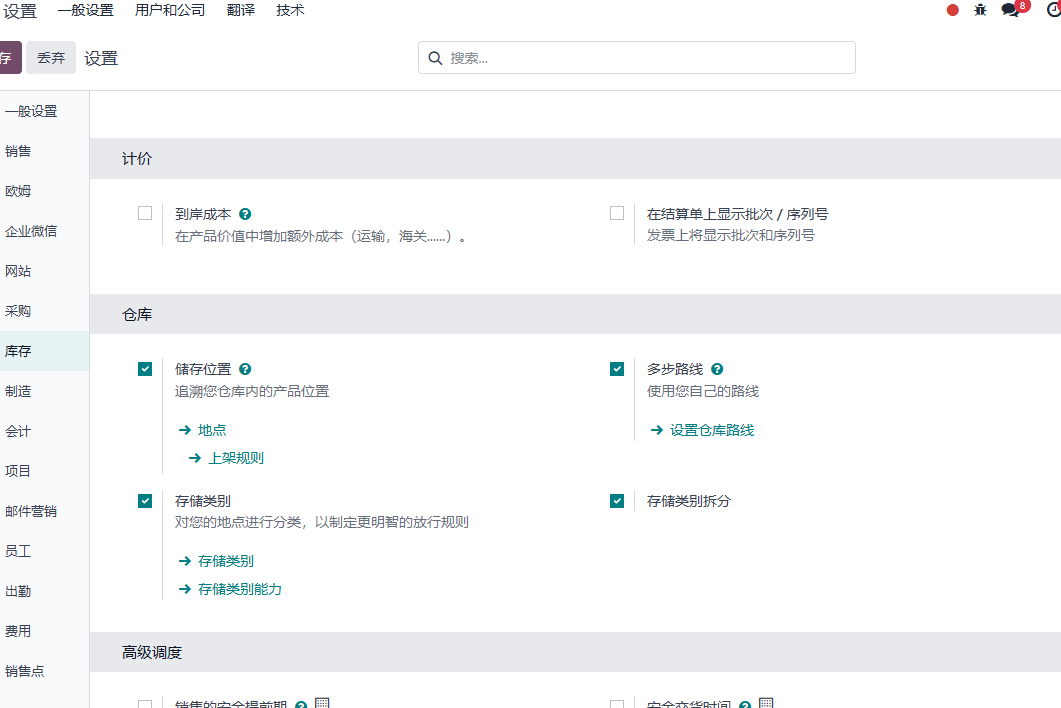
First enable the Storage Category Split feature in settings.
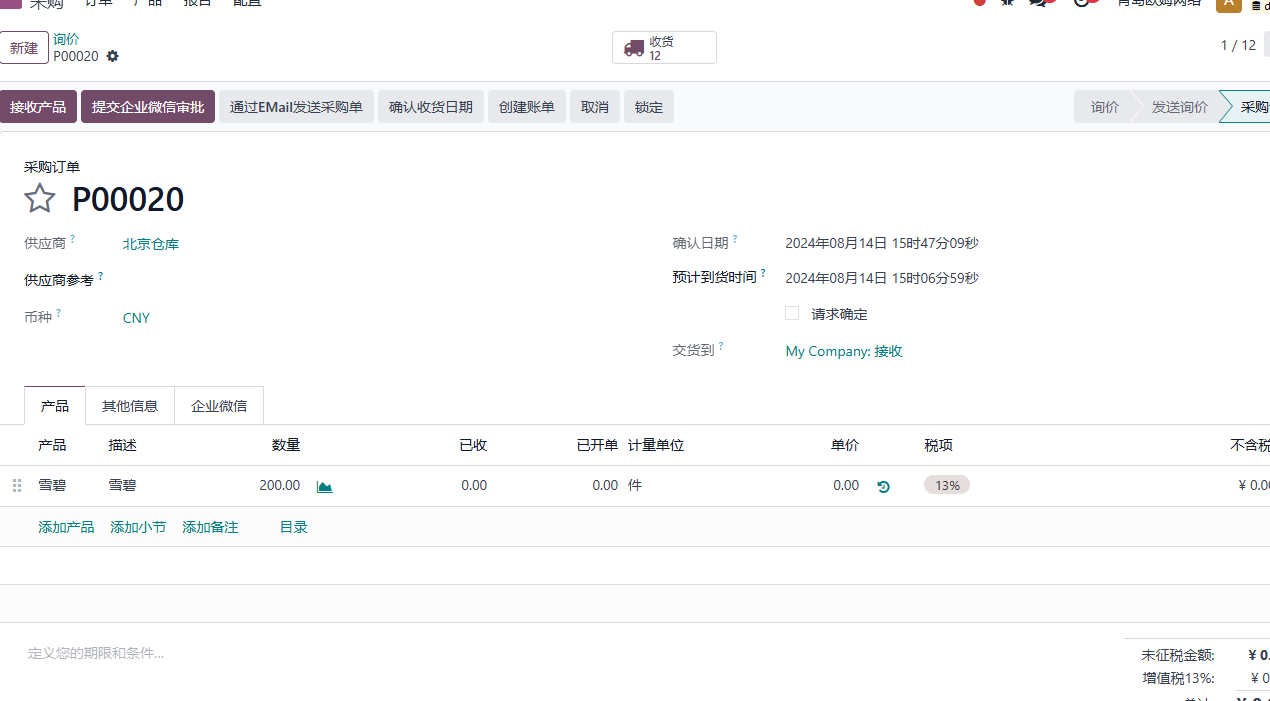
Then purchase 200 units.
After confirming the purchase order, Odoo automatically splits the 200 units according to the 100 units per location rule.
Implementation Advice
Storage categories are useful when the warehouse has capacity limits by location. They are especially helpful for products stored by bin, pallet, shelf, cold area, or special capacity rules.
Start with simple capacity rules and test with real receiving scenarios. If the business expects automatic splitting across locations, confirm whether native behavior is enough or whether an enhancement like storage category split is needed.
This chapter explained storage categories, putaway binding, fallback behavior, and over-capacity allocation. The next chapter explains delivery method comparison for selecting carriers and rates.