Chapter 3 Quotations And Customer Confirmation
The native Odoo sales process usually starts from a quotation. A quotation is a commercial proposal for the customer. It contains the customer, products, prices, taxes, payment terms, expiration date, delivery information, and terms. Only after the customer accepts it does the quotation become a sales order and move into delivery, invoicing, and payment.
Many companies treat quotations as nothing more than draft sales orders when they first implement Odoo. That can work, but it wastes Odoo's native capabilities around quotation templates, online signature, online payment, optional products, quotation expiration, and customer portal confirmation. This chapter explains how to make quotations reusable, traceable, and confirmable by customers.
Relationship Between Quotation And Sales Order
In Odoo, quotation and sales order are the same kind of business document in different states.
Draft quotation -> Quotation sent -> Customer confirmation -> Sales order -> Delivery / Invoice / Payment
Common states can be understood as:
| State | Meaning |
|---|---|
| Quotation | An internal sales proposal being edited |
| Sent | Already sent to the customer by email, portal, or another method |
| Sales Order | Customer accepted the offer and the commercial transaction is confirmed |
| Cancelled | The quotation or order has been cancelled |
| Locked / Done | The order should no longer be edited casually and is treated as completed or archived |
During implementation, users should understand that quotation-stage changes are normal, but after confirmation the document should be handled more carefully because downstream deliveries, invoices, purchases, or manufacturing requirements may already exist.
Create A Quotation
Go to Sales -> Orders -> Quotations and click New.
The screen below shows a typical quotation. The header contains buttons such as Send by Email, Confirm, and Cancel, and the status bar shows that the document is still in the quotation stage.
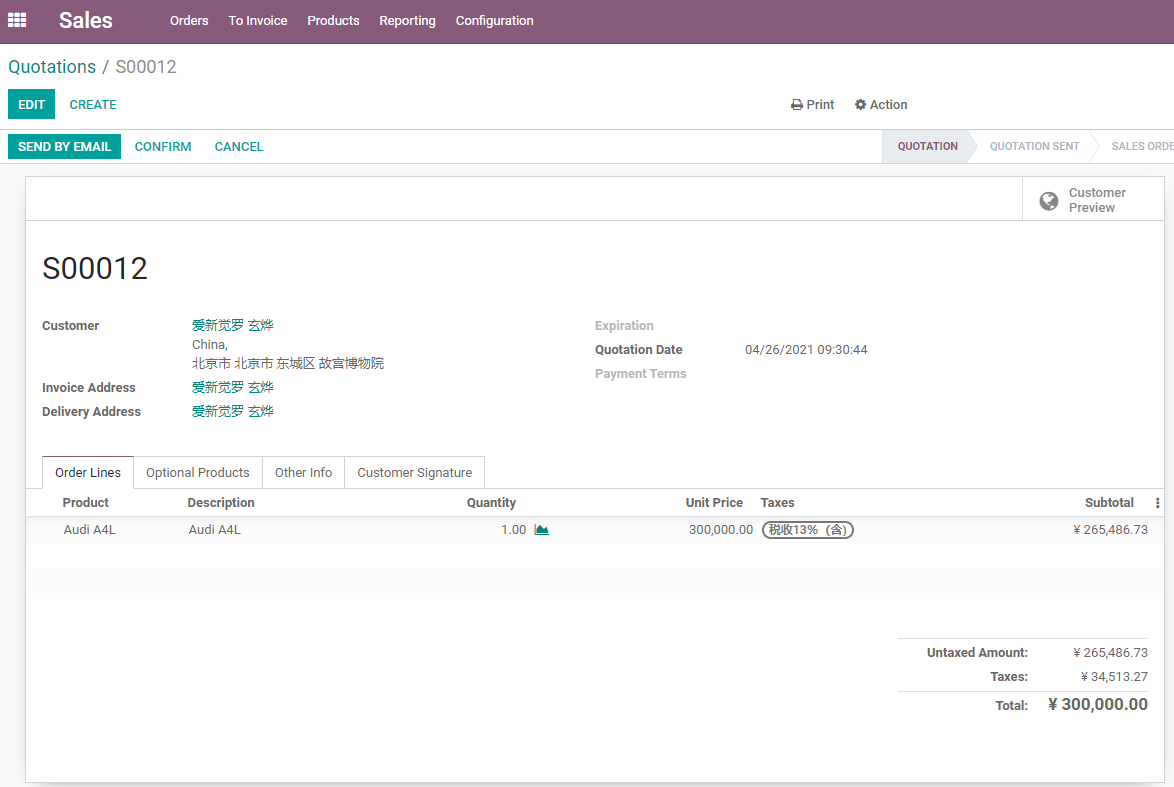
A quotation usually includes:
- Customer.
- Invoice address.
- Delivery address.
- Products and quantities.
- Unit price, discount, and taxes.
- Pricelist and currency.
- Payment terms.
- Quotation expiration date.
- Salesperson and sales team.
- Terms, notes, and attachments.
If the quotation is created from a CRM opportunity, the customer, salesperson, and opportunity source can usually flow into the quotation. This keeps the sales pipeline and later order connected.
The order lines are the most important area. The salesperson must confirm product, description, quantity, unit price, taxes, and subtotal. The untaxed amount, tax, and total amount at the bottom are the quotation result that the customer cares about most.
Quotation Expiration
Quotation expiration tells the customer before which date the offer is valid.
It is useful when:
- Raw material prices fluctuate heavily.
- Exchange rates affect price.
- A promotion has a deadline.
- Sales wants to encourage faster customer confirmation.
- A project quotation needs to be re-evaluated after some time.
You can configure a default expiration period in Sales settings, and you can also adjust it on a single quotation.
Do not keep quotations valid forever. If an expired quotation can still be confirmed without review, price disputes are very likely.
Quotation Templates
Quotation templates are useful when the company repeatedly sells similar packages.
Examples include:
- Standard implementation service packages.
- Website development packages.
- Equipment sales plus installation.
- Annual maintenance services.
- Common product bundles.
- Standard rental packages.
Templates can prepare product lines, descriptions, optional products, and terms in advance. When sales chooses a template, Odoo can quickly generate standard quotation content.
The value of a quotation template is not only saving time. More importantly, it keeps the quotation language and scope consistent across different salespeople.
Do not make templates too granular. Packages such as "Website Standard", "Website Professional", or "Odoo Basic Implementation Package" are good candidates. A unique project for one customer should not become a separate template by default.
Useful template content includes:
| Content | Purpose |
|---|---|
| Standard product lines | Reduce missing lines |
| Standard descriptions | Standardize scope and service boundaries |
| Optional products | Encourage add-on selection |
| Default expiration | Control quotation risk |
| Standard terms | Avoid every salesperson writing terms manually |
If the sales process is not stable yet, skip templates in the first phase. After the sales team repeatedly uses similar quotations, turn the mature structure into templates.
Optional Products
Optional products are suitable for add-on suggestions.
For example, when a customer buys a printer, the quotation can recommend cartridges and maintenance services. When a customer buys equipment, the quotation can recommend installation and training. When a customer buys software, it can recommend implementation or support services.
Optional products are not forced into the order at the beginning. They are shown as add-ons that customers can choose. When a customer confirms the quotation through the portal, they can decide whether to add them.
This feature can improve order value, but it should not be abused. Optional products should be related to the main product; otherwise the quotation becomes noisy.
The difference is simple: order lines are included in the quotation by default; optional products are extra choices. If the customer selects an optional product when accepting the quotation, Odoo can add it to the order.
During implementation, the sales manager should first define several standard combinations:
- Main equipment plus installation service.
- Software subscription plus implementation service.
- Rental product plus insurance or deposit.
- Product sale plus extended warranty.
- E-commerce item plus accessory pack.
In this way, optional products become part of the sales strategy instead of random product dumping.
Online Signature And Online Payment
Odoo can let customers confirm quotations through the portal. Common confirmation methods include:
| Method | Suitable Scenario |
|---|---|
| Online signature | Customer signs and confirms the quotation, suitable for B2B service or project sales |
| Online payment | Customer pays and confirms the order, suitable for deposits or standard products |
| Signature + payment | Higher-value orders or cases that need clear customer commitment |
| Internal manual confirmation | Traditional offline confirmation, phone confirmation, or separately signed contract |
Online signature and online payment are different mechanisms. Signature means the customer accepts the terms. Payment means money is collected or authorized. Whether to use them depends on the company's transaction habits and payment process.
If online payment is enabled, payment providers must be configured first. After payment confirmation, the salesperson usually receives a notification and the order moves into the next process.
Online signature is more suitable for B2B quotations that need explicit customer acceptance, such as implementation services, equipment sales, and project contracts. Online payment is more suitable for standard products or deposit-based flows where the customer can pay directly.
The two can be used together, but do not enable them just because they look advanced. If customers are used to offline stamped contracts, start with PDF quotation and email confirmation. If customers are comfortable with portal operations, gradually enable online signature and online payment.
Customer Portal Confirmation
After a quotation is sent, the customer can open it through an email link or through the customer portal.
The portal can let the customer:
- View quotation details.
- Download the PDF.
- Accept or reject the quotation.
- Sign online.
- Pay online.
- Add optional products.
- View later orders and invoices.
Portal experience is closely related to email configuration. The email configuration and chatter chapters explained this foundation earlier. Here they connect with Sales: whether the quotation email reaches the customer, whether the link opens correctly, and whether customer replies return to the document all affect the sales experience.
The Customer Preview button helps salespeople see what the customer will see. Before formally sending a quotation, preview it at least once to confirm that the amount, terms, and buttons are correct.
If the company uses portal confirmation, also test:
- Whether the customer receives the quotation email.
- Whether the portal page opens after the customer clicks the link.
- Whether an unauthenticated customer can view it through the access token.
- Whether the online signature button appears.
- Whether the online payment button appears.
- Whether the order state changes correctly after acceptance.
- Whether the salesperson receives the reminder.
These items relate to the earlier basic-data chapters on email configuration, chatter, and portal access tokens. Sales is not isolated. Quotation confirmation often exposes whether the basic settings are complete.
What To Check Before Sending A Quotation
Before sending a quotation, sales should check:
- Customer name, invoice address, and delivery address are correct.
- Product name, quantity, and unit of measure are correct.
- Unit price, discount, and taxes are correct.
- Pricelist and currency are correct.
- Payment terms and quotation expiration are reasonable.
- Delivery lead time and commitment date are achievable.
- Attachments and terms are not missing.
- The PDF layout is acceptable for customers.
These are not project delivery checklists. They are daily sales habits. Once a quotation is sent, it represents a commercial commitment from the company.
If the customer has high expectations for quotation PDF format, first adjust logo, colors, and footer through native document layout. Then evaluate whether light QWeb customization is needed. Do not make the first phase too heavy by trying to copy the old system's quotation format exactly.
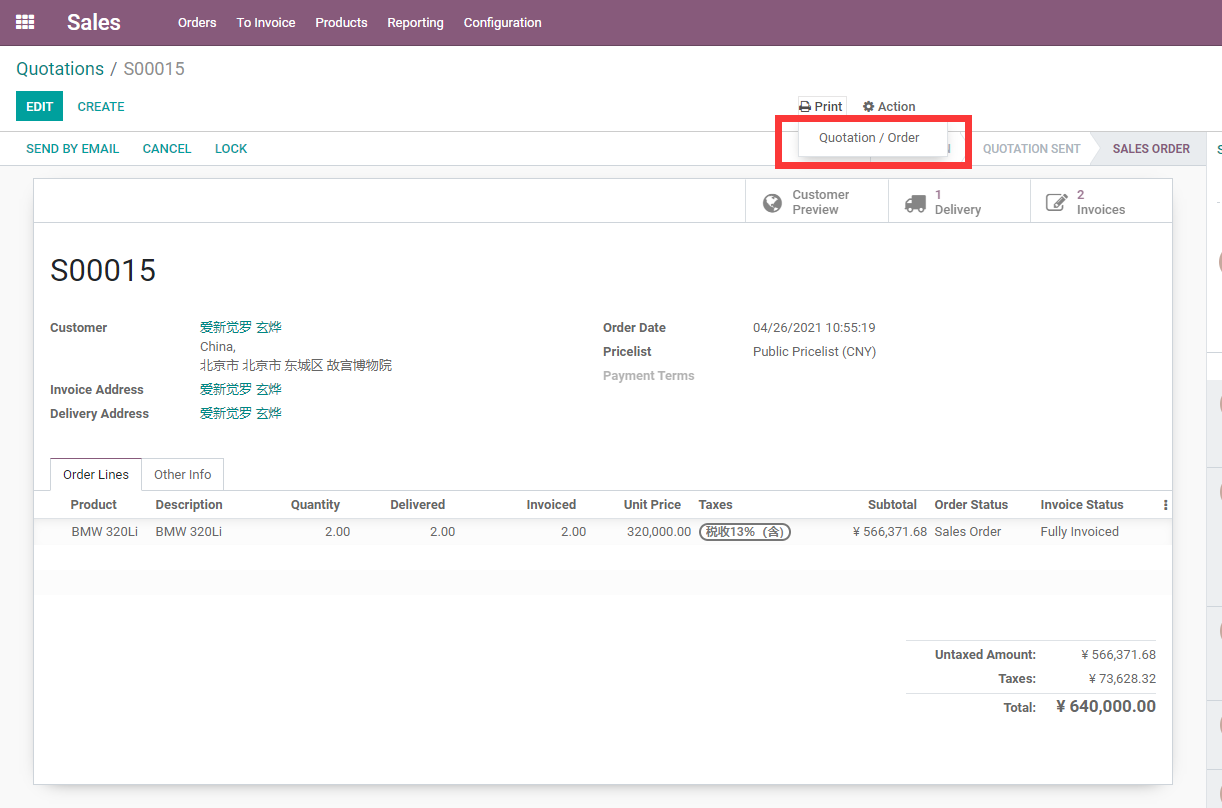
A quotation can also be printed directly as a PDF, which is useful for archive or offline signing.
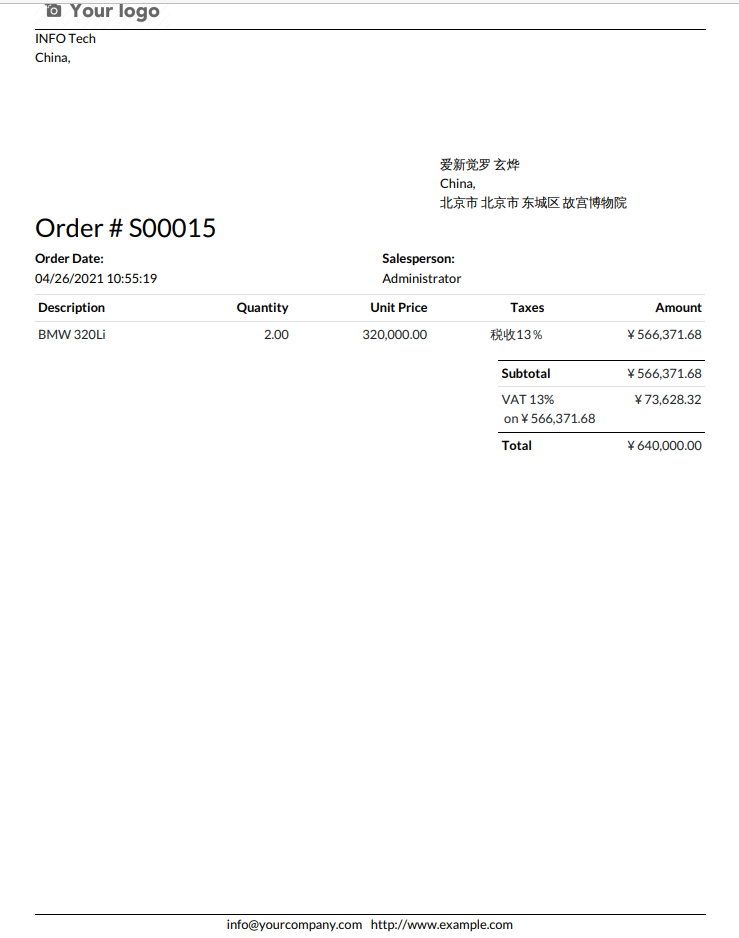
The PDF style is determined by document layout and report templates. In the first phase, at least make sure the company logo, address, phone number, footer, product lines, and amounts are clear.
CRM Integration
If the company uses CRM, it is recommended to create quotations from opportunities.
This preserves:
- Lead source.
- Opportunity stage.
- Sales activities.
- Customer communication history.
- Quotation amount.
- Won or lost reason.
Sales can still create quotations directly in the Sales app. However, from a management perspective, CRM-to-quotation gives a more complete chain and makes conversion rate and pipeline analysis easier.
Implementation Advice
Do not enable every advanced quotation feature in the first go-live phase. A practical rollout sequence is:
| Phase | Recommendation |
|---|---|
| Phase 1 | Run standard quotations, email sending, PDF layout, and customer confirmation |
| Phase 2 | Configure expiration dates, payment terms, and standard terms |
| Phase 3 | Use quotation templates and optional products to improve efficiency |
| Phase 4 | Enable online signature or online payment according to customer habits |
| Phase 5 | Connect CRM, subscriptions, projects, inventory, and accounting |
This chapter covered quotation creation, sending, expiration, templates, optional products, online signature, online payment, portal confirmation, and CRM integration. The next chapter explains what happens after the customer confirms the quotation: how a sales order moves through delivery, invoicing, cancellation, locking, and status management.