Chapter 2 Kiosk Self-Ordering
Kiosk and self-ordering features let customers browse products, place orders, and in some cases pay without a cashier entering every item manually. This is useful for restaurants, cafes, fast food counters, showrooms, and stores that want to reduce queue pressure.
The
pos_self_ordermodule must be installed before using this feature.
Enable Kiosk Mode In POS
In POS settings, select the store where you want to enable self-ordering. Under the mobile self-ordering and kiosk options, enable kiosk mode.
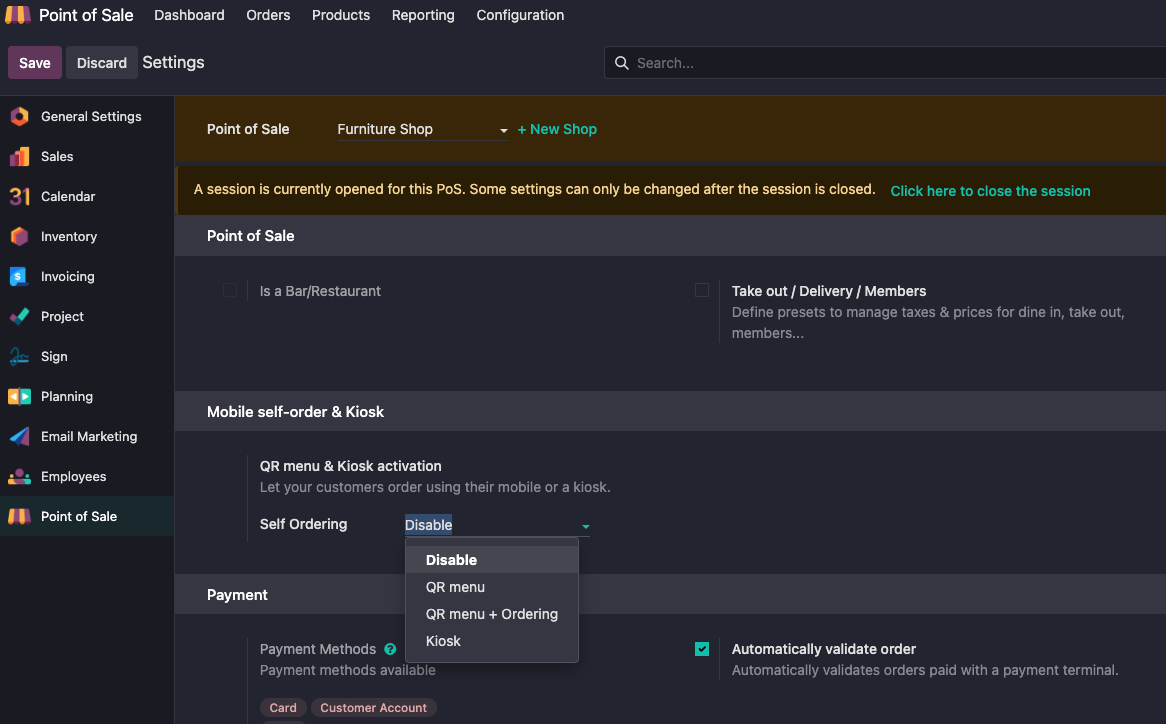
Odoo provides three self-ordering modes:
| Mode | Usage |
|---|---|
| QR Menu | Customers scan a QR code and browse the menu only. |
| QR Menu + Ordering | Customers scan a QR code, browse the menu, and place an order. |
| Kiosk | Customers place orders from a self-service kiosk screen. |
With QR Menu, the customer scans the QR code and opens the mobile menu.
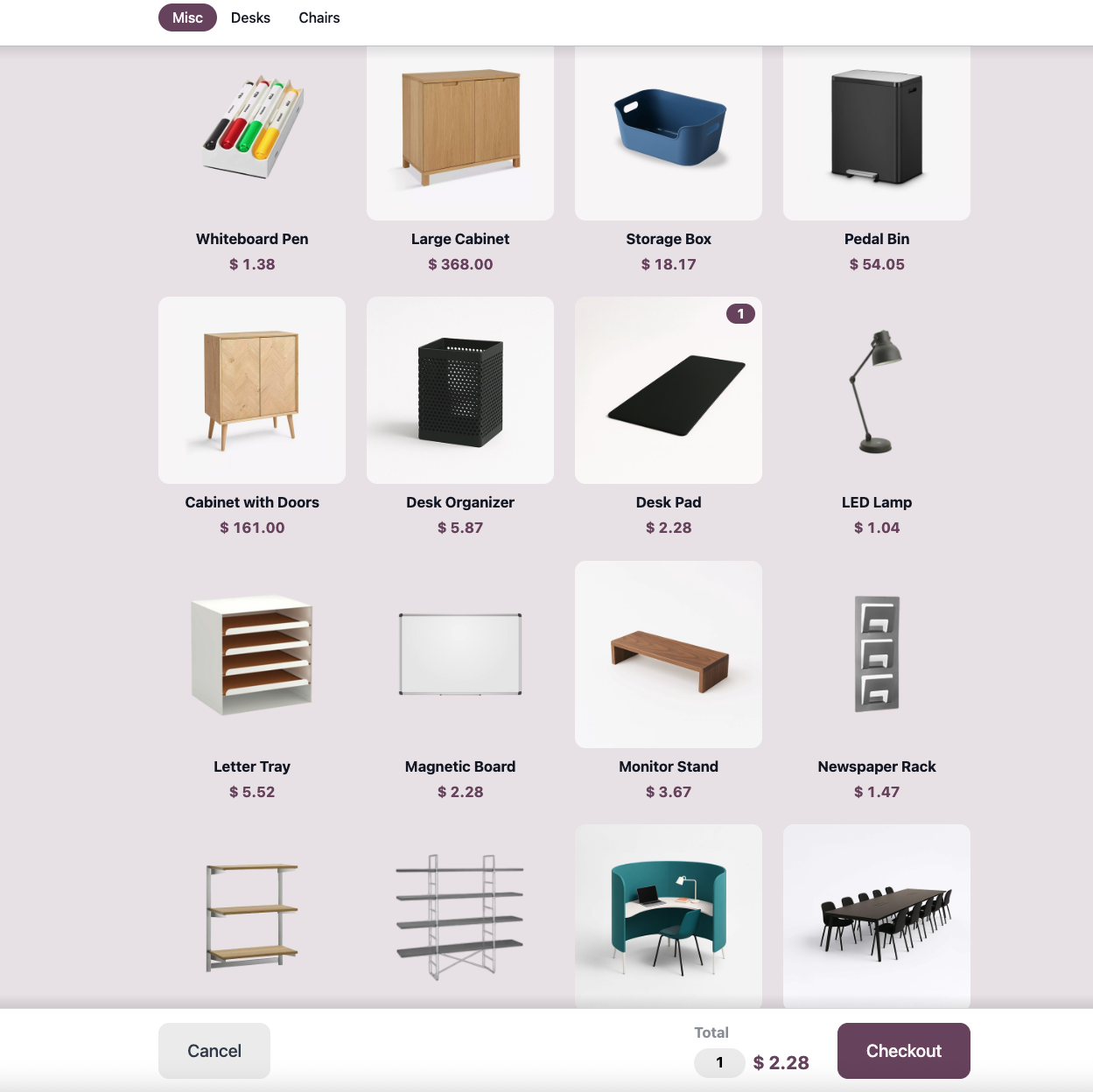
The customer browses the menu, selects products, and places the order.
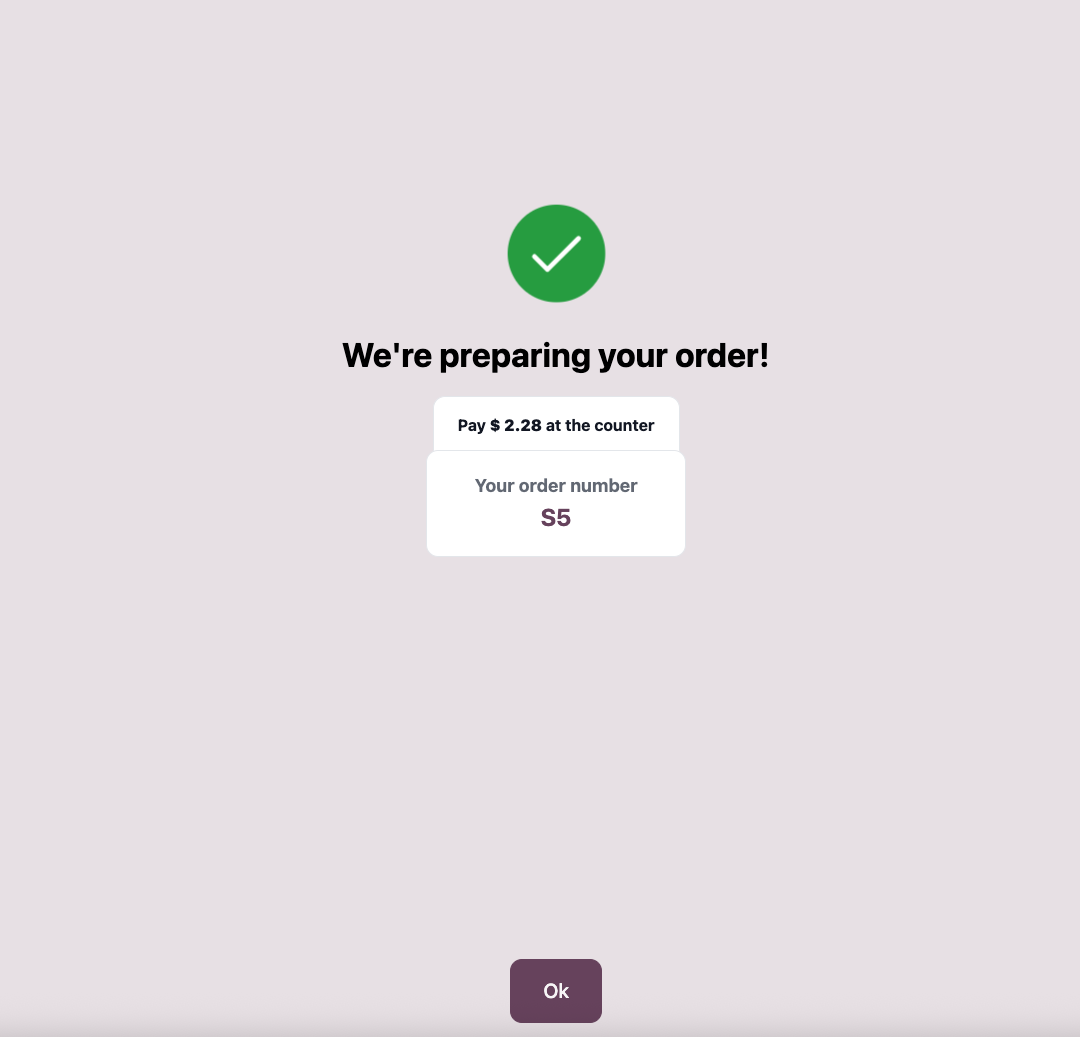
After the order is submitted, Odoo displays a confirmation message.
Online Payment
If customers should pay online by themselves, select an online payment mode in the POS settings.
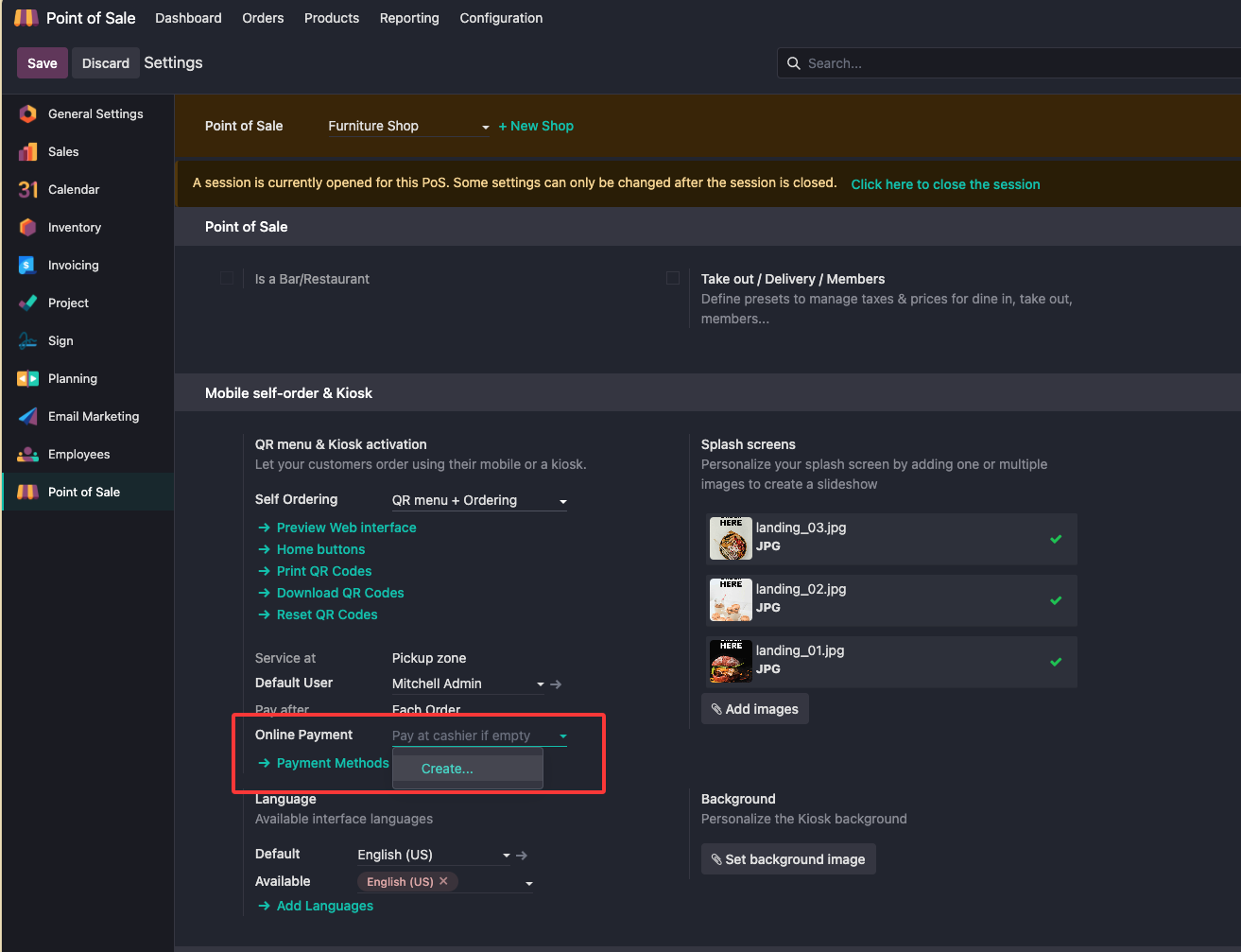
If no online payment method is configured, the default process is to pay at the cashier counter.
Time-Limited Availability
Sometimes only certain POS product categories should be available for online or self-service ordering during a specific time period. Configure this on the POS category.
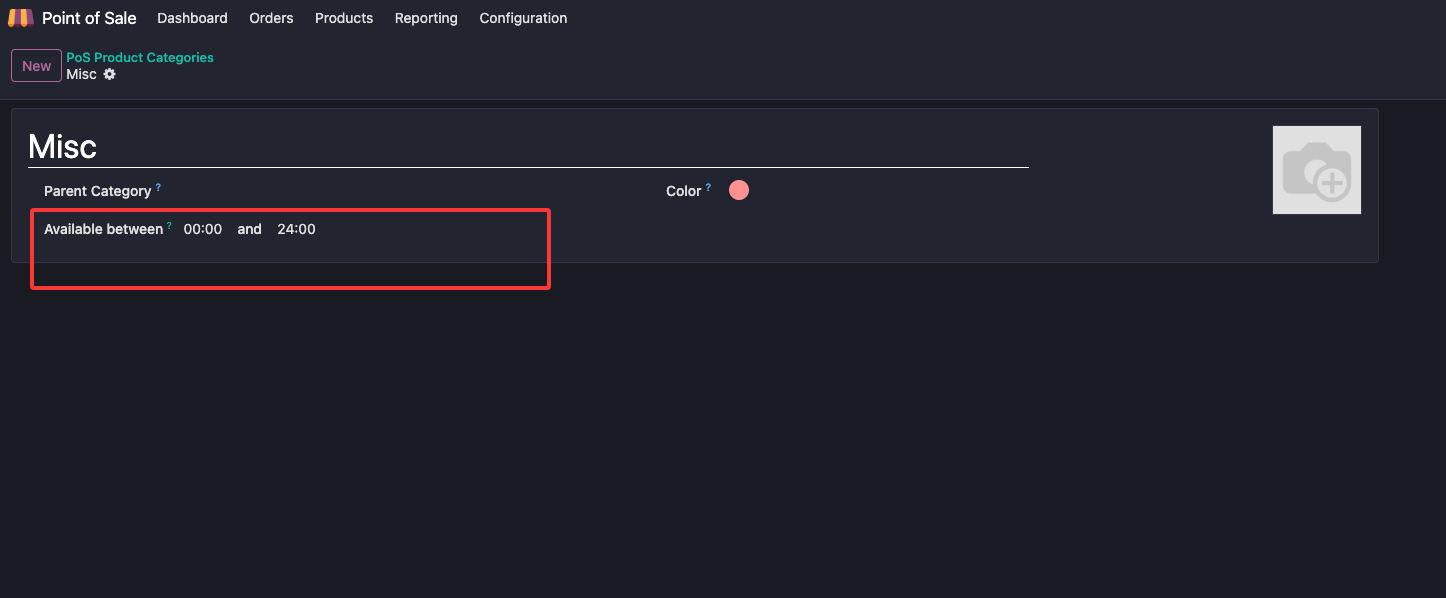
This is common in restaurant scenarios, such as breakfast menus, lunch sets, dinner menus, or products that should only be sold during specific service windows.
This chapter introduced the basic kiosk and mobile self-ordering setup. The next chapter returns to checkout documents and explains POS receipts and invoices.