POS Alipay
Alipay can be used not only on the website, but also in Odoo Point of Sale. This chapter explains how to use Alipay for POS payment and refund in Odoo 18.
Module Installation
First, activate POS Alipay payment. Go to Settings > POS > Payment Terminals and enable Alipay payment.
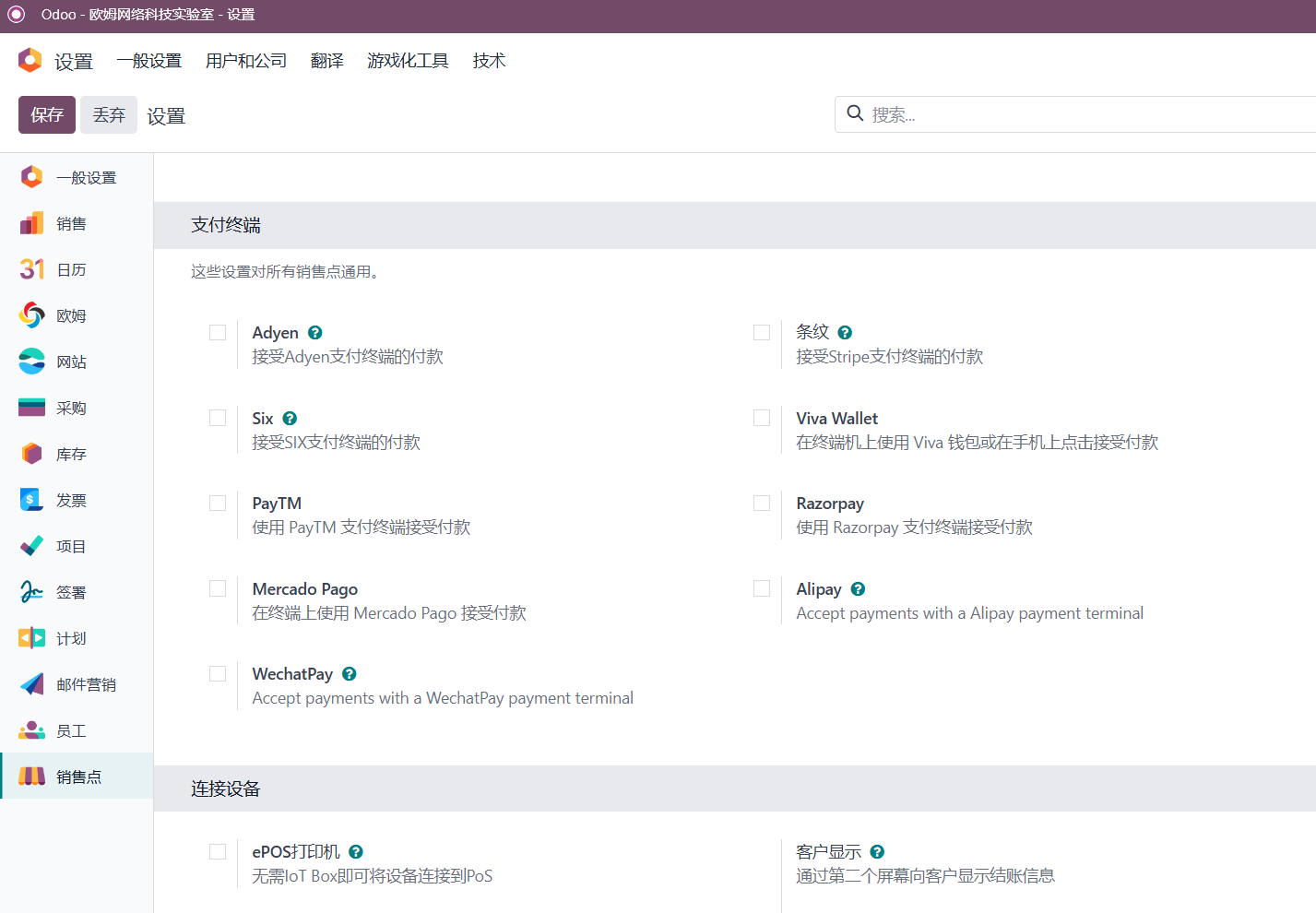
Click save to install the POS Alipay module.
Configure Alipay Payment
Set the payment terminal in POS settings.
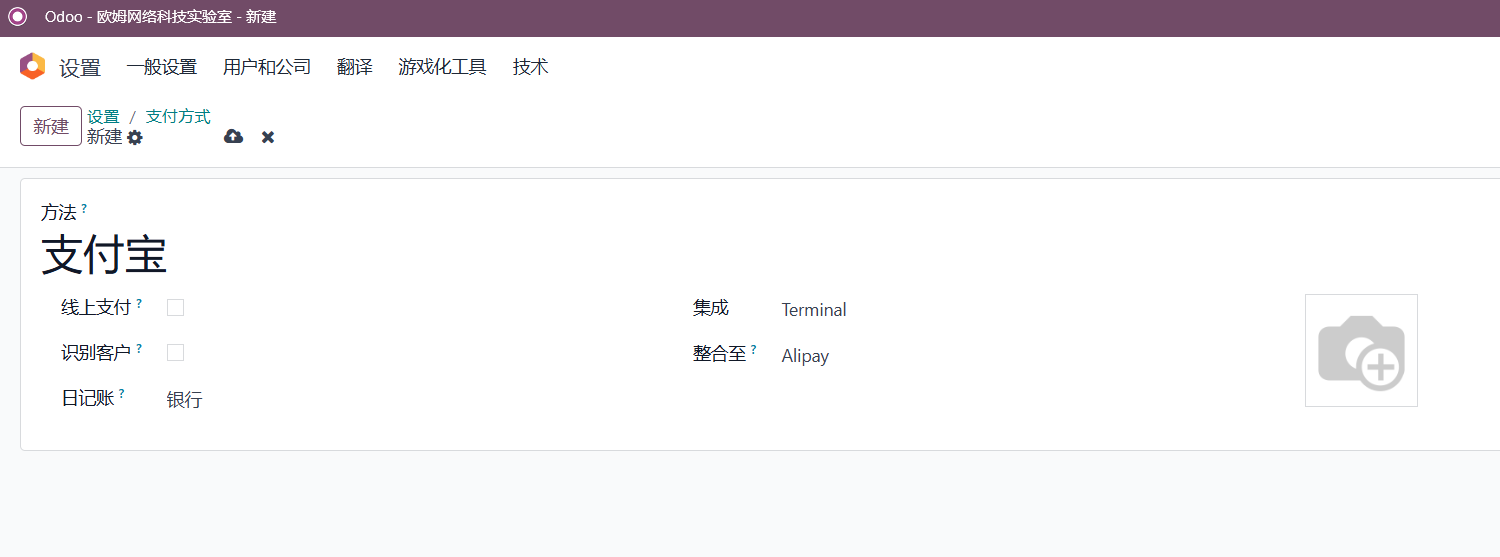
Then add the Alipay payment method to the test store.
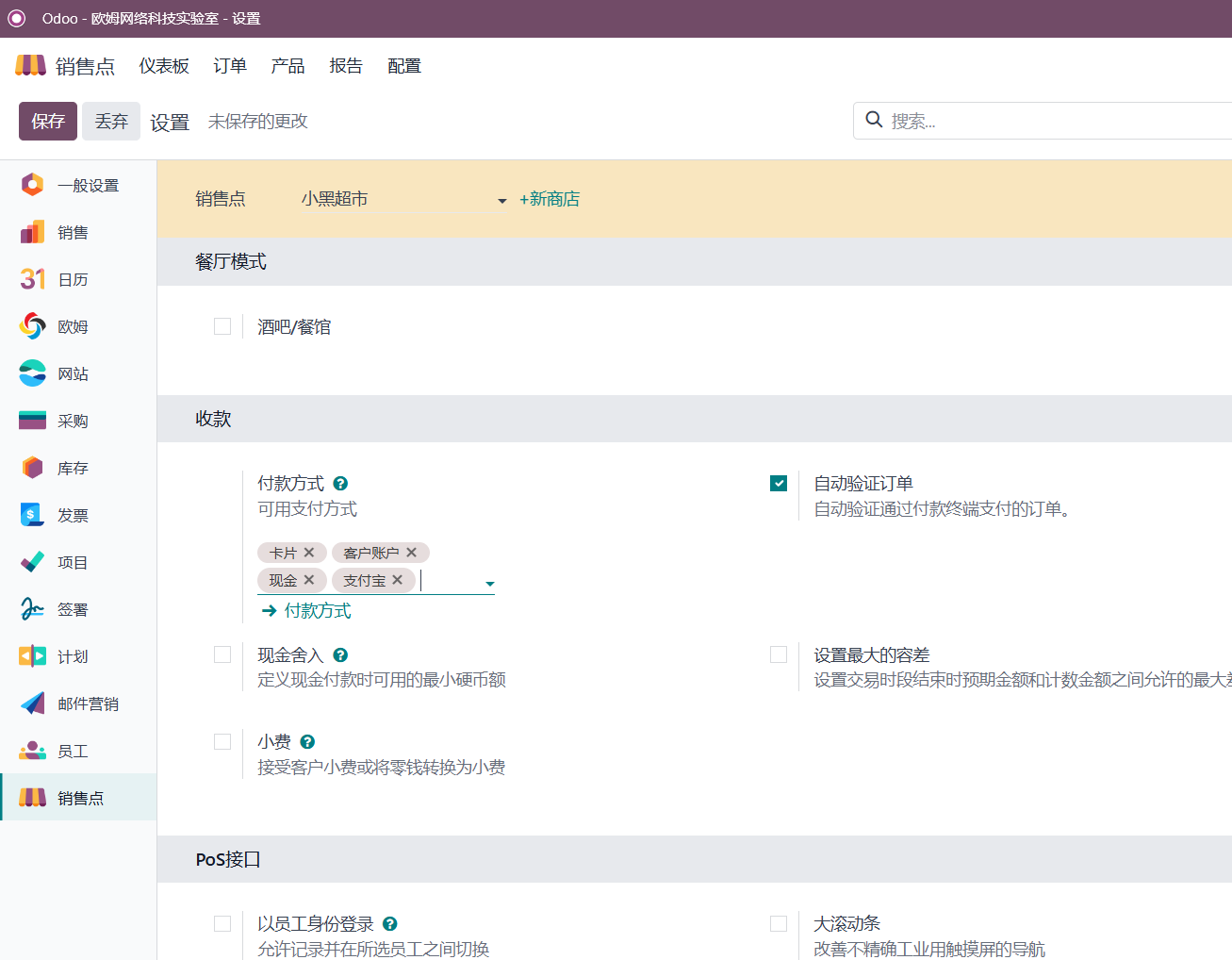
Receive Payment With Alipay
After setup, you can receive payment with Alipay.
POS Alipay uses the same configuration as website Alipay, so no separate provider configuration is required here.
Open a POS terminal and sell a product. In this example, we use a notebook.
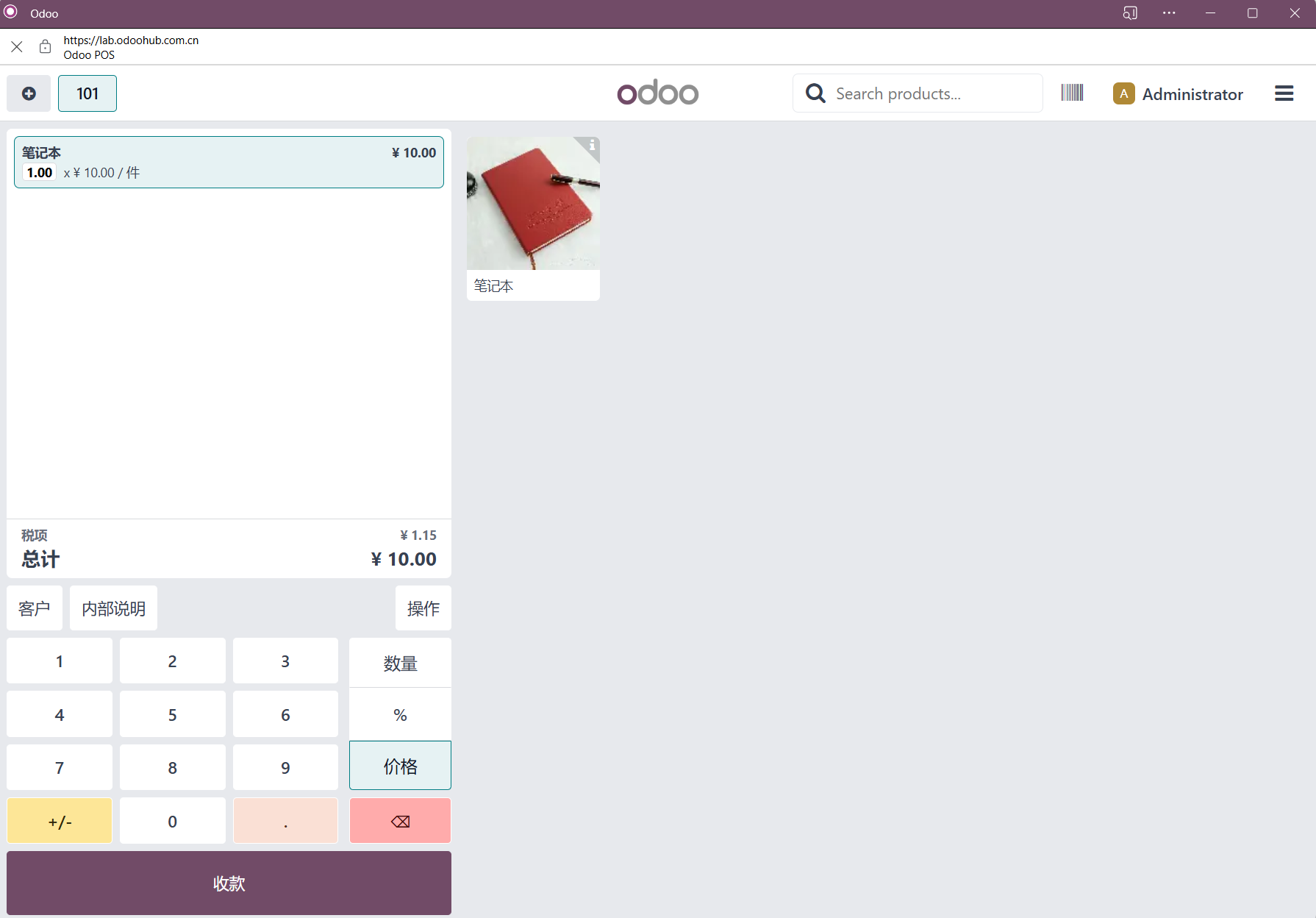
Sell a notebook for 10 yuan and click payment.
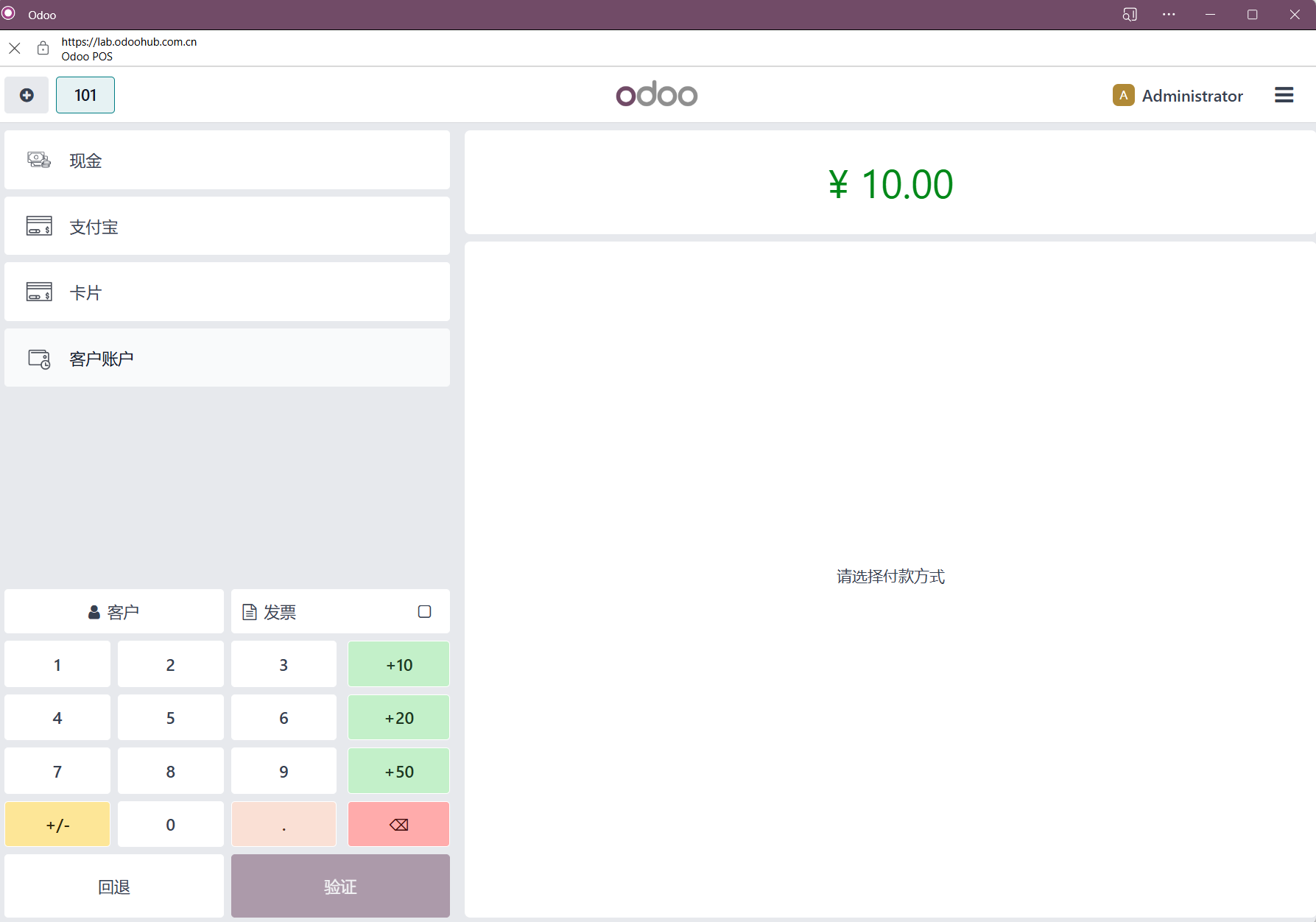
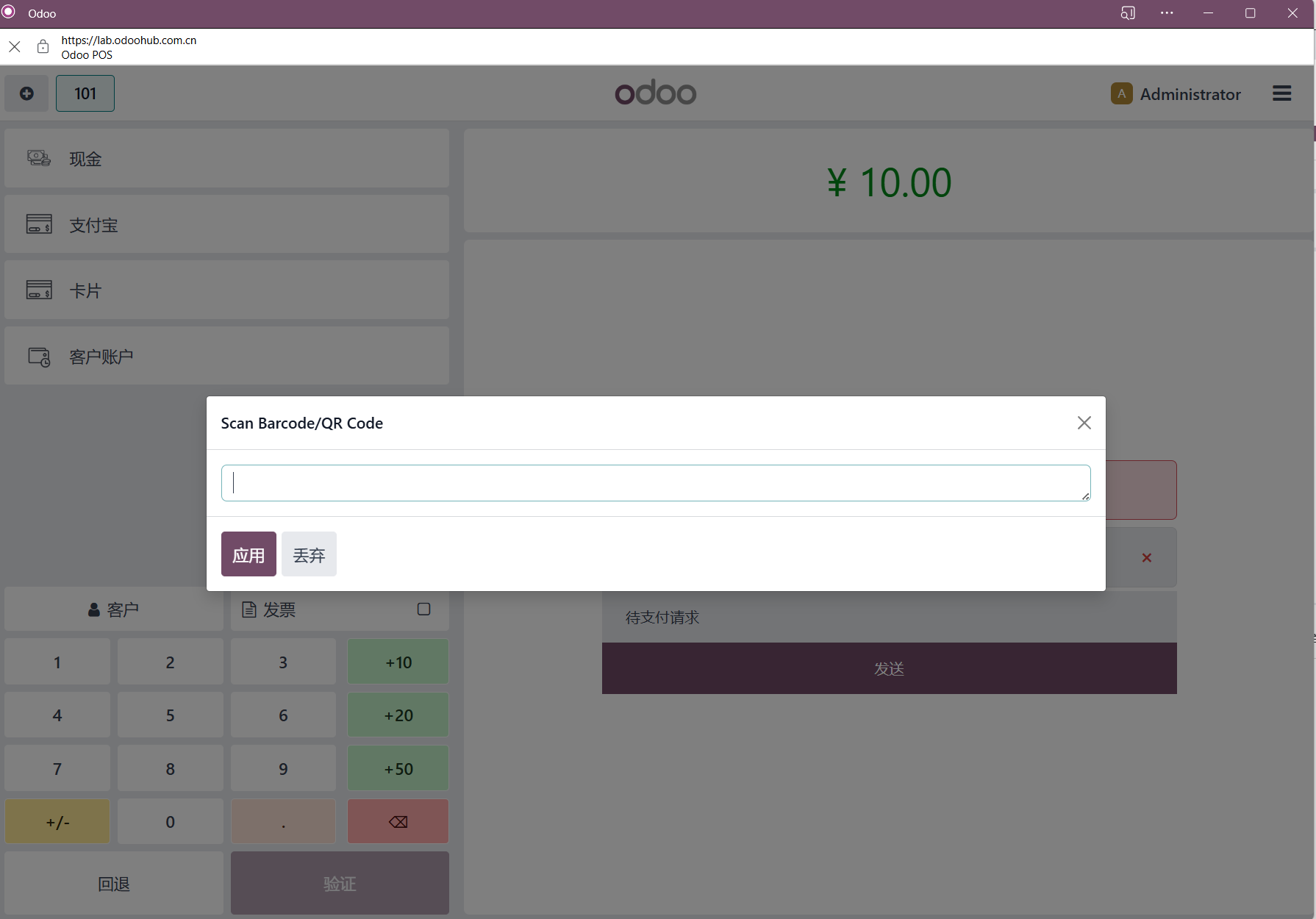
Select Alipay, scan the customer's payment barcode or QR code with a scanner, and click confirm to complete payment.
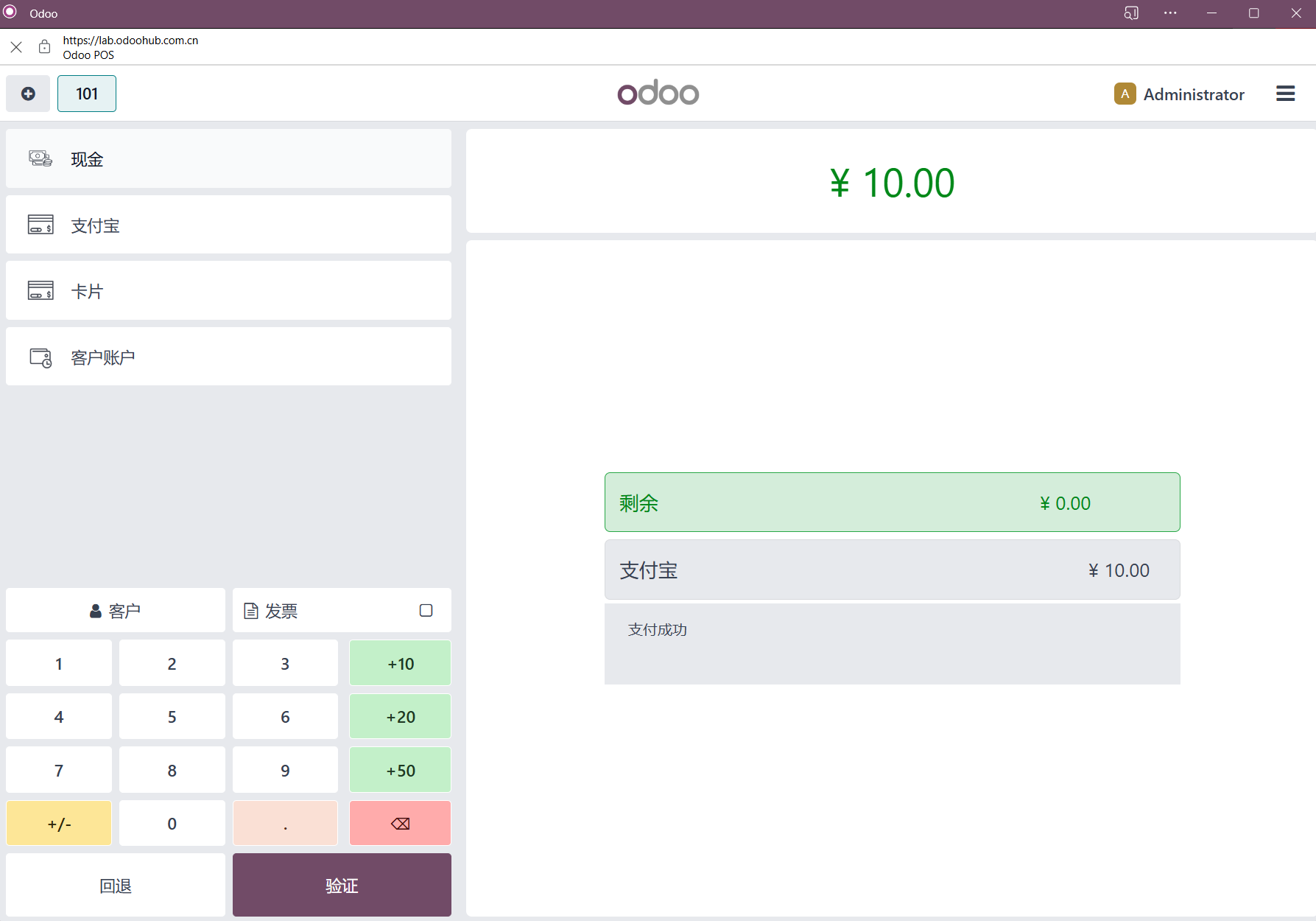
Click validate and print the receipt.
Refund With Alipay
To refund, select the order from the order list and click Refund.
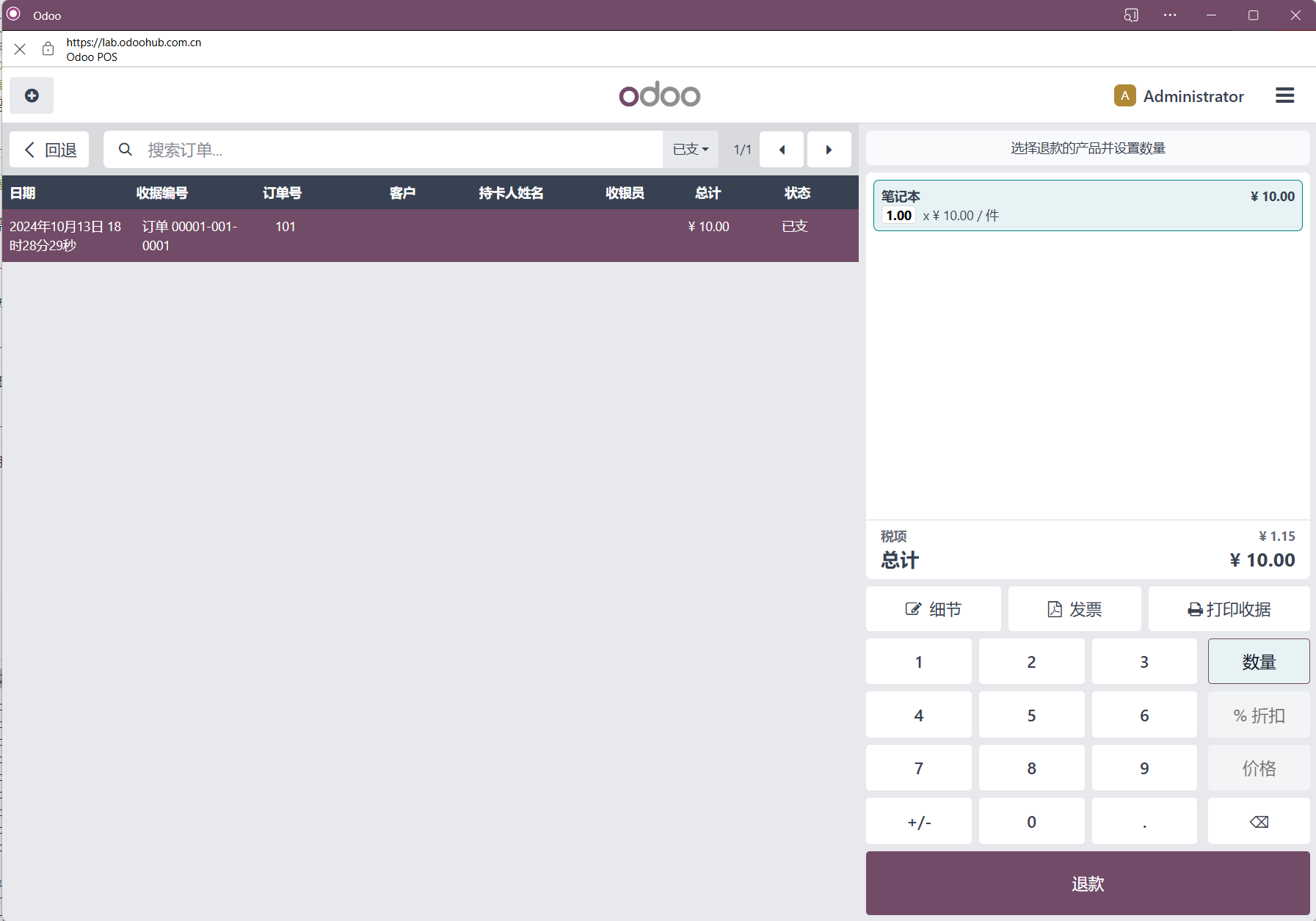
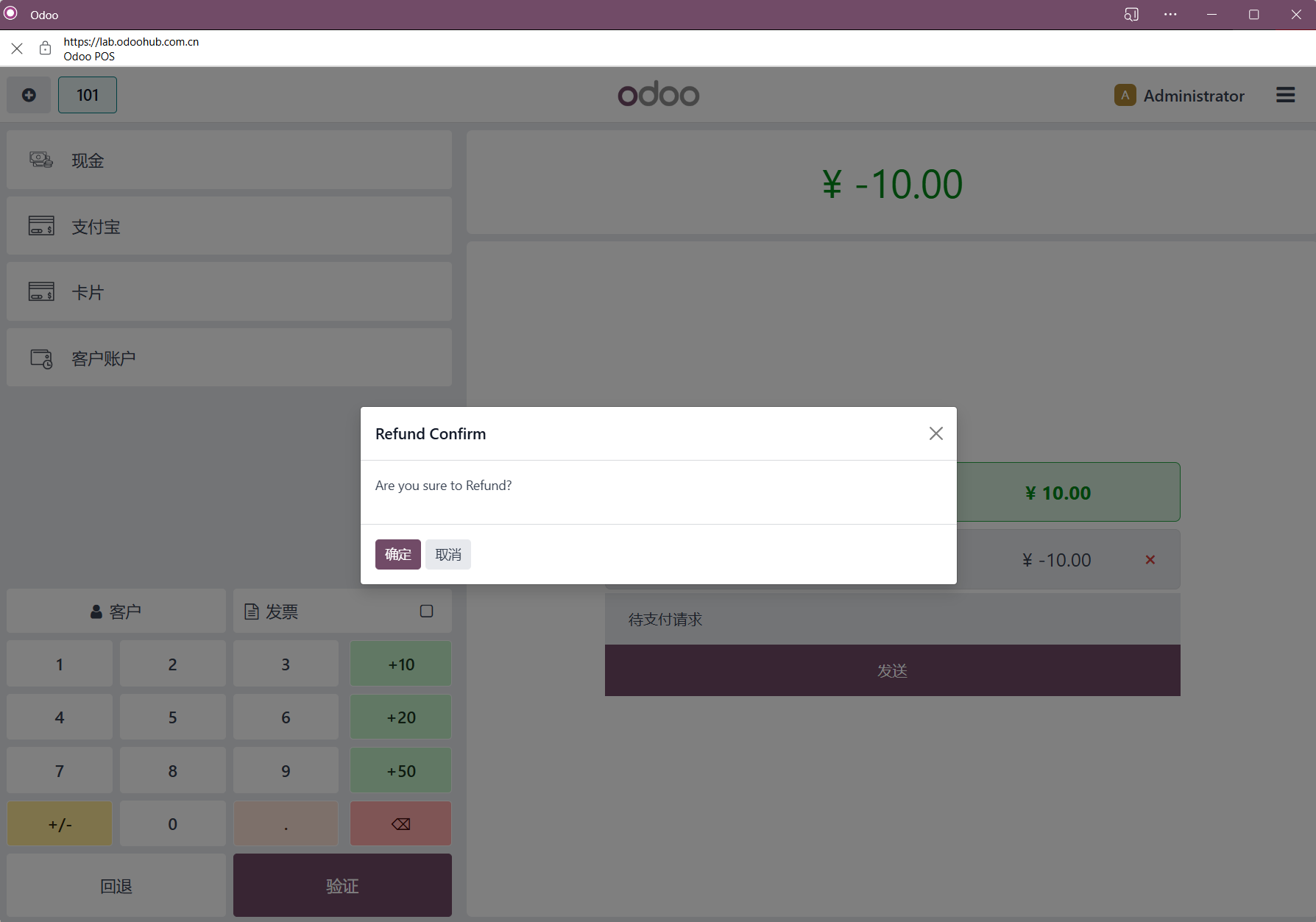
In the generated refund screen, select Alipay.
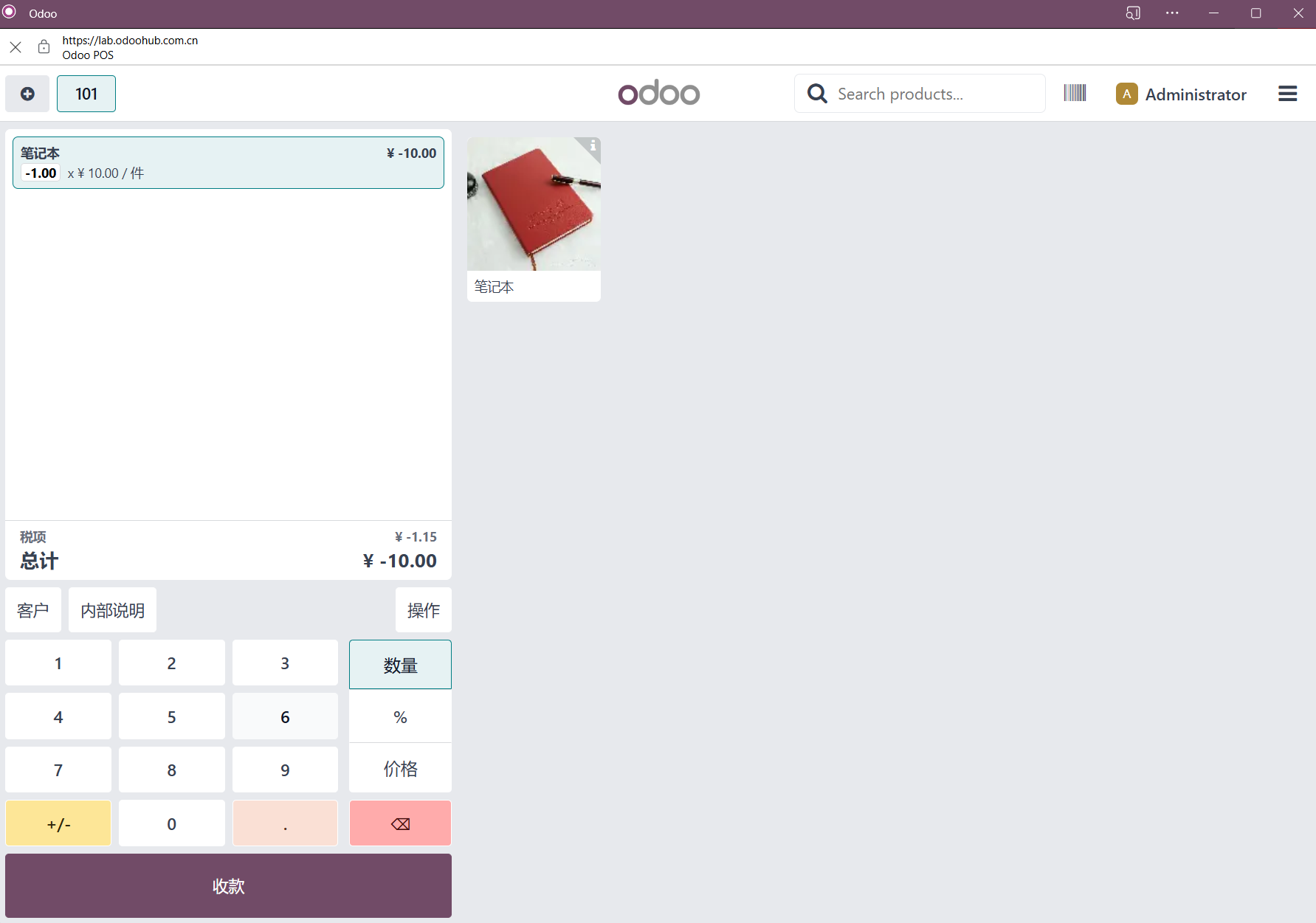
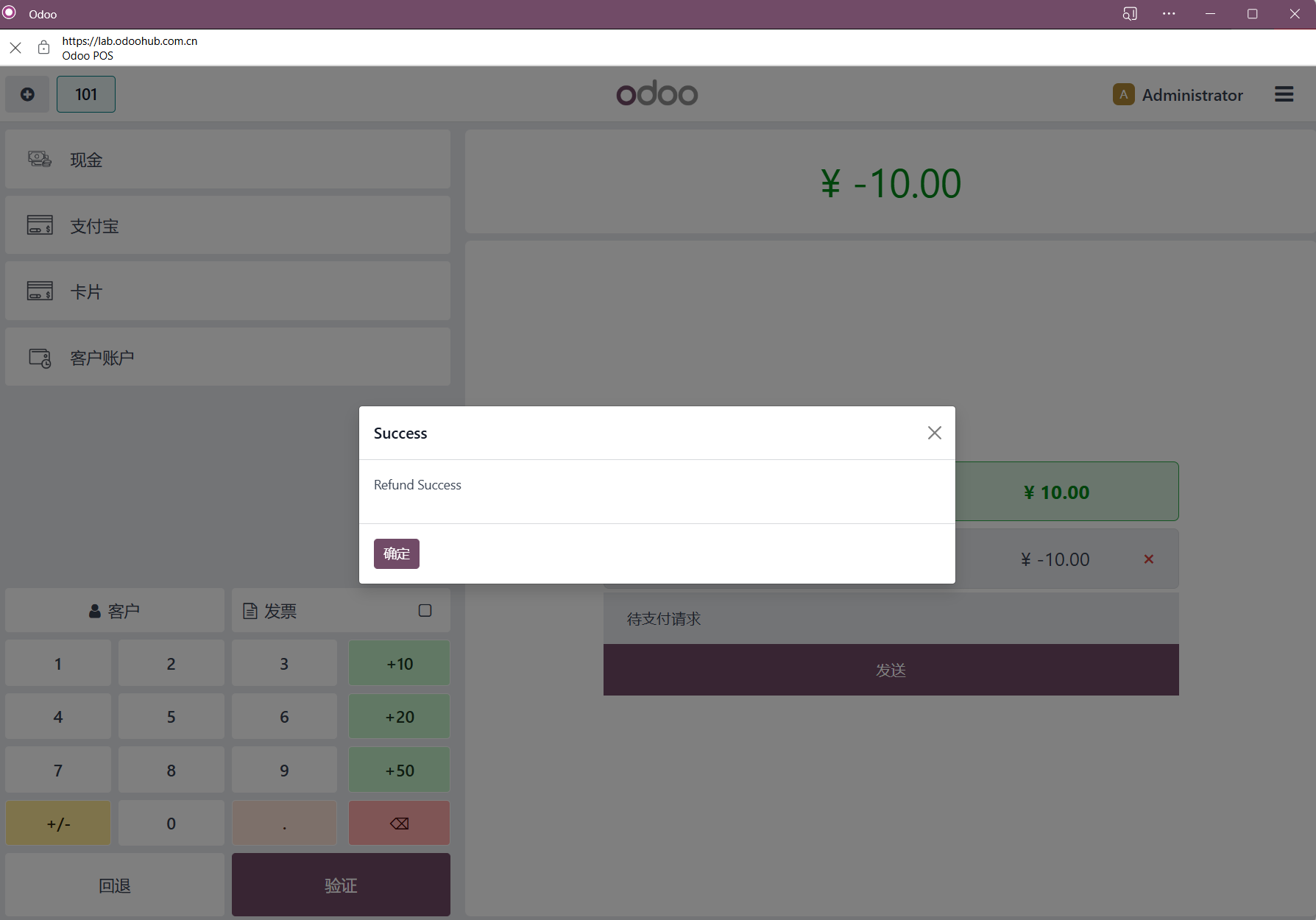
Click confirm to complete the refund.
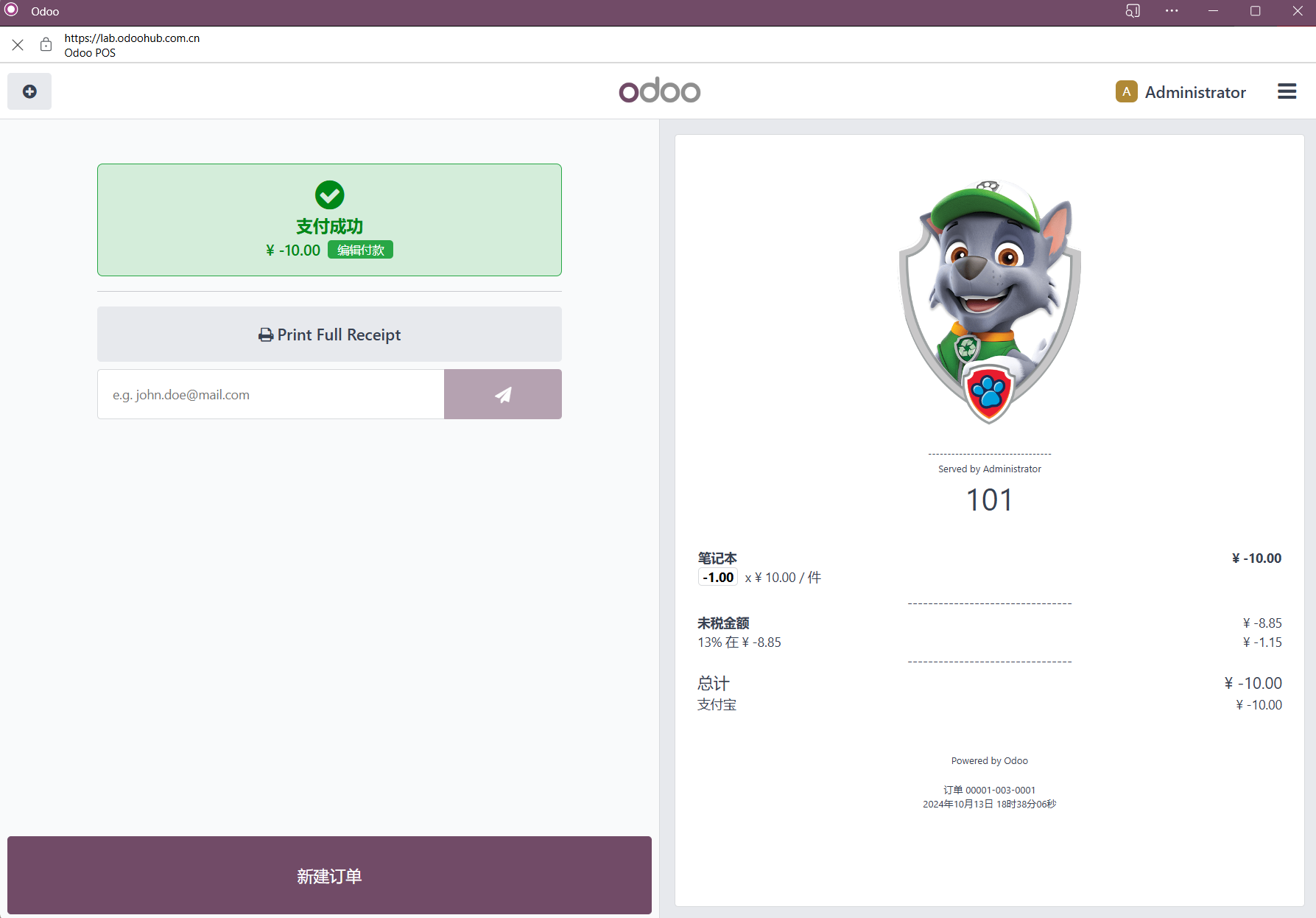
The POS Alipay payment and refund process is now complete.
This chapter covered POS Alipay payment and refund. The next chapter introduces Line Pay for POS in regions where Line is widely used.