SF International
SF Express supports some Hong Kong-related scenarios, but cross-border eCommerce and foreign trade often require more complete international shipping and customs declaration support. SF International provides better support for cross-border transportation and customs workflows.
This chapter explains how to use the SF International module in Odoo for cross-border delivery.
Preparation
Unlike domestic Fengqiao, SF International uses the SF International Open Platform. It is a separate platform, so register a separate account before configuration.
Create An App
After registration, create an app in the open platform console.
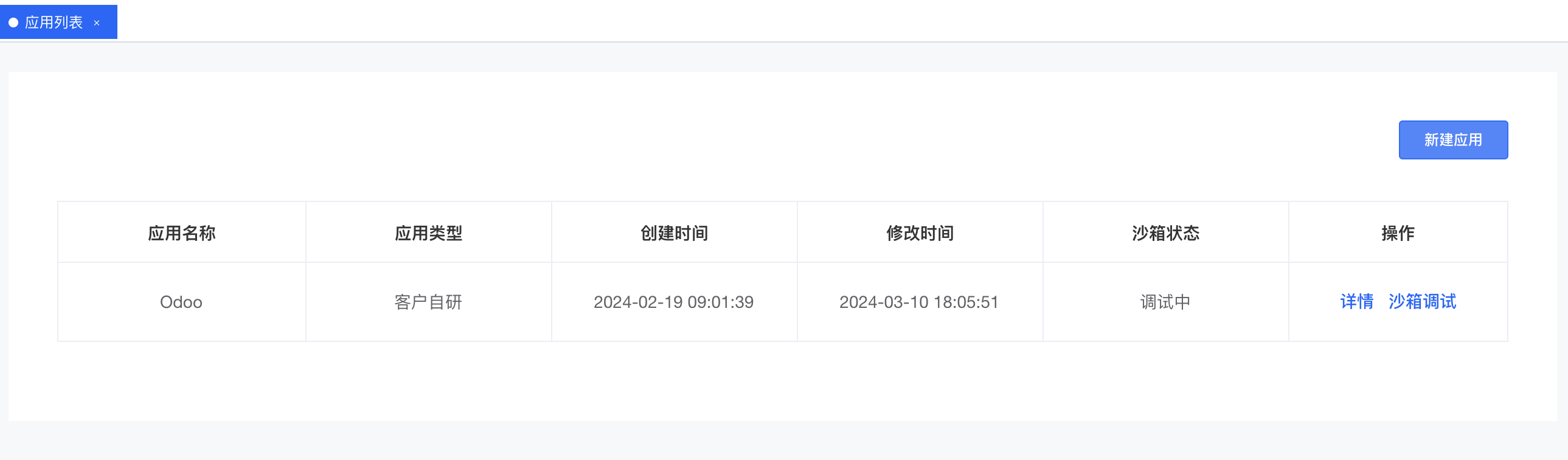
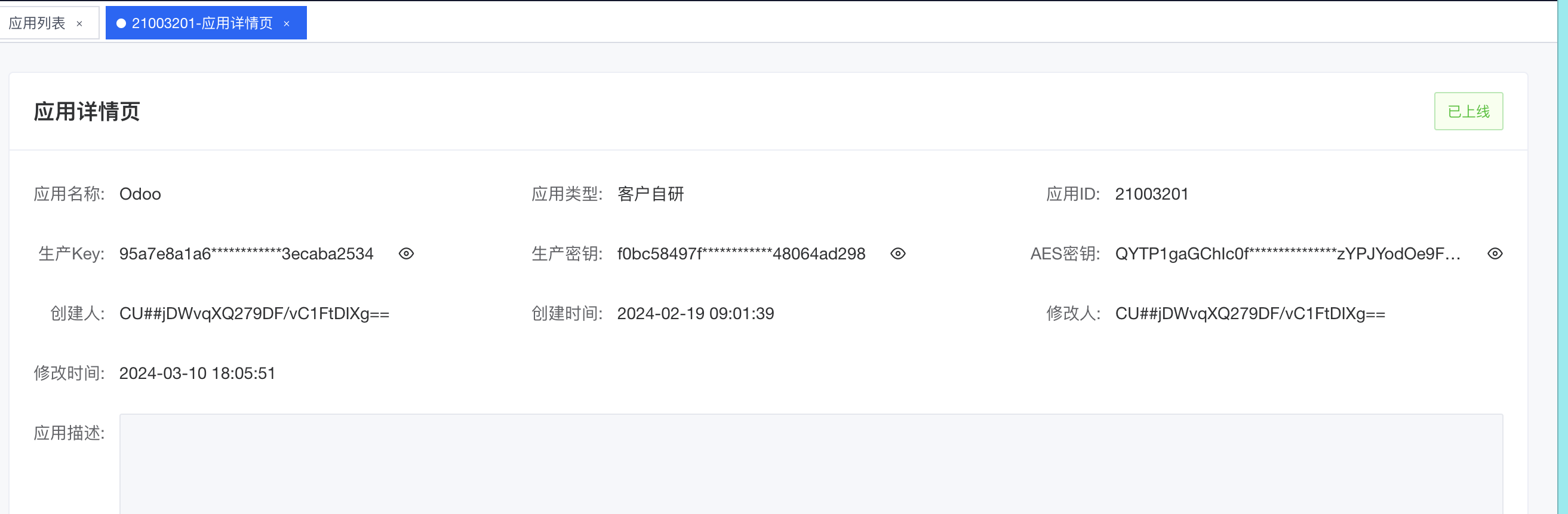
After the app is created, obtain these key parameters:
| Parameter |
|---|
| APPKEY |
| APPSCERT |
| AESKEY |
| CUSTOM_CODE |
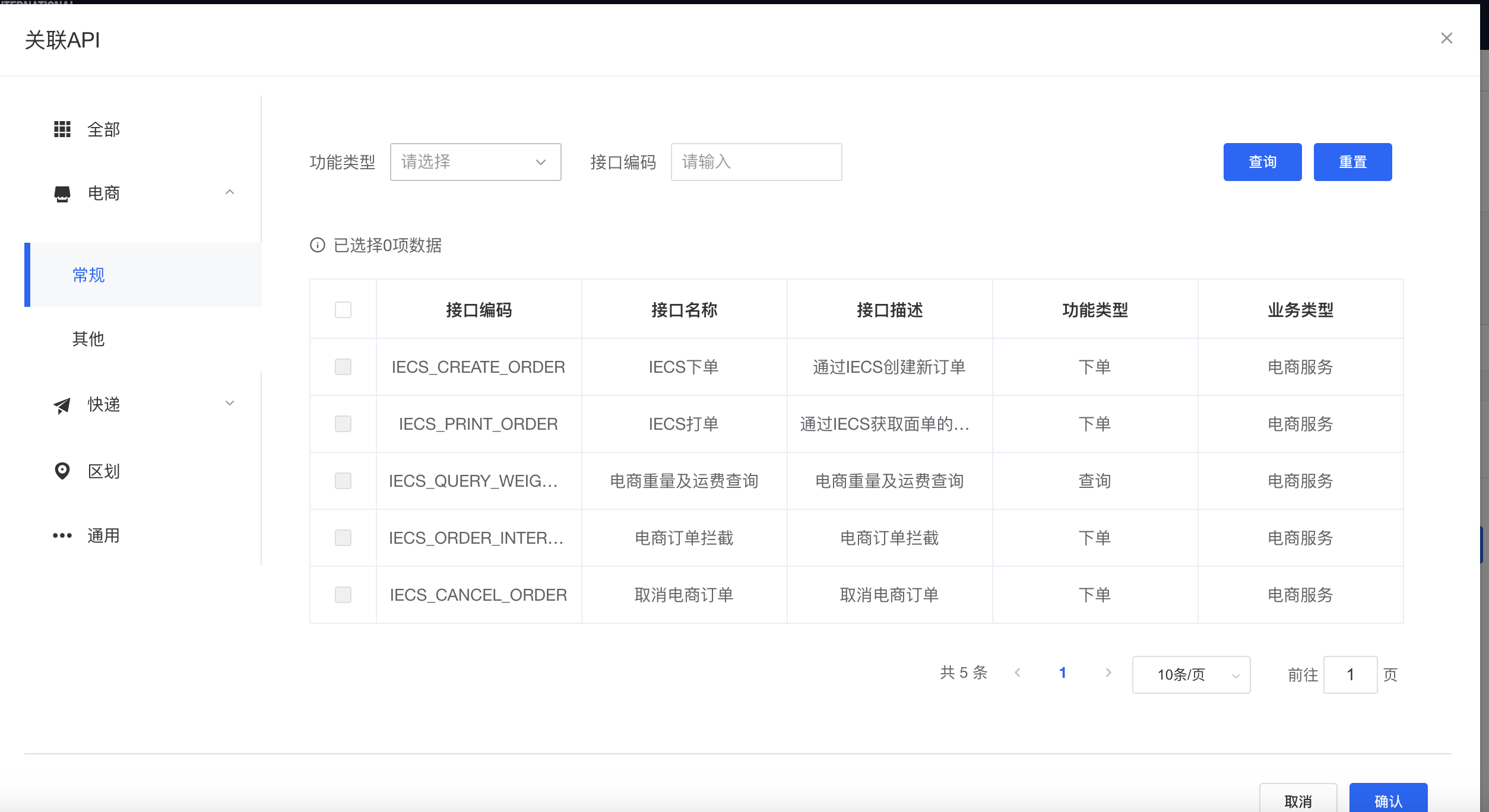
Finally, associate the APIs you need with the app.
Odoo Configuration
Install the SF International module developed by Qingdao Ohm Network Technology.
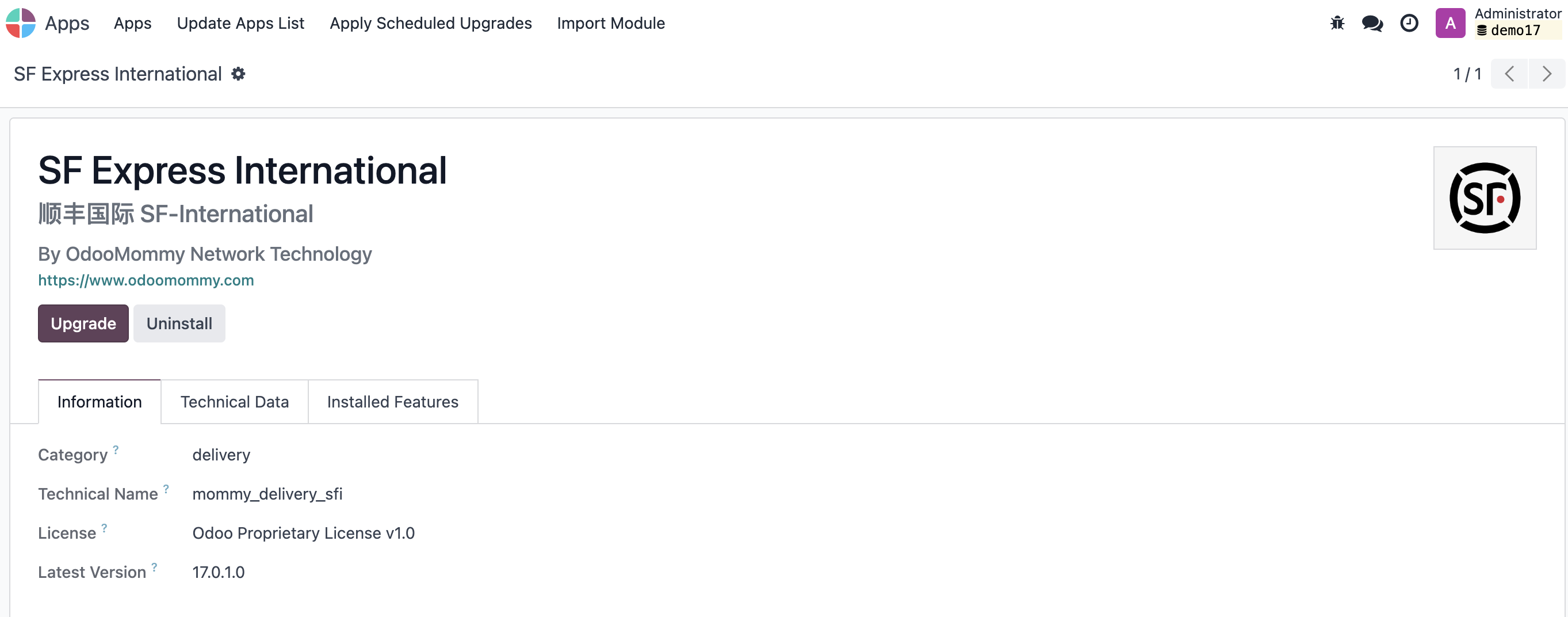
After installation, go to Inventory > Configuration > Delivery Methods, open SF International, and enter the parameters obtained from the platform.
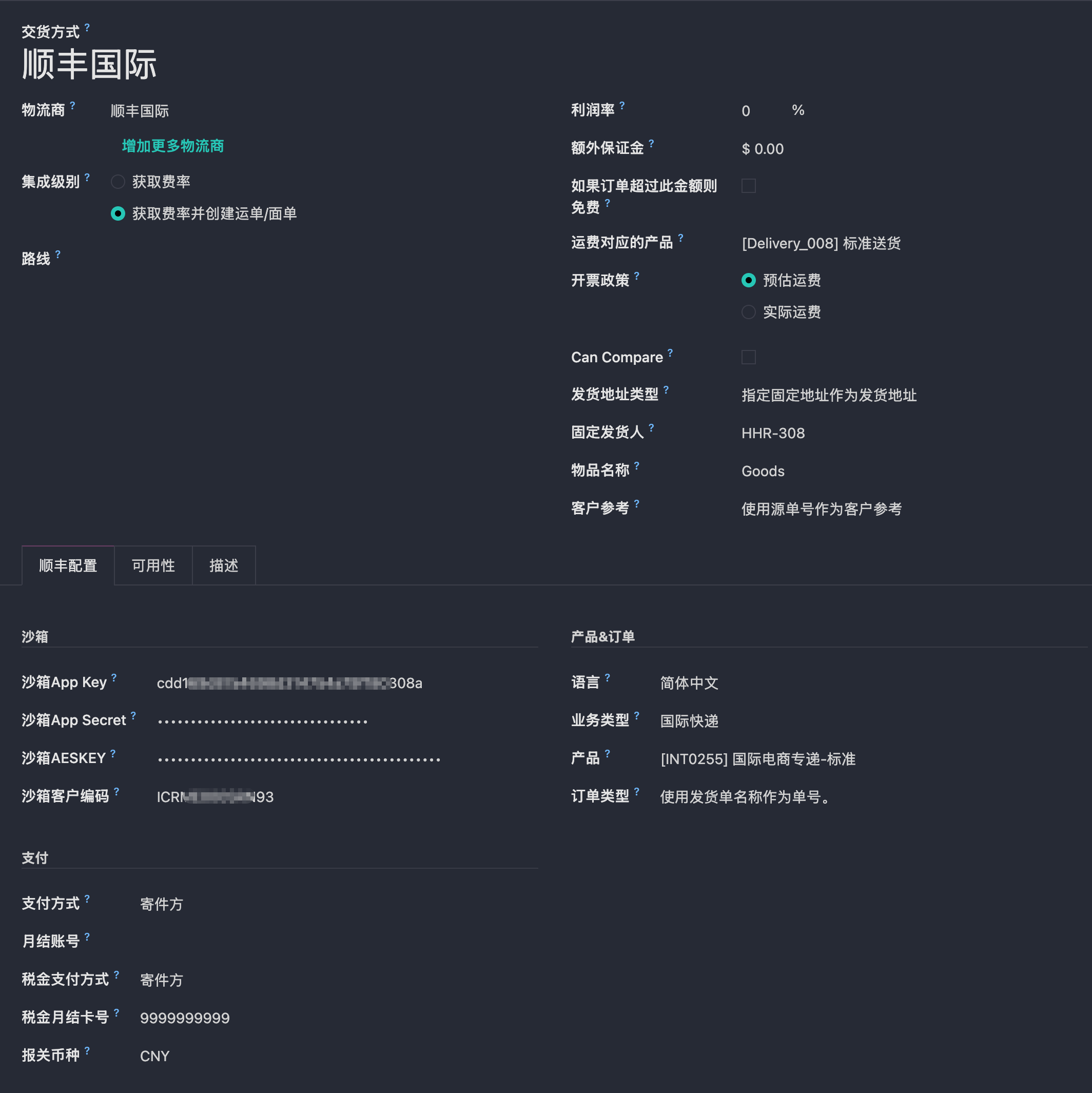
After configuration, SF International can be used for delivery.
Regular Business Flow
Shipping Rate Estimation
After creating a sales order, click Add Shipping, choose SF International, enter the total shipment weight, and click Get Rate.
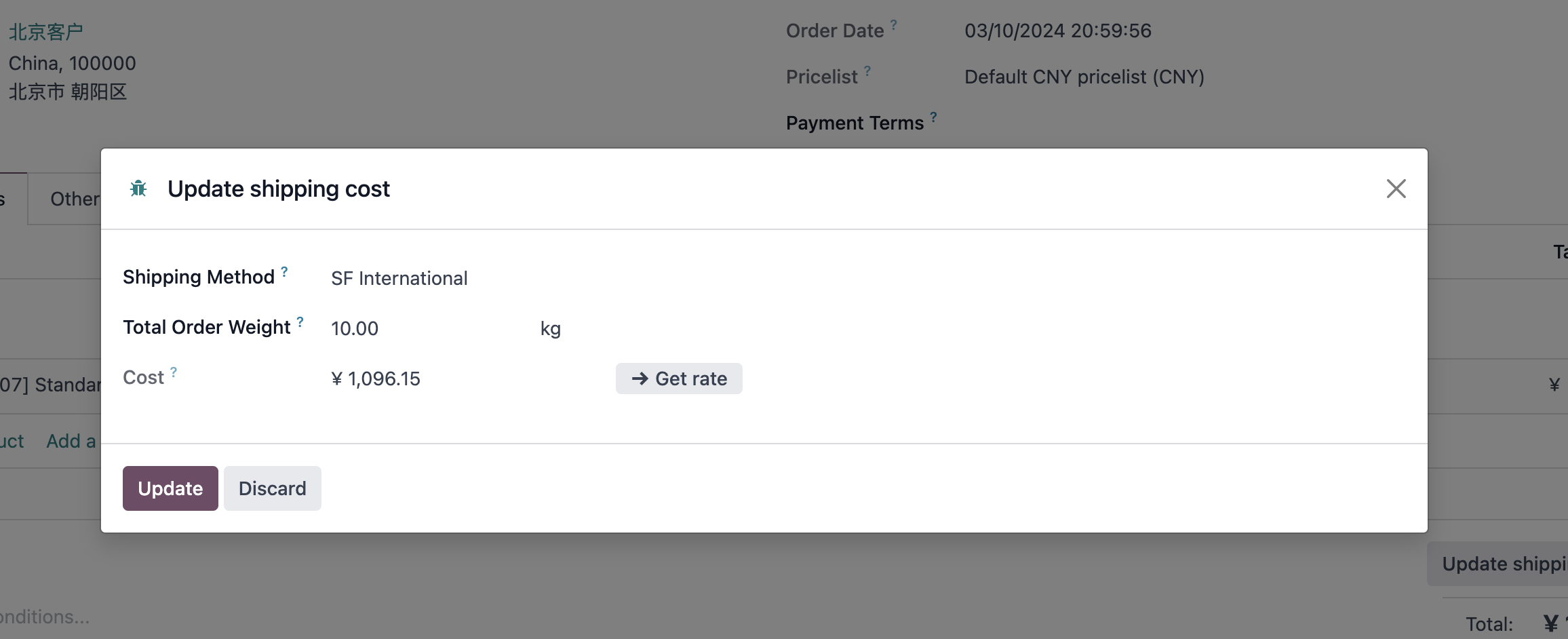
Odoo displays the estimated shipping cost.
Electronic Waybill
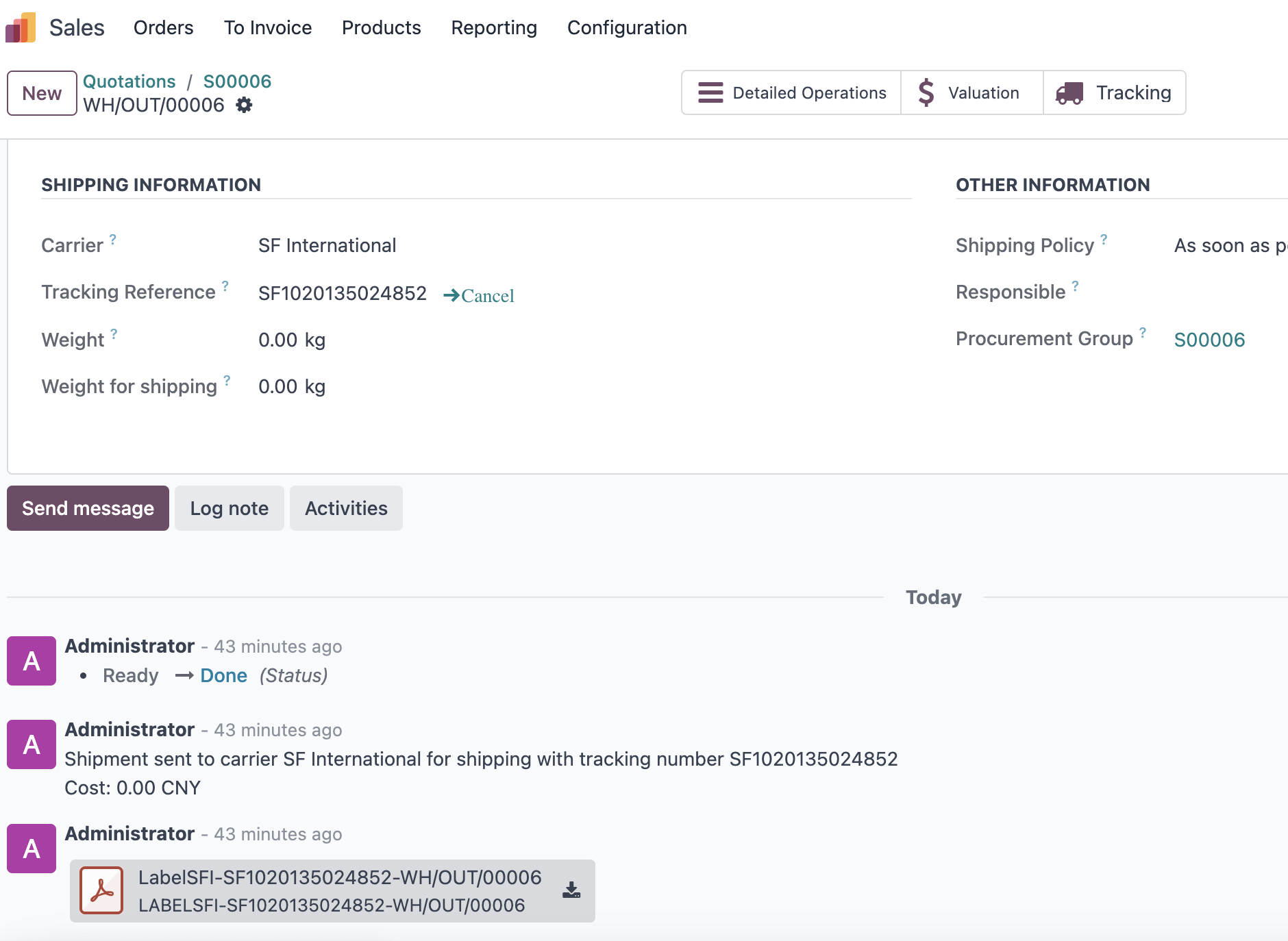
Similar to the domestic SF module, after validating the delivery order, Odoo fills in the tracking number returned by SF International and posts the electronic waybill in the chatter.
Tracking
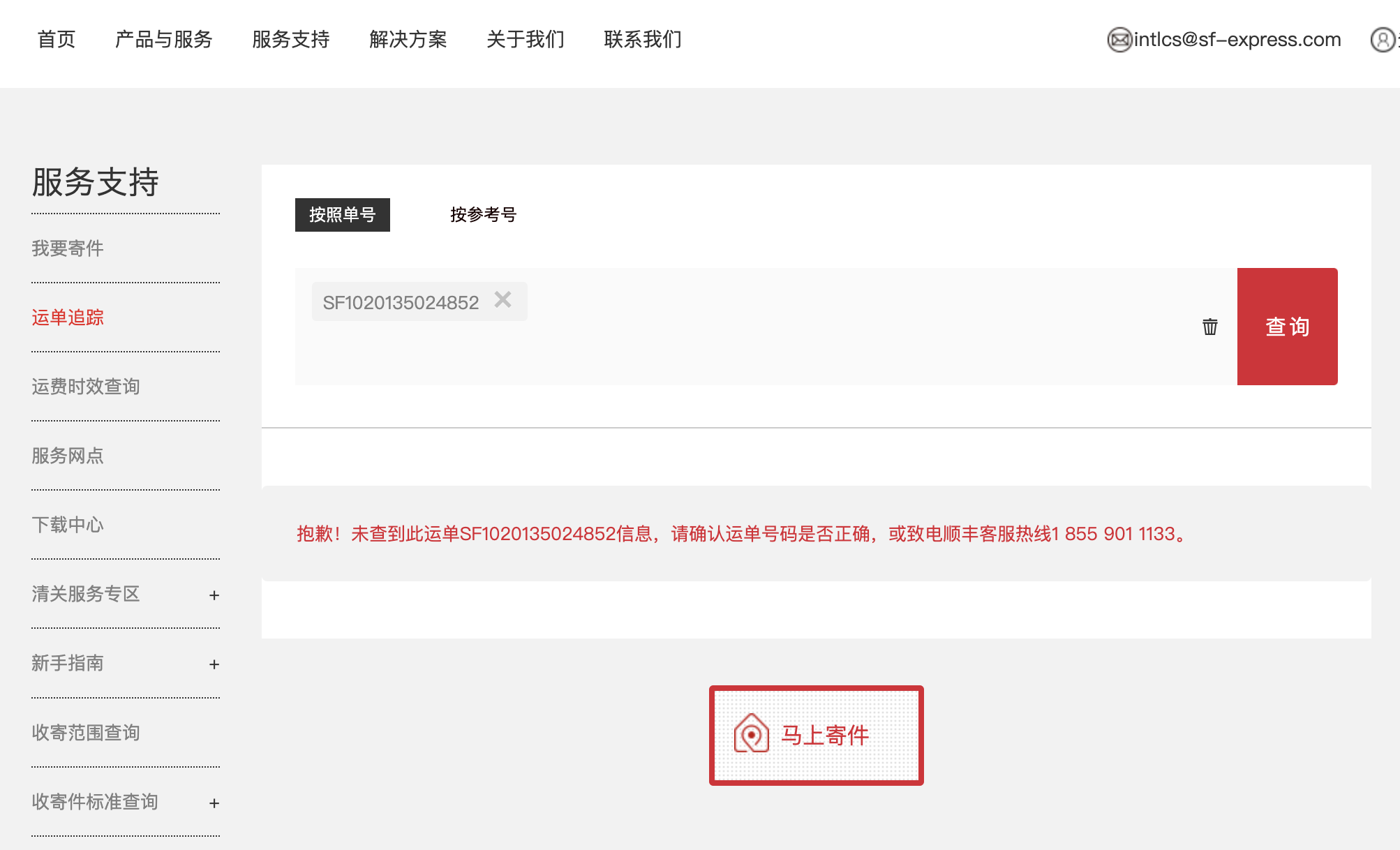
Click the tracking button to open the SF International website and view shipment tracking.
Cross-Border Business Flow
Customs Declaration
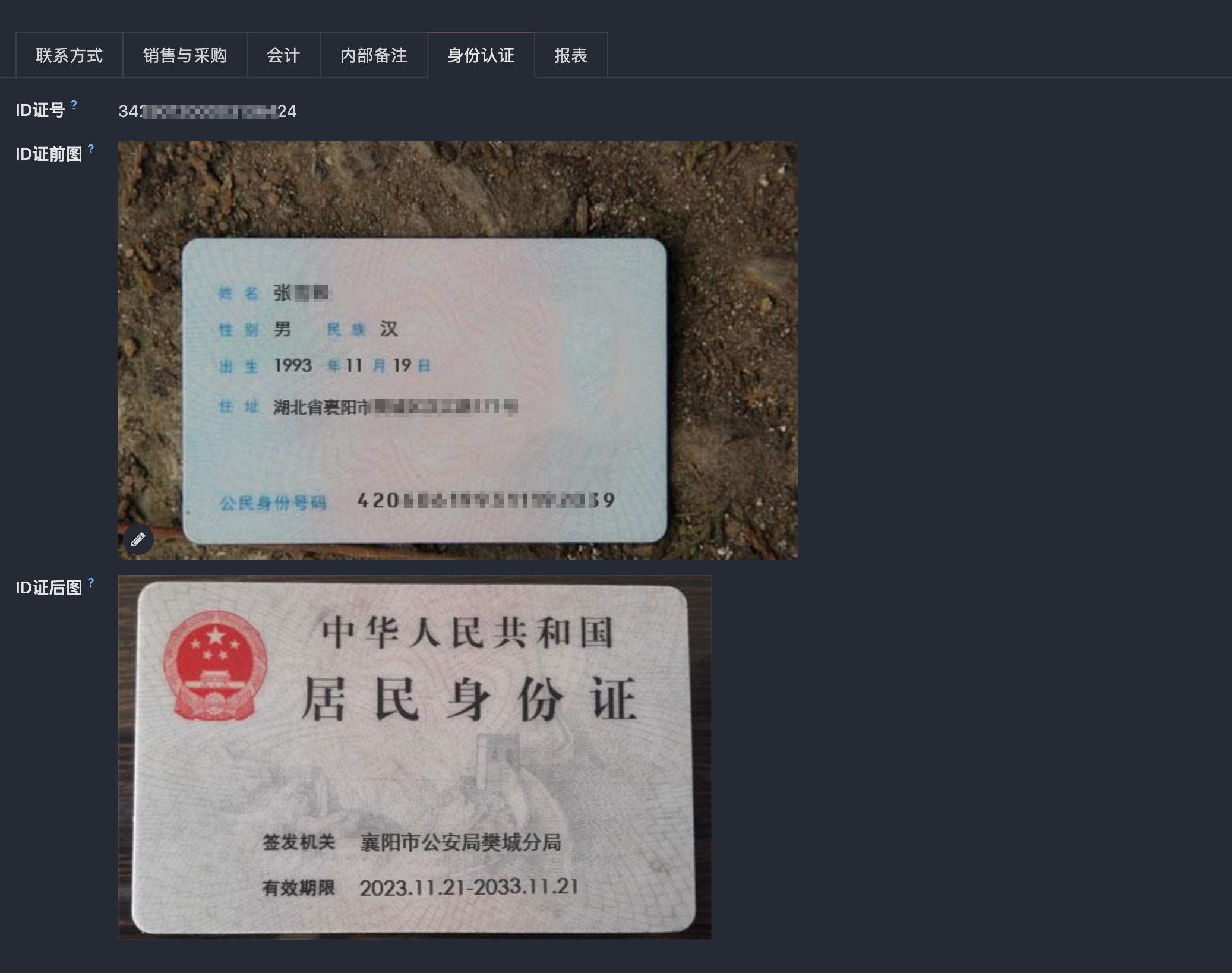
Cross-border shipments usually require product declaration information and sender/recipient identity data. The module adapts these requirements. Configure the user's identity information on the contact profile.
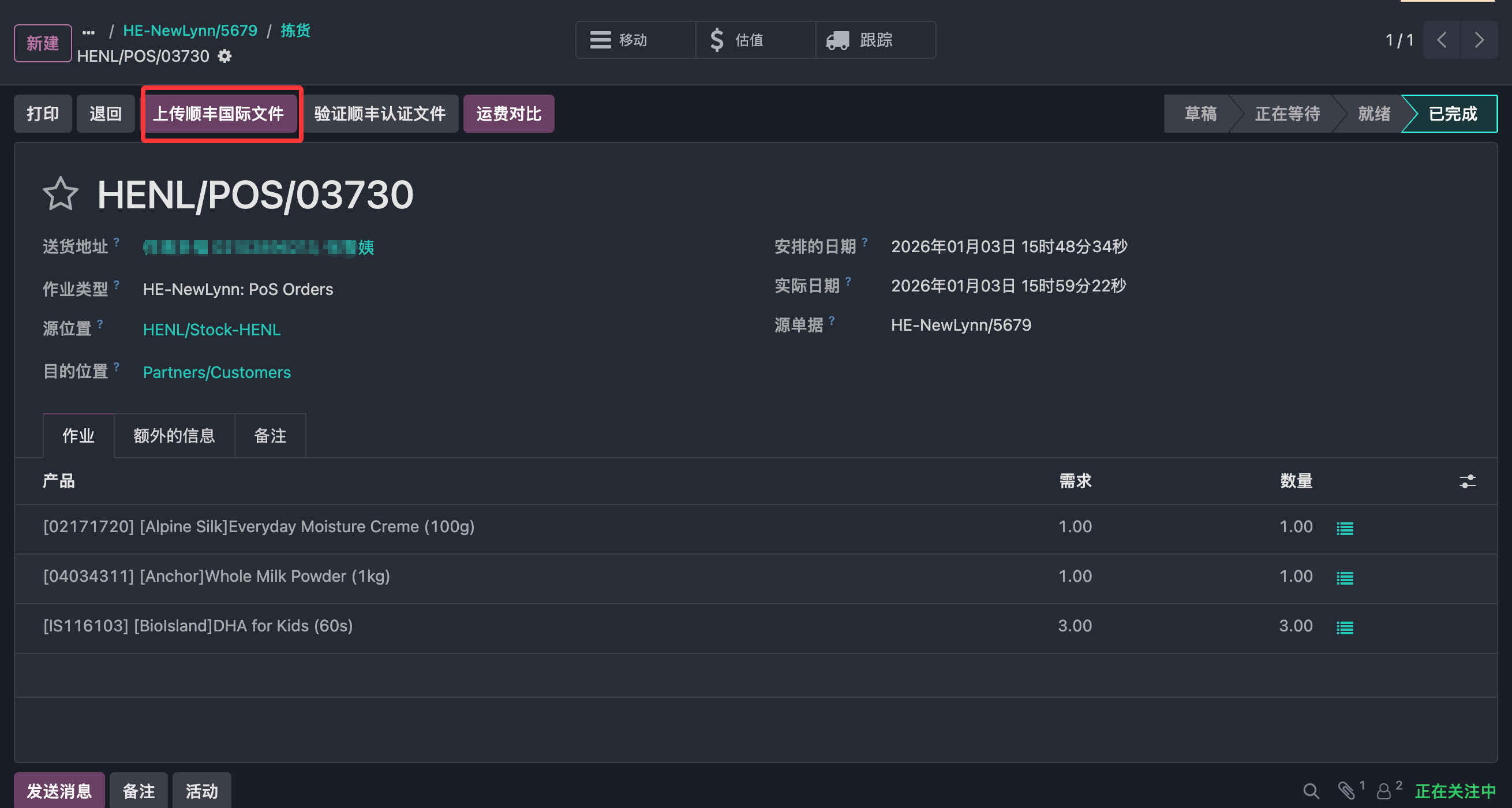
After generating the electronic waybill on the delivery order, click the SF International upload button to submit identity documents for customs declaration.
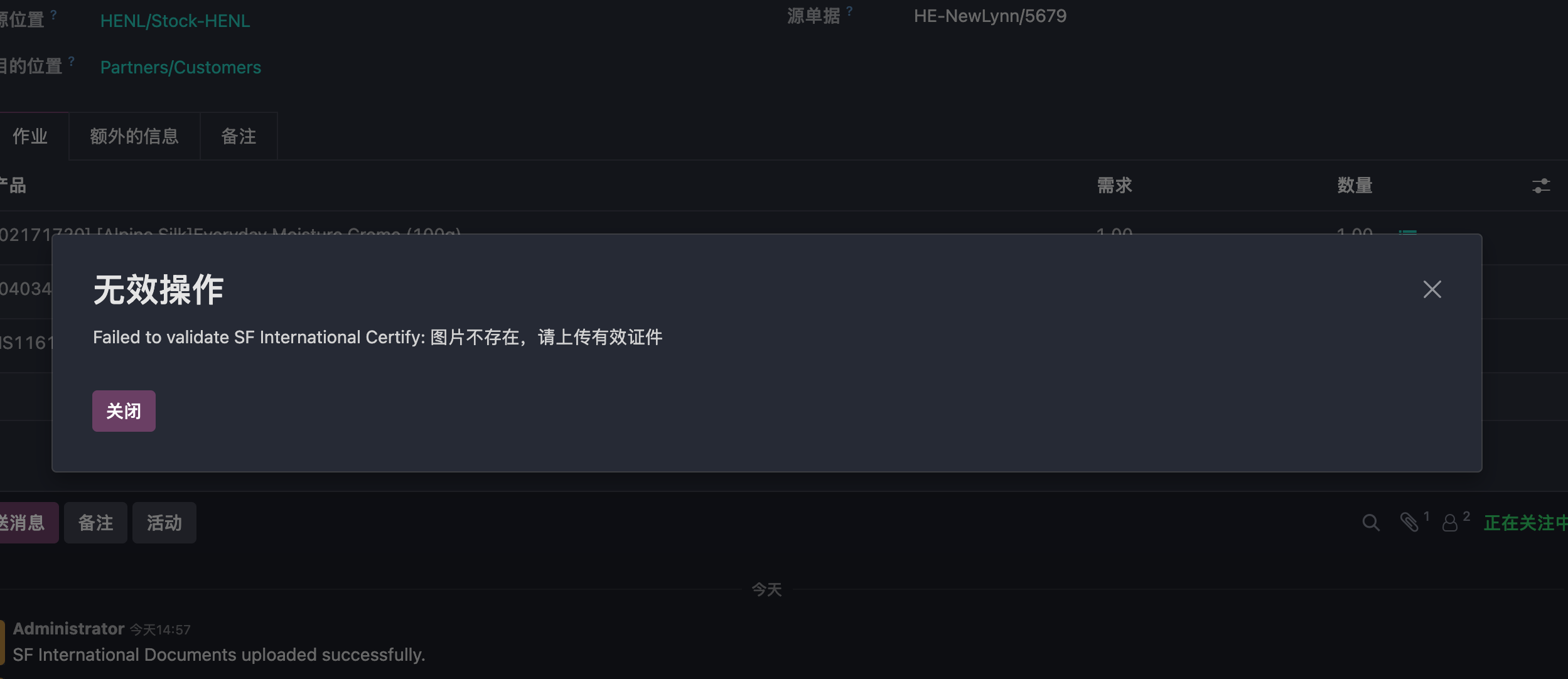
After uploading, click the verification button to validate the submitted certification documents. If verification fails, the system prompts the user to upload again.
This chapter introduced SF International for cross-border shipping and customs declaration. The next chapters cover other domestic and international carrier integrations.