Chapter 6 Import And Export
Odoo natively supports data import and export. Before go-live, companies usually need to bring customers, vendors, products, inventory, and opening accounting data into the system. After go-live, exported data is often used for checking, cleaning, and batch updates. This chapter explains how to use Odoo's native import and export functions and what risks to watch before and after import.
Import is not copy and paste. Before importing, clean the data, prepare fields, test the import in a test database, and only then import into production after confirmation.
Where Import And Export Are Located
Odoo import and export functions usually appear in list views. Using the customer list as an example, open Sales -> Orders -> Customers to see the customer list.
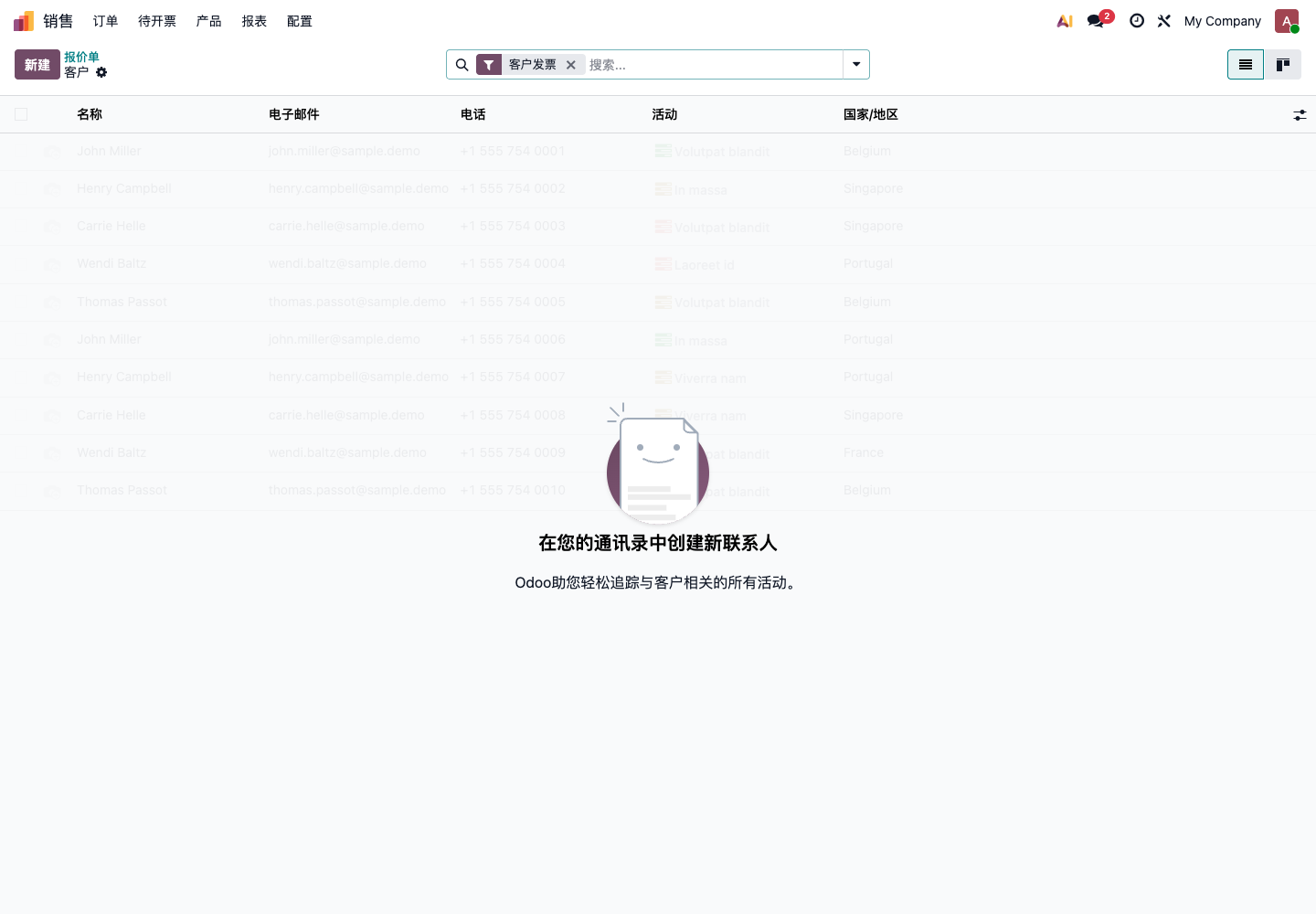
Click the action menu in the upper-left area to see functions such as Import records and Export all.
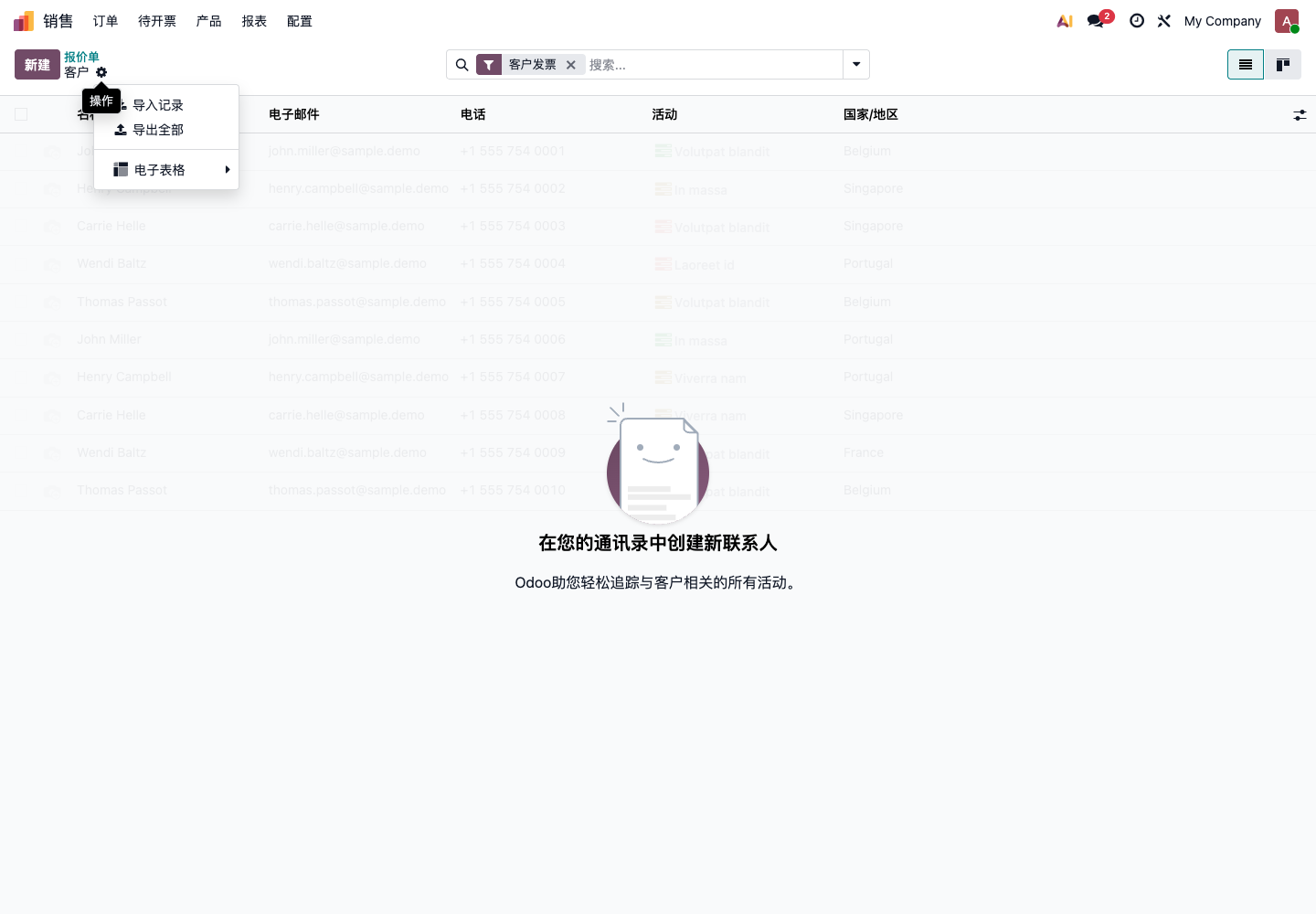
Menus differ slightly by model. Customers, products, vendors, sales orders, purchase orders, inventory adjustments, and many other lists can usually be imported or exported in a similar way.
What Data Is Suitable For Import
Suitable for import:
- Customers;
- Vendors;
- Products;
- Product categories;
- Pricelists;
- Vendor prices;
- Opening inventory;
- Opening receivables and payables;
- Unfinished sales orders;
- Unfinished purchase orders.
Not recommended for phase one:
- Invalid customers from many years ago;
- Discontinued products;
- Historical document lines that are already fully settled;
- Inventory whose source cannot be confirmed;
- Contacts with severe duplication;
- Old system fields not confirmed by an owner.
The goal of phase-one import is not to move the entire old system. It is to allow the new system to run stably from the go-live date.
Preparation Before Import
Do four things before importing:
- Confirm the import scope;
- Clean the Excel file;
- Prepare a test import file;
- Run the import in a test database first.
Do not import into production for the first attempt. Even for customers and products, test in a test database first.
Download Import Template
After entering the import page, Odoo asks you to upload an Excel or CSV file. Some models provide import templates, such as the contact import template.
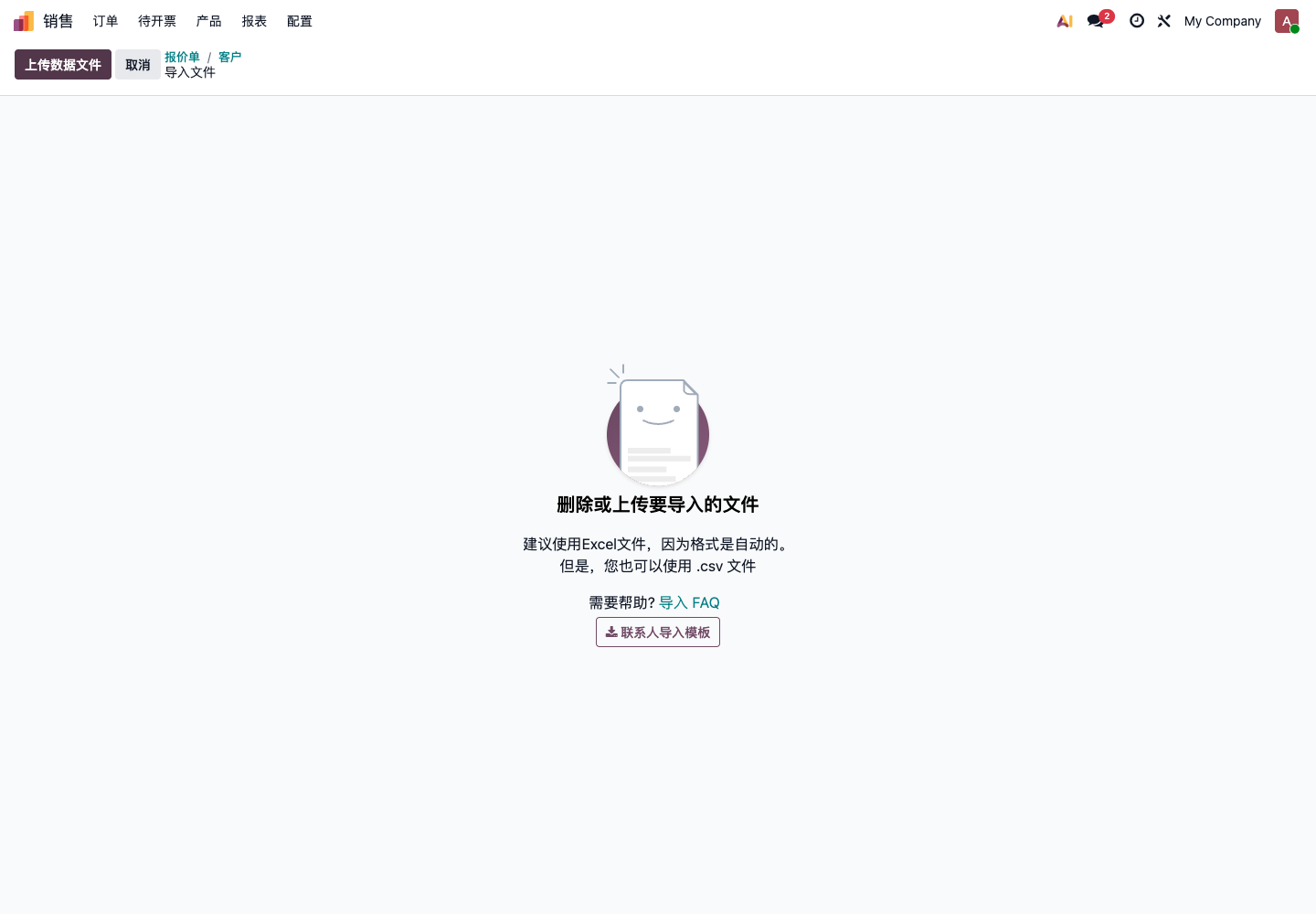
Download the template before the first import. The template helps customers understand which fields Odoo expects and how field names should be written.
The template is not mandatory. If Excel columns can be correctly matched to Odoo fields, a self-prepared file can also be used. For beginners, starting from the template is the safest.
Import File Fields
Column names in the import file should match the meaning of Odoo fields.
Common customer import fields:
| Field | Example |
|---|---|
| Name | Qingdao Ohm Network Technology |
| Company / Individual | Company |
| info@example.com | |
| Phone | 0532-xxxxxxx |
| Mobile | 13800000000 |
| Street | Some road, Shinan District |
| City | Qingdao |
| State | Shandong |
| Country | China |
| Tax ID | Unified social credit code |
| Tags | VIP, wholesale customer |
Common product import fields:
| Field | Example |
|---|---|
| Product name | A001 phone case |
| Internal reference | A001 |
| Barcode | 697000000001 |
| Product type | Goods |
| Can be sold | Yes |
| Can be purchased | Yes |
| Sales price | 99 |
| Cost | 45 |
| Product category | Finished goods |
| Sales tax | 13% |
| Purchase tax | 13% |
Confirm field meanings before import. Do not match fields casually just because names look similar.
Upload File And Match Fields
After uploading Excel or CSV, Odoo enters the field mapping page.
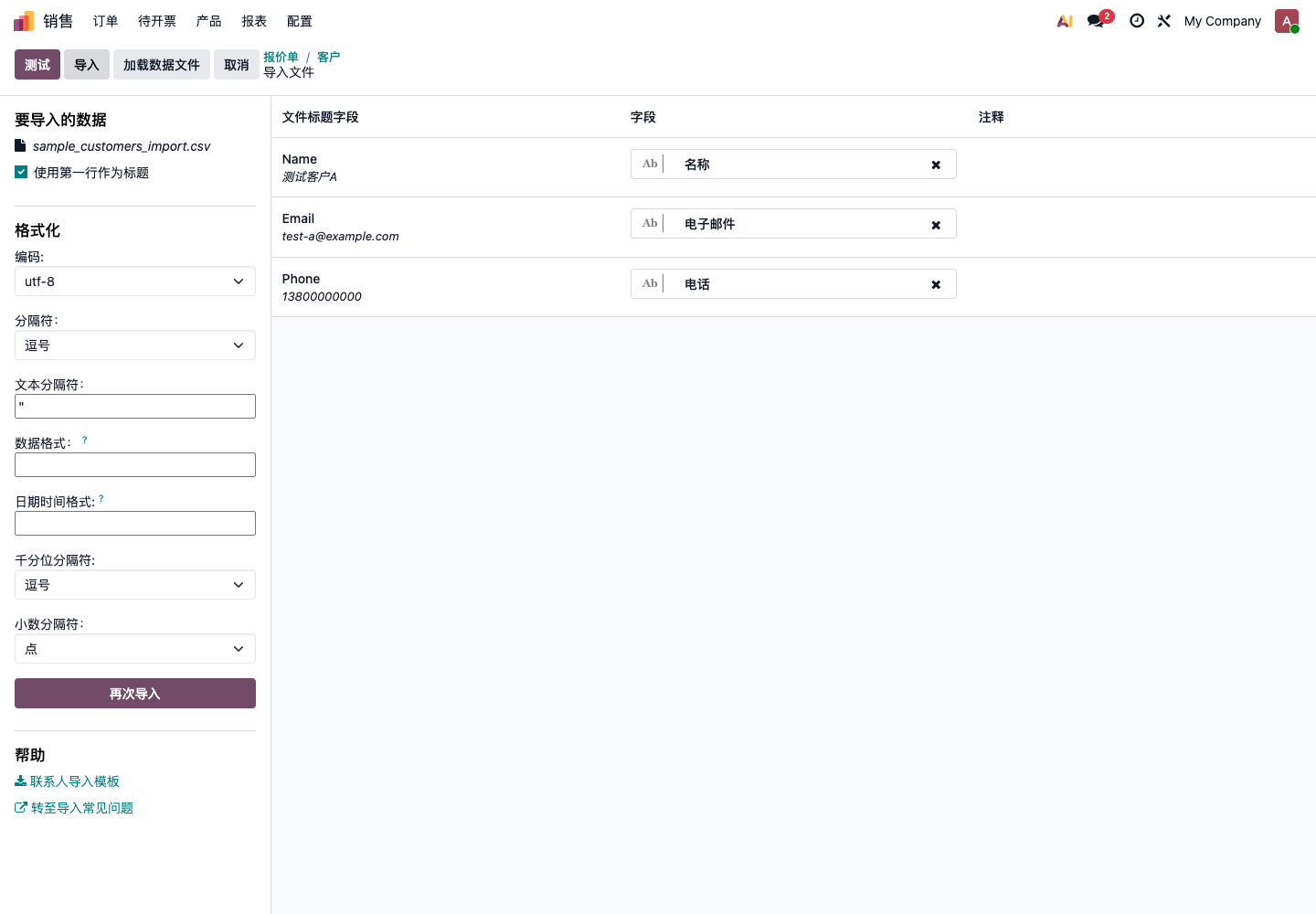
The left side shows the import file and format settings. The right side shows the field mapping result.
Check these areas carefully:
| Area | What To Check |
|---|---|
| Header row | Whether the first row is used as column headers |
| Encoding | Whether Chinese text is garbled; UTF-8 is usually used |
| Separator | CSV files commonly use comma |
| Fields | Whether Excel columns match the correct Odoo fields |
| Comments | Whether there are errors, warnings, or unrecognized fields |
In the example, Name, Email, and Phone in the file are matched to Odoo name, email, and phone fields. This mapping is correct.
If a field is not matched automatically, select the corresponding field manually. Do not map uncertain columns to similar-looking fields just to make the import pass.
Test First, Then Import
After field mapping, click Test first. Do not click Import immediately.
The test checks:
- Whether fields exist;
- Whether data format is correct;
- Whether related records can be matched;
- Whether required fields are missing;
- Whether dates, numbers, and amounts can be parsed;
- Whether obvious errors exist.
After the test passes, click Import. If the test fails, modify the Excel file according to the error message and upload again.
Before importing into production, back up first, especially for core data such as customers, products, inventory, and opening accounting balances.
Product Import Example
Products can also be imported and exported from the product list.
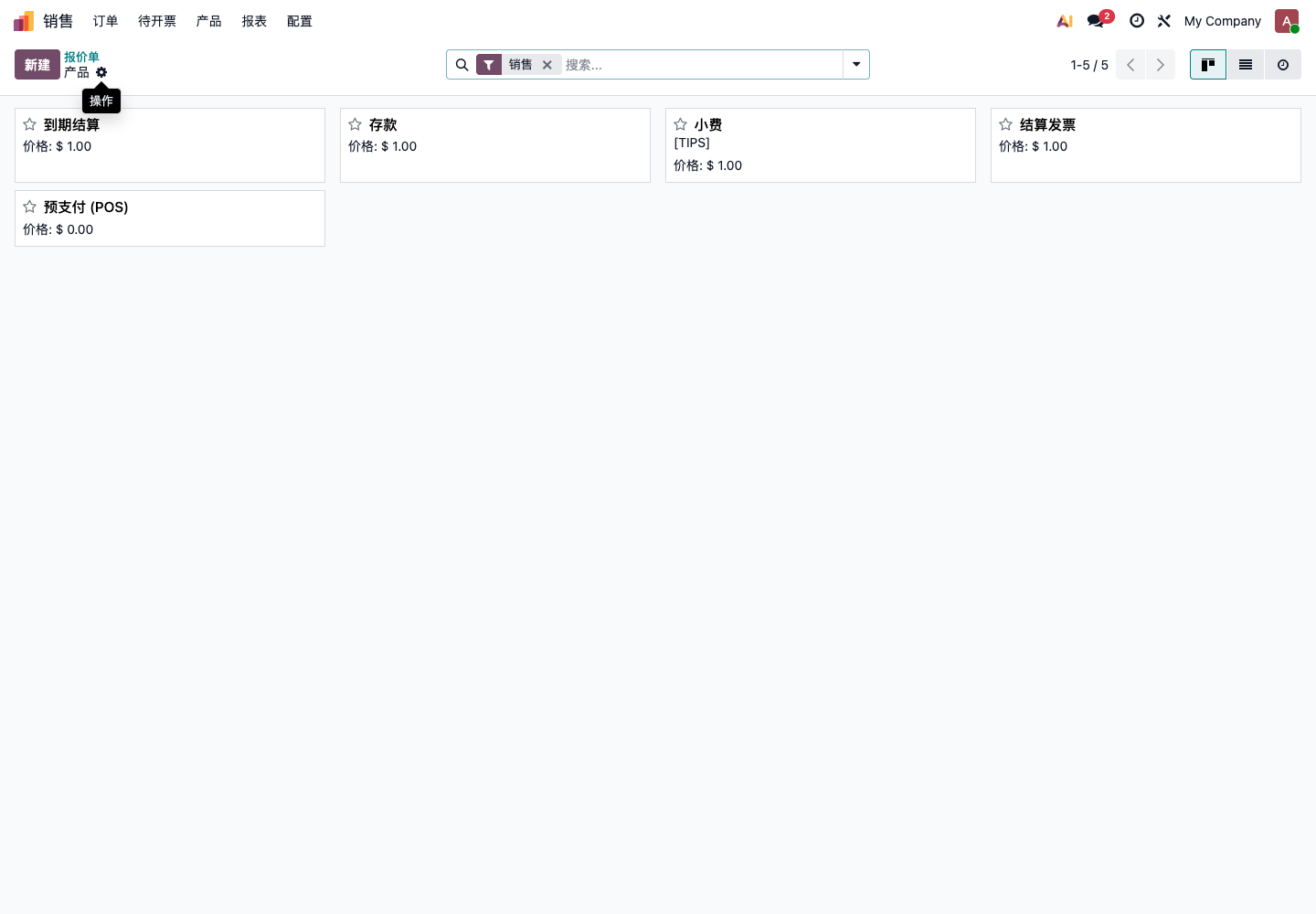
Product import is more sensitive than customer import because products affect Sales, Purchase, Inventory, POS, Manufacturing, and Accounting.
Before importing products, confirm:
- Product type is goods, service, or combo;
- Can be sold and can be purchased are correct;
- Unit of measure is correct;
- Sales tax and purchase tax are correct;
- Product category has already been created;
- Barcode is unique;
- Internal reference is unique;
- Cost and sales price have been confirmed.
If products are imported incorrectly, later orders, inventory, and costs will be affected.
Related Fields
Related fields are the most common source of import errors.
For example, product category, tax, and unit in product import, or country, state, and tags in customer import, are not just ordinary text. They must match existing records in Odoo.
Recommended approach:
- Create categories, taxes, units, and other basic records in Odoo first;
- Use names in Excel that exactly match Odoo;
- If unsure, export a sample from Odoo first;
- Do not mix abbreviations, full names, and aliases in the same column.
If related fields fail to match, import may fail or incorrect new records may be created.
External ID
External ID is a technical identifier used by Odoo to identify imported records.
For beginners:
- Without an external ID, import usually creates new records;
- With an external ID matching an existing record, import can update that record;
- External IDs are useful for repeatedly updating the same data set later.
For a small first import, external IDs can be skipped. But if product prices or customer data will be updated through Excel over the long term, ask the implementation team to design external ID rules.
Export Data
Export is commonly used for:
- Checking data in batches;
- Cleaning data in Excel;
- Backup and archive;
- Batch modification followed by re-import;
- Sharing data with other systems or people.
After selecting records in a list, export from the action menu. Export all can also export data from the current model.
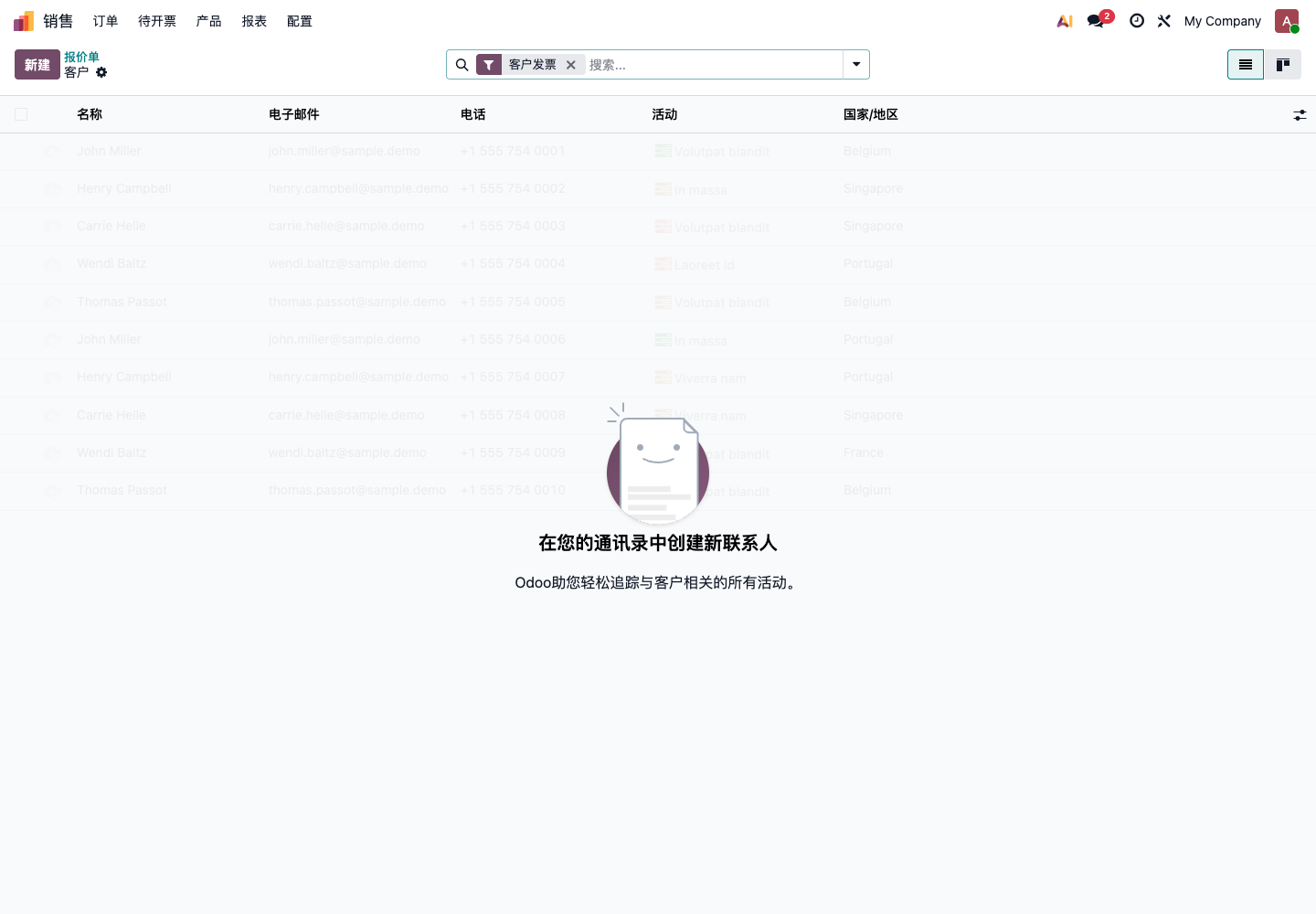
Pay attention to data permissions when exporting. Normal employees should not necessarily export all customer, price, or financial data.
Export, Modify, And Import Back
A common workflow is:
- Export products or customers from Odoo;
- Modify prices, phone numbers, tags, or other fields in Excel;
- Import back into Odoo to update records.
This is convenient, but also risky.
Notes:
- Do not delete key identification fields;
- Do not modify external IDs;
- Do not change product coding rules casually;
- Do not overwrite important existing fields with empty values;
- Back up before import;
- Test in the test database first.
If updating prices, keep only the product identification field and price field. Do not import unrelated fields together.
CSV, Excel, And Chinese Encoding
Odoo supports Excel and CSV. For domestic customers, Excel is recommended first because formatting is more stable.
If using CSV:
- Use UTF-8 encoding;
- Separator is usually comma;
- Chinese text should not be garbled;
- Date format should be consistent;
- Amounts should not mix Chinese symbols;
- Numbers should not be automatically converted by Excel into scientific notation.
If Chinese text becomes garbled after upload, check encoding settings first.
Spot Check After Import
After import, spot checks are mandatory.
| Data | What To Check |
|---|---|
| Customers | Name, email, phone, address, tags |
| Vendors | Name, payment terms, contact information |
| Products | Code, type, price, cost, taxes |
| Inventory | Product, warehouse, location, quantity |
| Finance | Customer, vendor, amount, date |
Spot checking is not only reading the import success message. Open real records and confirm that the business can use them.
Common Errors
| Error | Consequence |
|---|---|
| Duplicate customers | Receivables and sales history are scattered |
| Duplicate products | Inventory and sales statistics become messy |
| Wrong product type | Goods do not deduct stock, or services require delivery |
| Wrong taxes | Invoice amount and tax amount are wrong |
| Wrong unit | Inventory quantity and purchase quantity do not match |
| Missing code | Later updates cannot match accurately |
| Wrong date format | Document dates import incorrectly |
| Empty value overwrite | Existing data is cleared |
| Related field match failure | Categories, taxes, countries, and similar fields cannot link correctly |
| Direct production import | Bad data enters production and rollback becomes difficult |
Import failure is not scary. A successful import with wrong data is much worse.
Import Acceptance Standard
| Check Item | Passing Standard |
|---|---|
| Quantity | Imported quantity matches Excel quantity |
| Fields | Key fields enter the correct position |
| Relations | Categories, taxes, units, countries, and similar fields match correctly |
| Deduplication | No obvious duplicate customers or products |
| Spot check | Randomly opened records are correct |
| Business test | Imported customers and products can create orders |
| Permissions | Only suitable users can import and export sensitive data |
| Backup | Backup or rollback plan exists before production import |
Import and export are useful tools, but they amplify data quality. The cleaner the data, the smoother the import. The messier the data, the more likely import becomes a project incident.