Chapter 4 Sales Order Process
After a customer accepts a quotation, the quotation is confirmed as a sales order. The sales order is the central node of the Odoo sales flow. Depending on products and configuration, it can trigger delivery orders, invoices, purchase requirements, manufacturing orders, project tasks, or rental flows.
Many companies can create an order, but they are less clear about what Odoo does automatically after confirmation. This chapter starts from a standard sales order and explains confirmation, delivery, invoicing, payment, cancellation, deletion boundaries, locking, and state changes.
Standard Sales Flow
A standard flow can be summarized as:
Create quotation -> Send quotation -> Customer confirms -> Sales order -> Delivery -> Invoice -> Payment -> Done
Different product types change the downstream behavior.
| Product Type | Common Action After Confirmation |
|---|---|
| Physical product | Generate a delivery order and use inventory fulfillment |
| Service product | Usually no stock move; may connect with projects or timesheets |
| Rental product | Enter pickup and return flow |
| Buy-to-order product | May trigger purchase demand |
| Make-to-order product | May trigger a manufacturing order |
Before confirming an order, make sure the product type, route, invoicing policy, and stock settings are correct.
Create A Quotation And Review Defaults
Before a sales order exists, the user usually creates a quotation first.
In the quotation stage, the header normally shows buttons such as Send by Email and Confirm. This means the document is not yet a formal order.
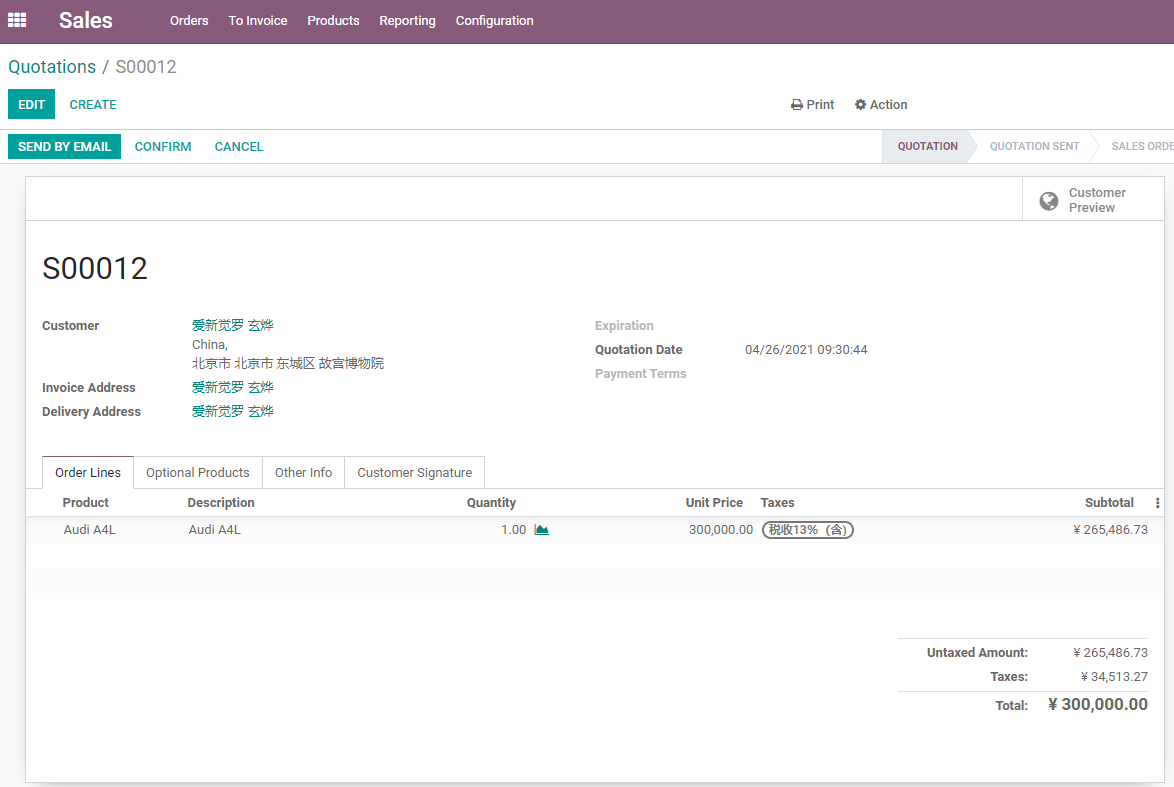
Common quotation fields include:
- Customer.
- Invoice address.
- Delivery address.
- Quotation date.
- Pricelist.
- Payment terms.
- Salesperson.
- Sales team.
- Order lines.
- Terms and notes.
The default salesperson may come from the current user, the customer record, or the CRM opportunity. During implementation, define one consistent rule; otherwise later sales performance reports will be inaccurate.
Confirm The Order
After clicking Confirm, the quotation becomes a sales order.
The status bar moves to the sales order stage, and smart buttons such as Delivery appear. In the example below, the order has been confirmed and one delivery order has been generated.
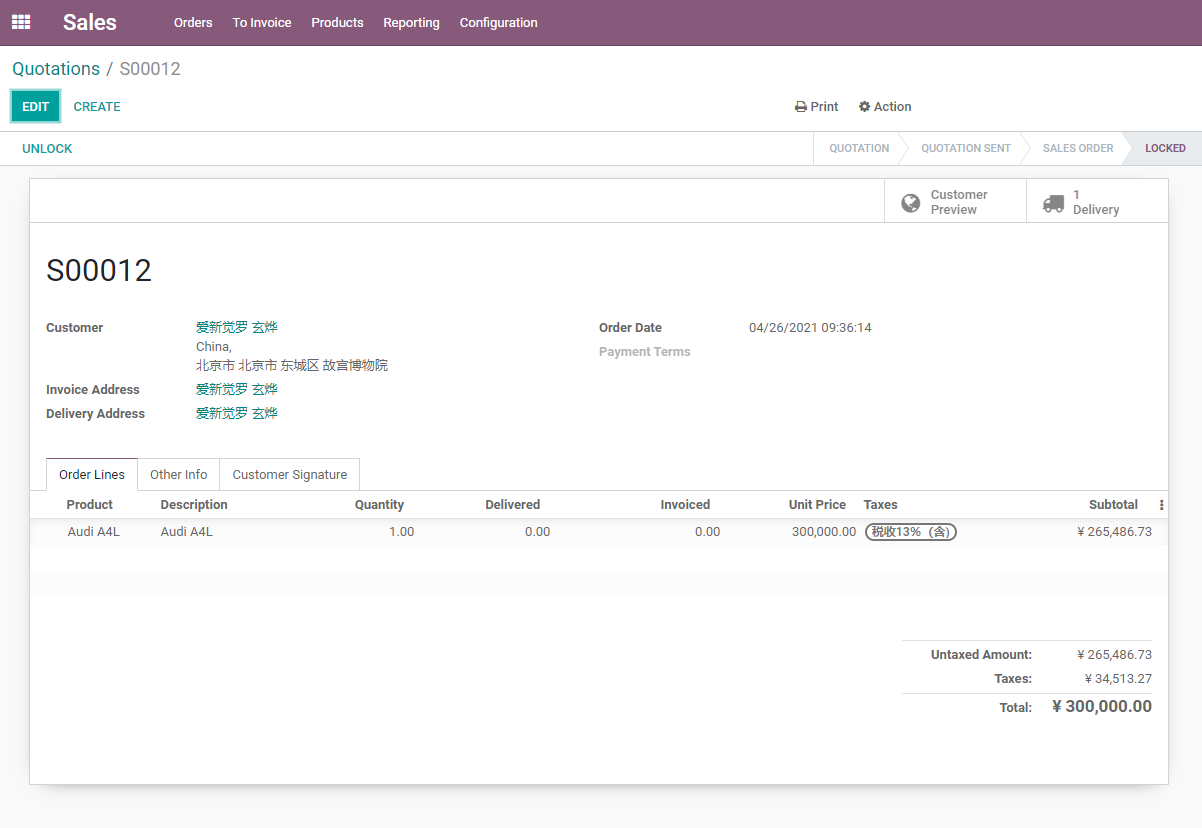
Order confirmation may trigger:
- Delivery order creation.
- Ordered quantity updates.
- Purchase or manufacturing demand.
- Invoice creation availability.
- Notifications to related users.
- Customer portal order status updates.
Confirmation means the commercial commitment is accepted. Do not treat Confirm as just another Save button. If the customer is only asking for price and has not committed to buy, the document should remain a quotation.
Delivery And Fulfillment
After confirmation, if the order contains stock-managed products, Odoo usually creates a delivery order.
Common delivery states include:
| State | Meaning |
|---|---|
| Waiting | Not enough stock or waiting for another operation |
| Ready | Stock is available and the delivery can be validated |
| Done | Warehouse has validated the outbound delivery |
| Cancelled | Delivery order has been cancelled |
Delivered quantity on the sales order updates according to the delivery result. This quantity affects invoicing when the product is configured to invoice delivered quantities.
Sales order lines show delivered quantity and invoiced quantity. When salespeople judge whether an order has been fulfilled, they should not only look at the order state. They should also check these two quantities.
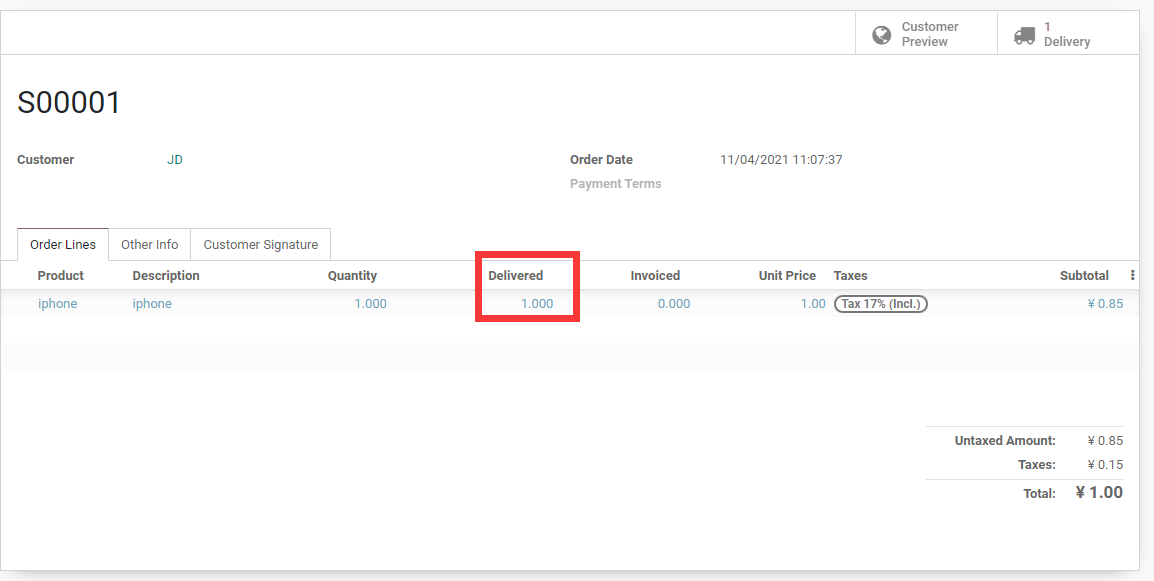
If the order contains multiple products, also review the delivery policy: deliver available products as soon as possible, or wait until all products are ready and deliver together.
Create An Invoice
After the sales order is confirmed, invoices can be created according to the product invoicing policy.
When clicking Create Invoice, Odoo opens a wizard where users can choose a regular invoice, a down payment percentage, or a fixed down payment amount.
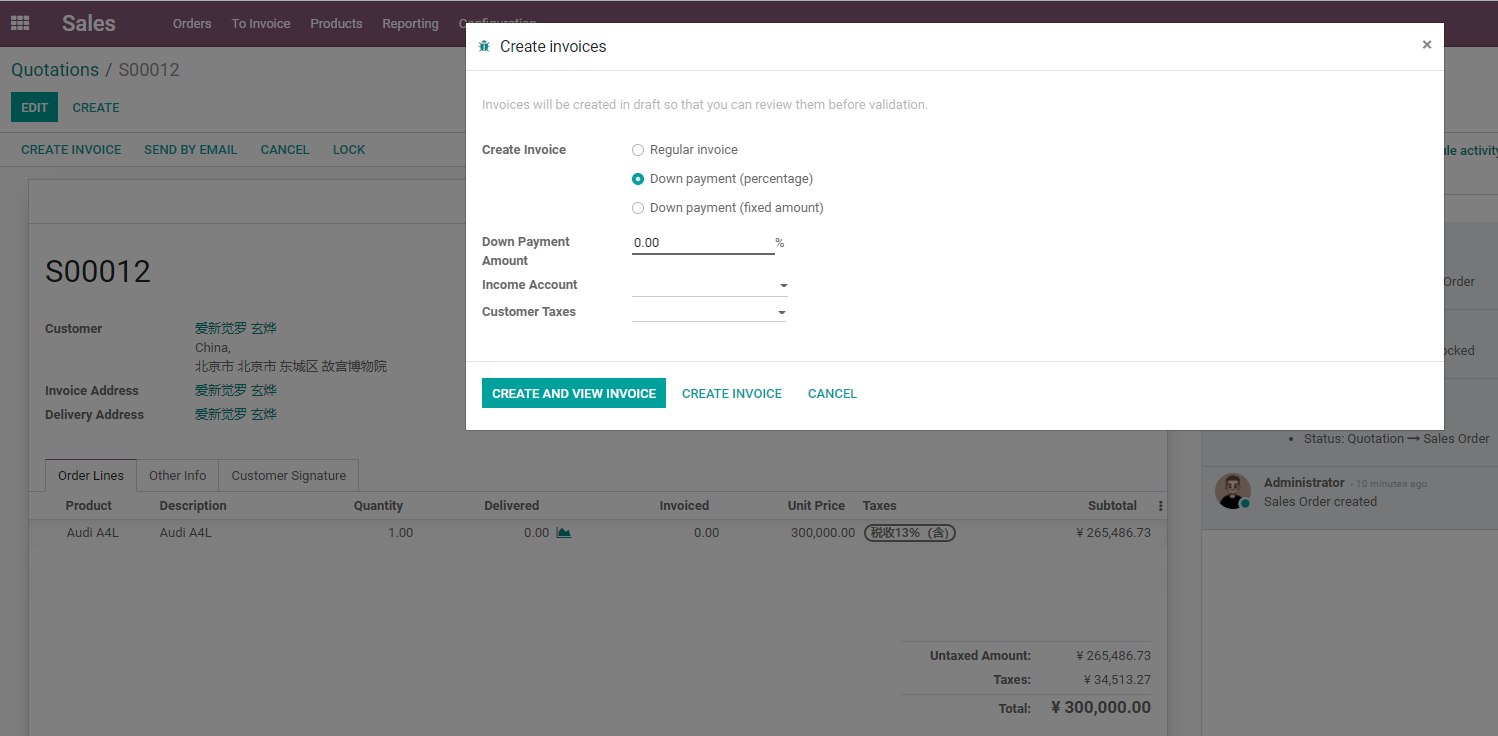
Invoice-related states include:
| State | Meaning |
|---|---|
| Nothing to invoice | No invoiceable quantity or amount at the moment |
| To invoice | There is an invoiceable amount or quantity |
| Fully invoiced | The order has been fully invoiced |
| Upselling opportunity | Delivered quantity exceeds the invoiced or ordered logic and needs attention |
Invoicing policy and down payments are explained in the next chapter. For now, remember this: a sales order is not an accounting invoice. Only after the customer invoice is confirmed does it enter accounts receivable.
Register Payment
After the invoice is confirmed, finance can register the payment.
Sales order -> Customer invoice -> Register payment -> Bank reconciliation
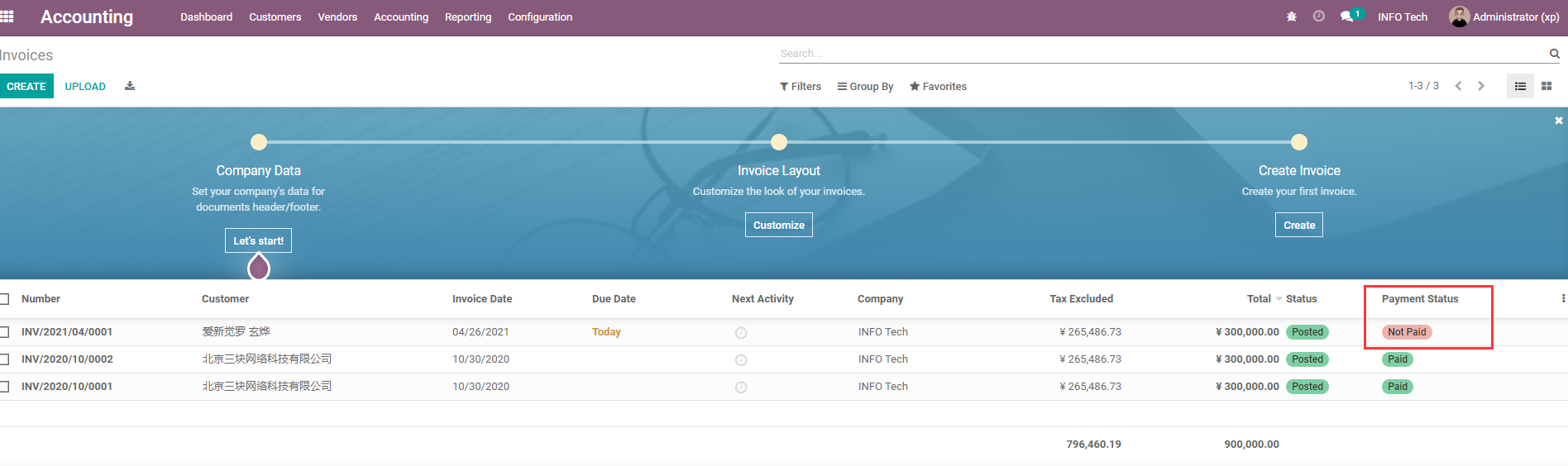
In real projects, payment status is also affected by accounting configuration, bank reconciliation, payment methods, and collection procedures. Salespeople can view invoice and payment results, but they should not bypass finance by manually changing states.
After an invoice is confirmed, payment can be registered. After payment registration, finance should still reconcile it with bank statements to complete the cash loop.
Cancel An Order
Order cancellation depends on progress.
| Current Situation | Recommended Handling |
|---|---|
| Not delivered and not invoiced | Cancel the sales order and related delivery order |
| Delivered but not invoiced | Consider inventory return |
| Invoiced but not paid | Consider a credit note |
| Invoiced and paid | Consider refund and accounting handling |
| Purchase or manufacturing already triggered | Handle downstream documents together |
Do not casually delete confirmed or fulfilled orders. Once business activity has happened, use cancellation, return, refund, or other reverse flows so the history remains traceable.
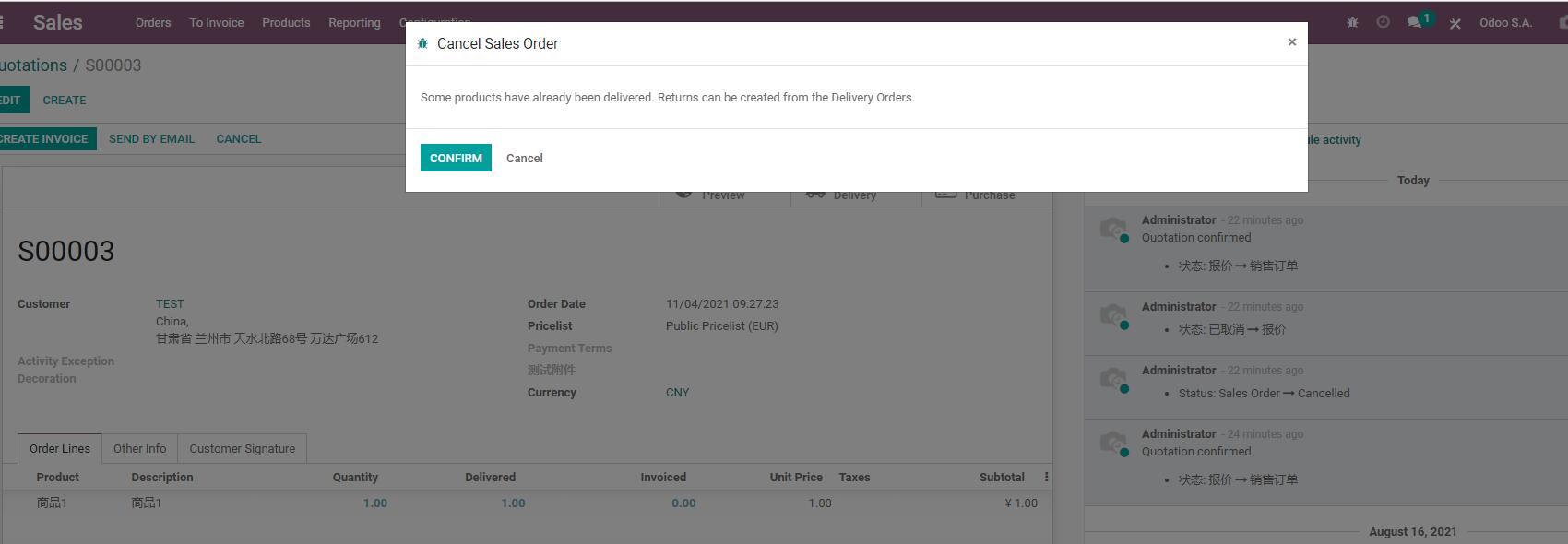
If the order has already been delivered, cancelling the sales order is no longer only a sales action. Inventory return and financial refund may also be required.
Lock And Unlock
Odoo supports locking confirmed sales orders. After an order is locked, it cannot be edited casually.
Locking is suitable when:
- The order has been delivered.
- The order has been invoiced.
- Finance wants stable historical records.
- Management wants to prevent later price or quantity changes.
When changes are required, an authorized user can unlock the order. Whether ordinary sales users should be allowed to unlock depends on the company's management rules.
Customer Credit Limit
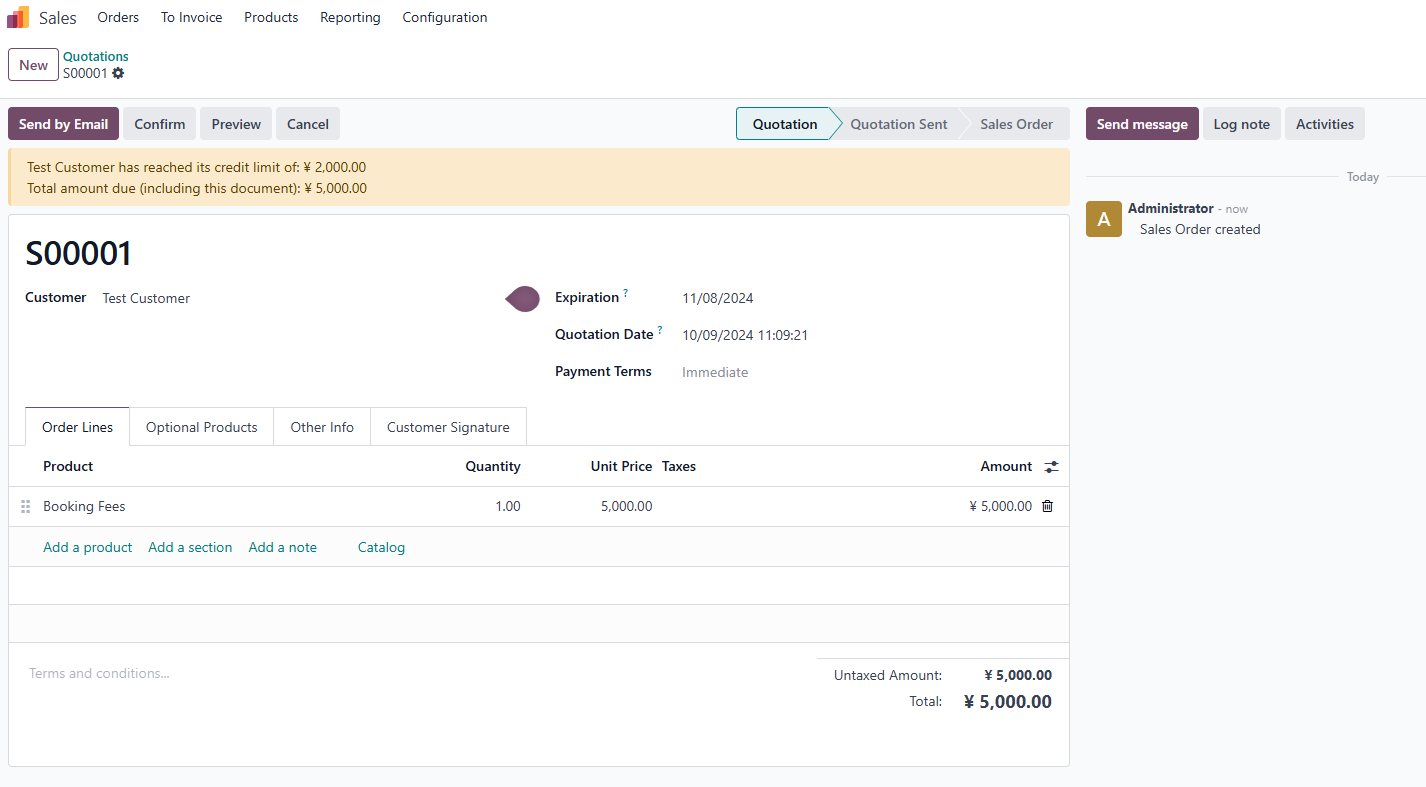
Odoo natively supports customer credit limit warnings. When the customer's unpaid balance exceeds the credit limit, the sales order may show a warning.
The value of this warning is that sales can see collection risk before accepting the order.
Note that native credit control may be warning-oriented in some scenarios. Whether it strictly blocks order confirmation depends on version, configuration, and company policy. If a company needs strict credit control, accounting rules or customization may be required.
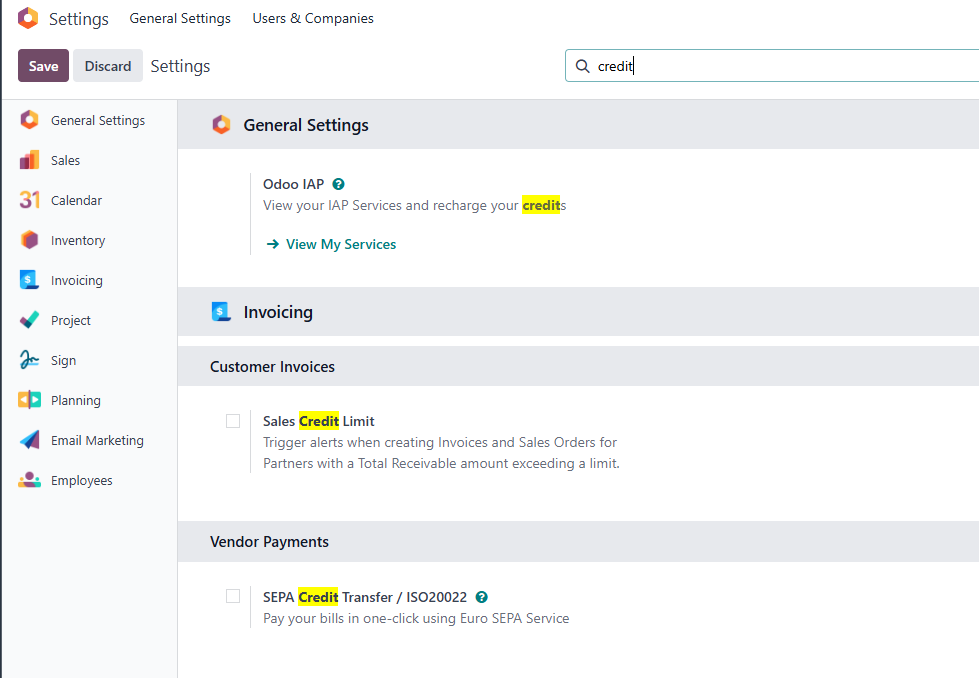
Credit limit warnings can be enabled in Sales or Accounting settings, and the credit limit can be maintained on the customer record.
When the order exceeds the credit limit, the sales order shows a risk warning so the salesperson can identify payment risk early.
Deletion Boundaries
Draft quotations can be deleted. Confirmed, delivered, or invoiced orders should not be deleted.
Deletion creates risks:
- Historical sales records disappear.
- Inventory delivery becomes hard to trace.
- Accounts receivable cannot be matched.
- Customer communication history is lost.
- Reports become unreliable.
During implementation, train users that cancellation and deletion are not the same thing. Business that has already happened should keep its history and use reverse flows when needed.
Common Issues
| Issue | Common Cause | Direction |
|---|---|---|
| No delivery order after confirmation | Product is a service, or inventory/route is not configured | Check product type and inventory configuration |
| Cannot invoice | Product invoices delivered quantity but has not been delivered | Check invoicing policy and delivered quantity |
| Delivery is not ready | Not enough stock or waiting for replenishment | Check forecasted stock and reordering rules |
| Customer sees the wrong price | Pricelist, discount, or tax is wrong | Review pricing and tax configuration |
| Completed order can still be changed | Locking is not enabled or permissions are too broad | Design locking and permissions |
Implementation Advice
Use one simple product to run the complete flow first:
Quotation -> Send -> Confirm -> Deliver -> Invoice -> Payment -> Return / Refund rehearsal
Do not test only whether an order can be created. A real go-live test must prove that sales, warehouse, finance, and customer portal can connect smoothly.
This chapter explained the main states and actions after sales order confirmation. The next chapter goes deeper into invoicing policies, down payments, and pro-forma invoices, answering when to invoice, how much to invoice, and how to handle deposits.