Chapter 7 Email Configuration
Odoo embeds email capabilities into Sales, Purchase, Accounting, Portal, Project, and the document chatter. Quotations can be emailed to customers, invoices can automatically include PDF attachments, customers can open documents through portal links, and employees can send messages directly from business records.
Email configuration may look like only an SMTP server setting, but it affects whether customers receive quotations, whether users can reset passwords, whether customer replies return to the right document, whether messages go to spam, and whether sender identity is compliant in multi-company, multi-salesperson, and multi-domain scenarios. This chapter explains the native Odoo email logic and how to implement it with domestic business email, Outlook, Gmail, and multi-company mail environments.
Where Email Is Used
Common Odoo email scenarios include:
- Sending quotations, order confirmations, and invoices to customers;
- Sending portal invitations, password reset emails, and system notifications;
- Sending messages to customers from sales orders, invoices, project tasks, and other records;
- Sending activity reminders, approval reminders, and business notifications to employees;
- Bringing customer replies back to the related business document;
- Generating email subject, body, buttons, and attachments from templates.
If email is not configured properly, the issue is not only "mail cannot be sent." It can affect sales conversion, invoicing, portal experience, and internal collaboration.
Understand The Odoo Email Chain
The Odoo email chain can be divided into four parts:
Business document -> Email template / chatter -> Outgoing mail server -> Customer mailbox
Customer reply -> Incoming server / forwarding / MX -> Odoo mail routing -> Document chatter
From an implementation perspective, distinguish three questions first:
| Question | Meaning |
|---|---|
| Who sends the email? | Which SMTP or OAuth account is used to send messages |
| Who appears as sender? | Which From address the customer sees |
| Where does reply go? | Which mailbox or document receives customer replies |
Many domestic projects get stuck on the second and third questions. Email providers may require the From address to be the same as the authenticated account, while Odoo wants to organize sending and replies through users, companies, alias domains, catch-all, and bounce logic.
Email Settings Entry
Open Settings and search for email.
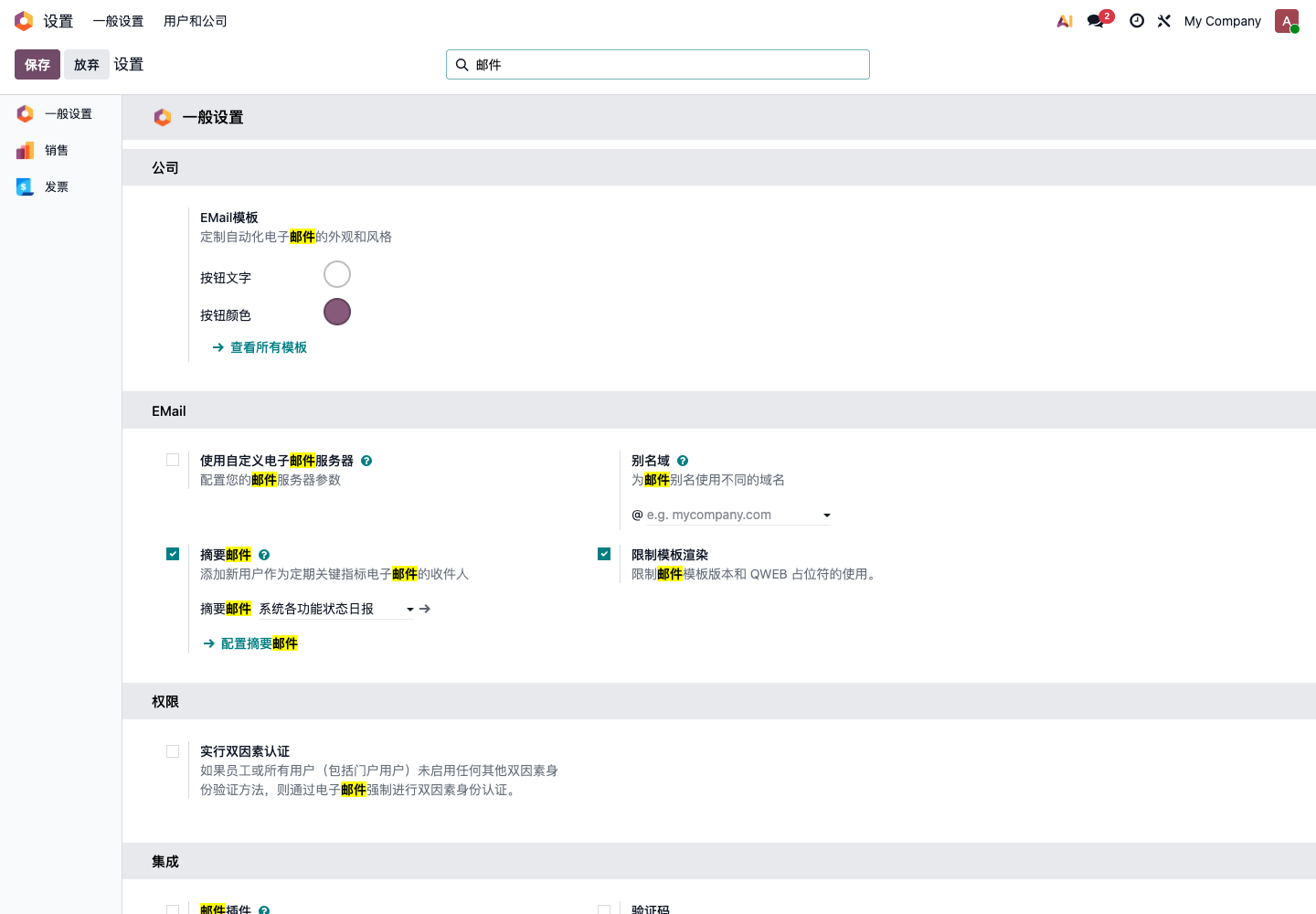
Common settings include:
- Custom email servers;
- Outgoing and incoming mail servers;
- Alias domain;
- Email templates;
- Digest emails;
- Gmail or Outlook integration;
- Mail plugins or other integration modules.
The available options differ by Odoo version and installed modules. During implementation, do not only check whether a menu exists. Also confirm which mail-related modules are installed and whether the server can access the target email provider.
Native Outgoing Mail Server
Odoo usually needs an outgoing mail server to send emails. Common methods:
| Method | Suitable Scenario |
|---|---|
| SMTP | Business email, domestic email providers, some self-hosted mail servers |
| OAuth | Outlook/Office 365, Gmail, and other providers requiring modern authentication |
After enabling custom email servers, configure outgoing servers.
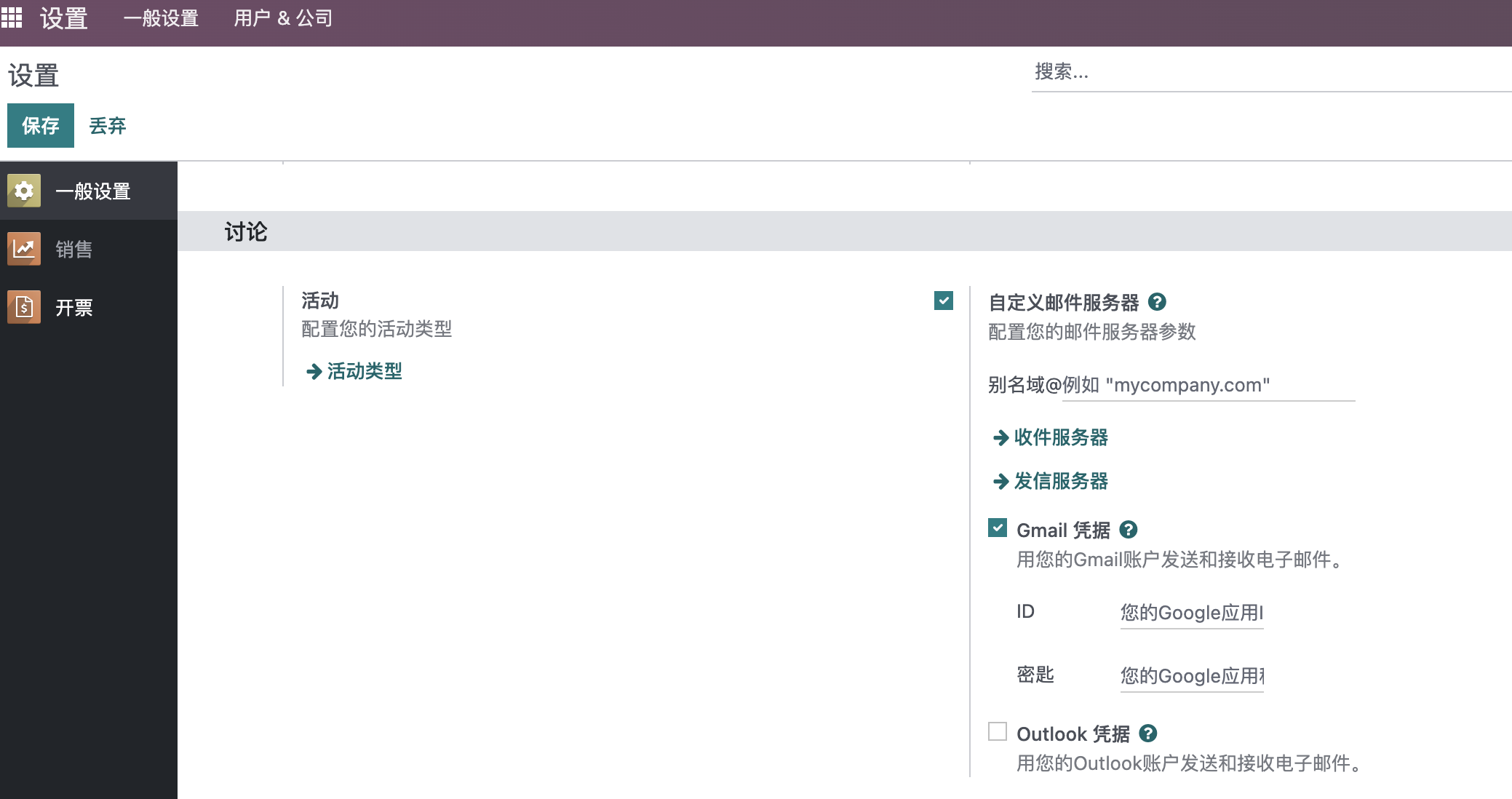
A typical SMTP outgoing server looks like this:
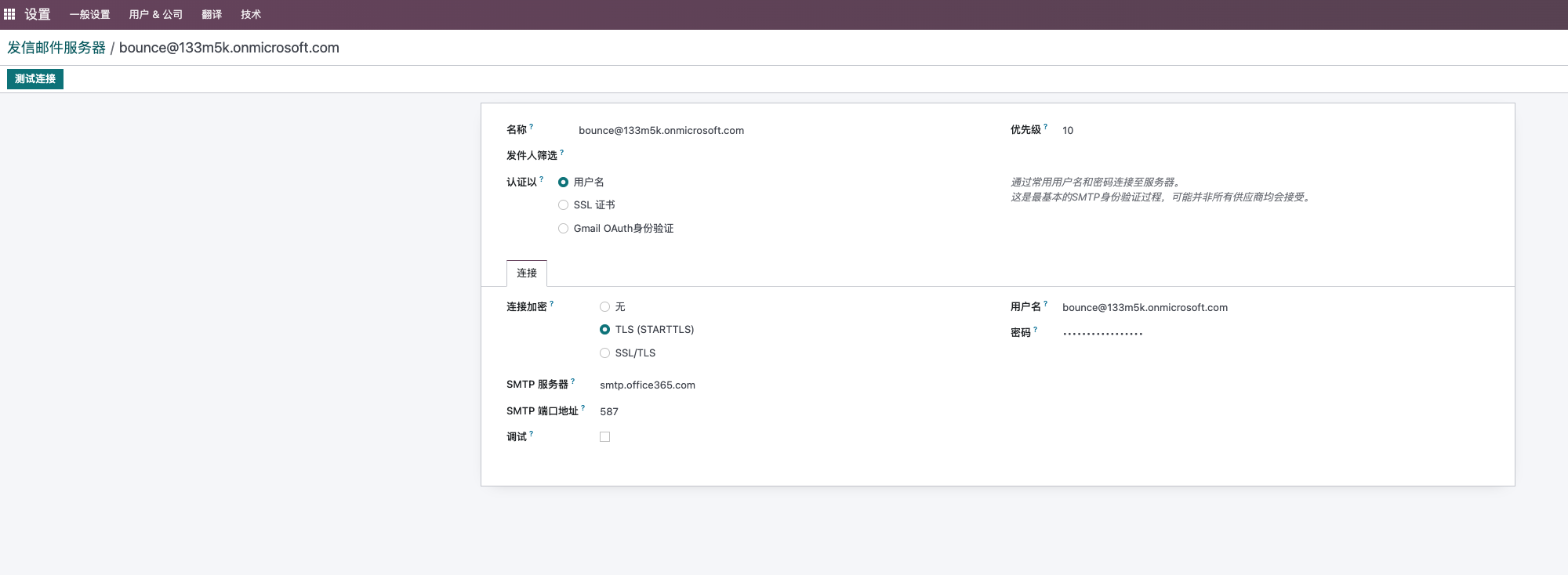
Common fields:
| Field | Description |
|---|---|
| Description | Name shown to administrators |
| SMTP Server | SMTP address provided by the email provider |
| SMTP Port | Commonly 465 or 587 |
| Connection Security | SSL/TLS or STARTTLS |
| Username | Email account |
| Password | Email password, authorization code, or app password |
| From Filter | Limits which sender address or domain this server handles |
When using NetEase, Tencent, Alibaba, or other domestic business email providers, the password is often not the login password but an authorization code generated in the mailbox settings. After configuration, test the connection first.
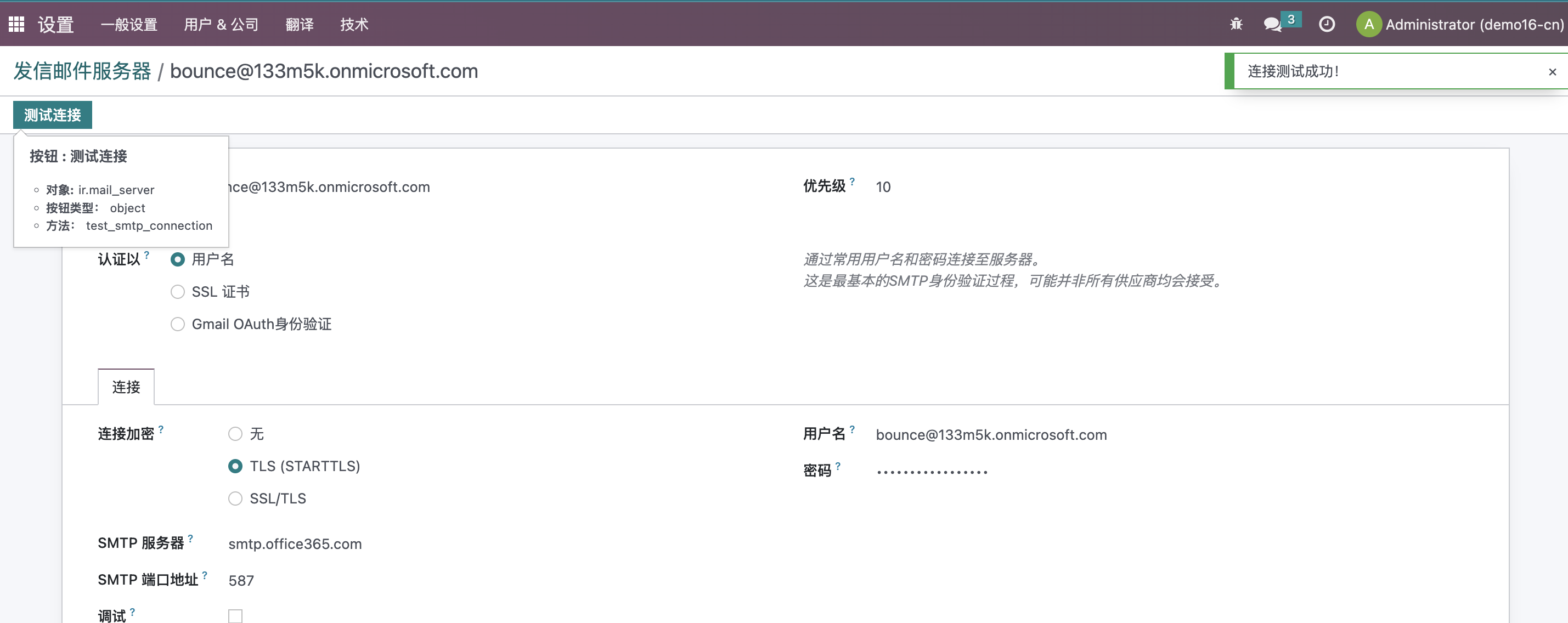
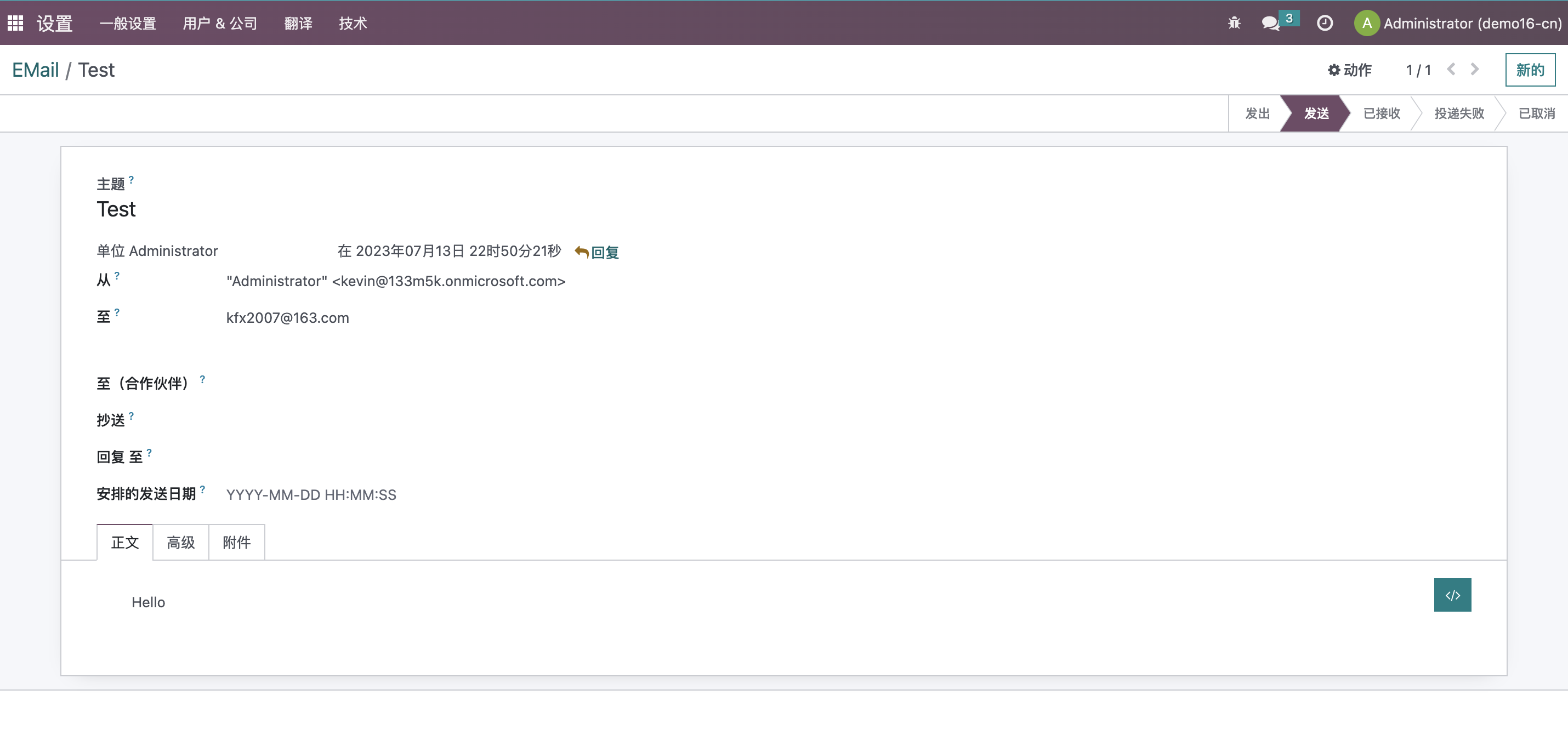
You can also find mail records from the technical menu and send a test email.
Example of received test email:
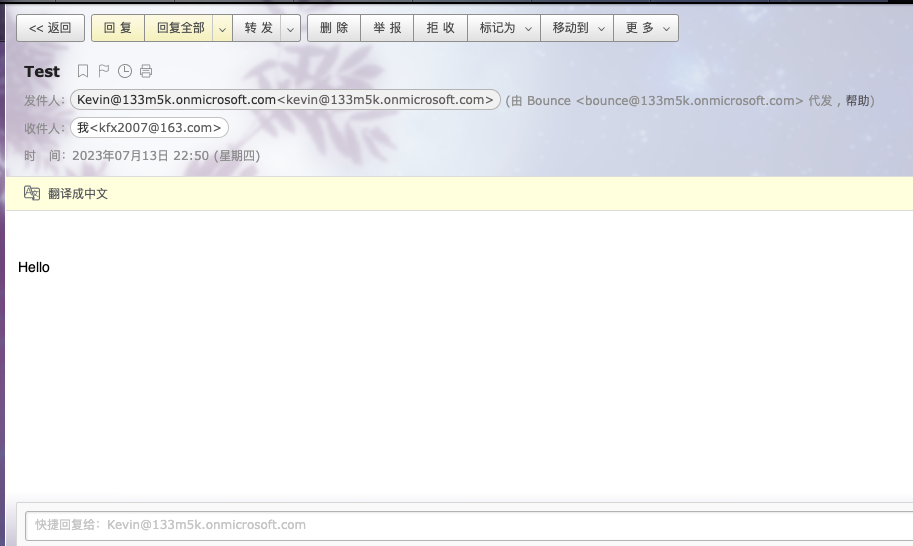
Connection success does not mean the business flow is ready. The real test is whether quotation emails, invoice emails, password resets, and portal invitations can be delivered, and whether customer replies can be processed correctly.
Native Incoming Mail And Customer Replies
Odoo can send emails out, and it can also receive customer replies and try to attach them back to the original business document.
For example, a salesperson sends an email from a quotation. The customer replies directly. If incoming mail, reply address, and mail routing are configured correctly, the reply can return to the chatter of the related quotation or sales order.
Incoming mail usually depends on one of these methods:
| Method | Description |
|---|---|
| Incoming mail server | Odoo periodically fetches emails from an IMAP/POP mailbox |
| Email forwarding | The email provider forwards messages to Odoo for processing |
| MX / mail gateway | Email enters an Odoo mail gateway directly, common in more professional deployments |
Incoming server configuration example:
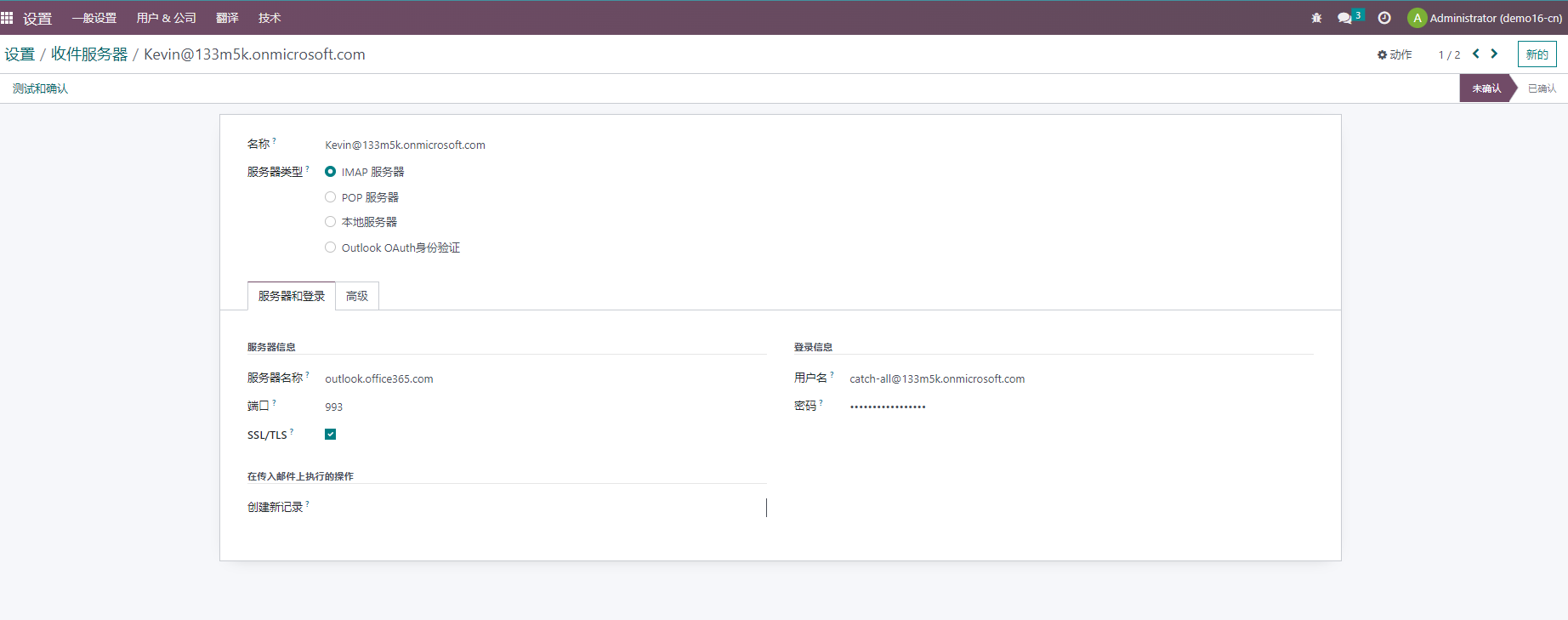
If the company only needs to send quotations and invoices in phase one, configure outgoing mail first. If customer replies should be archived automatically on Odoo documents, design incoming mail, alias domain, and catch-all carefully.
Catch-All And Bounce
Two common Odoo mail terms are catch-all and bounce.
| Concept | Simple Meaning | Usage |
|---|---|---|
| catch-all | A mailbox that receives all aliases under a domain | Receives emails for many aliases and lets Odoo route them |
| bounce | Return-path address | Handles delivery failure, relay, and bounced emails |
Bounce parameters can be viewed or adjusted in system parameters.
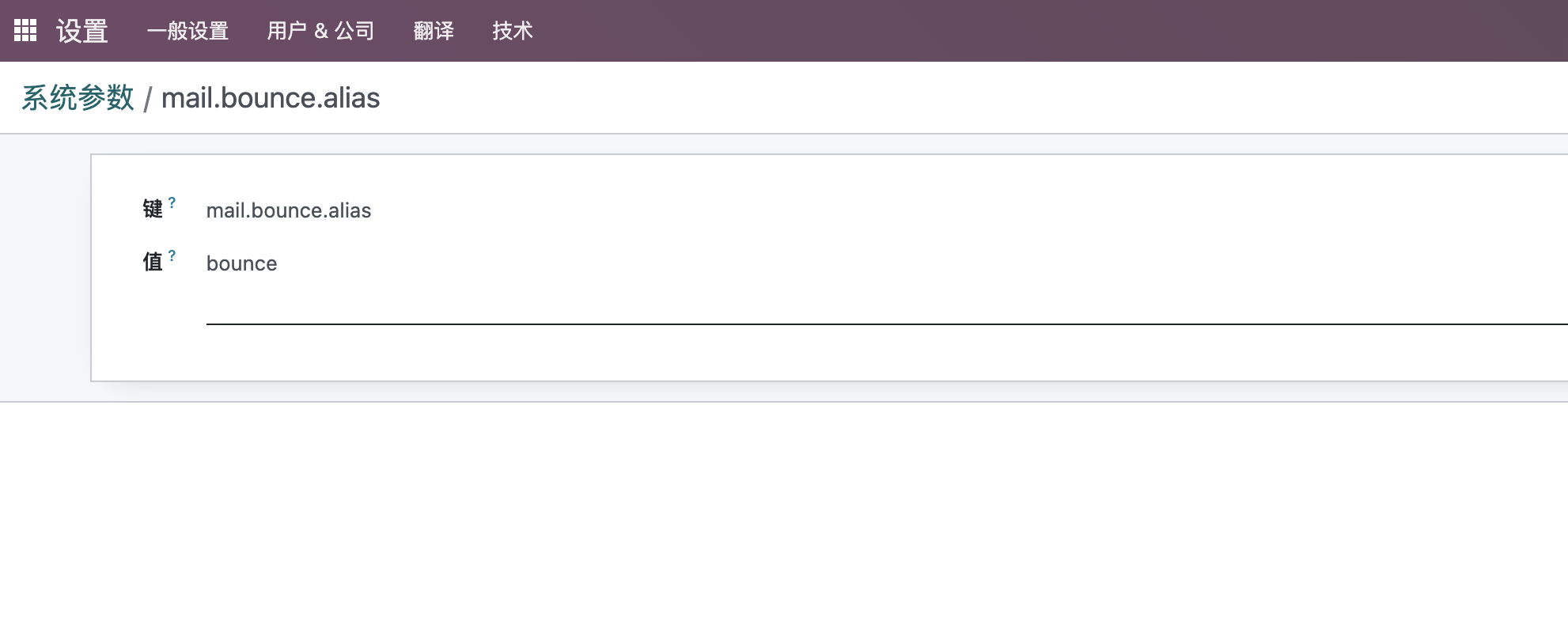
In a standard overseas email environment, Odoo often uses alias domains, catch-all, and bounce to handle replies, bounced emails, and document matching. Domestic email environments usually have more limitations:
- Free or normal business mail may not support catch-all;
- The sender may be required to equal the SMTP authenticated user;
- The provider may not allow the system to send as other employee addresses;
- Authorization code, app password, or OAuth may be required;
- Overseas server login, batch sending, and unusual login may trigger risk control;
- Without SPF, DKIM, and DMARC, messages are more likely to enter spam.
Domestic projects should not blindly copy overseas documentation. Confirm the email provider's rules first.
Choosing A Mail Solution For Domestic Projects
In phase one, the mail solution does not have to be the most complex. Choose according to business goals.
| Solution | Suitable Scenario | Advantage | Notes |
|---|---|---|---|
| Unified outgoing mailbox | Small team, first go-live, only sending quotations and invoices | Simple and stable | Customers see a shared mailbox, not personal salesperson email |
| Unified outgoing + unified incoming | Customer replies are handled centrally | Easy to manage | Replies may not automatically return to a specific document |
| Individual mailbox per user | Sales wants to communicate with personal email | Clear customer recognition | Higher configuration and maintenance cost, more authentication limits |
| Multi-company mailboxes | Multiple brands, legal entities, or domains | Sender identity is more accurate | Requires strict matching of company, domain, and mail server |
| catch-all / alias domain | Customer replies should return to documents | Good communication traceability | Domestic providers may not support it |
| OAuth integration | Outlook, Gmail, and modern authentication | Secure and compliant | Requires cloud app and callback configuration |
For small companies, a simple phase-one solution is often enough:
Unified outgoing mailbox -> Send quotations, invoices, and system notifications
Unified incoming mailbox -> Receive customer replies or let staff review them manually
Example:
service@company.comfor system sending;reply@company.comfor customer replies;finance@company.comfor finance and invoice communication;- Sales personal mailboxes are not connected to Odoo at first.
After the process is stable, consider personal mailboxes, multi-company mailboxes, catch-all, or more advanced routing.
Test Sending And Customer Replies
After mail configuration, test with real business documents. Create a quotation or sales order and send it to a customer mailbox.
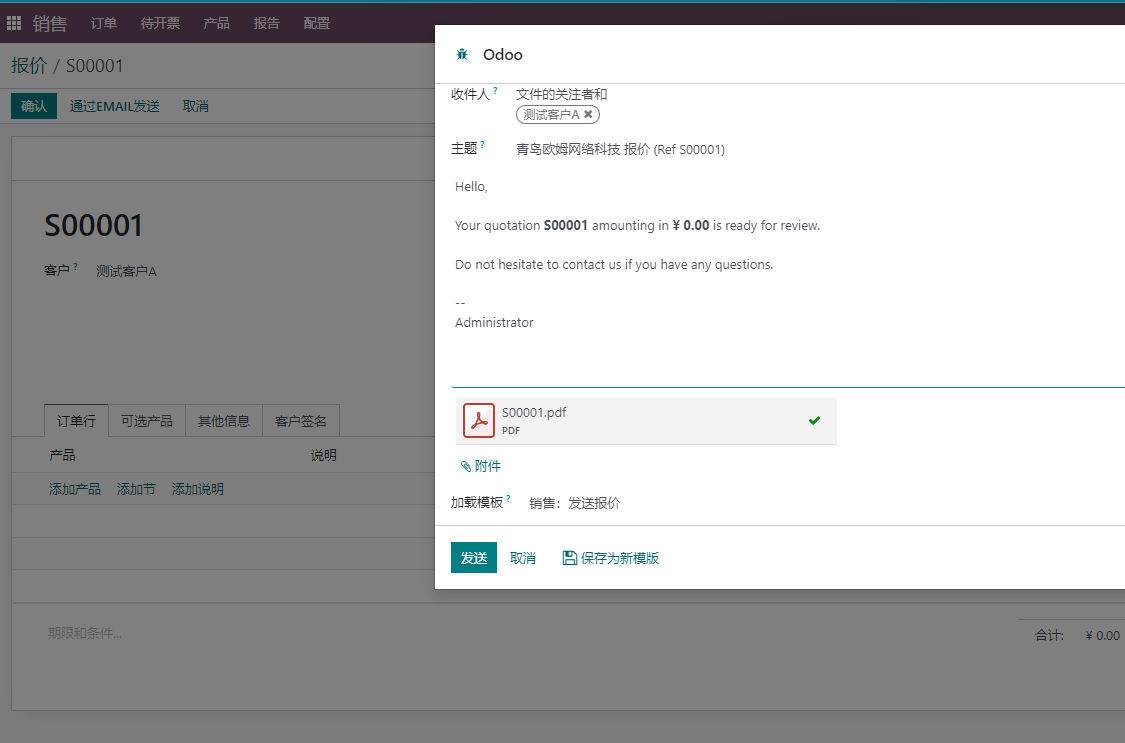
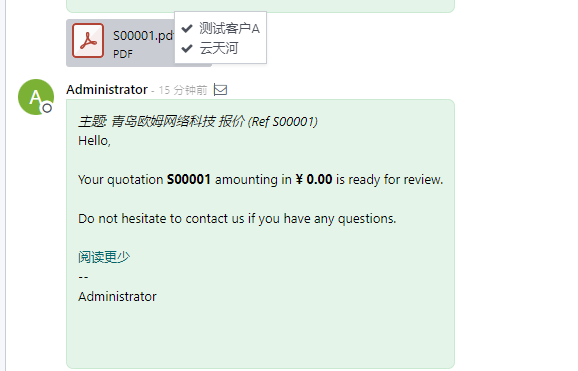
After sending, the chatter records the email.
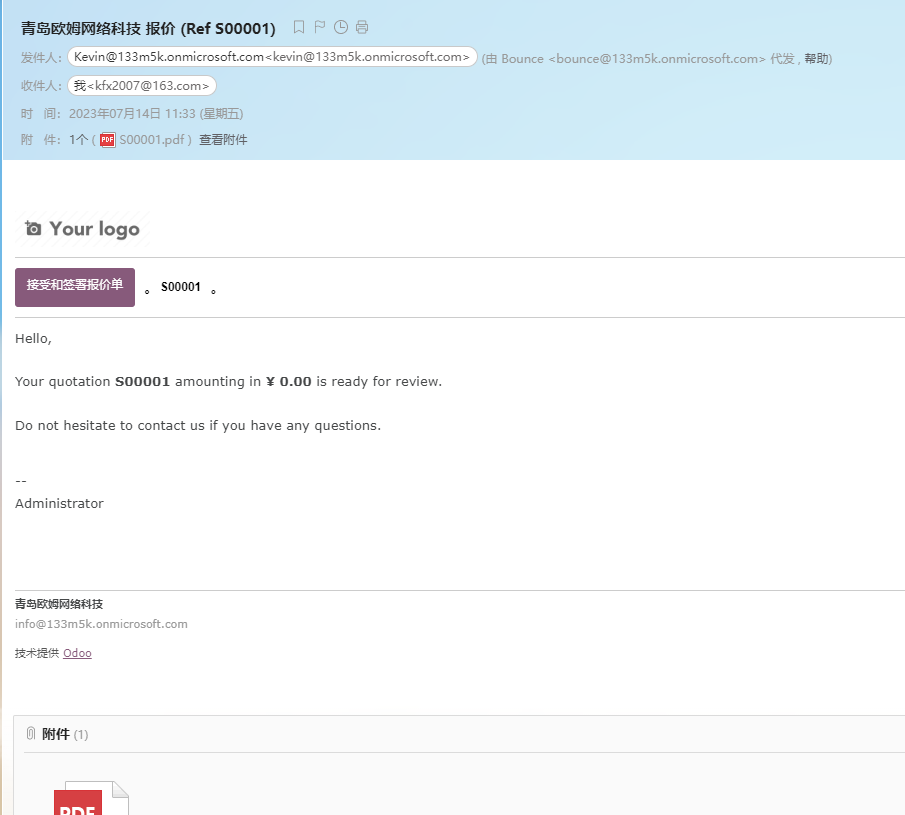
Customer received email example:
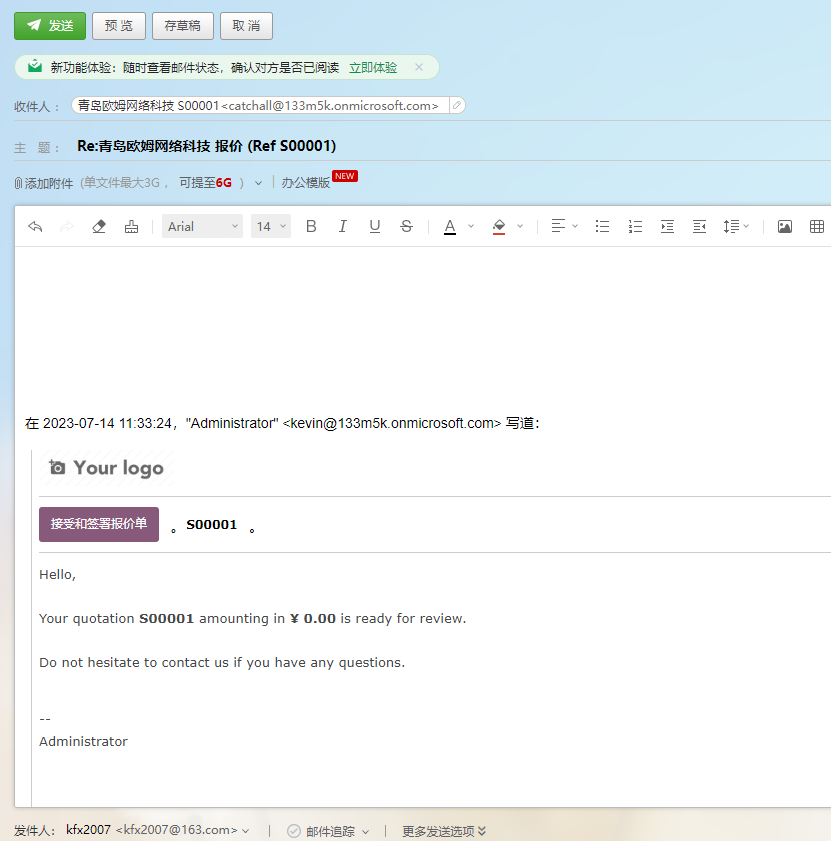
If the customer replies directly, the reply address enters the configured incoming mailbox or catch-all mailbox.
From the technical menu, you can inspect mail records and their relationship with business documents.
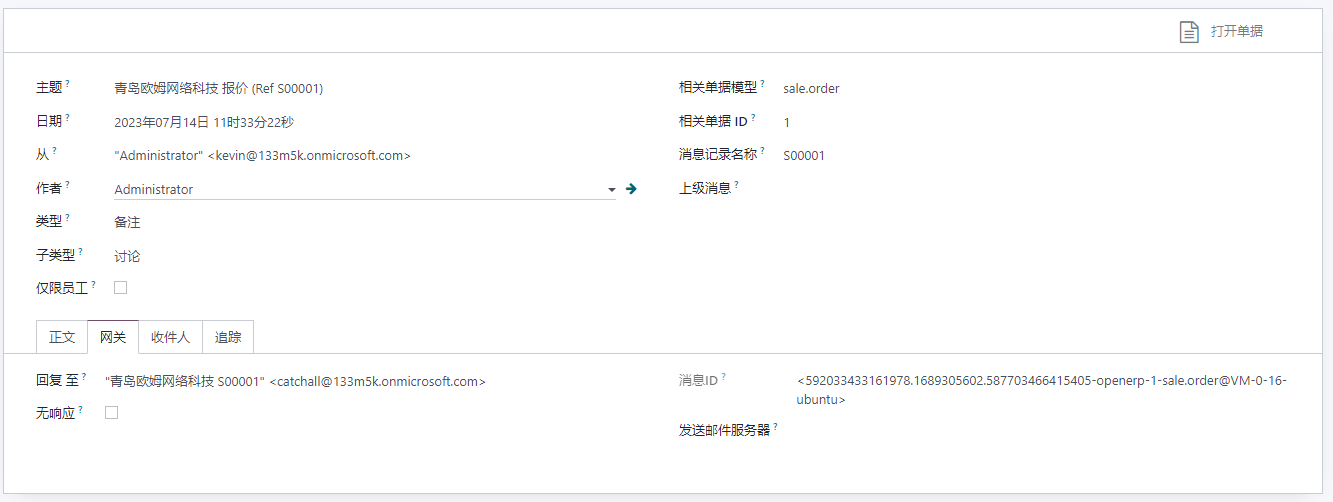
Do not only send "Hello" to an internal mailbox. At least test:
- Internal and external mailboxes;
- QQ, NetEase, Tencent business mail, Outlook, and other recipients;
- Quotation email, invoice email, password reset, and portal invitation;
- Whether PDF attachments can be opened;
- Whether customer replies can be received;
- Whether mail enters spam;
- Whether the test database may send emails to real customers by mistake.
These tests are risk control for the implementation.
Email Templates
Many Odoo emails are generated from templates, such as quotation emails, invoice emails, password reset emails, and portal invitations.
Email templates affect:
- Email subject;
- Body content;
- Button text;
- Attachments;
- Language;
- Company signature;
- Portal links.
Before modifying a template, copy or record the original content. Do not delete template variables casually, such as customer name, document link, portal link, or attachment expression, otherwise the email may fail to generate correctly.
For customer-facing templates, preview them with real business scenarios: can the customer understand it, is the button clear, is the company signature correct, and are attachments expected? Email templates are not only copywriting; they affect whether the customer can confirm, pay, or open portal documents smoothly.
Common Errors With Domestic Free Mailboxes
The most common domestic email issue is sender mismatch.
Typical errors:
SMTPSenderRefused: 553 Mail from must equal authorized user
or:
SMTPSenderRefused: 501 mail from address must be same as authorization user
This means the sender declared by Odoo is not the same as the SMTP login mailbox, so the provider refuses to send the email.
Example configuration in a multi-company and domestic email environment:
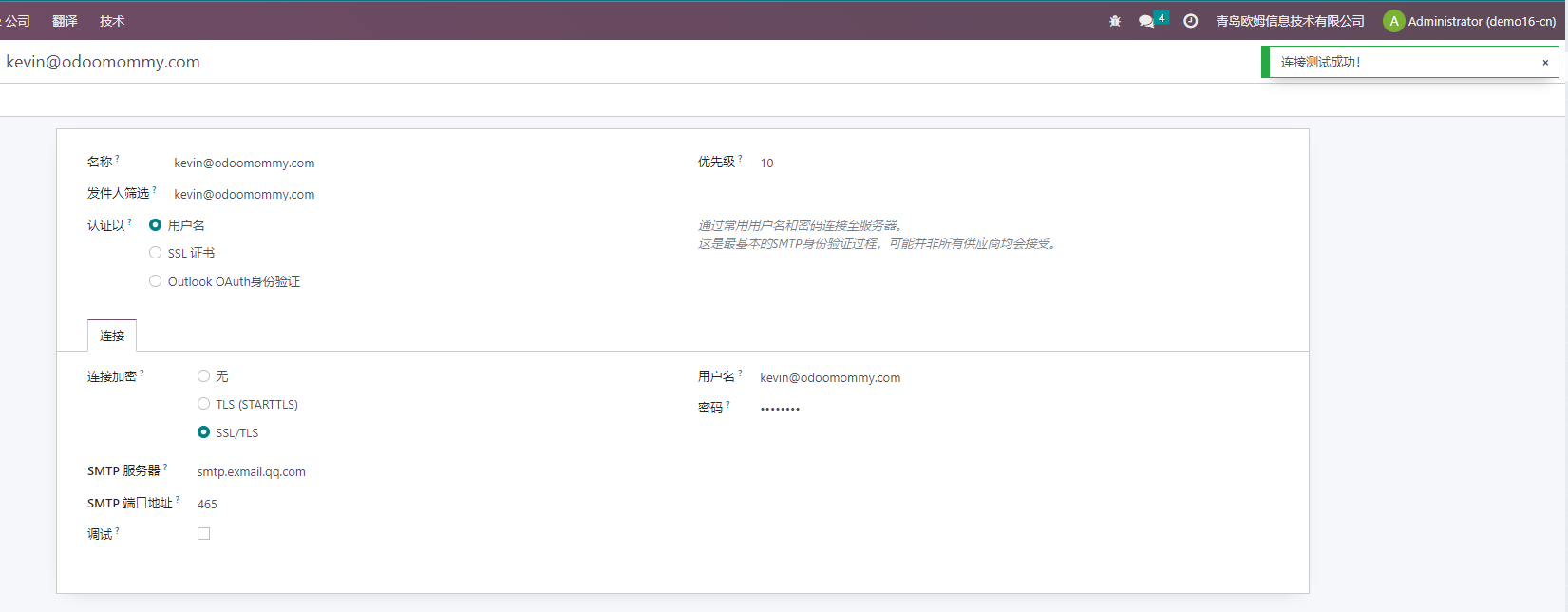
If the user email and declared sender do not match, domestic providers may refuse to send.
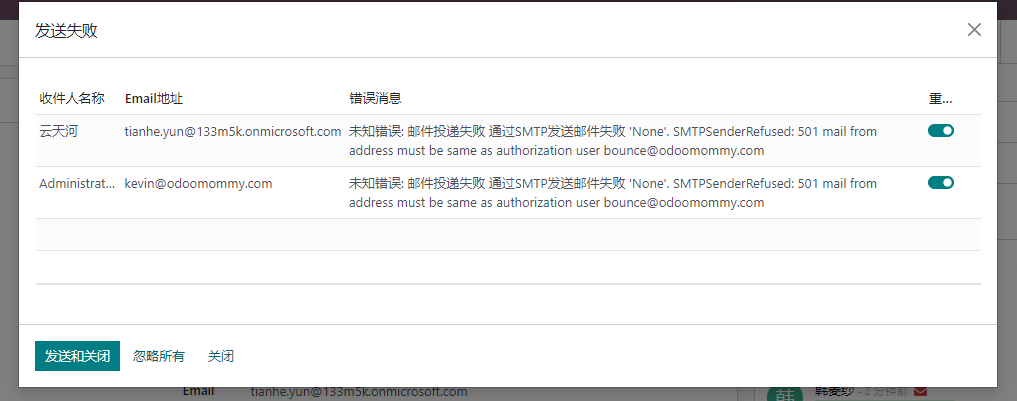
Common solution directions:
| Method | Suitable Scenario |
|---|---|
| Use a fixed company mailbox as unified sender | Fast phase-one go-live |
| Keep From address and SMTP authenticated user the same | Strict Tencent/NetEase business mail scenarios |
| Configure different outgoing servers for different companies | Multi-company and multi-domain business |
| Use OAuth authentication | Outlook, Gmail, and cloud mail |
| Adjust catch-all and bounce strategy | Customer replies need to enter Odoo |
| Use a localized mail module | Native configuration cannot satisfy domestic restrictions |
The first method is simplest, but it cannot satisfy "each salesperson uses their own email externally." The other methods are more flexible but cost more to configure and maintain.
Tencent Business Mail Configuration
Tencent Business Mail is common in domestic projects, but it often requires the sender to equal the authenticated user.
Common server parameters:
POP3/SMTP
Incoming: pop.exmail.qq.com, SSL, port 995
Outgoing: smtp.exmail.qq.com, SSL, port 465

IMAP
Incoming: imap.exmail.qq.com, SSL, port 993
Outgoing: smtp.exmail.qq.com, SSL, port 465
Before configuration, confirm:
- POP/IMAP/SMTP is enabled for the mailbox;
- Authorization code or correct password is used;
- WeCom/Tencent Business Mail backend does not block third-party clients;
- Odoo sender and SMTP authenticated user are consistent when required;
- The Odoo server can connect to Tencent Business Mail servers.
Tencent Business Mail backend example:
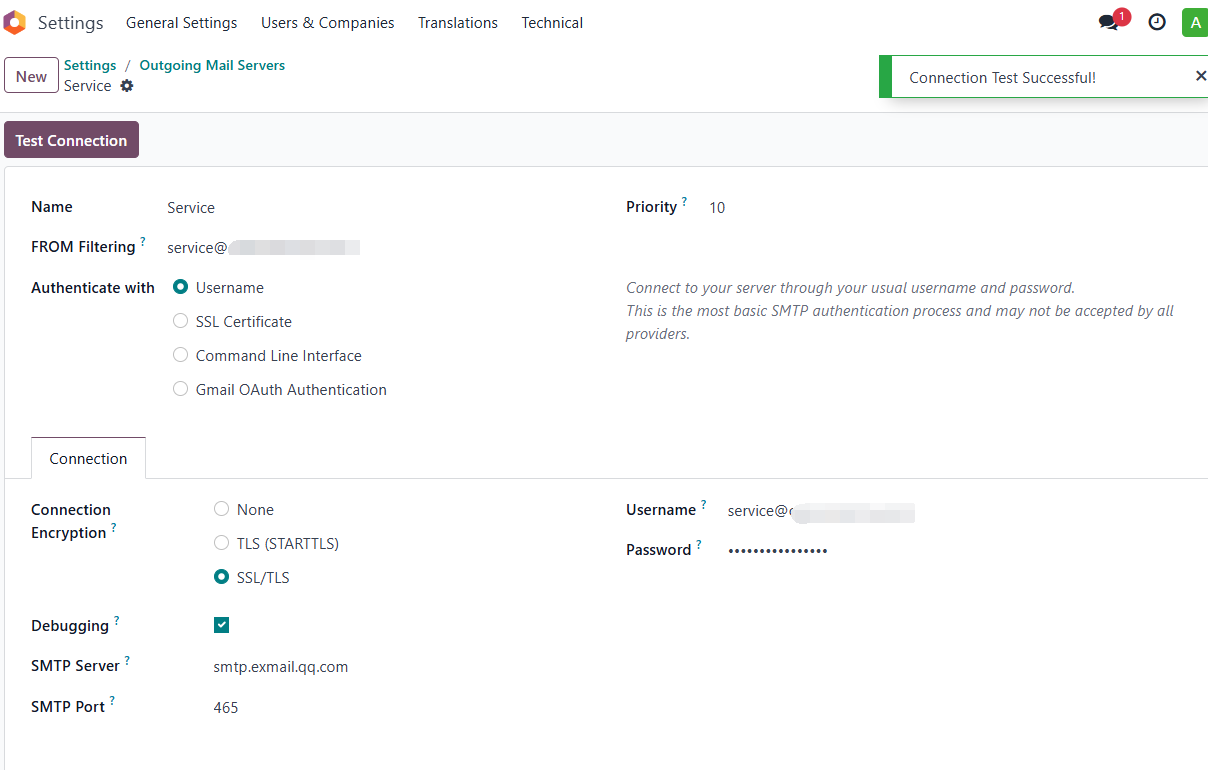
Common error:
SMTPSenderRefused: 501 mail from address must be same as authorization user
If multiple users need to send through one Tencent Business Mail account, adjust sender strategy or use a module that supports strict sender matching.
Office 365 / Outlook OAuth Configuration
Office 365 and Outlook have gradually tightened basic authentication. In many cases, SMTP/IMAP cannot simply use mailbox password and needs OAuth modern authentication.
Prerequisites:
- Odoo must be accessible through HTTPS;
- Callback URL must match Odoo's base URL;
- An application must be created in Microsoft Entra ID;
- The user or organization must allow the required permissions;
- SMTP Auth may need to be enabled separately.
Register An Application
Open Microsoft Azure/Entra admin center and create an app registration.
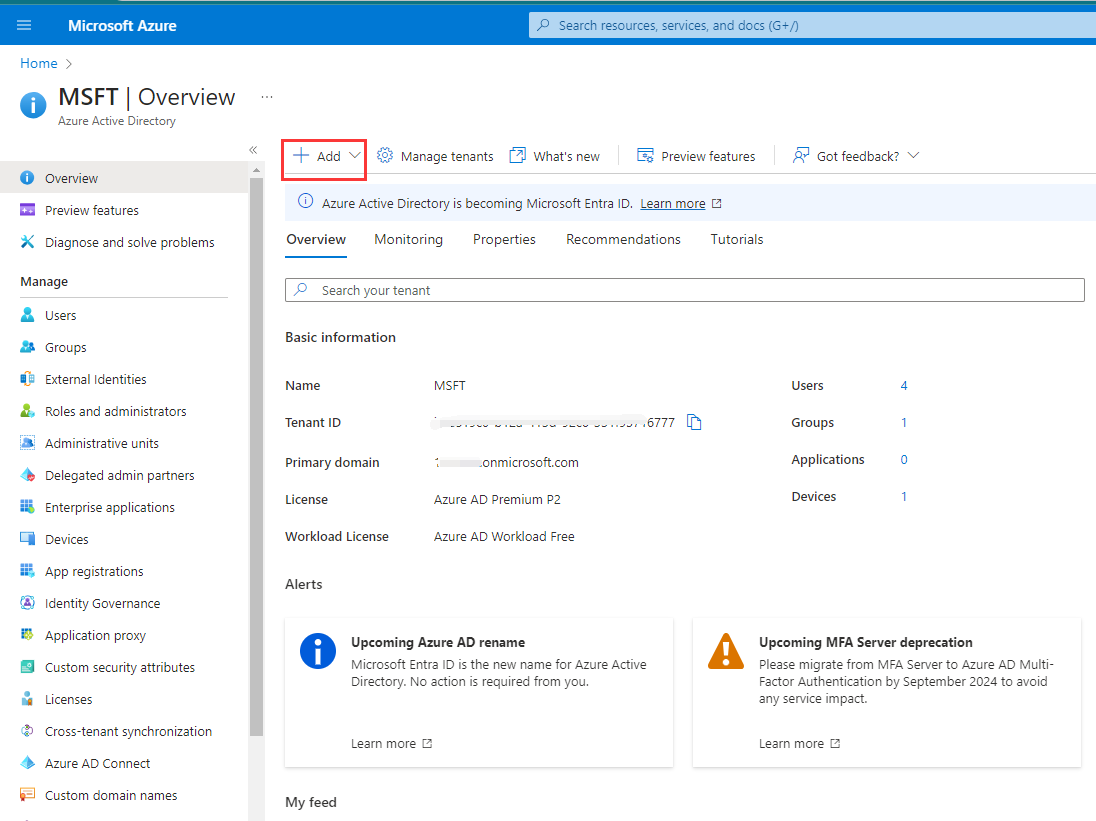
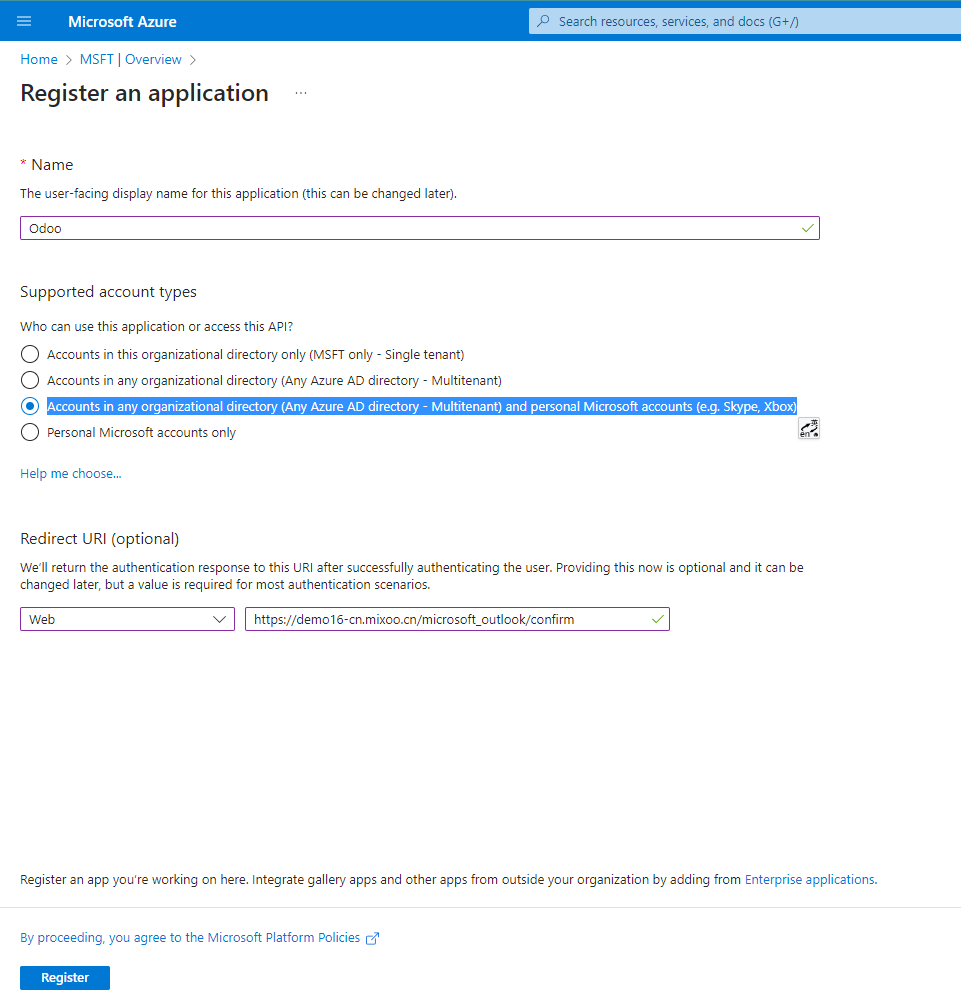
The application type is usually Web. Callback URL:
https://your-odoo-domain/microsoft_outlook/confirm
For local testing, some OAuth scenarios only allow HTTPS or http://localhost; normal HTTP domains may fail.
App registration details:
Set API Permissions
In API permissions, add mail-related permissions according to Odoo's Outlook integration requirements.
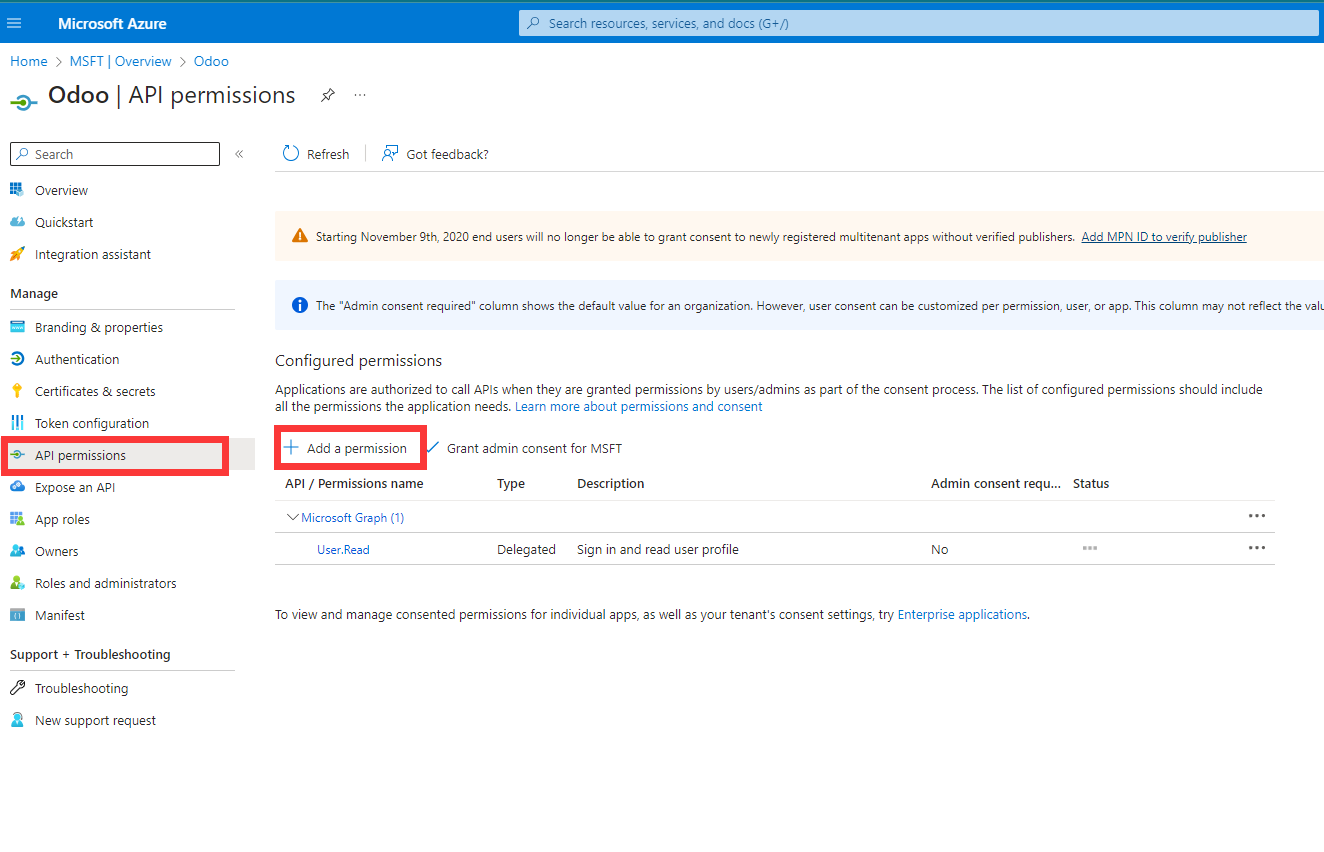
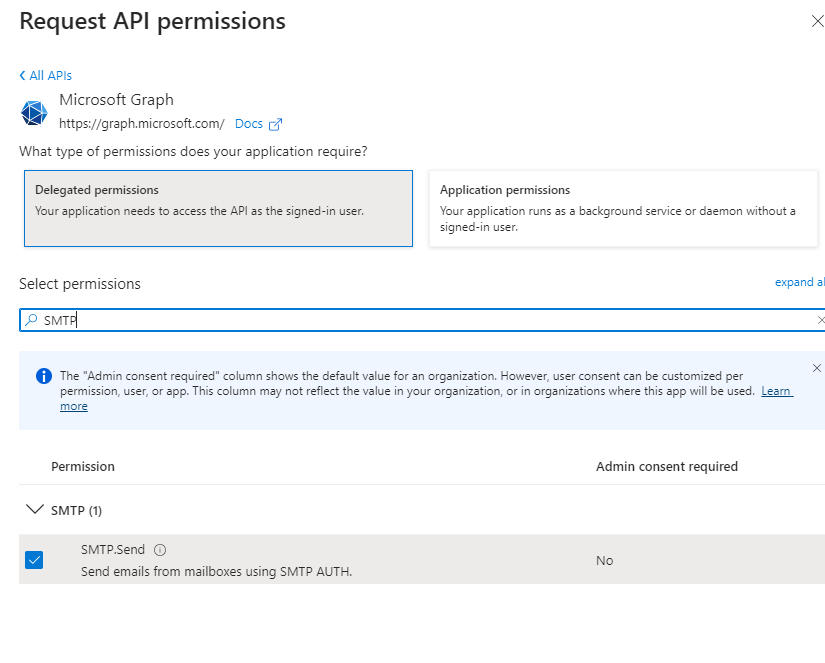
Final permissions example:
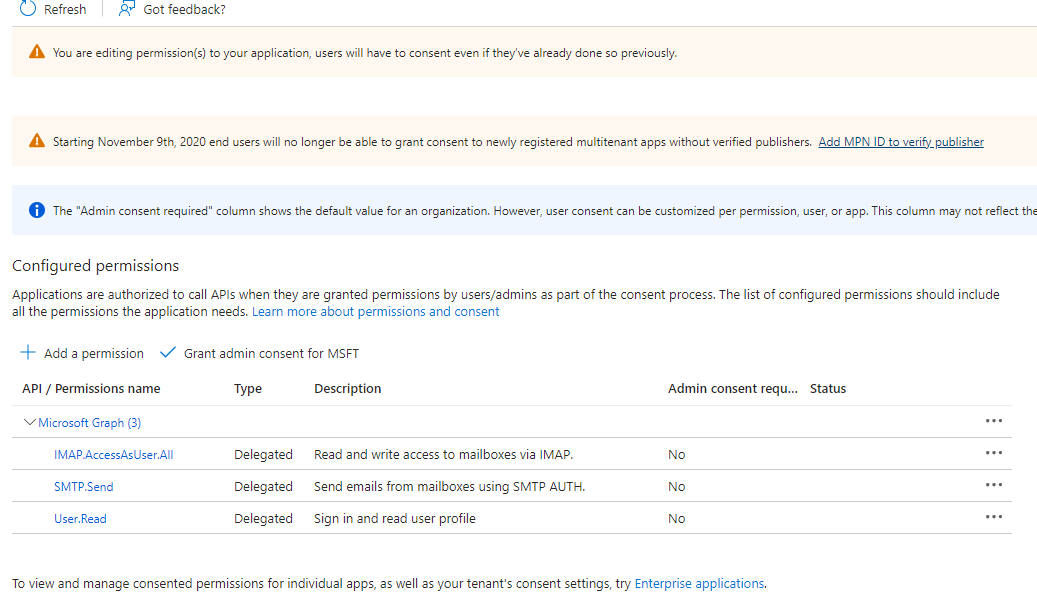
Common permissions include:
- Read user basic profile;
- Send mail;
- Read mail;
- Offline access token.
The exact permissions may change with Odoo versions and Microsoft policies. Follow the current Odoo UI instructions and Microsoft admin center.
Also confirm that users or user groups can use the application.
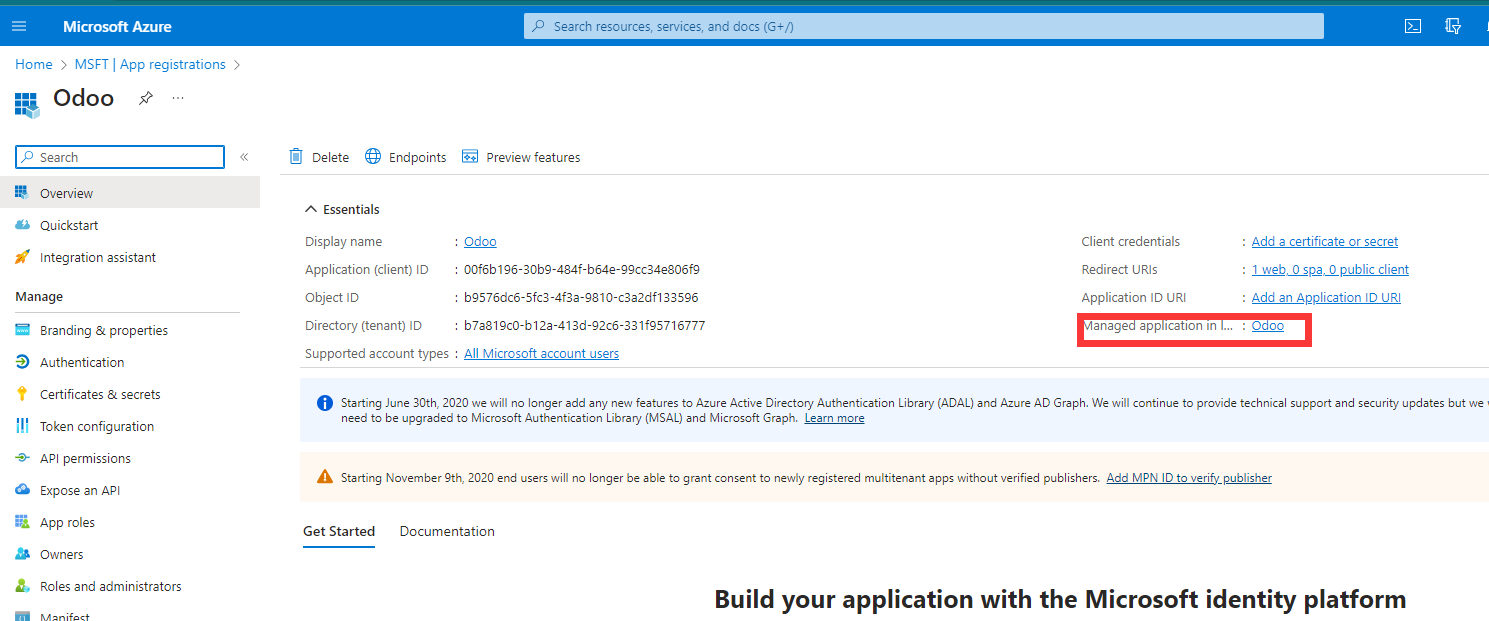
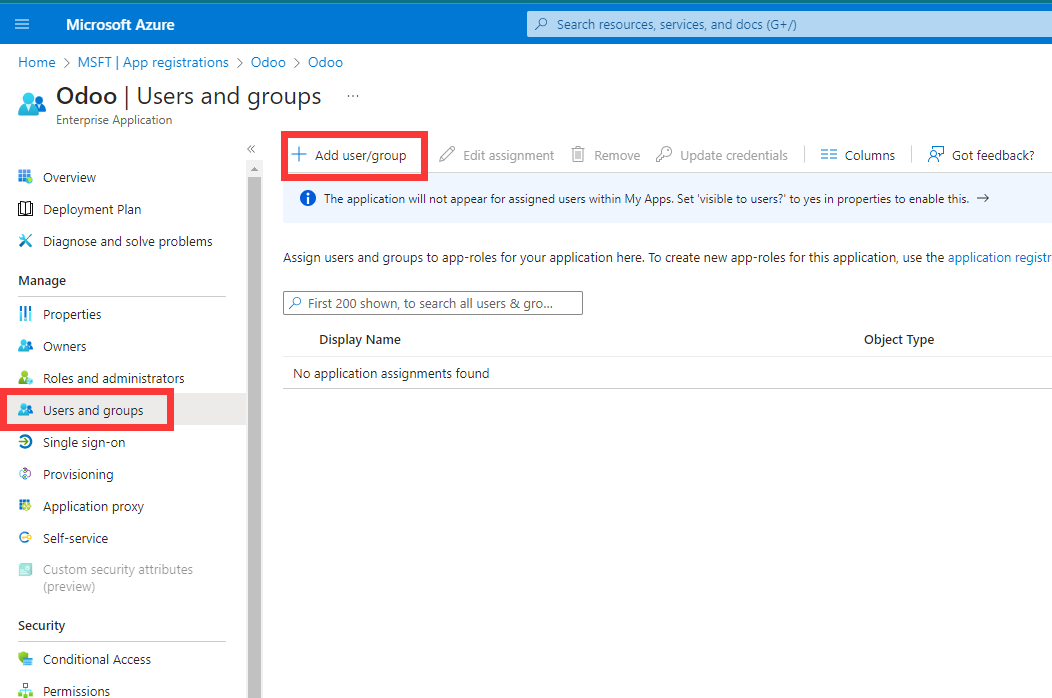
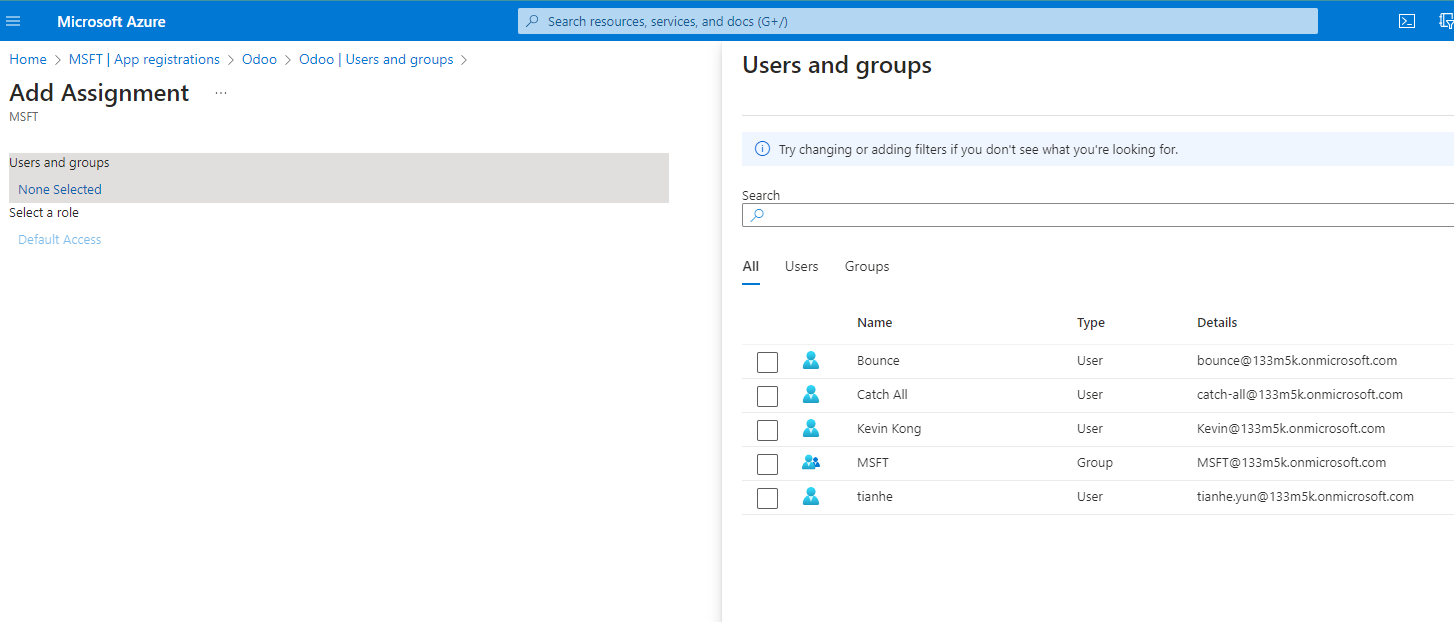
Create Credentials
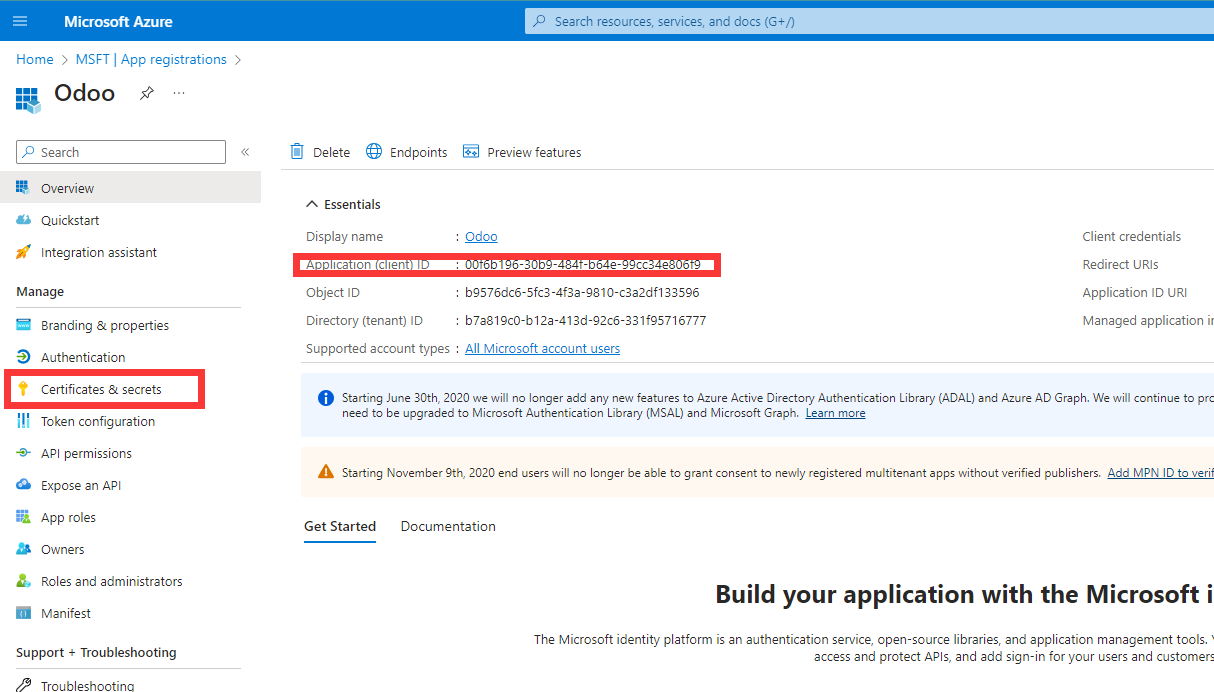
Odoo needs two key values:
- Client ID;
- Client Secret.
Client ID is available on the app overview page. Client Secret must be generated under certificates and secrets. Save it immediately after generation because it may not be visible again.
Client ID location:
Client Secret entry:
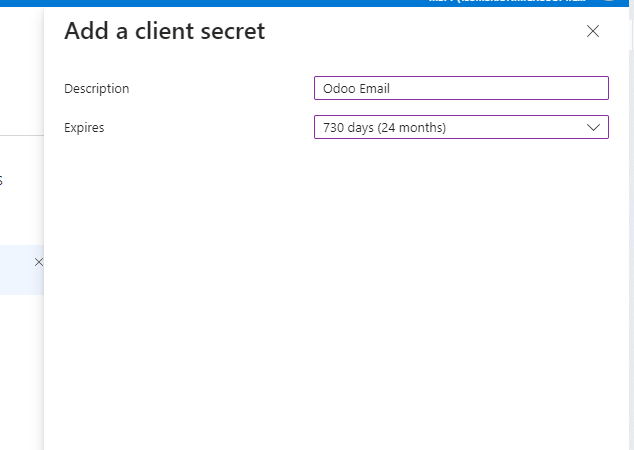
Connect Outlook Account In Odoo
Back in Odoo, enter Client ID and Client Secret, then create or edit the mail server.
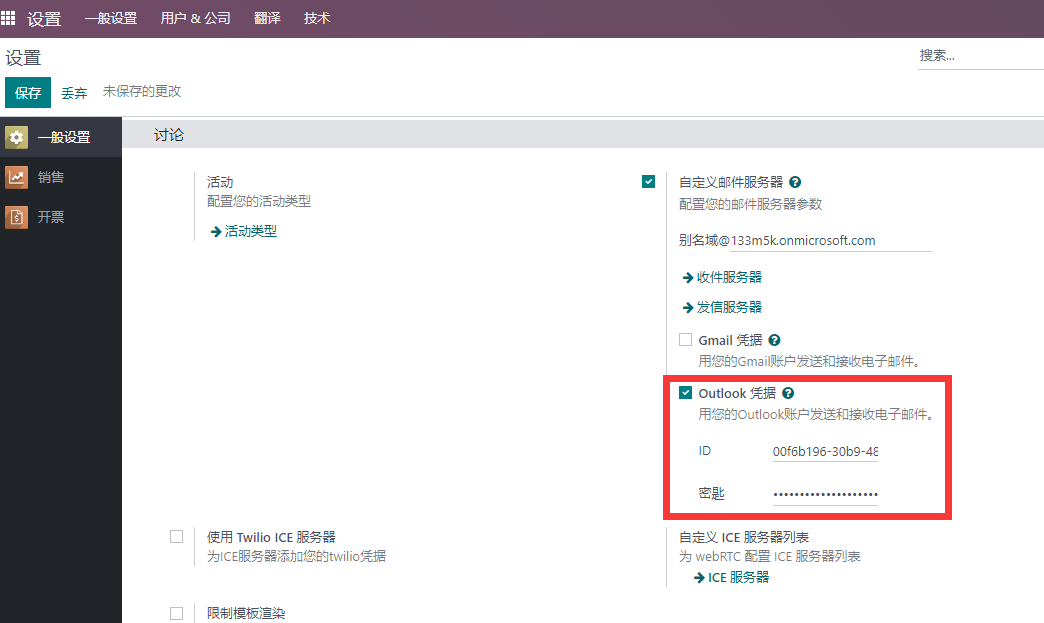
Select Outlook OAuth authentication, click Connect Outlook account, and complete authorization on the Microsoft login page.
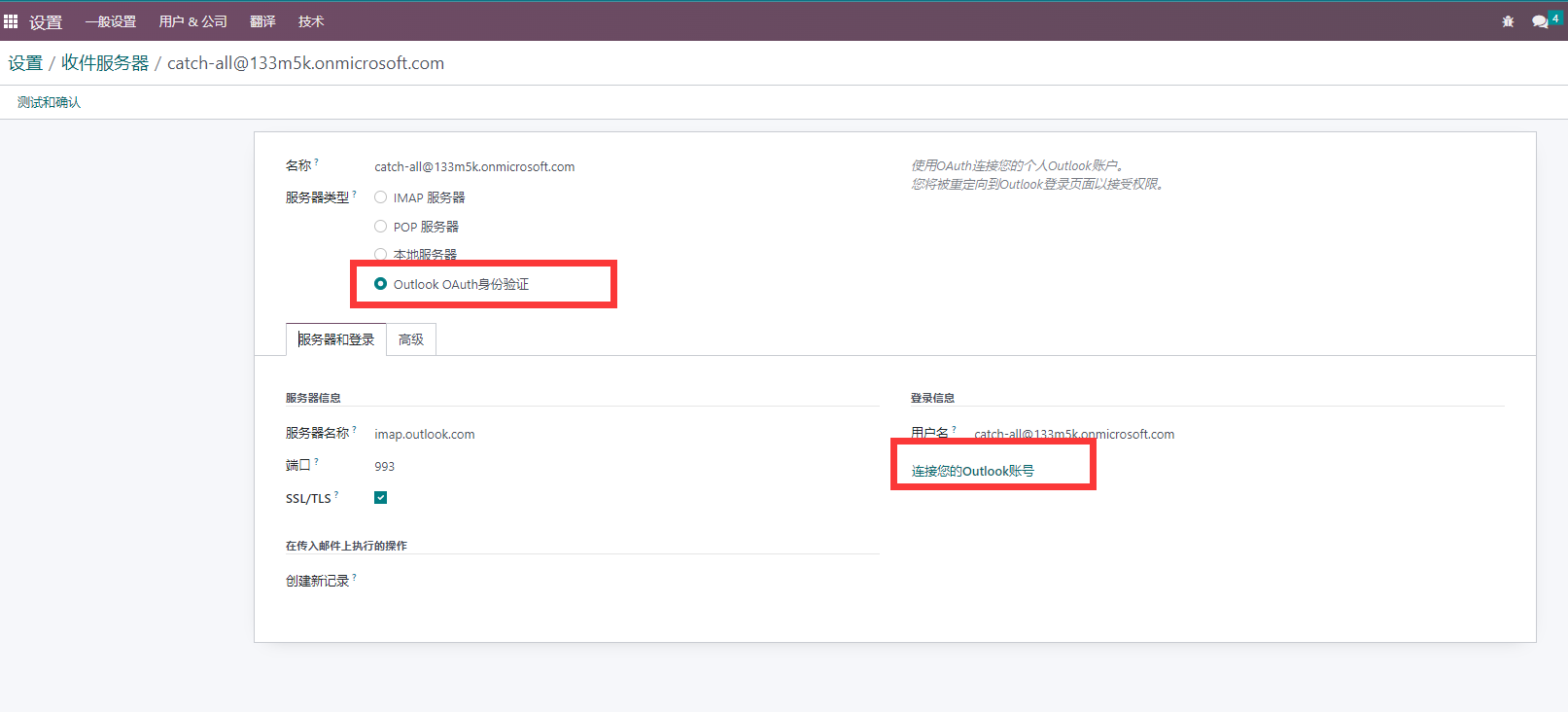
After authorization, the mail server shows a valid token status.
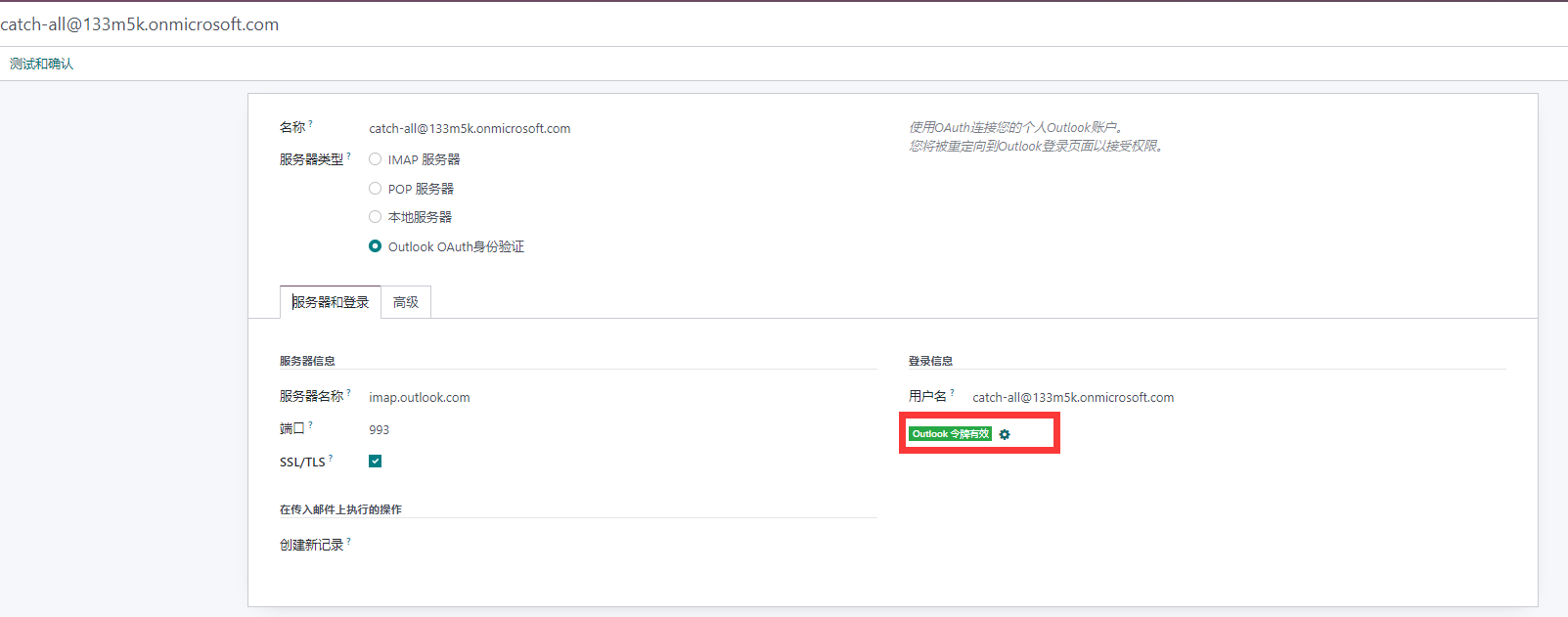
Then return to Odoo and test the connection.
Office 365 Common Issues
SmtpClientAuthentication is disabled for the tenant
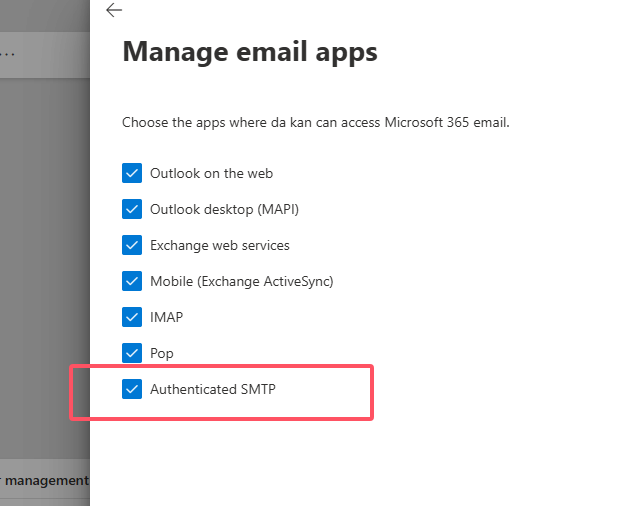
This usually means Authenticated SMTP is not enabled for the tenant or user.
Solution direction:
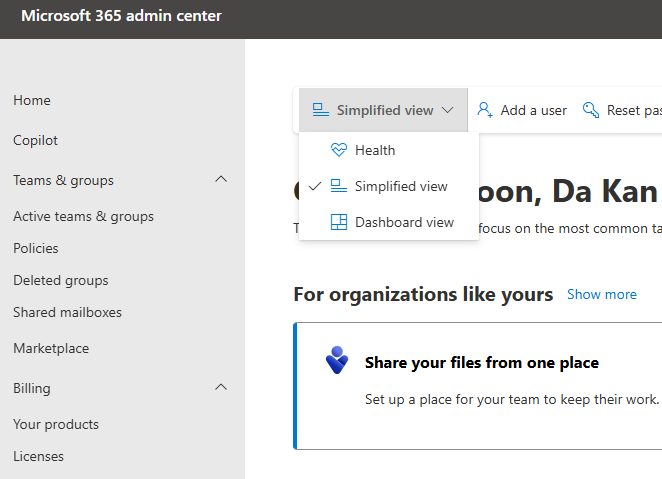
- Open Microsoft 365 admin center;
- Find the target user;
- Edit mail app settings;
- Enable Authenticated SMTP;
- Wait for policy propagation and test again.
Microsoft 365 admin center example:
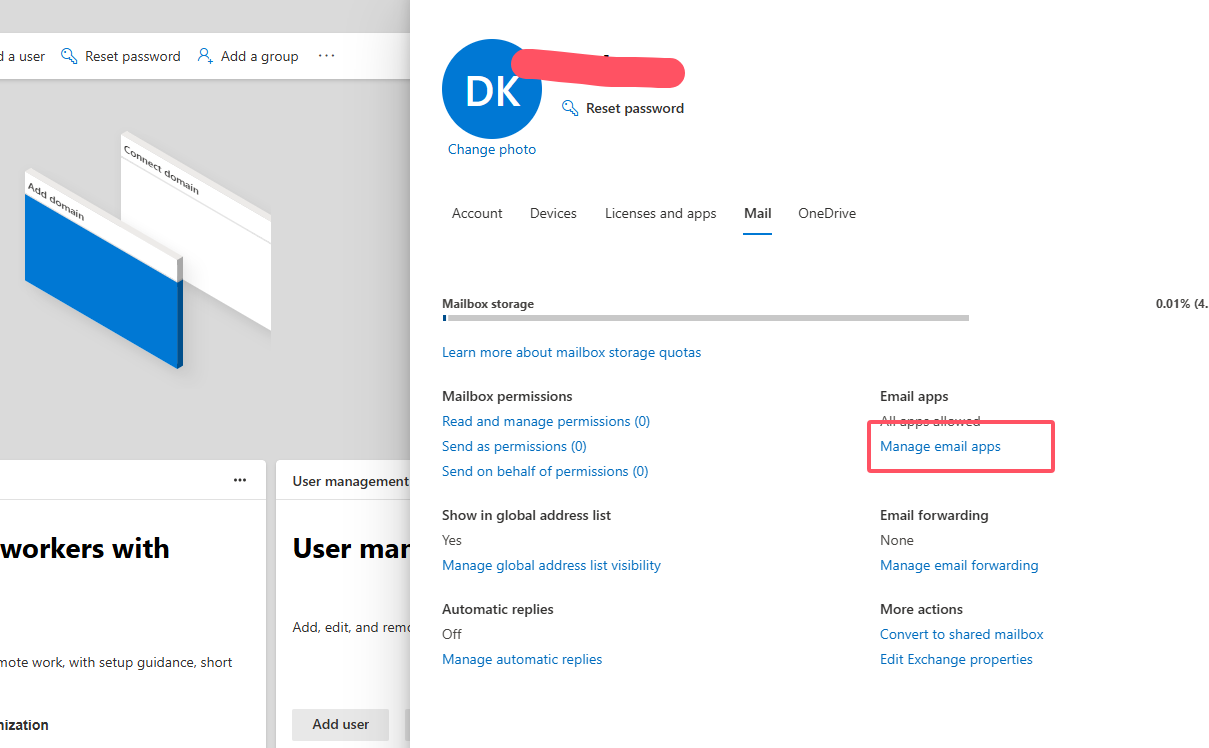
Enable Authenticated SMTP in Email Apps:
Redirect URI mismatch
Check:
- Odoo Web Base URL;
- Redirect URI in the Microsoft application;
- Whether HTTPS is used;
- Whether there is an extra slash or path mismatch.
Gmail OAuth Configuration
Gmail also commonly uses OAuth. Ordinary passwords are not recommended.
After enabling Gmail in Odoo settings, Odoo asks for ID and secret.
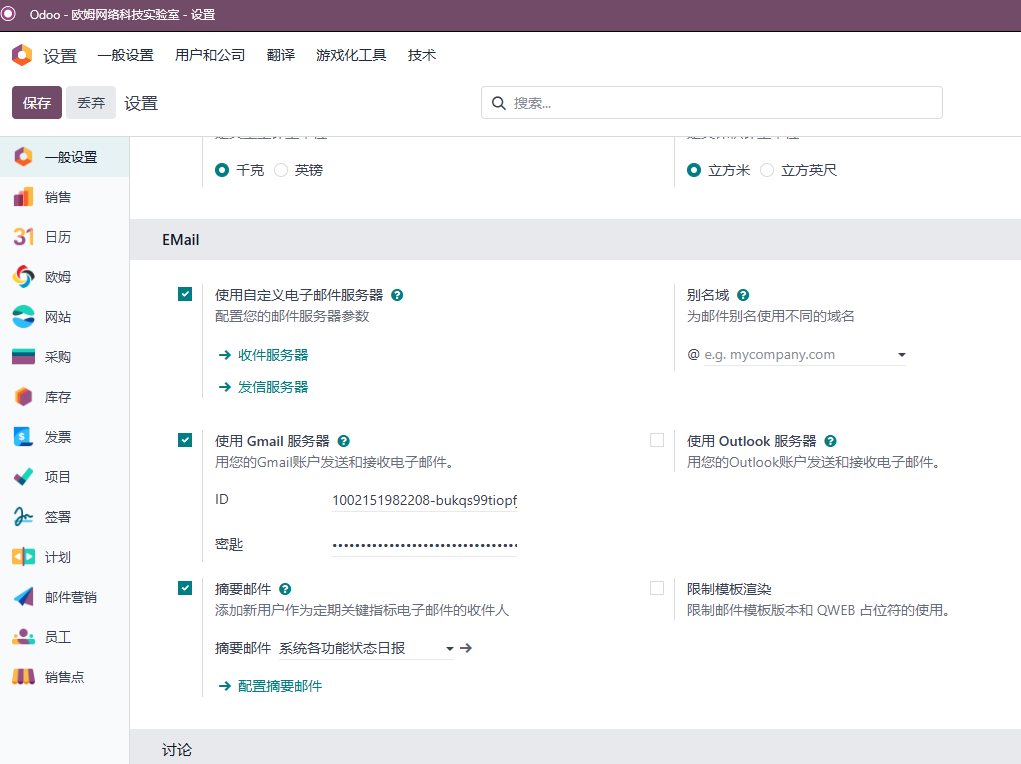
General steps:
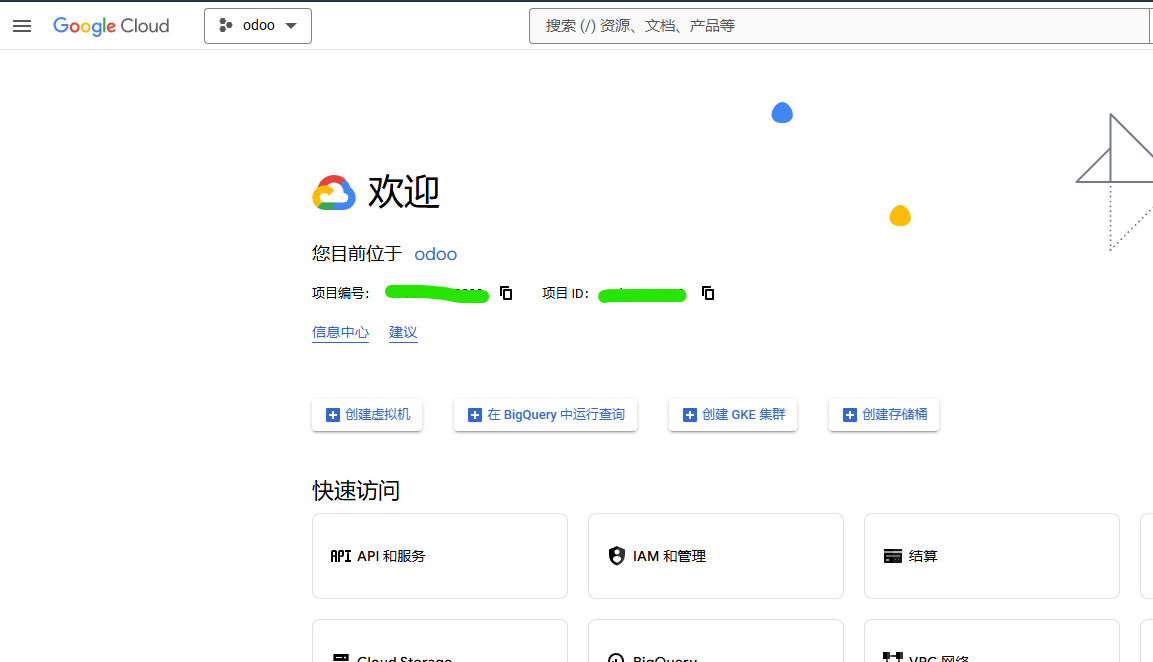
- Open Google Cloud Console;
- Create a project;
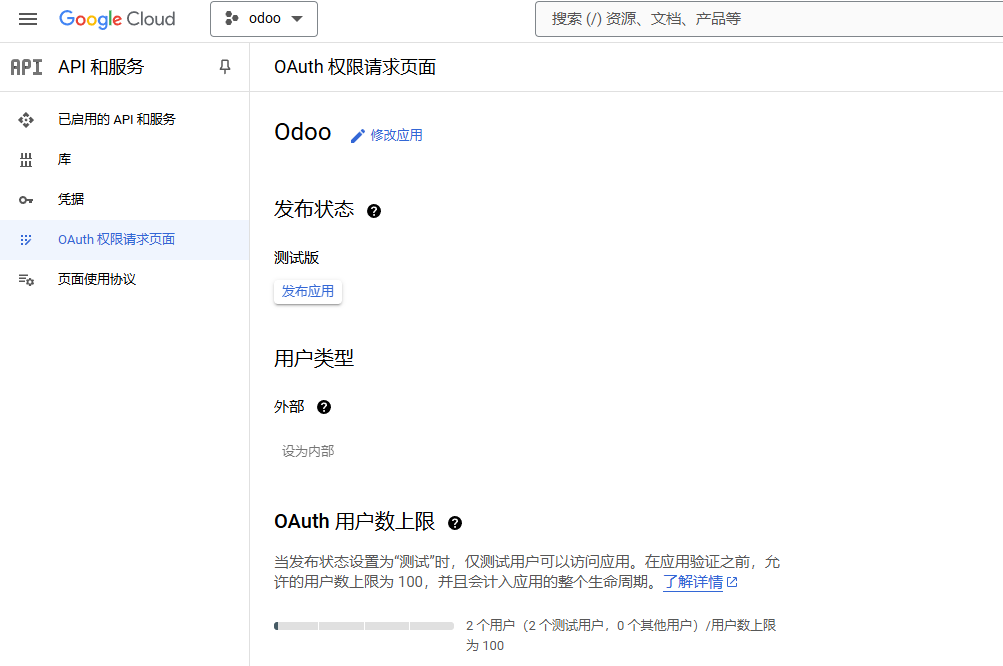
- Configure OAuth consent screen;
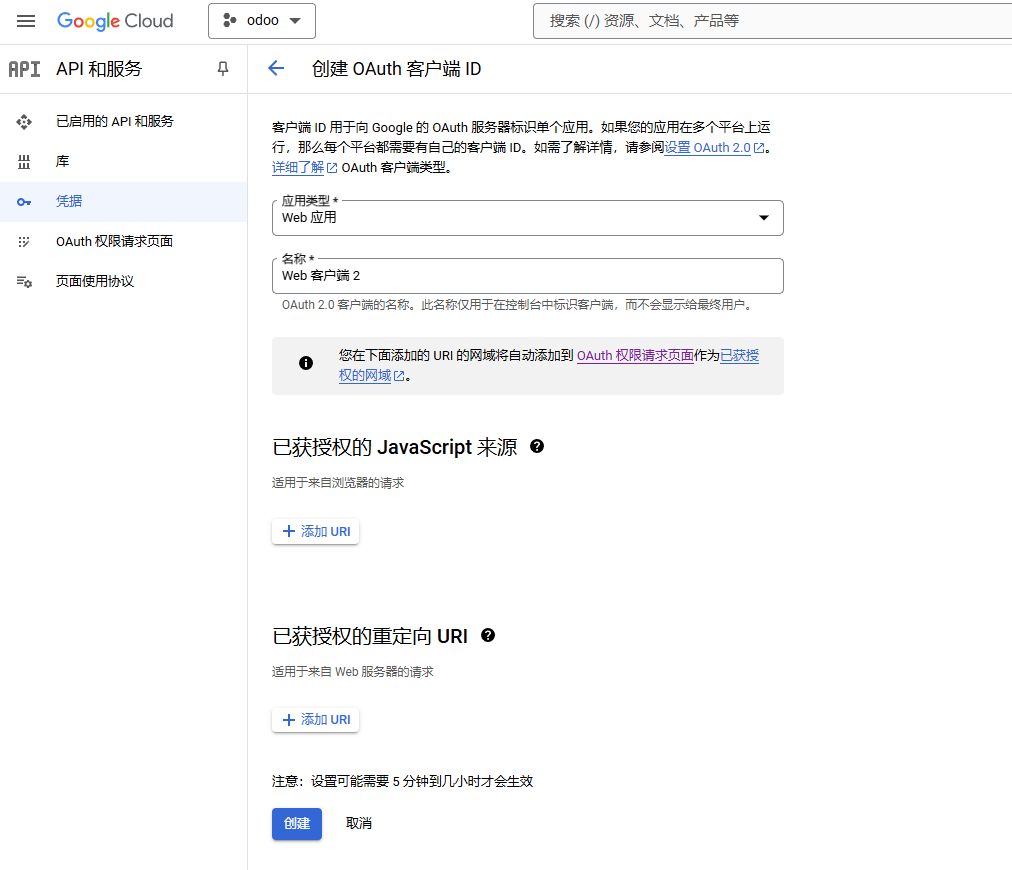
- Create Web application OAuth credentials;
- Set authorized redirect URI;
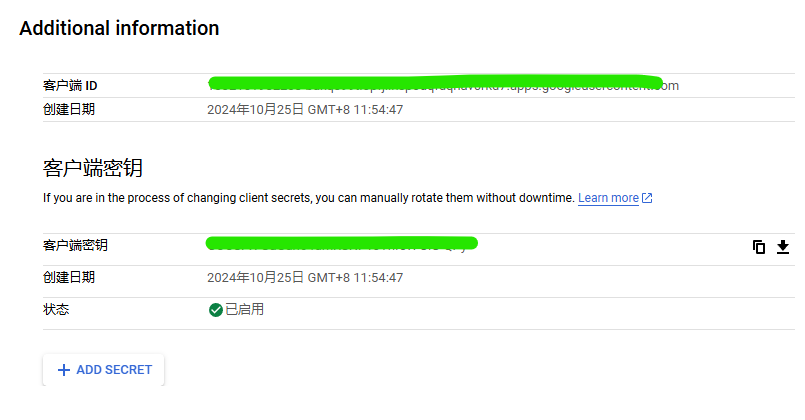
- Enter Client ID and Client Secret in Odoo;
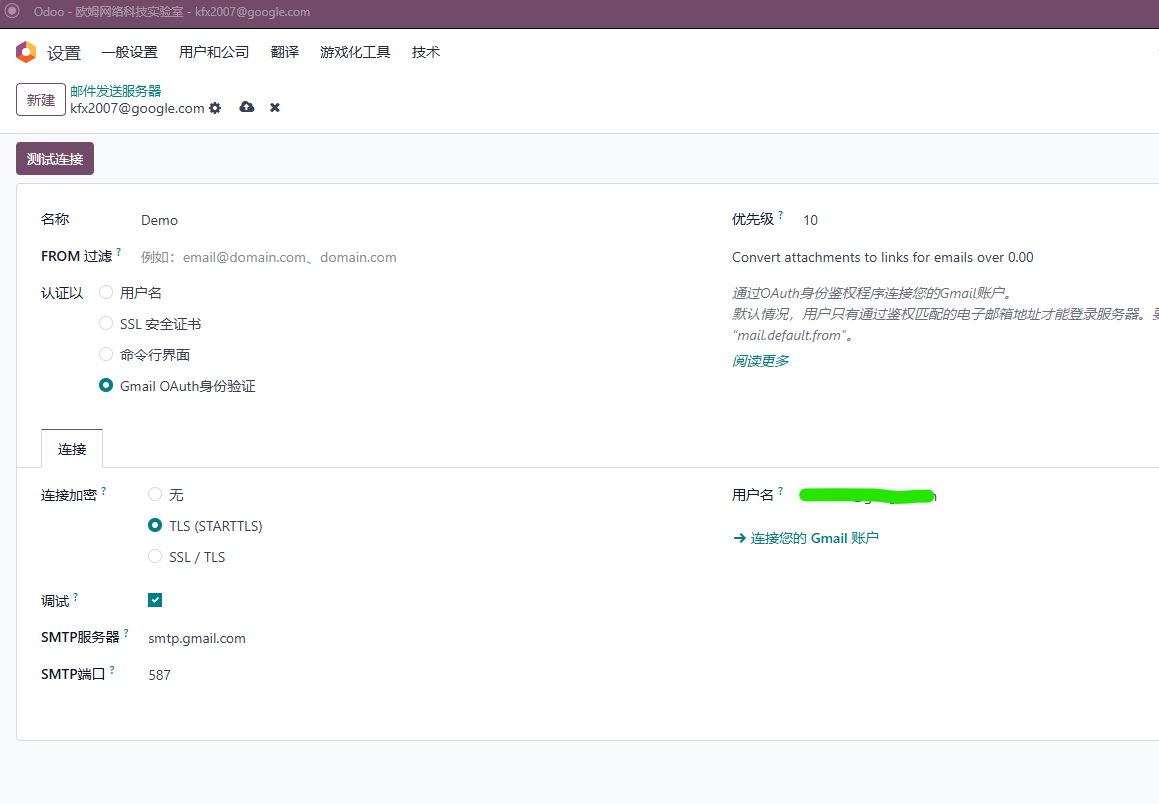
- Create Gmail outgoing server;
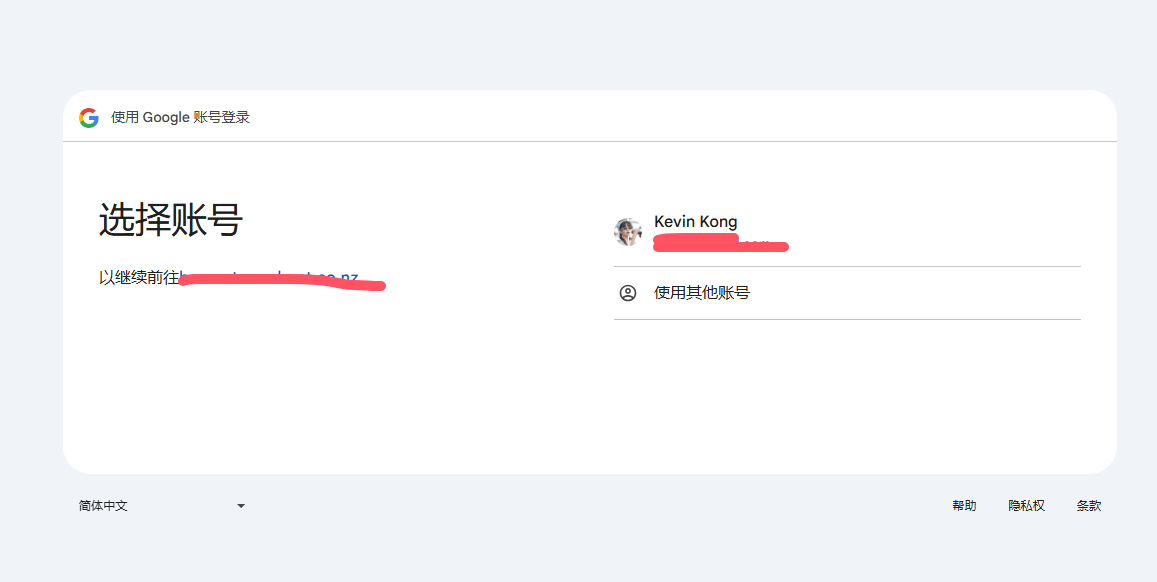
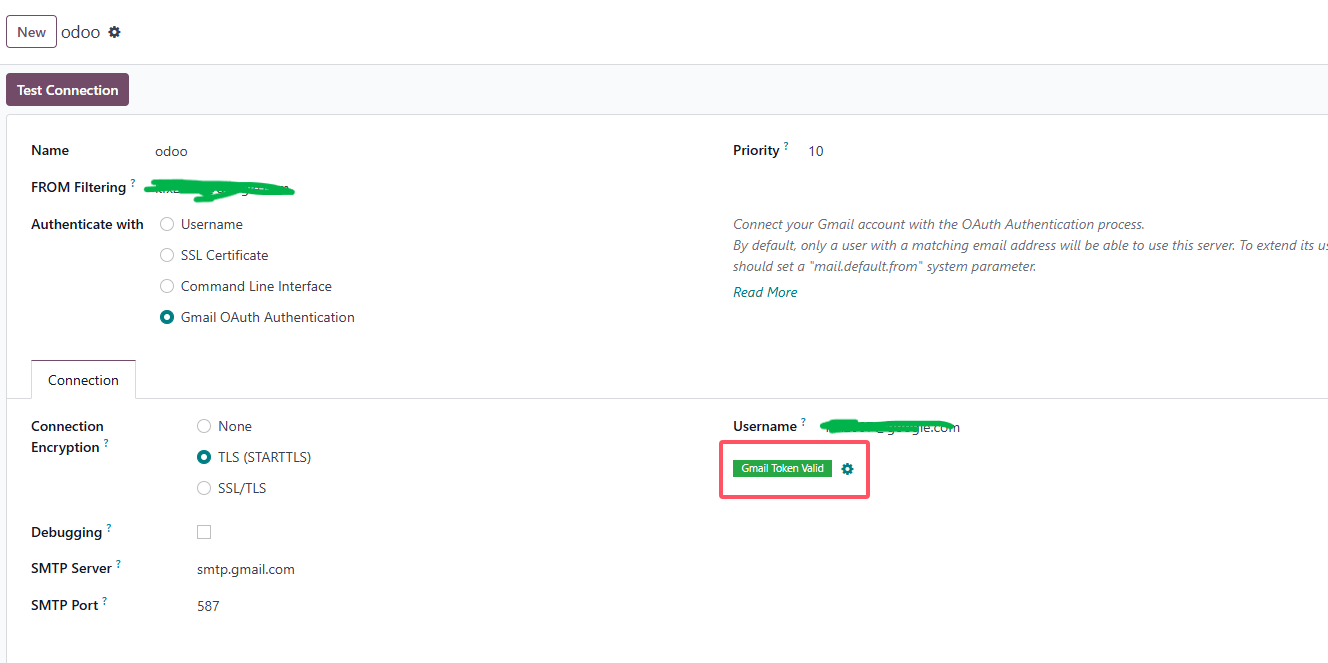
- Click Connect Gmail account to finish authorization.
Redirect URI is usually:
https://your-odoo-domain/google_gmail/confirm
Create project in Google Cloud Console:
OAuth consent screen:
Create OAuth credentials:
Fill authorized redirect URI:
Create Gmail outgoing server in Odoo:
Click Connect Gmail account:
Successful authentication status:
Common issues:
| Issue | Direction |
|---|---|
| Redirect URI mismatch | Check Google redirect URI and Odoo base URL |
| 500 error after authentication | Check network, domain, certificate, and OAuth configuration |
| Test user cannot authorize | Check OAuth consent screen test users |
| Sending fails | Check Gmail API, scopes, and mail server configuration |
Gmail may be unstable in mainland China network environments. Test thoroughly before using it for domestic customers.
Ohm Network Mail Solution
When a project involves multi-company, multi-domain, multiple sales mailboxes, or strict domestic email providers, native configuration may not be smooth enough. For example:
- Company A uses
sales@companya.com; - Company B uses
sales@companyb.com; - Customer replies should enter the corresponding company or document;
- Outgoing mailboxes need to match company, domain, and user;
- The provider requires From to equal the SMTP authenticated user;
- The customer's environment does not support catch-all.
These problems are not because Odoo cannot send email. They come from the gap between native Odoo mail logic and domestic provider rules. To handle these implementation pain points, Qingdao Ohm Network Technology provides an enhanced mail configuration solution.
Module entry:
Ohm Mail Configuration Solution
Module example:
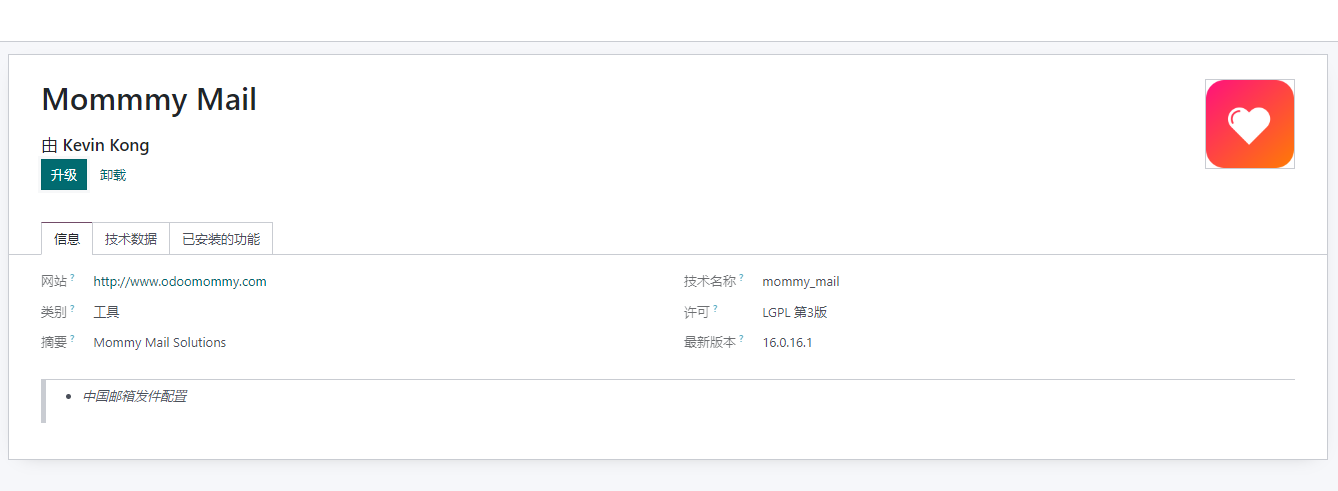
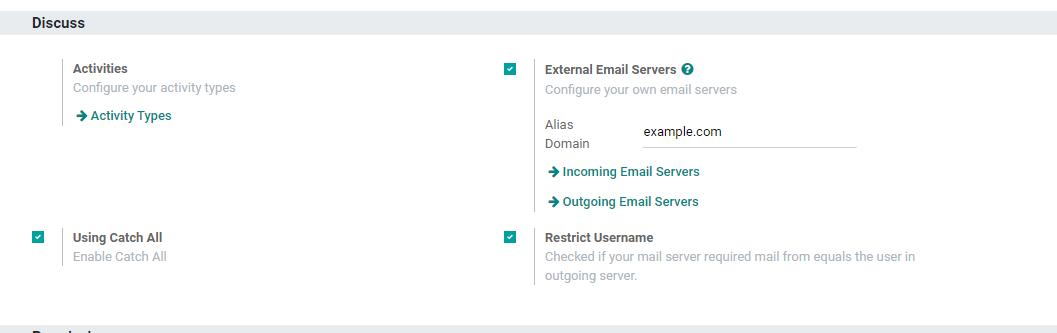
After installation, settings related to catch-all and strict sender matching appear in General Settings.
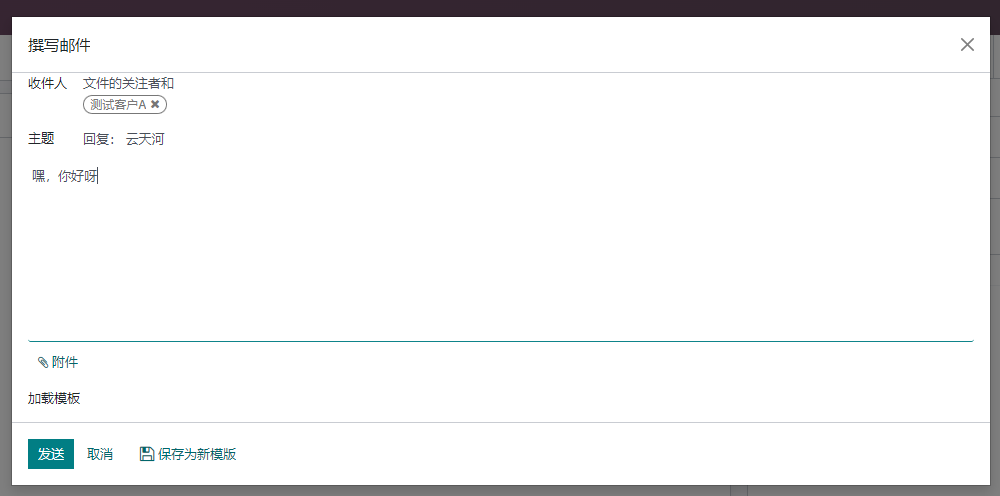
After configuration, sending email again can solve some failures caused by strict sender matching.
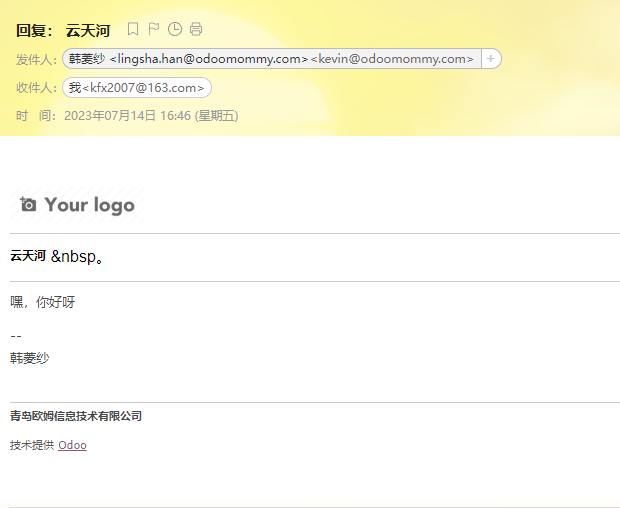
Customer received email:
Typical capabilities:
- Outgoing server supports company-level configuration;
- Outgoing server can match a corresponding incoming mailbox;
- Supports limiting sender to the authenticated mailbox;
- Supports domestic environments without catch-all;
- Supports user preferred mailboxes by company;
- Suitable for foreign trade, multi-company, and multi-mailbox sales teams.
Outgoing Server Company Matching
In multi-company environments, outgoing servers can specify applicable companies. Empty means all companies can use it.
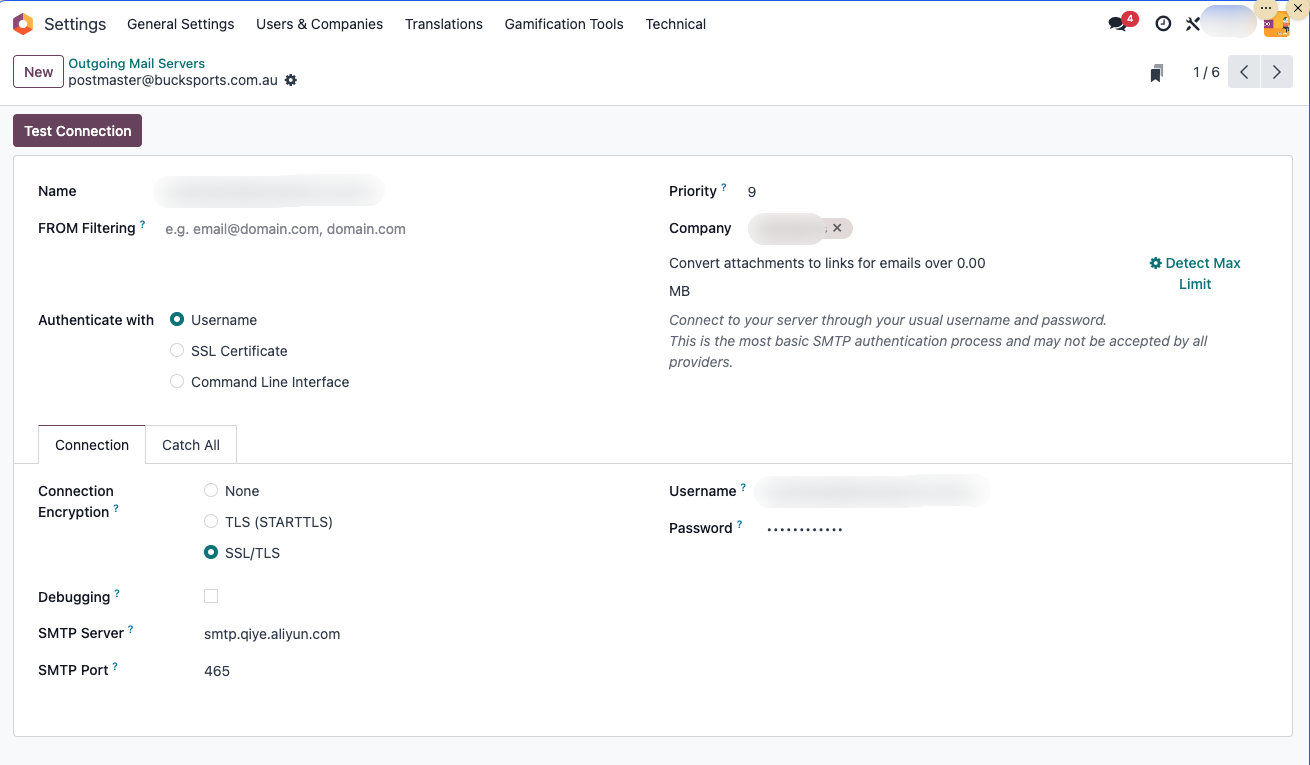
This avoids Company A business accidentally using Company B mailbox.
Catch-All Matching
An outgoing server can link to a corresponding incoming server. After configuration, emails sent from that outgoing server can declare the corresponding reply address.
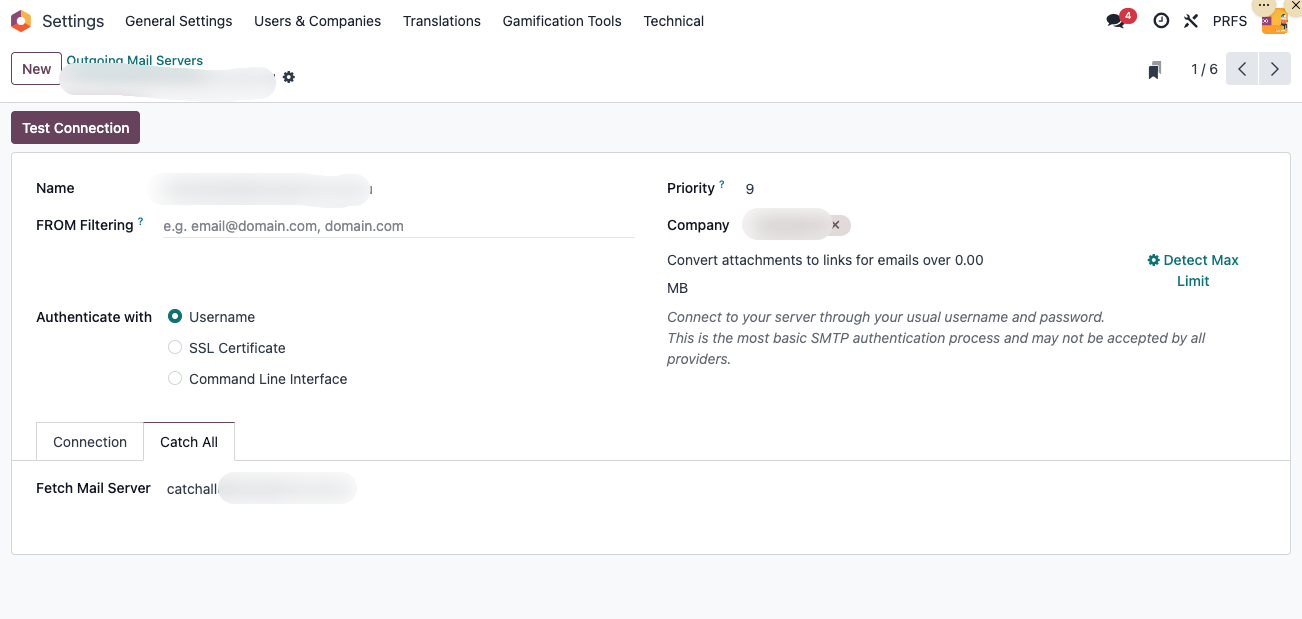
Example:
Outgoing mailbox: service@odoomommy.com
Reply mailbox: catchall@odoohub.com.cn
When customers reply, the message goes to the specified catch-all or incoming mailbox and is processed by the system.
User Preferred Mailbox By Company
If employees use different mailboxes under different companies, preferred mailboxes can be configured on the user.
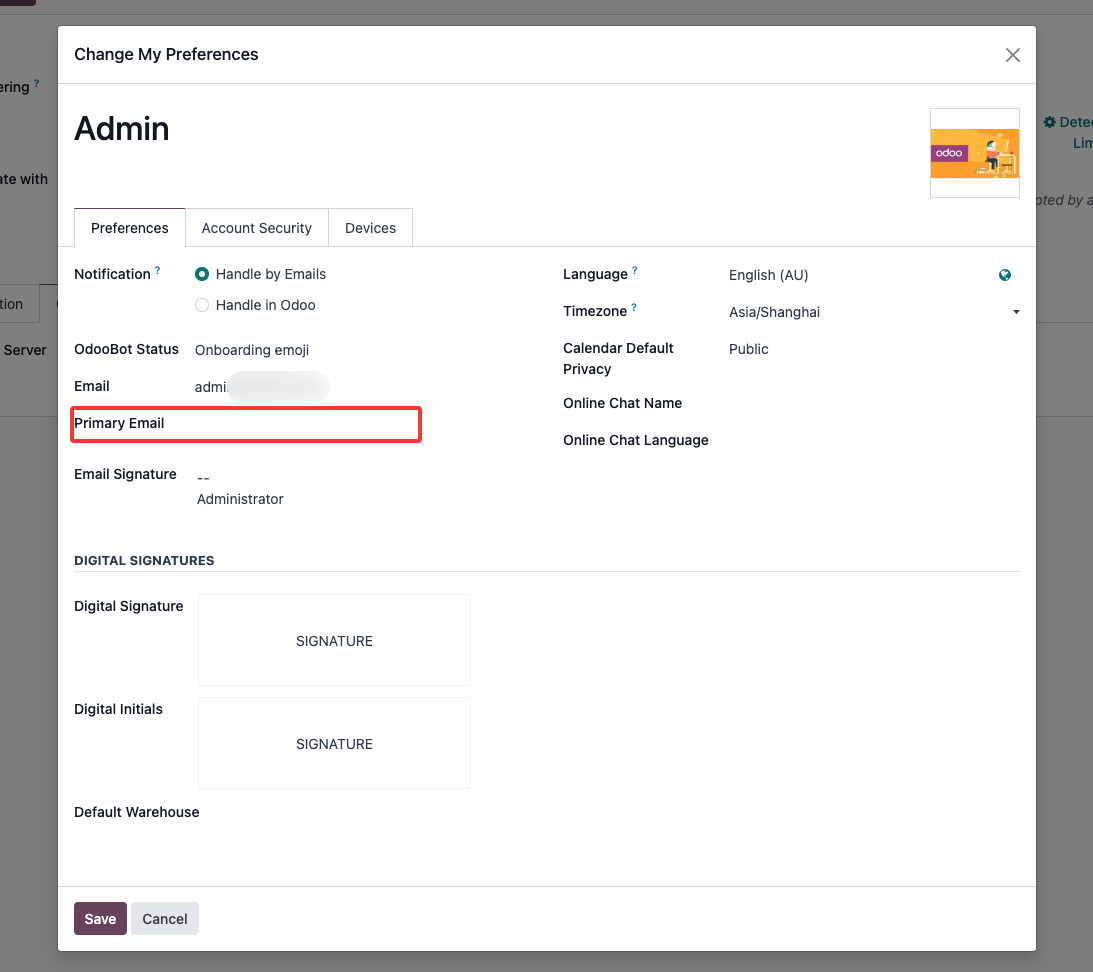
Example:
| Company | User Email |
|---|---|
| Company A | a@companya.com |
| Company B | a@companyb.com |
When sending email, the system can prefer the mailbox matching the current company.
Note: the mailbox domain must match the corresponding outgoing server domain, otherwise sending may still fail.
Implementation Advice
Do not pursue the most complex email configuration from the beginning. A safer approach is staged implementation:
| Stage | Recommendation |
|---|---|
| Stage 1 | Use a unified outgoing mailbox and make sure quotations, invoices, password resets, and portal invitations can be sent reliably |
| Stage 2 | Configure incoming mail or a unified reply mailbox so customer replies have a place to land |
| Stage 3 | Based on sales team and multi-company needs, enable personal mailboxes, multi-company mailboxes, or OAuth |
| Stage 4 | If domestic provider restrictions are significant, introduce the Ohm mail solution or a custom strategy |
For most self-implementation customers, phase one should focus on reliable sending, customer delivery, spam avoidance, and correct template content. After the team truly relies on the Odoo chatter, gradually improve customer reply traceability and multi-mailbox rules.
This chapter connected Odoo's native mail chain, outgoing and incoming mail, catch-all, domestic provider restrictions, OAuth authentication, and the Ohm mail enhancement solution. The next chapter explains Messages and Discuss: how the chatter records communication, schedules activities, manages followers, and works together with email configuration to form a complete collaboration loop.