Advanced WeCom Applications
The previous chapter introduced the basic WeCom and Odoo integration. In practice, the connection can do much more than login and notifications. This chapter introduces advanced scenarios including projects, attendance, approvals, and calendar integration.
Projects
The solution adds support for the Project app. Enable project support in settings.
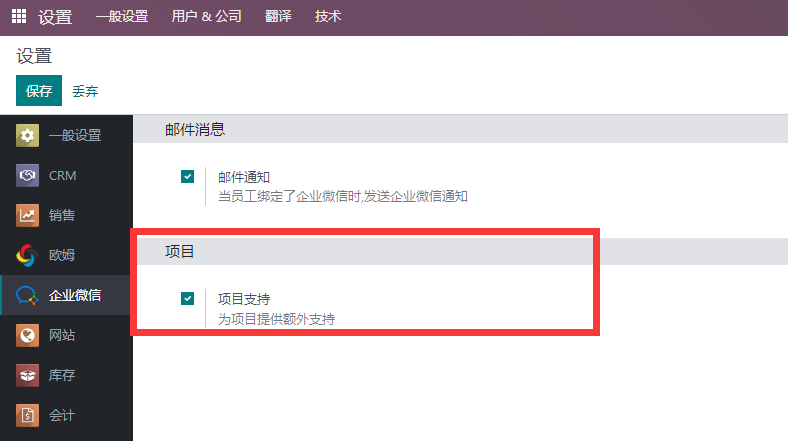
When a project administrator assigns a task to an employee, Odoo automatically sends a WeCom notification to that employee.
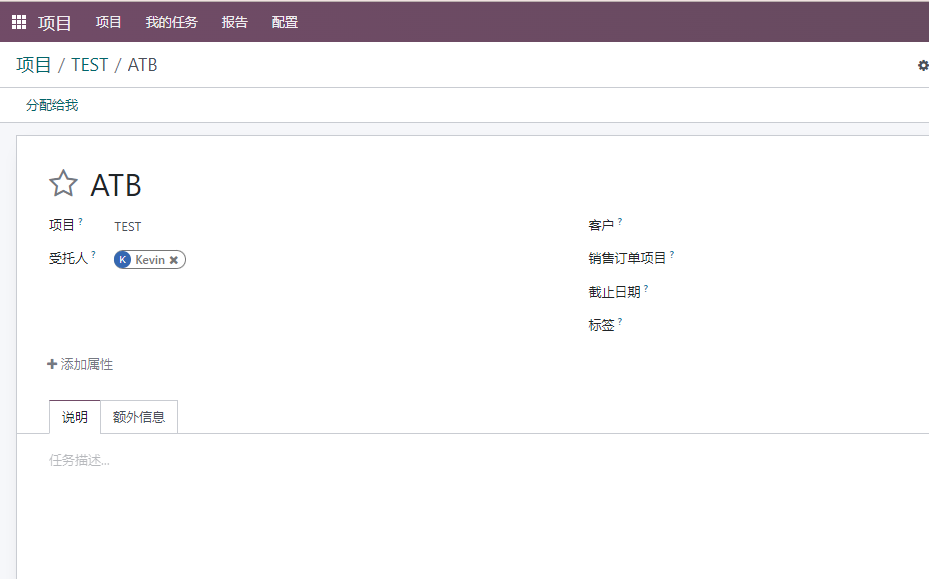
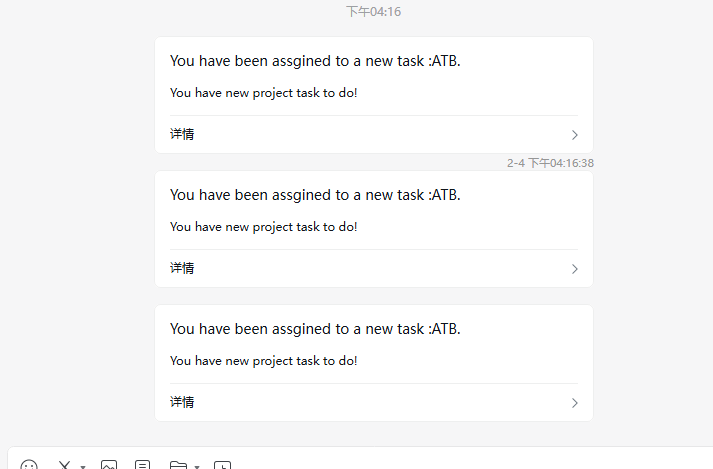
The employee can open the task directly from the link in WeCom.
Attendance
The WeCom solution can help companies synchronize attendance records into Odoo.
View WeCom Attendance Records
First, grant attendance API permissions to the custom application in the WeCom admin backend.
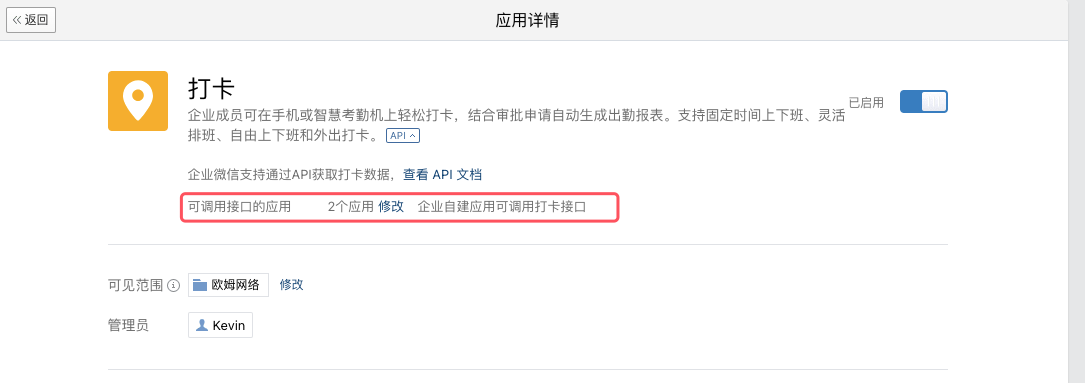
For applications created before December 1, 2023, WeCom used a dedicated attendance APPID and secret. Later versions changed this behavior.
After installing the advanced WeCom module, an attendance menu appears in the root menu.
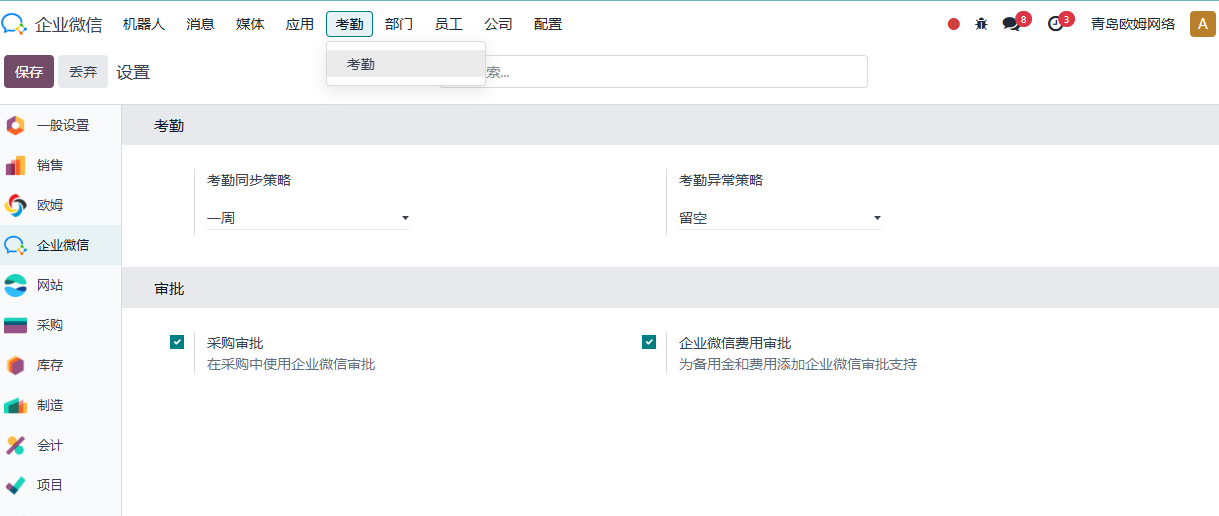
Open the attendance menu to view the list of attendance employees. Open one employee to view all related WeCom attendance records.
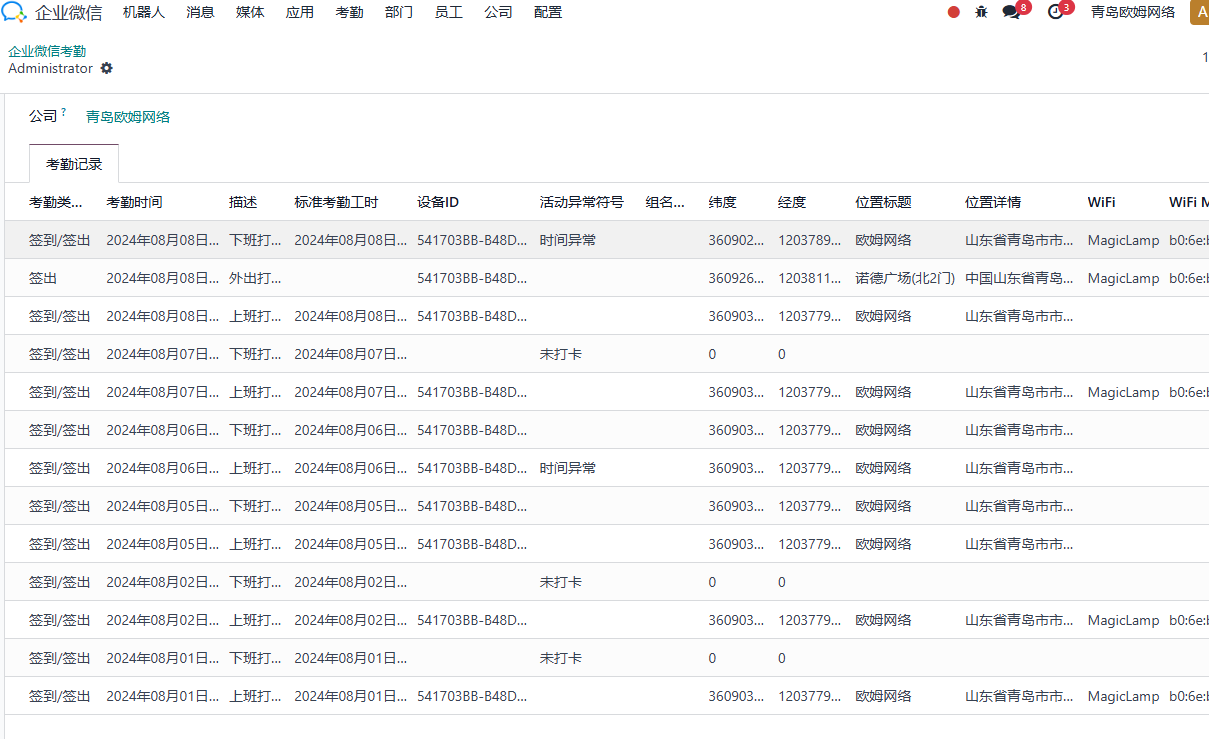
Native Attendance Records
When synchronizing WeCom attendance records, the solution also synchronizes the records into Odoo's native Attendance app, making later payroll or attendance statistics easier.
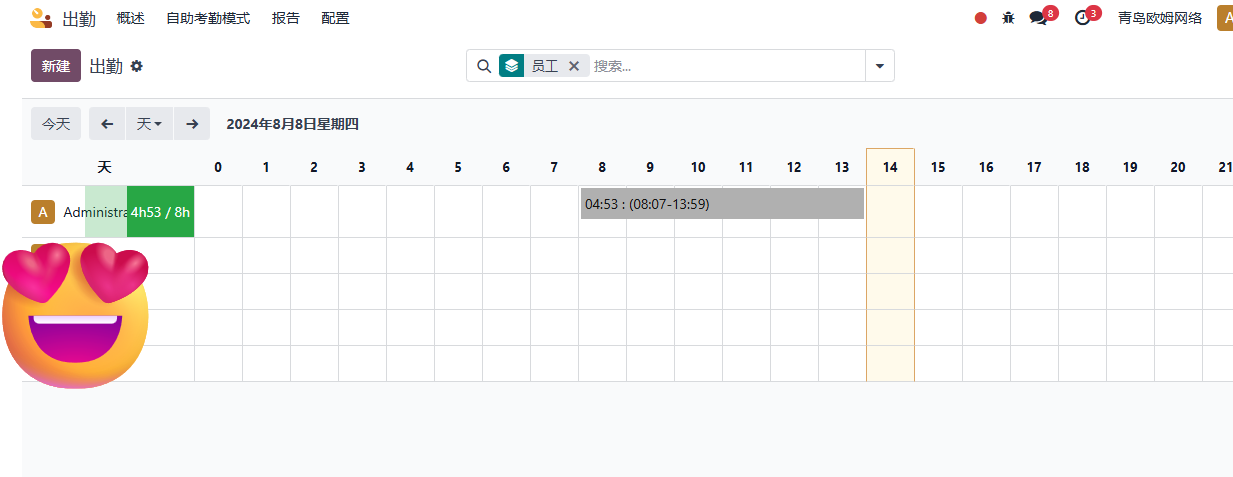
Synchronization Settings
Different customers have different needs, so the solution provides synchronization strategies:
| Strategy | Meaning |
|---|---|
| Today | Synchronize only today's attendance records. |
| One Week | Synchronize records from one week before today to today. |
| One Month | Synchronize records from one month before today to today. |
For specific-date synchronization, users can set the target date in scheduled actions. Contact Qingdao Ohm technical support for detailed configuration.
When creating native Odoo attendance records, Odoo may have restrictions. For example, it may not allow a new check-in record if the previous day's check-out is missing. The solution therefore provides exception strategies:
| Strategy | Meaning |
|---|---|
| Empty | Skip the current record when an exception occurs. |
| Same as check-in time | Use the check-in time as the check-out time to keep the native record complete. |
Synchronization Operations
Users can trigger synchronization from multiple places. In WeCom settings, click Synchronize Attendance Records.
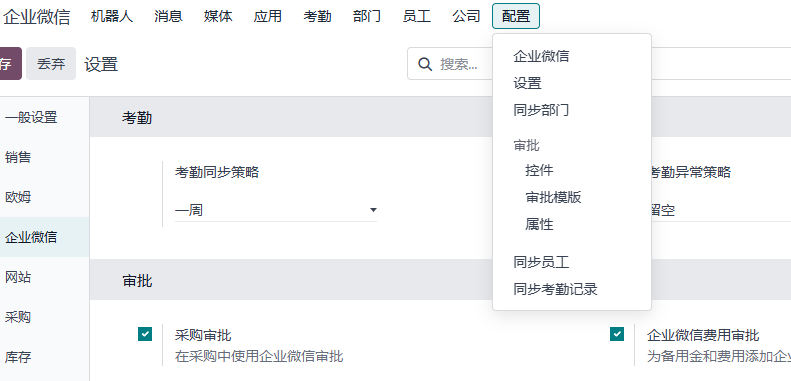
The system synchronizes WeCom attendance records according to the configured strategy.
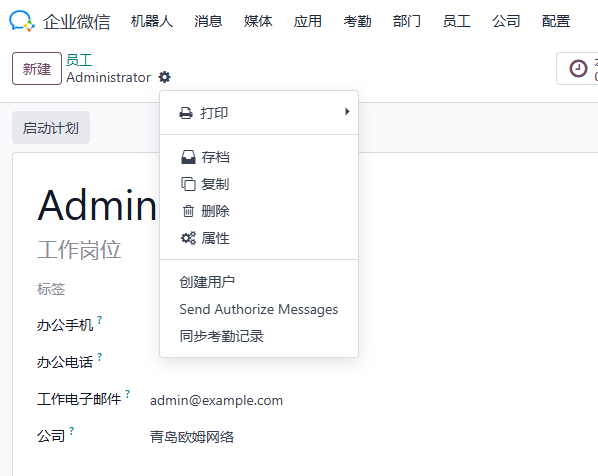
You can also synchronize a single employee from the employee profile through Action > Synchronize WeCom Attendance Records.
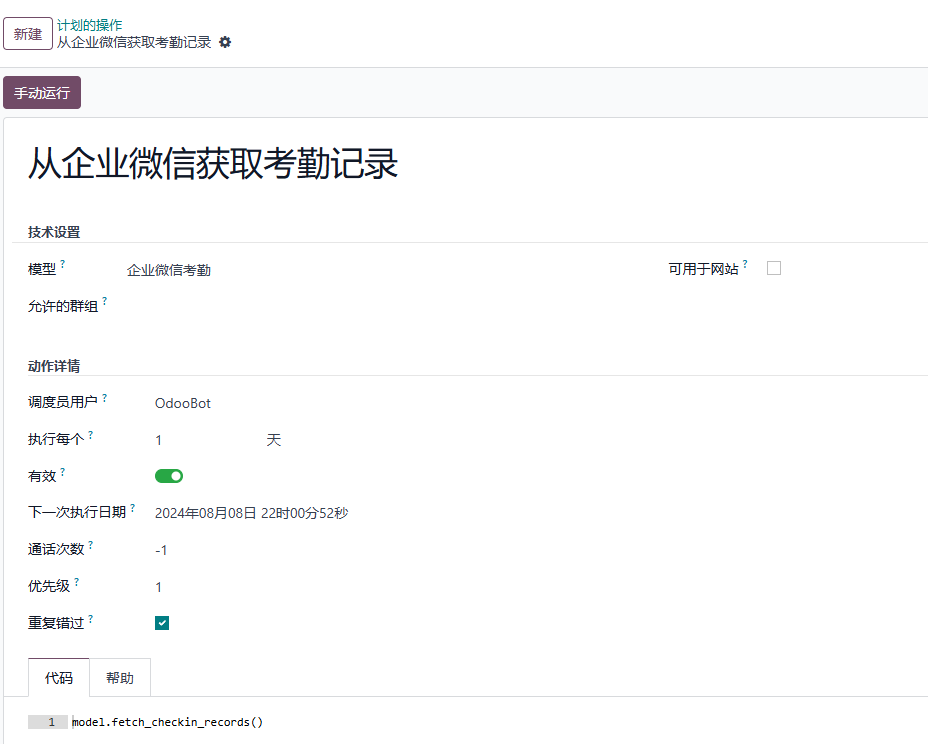
Scheduled actions can also be configured to synchronize records automatically.
Video introduction:
Approvals
Odoo native apps do not provide a full complex approval workflow engine in many business scenarios. A common open-source approach is to use OCA tier validation modules, but their configuration can be complex and the user experience may not fit all companies.
In China, many companies already use DingTalk, WeCom, and similar IM tools for daily approvals. Therefore, the solution integrates Odoo with WeCom approvals, using WeCom's approval flow capability to complement Odoo.
We use purchase approval as an example.
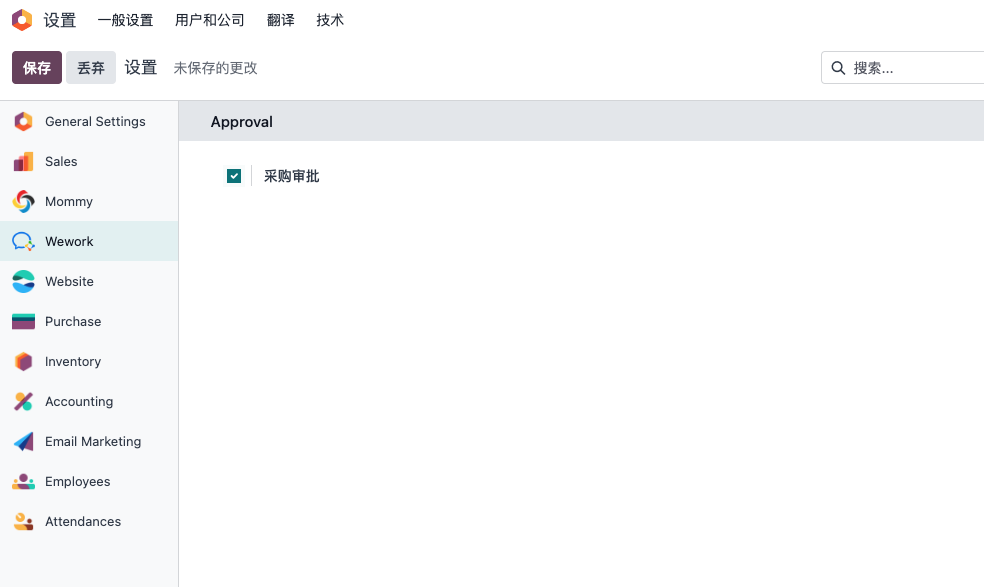
First, install the advanced WeCom module. Then go to Settings > WeCom > Approvals and enable purchase approval.
WeCom Backend Setup
Configure the approval app in the WeCom backend.
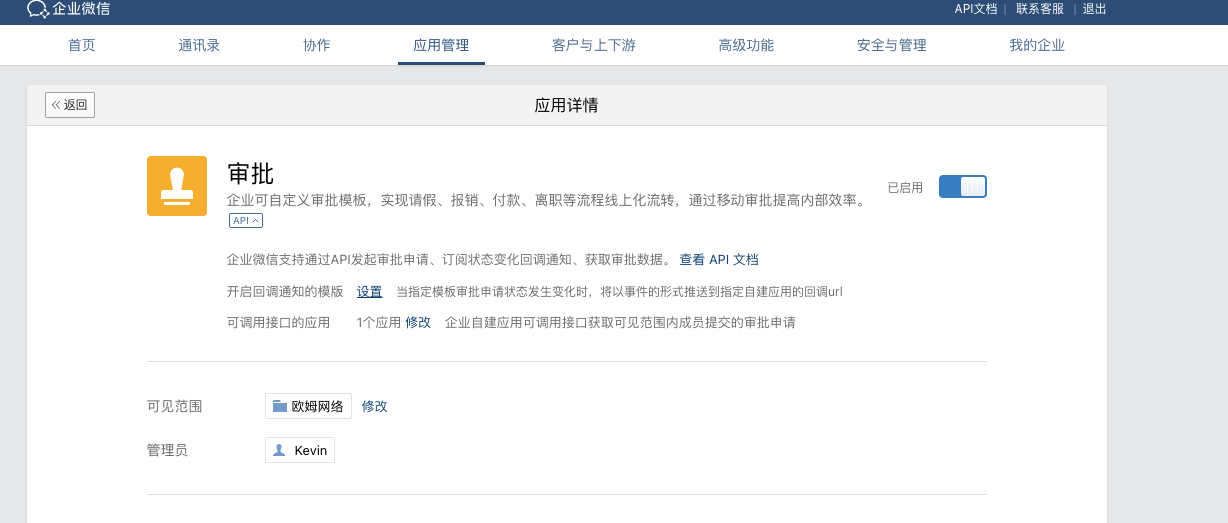
Add approval permission to the custom application. Then configure the callback interface in the custom application.
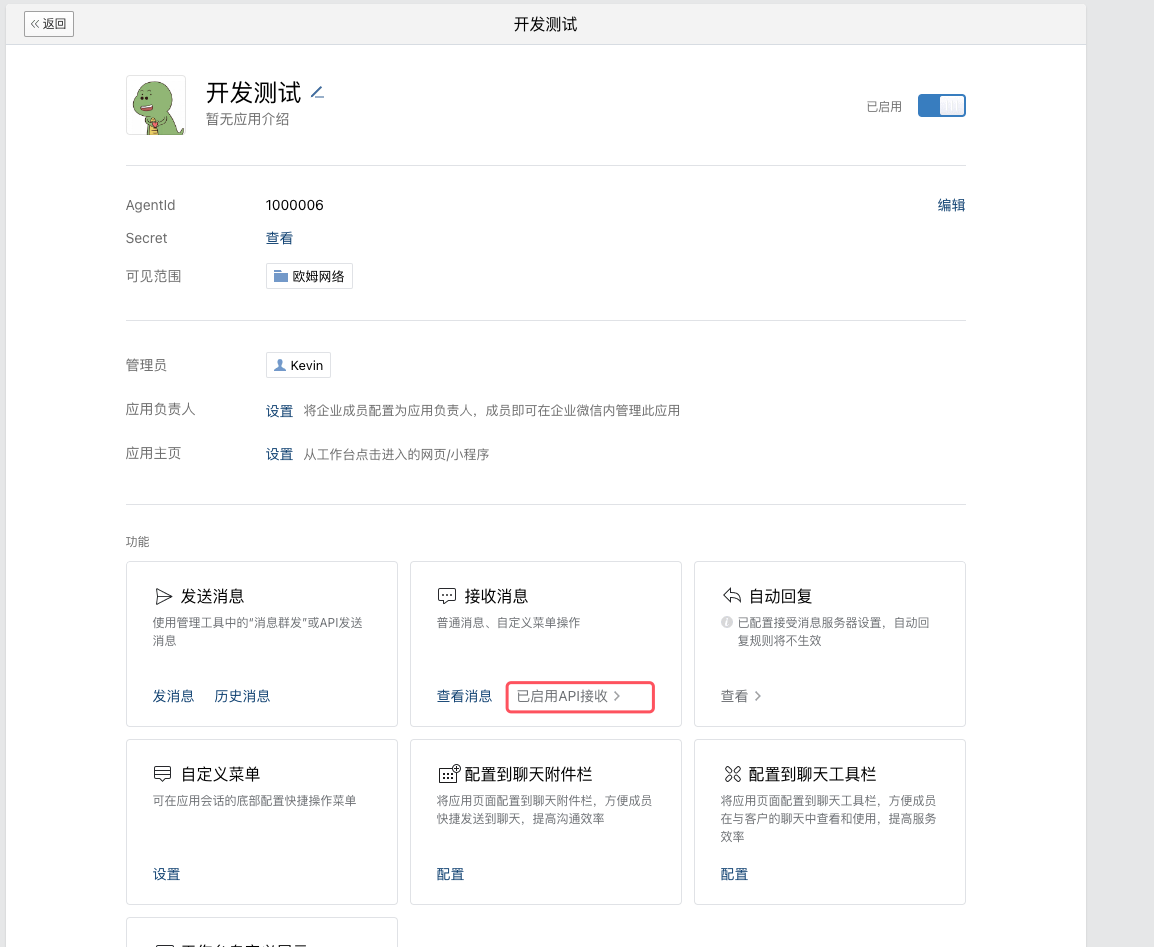
The callback URL is:
https://yourdomain/wework/approval
Message Settings
In Odoo WeCom settings, add the AESKEY and Token needed to parse WeCom messages.
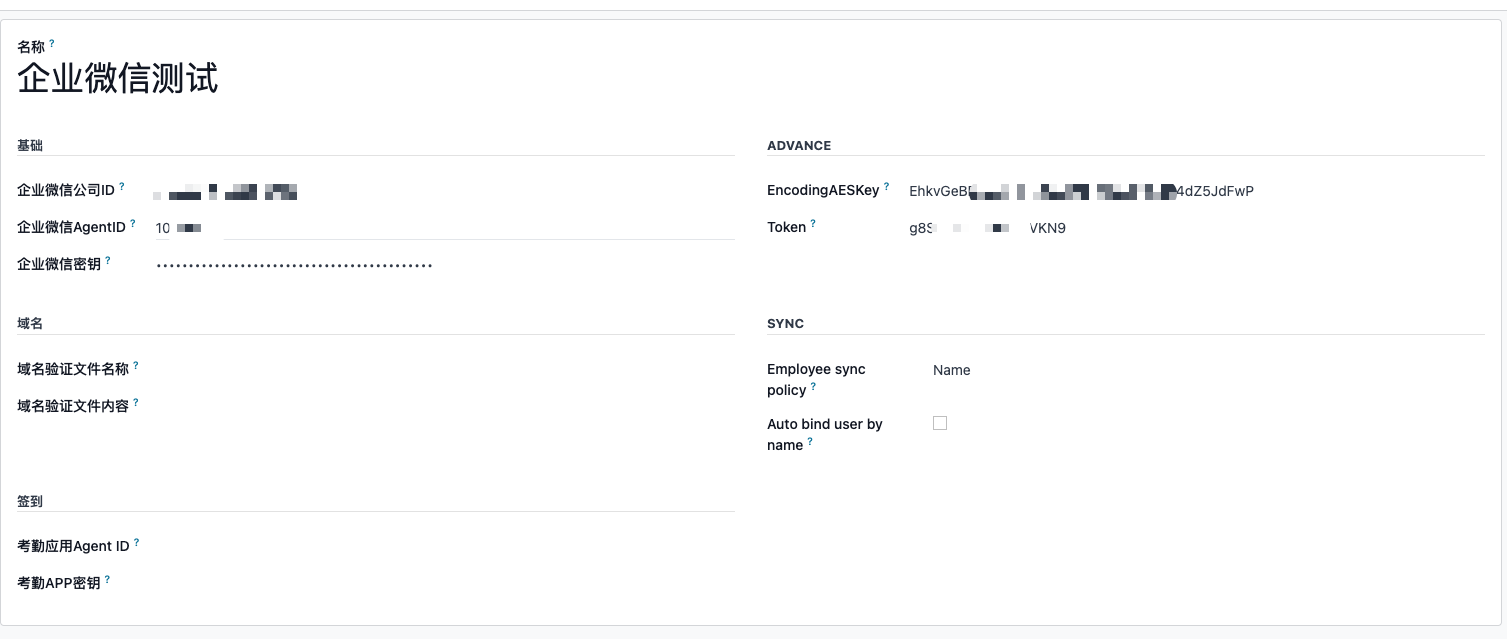
Synchronize Approval Templates
Go to Settings > Approval > Approval Templates and synchronize the purchase approval template into Odoo.
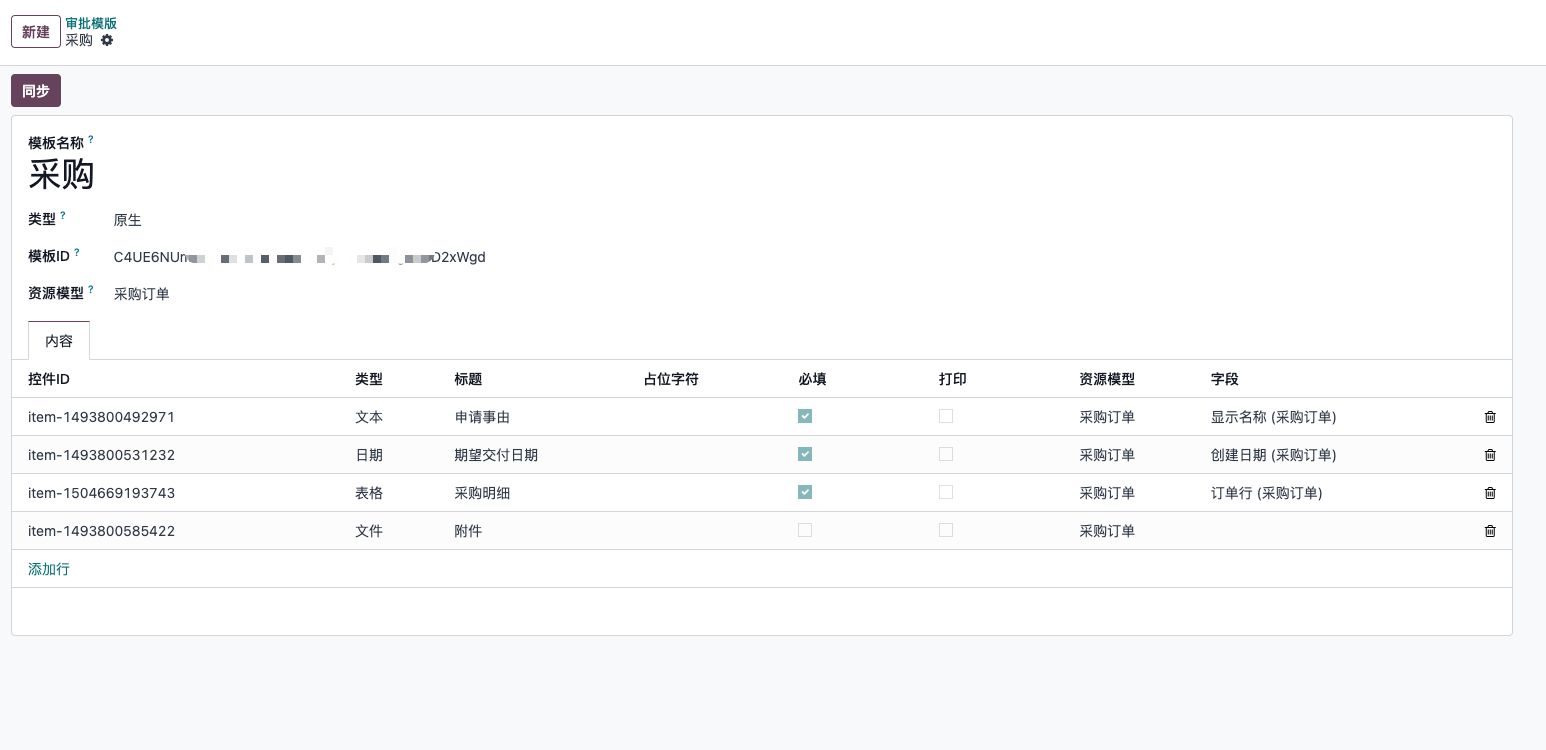
WeCom approval templates include native and custom templates. This example uses a native template.
After synchronization, map the controls in the approval template to the corresponding Odoo fields.
Submit Purchase Approval
After the template is configured, users can submit a purchase quotation for WeCom approval.
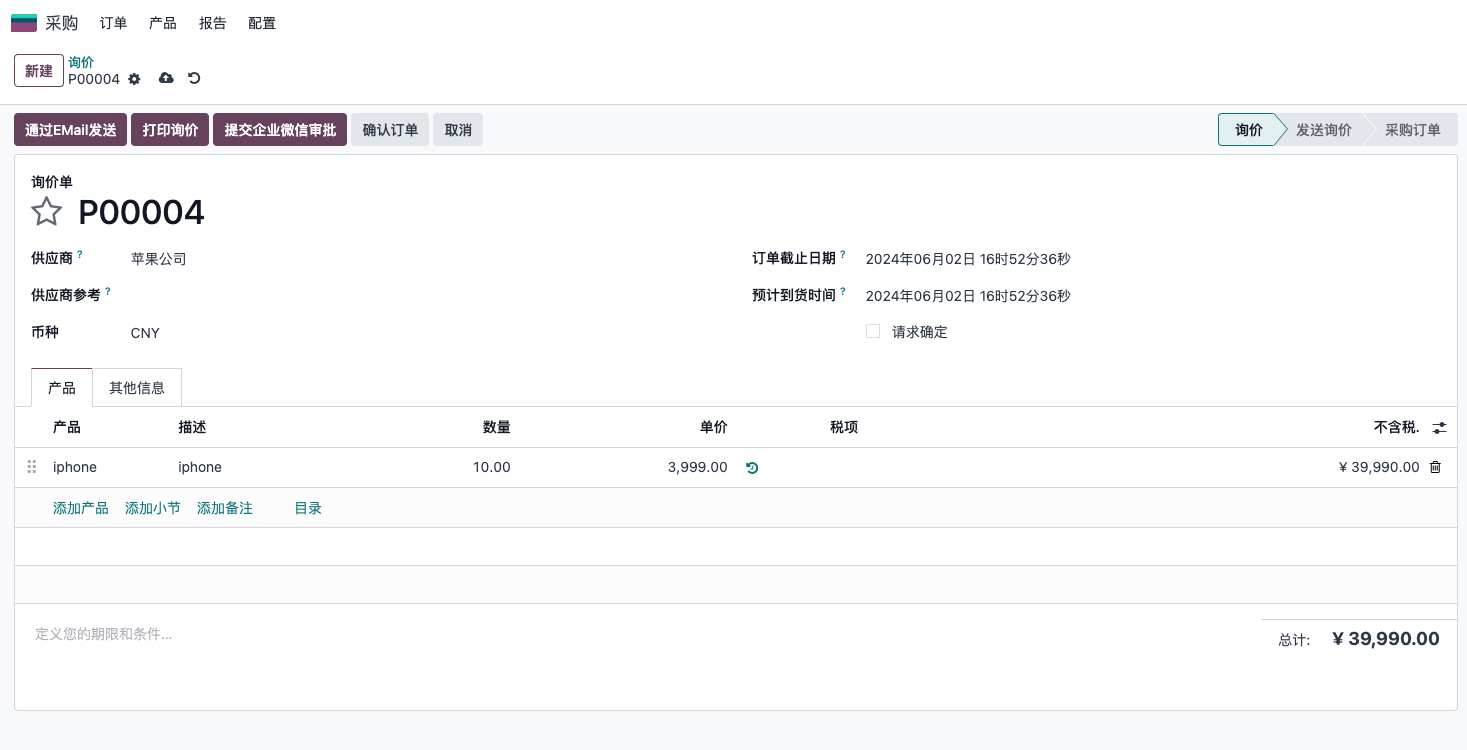
After preparing the RFQ, click Submit WeCom Approval to submit the purchase order to the WeCom approval flow.
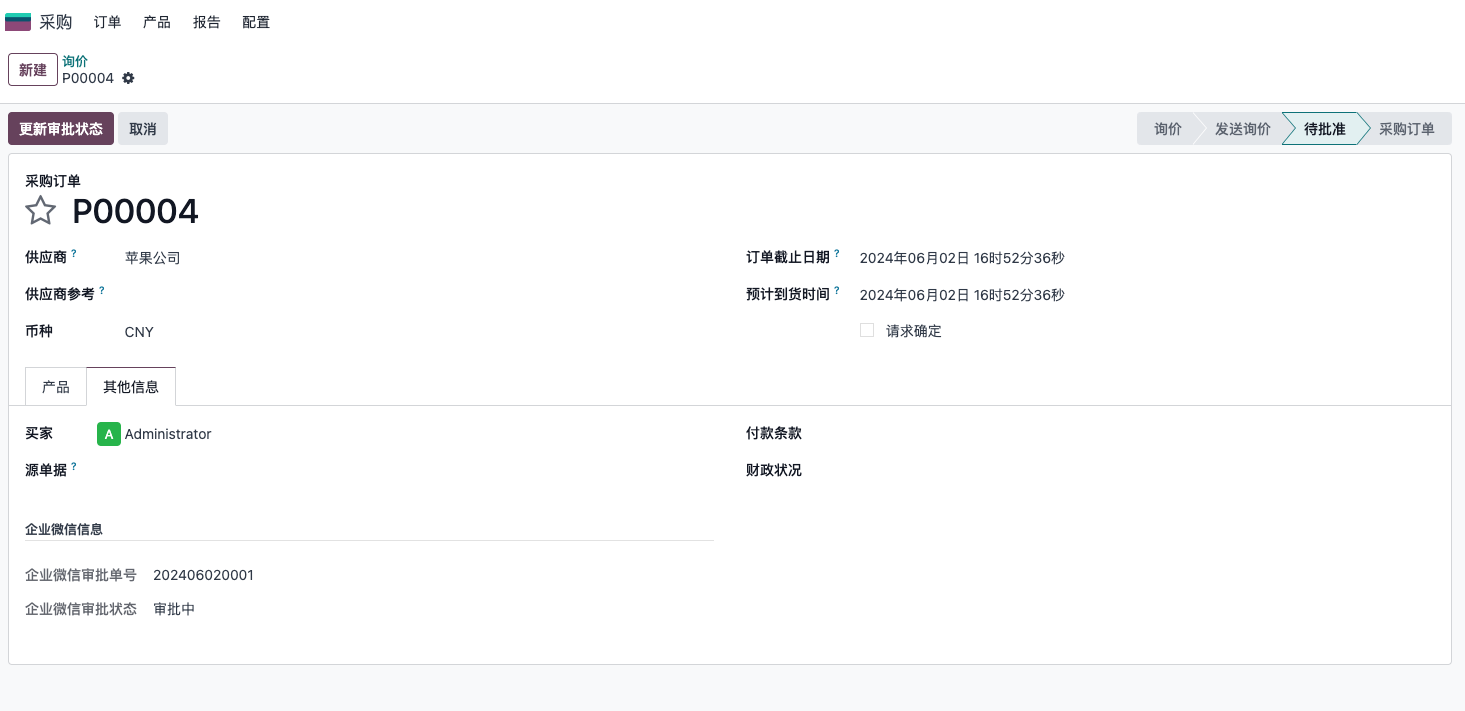
After submission, Odoo displays the WeCom approval number and approval status.
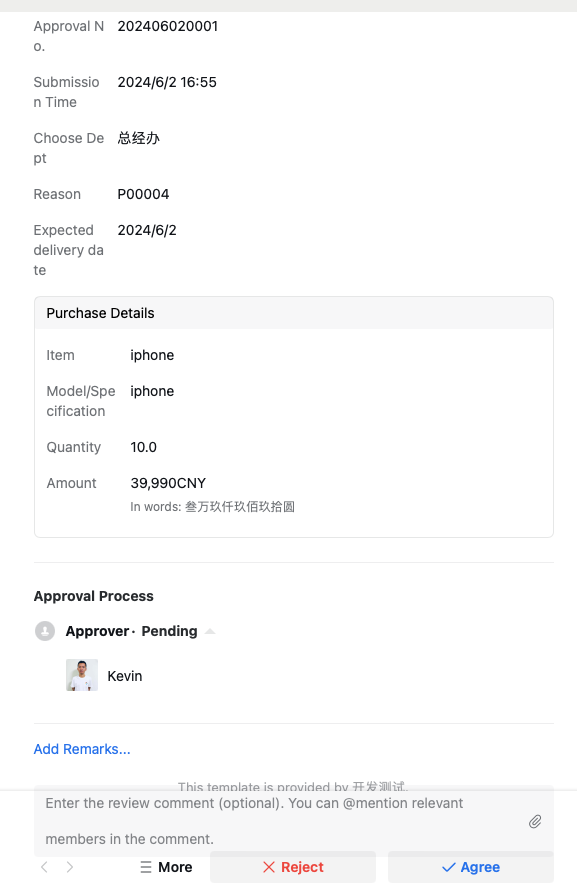
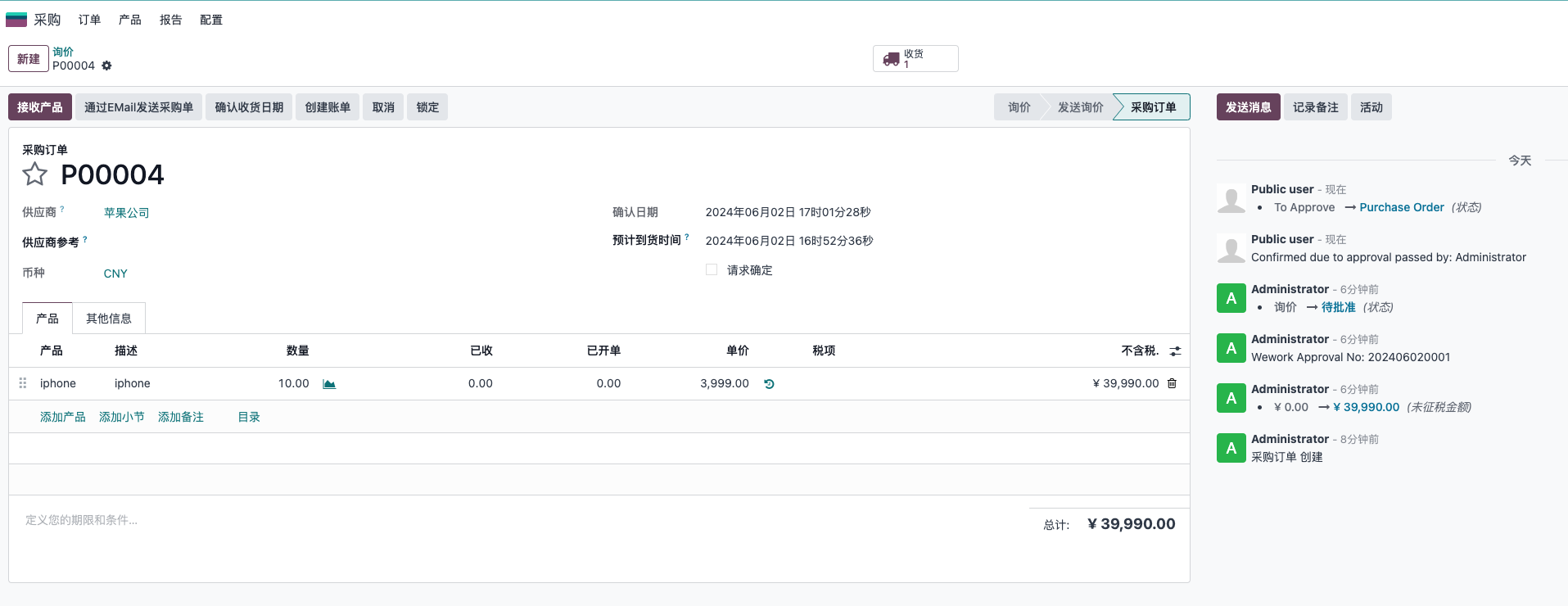
When the purchase manager approves in WeCom, the purchase order is automatically confirmed in Odoo.
Calendar Management
In the WeCom admin backend, go to Collaboration > Calendar and add the custom application under applications allowed to call the API.
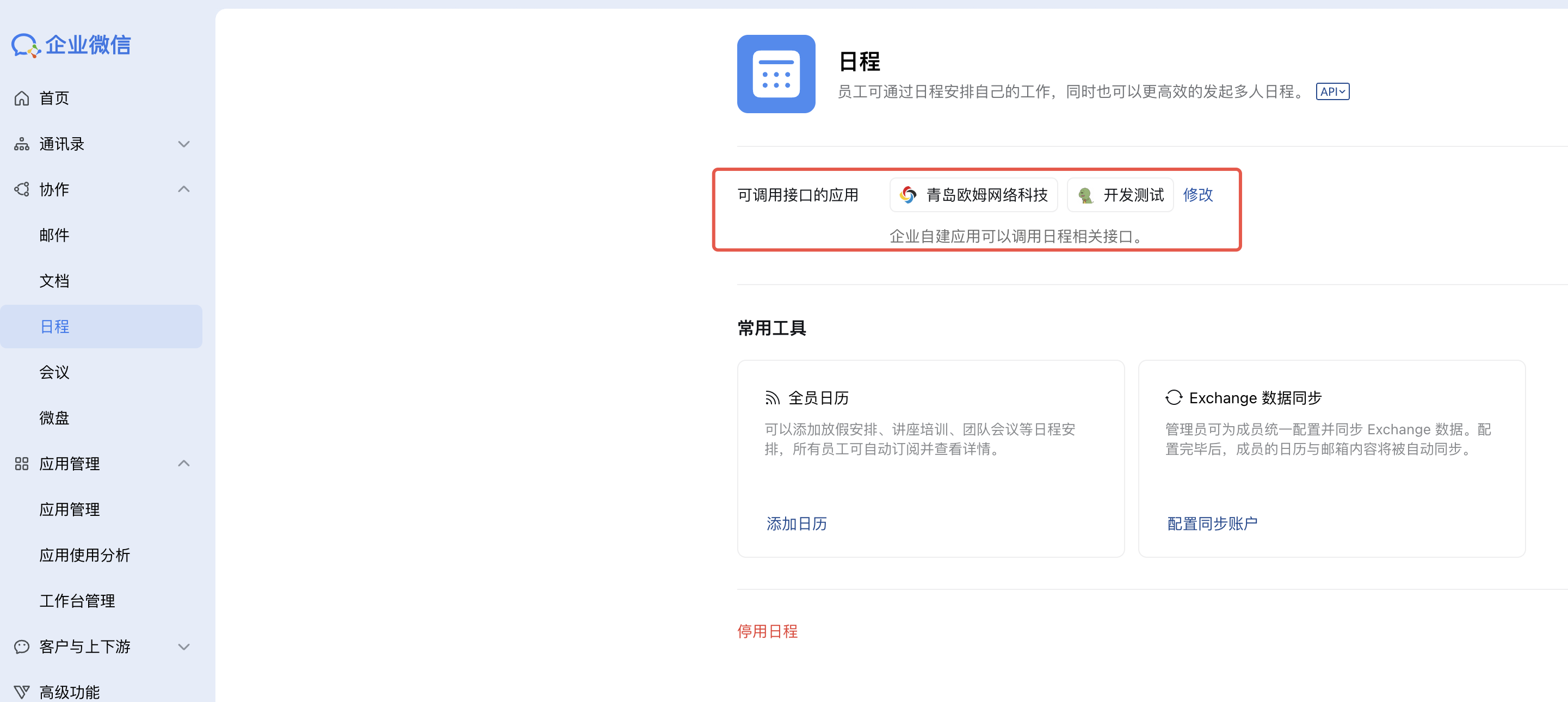
After that, calendars created in Odoo can be synchronized to WeCom.
This chapter introduced advanced WeCom applications for projects, attendance, approvals, and calendar integration. The next chapter focuses on WeCom-based petty cash and expense reimbursement workflows.