Chapter 1 Portal
Odoo Portal allows customers, vendors, and external users to view selected documents without giving them full backend access. In sales and service scenarios, a portal user can review quotations, sales orders, invoices, delivery information, and shared documents from the website front end.
In practice, portal usability often determines whether customers are willing to use the system. This chapter explains portal sales search, product images on portal orders, multi-company portal links, document sharing, access token behavior, and enhanced token management.
Portal Sales
Search Sales Orders In The Portal
By default, the portal sales order page supports sorting, but it does not provide rich search or group-by options.
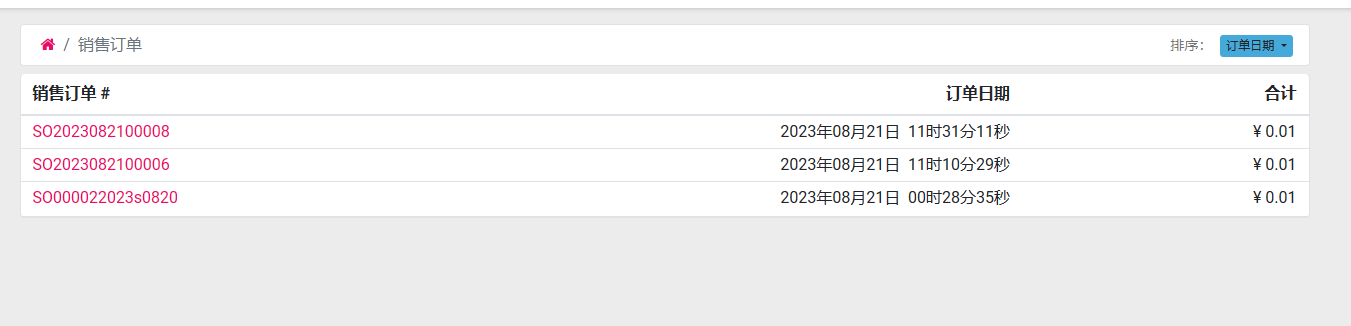
For customers with many orders, this is not convenient enough. A portal user may want to search by order number, product, salesperson, status, or time period. To improve this experience, our Portal Sales Solution adds search, filter, and group-by support for portal sales orders.
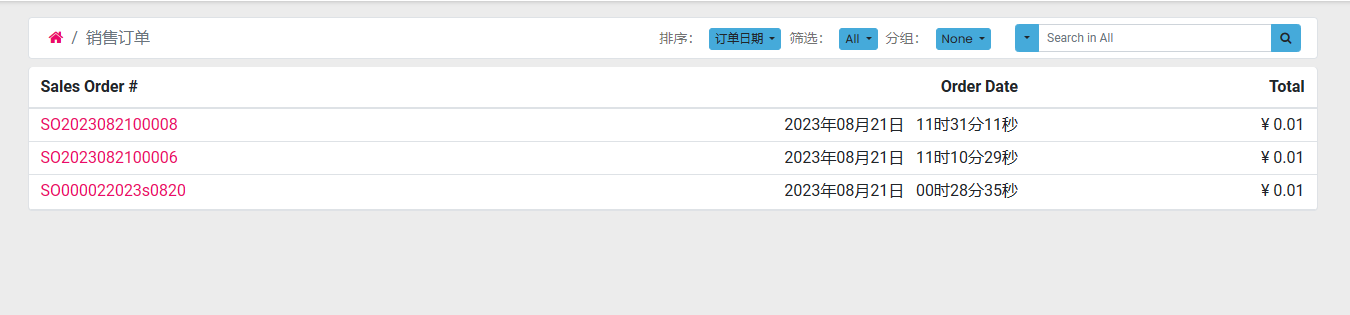
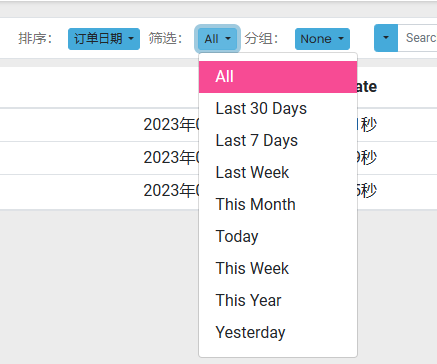
The enhanced filters include the following options.
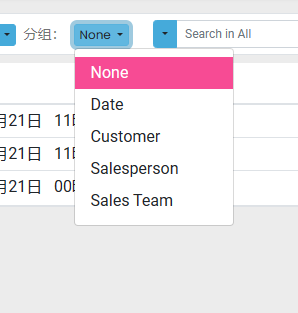
The enhanced group-by options help users quickly organize orders by business dimension.
Search options are also extended so portal users can find orders faster.
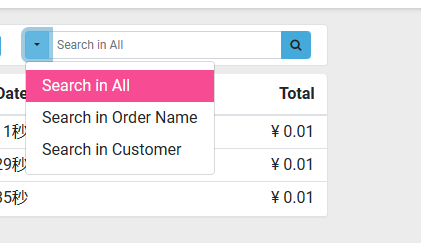
This type of enhancement is useful for wholesale customers, distributors, franchisees, and long-term customers who need to check historical orders regularly.
Product Images On Portal Orders
After a customer registers on the website and becomes a portal user, they can view their orders in the portal center. A typical portal order page looks like this:
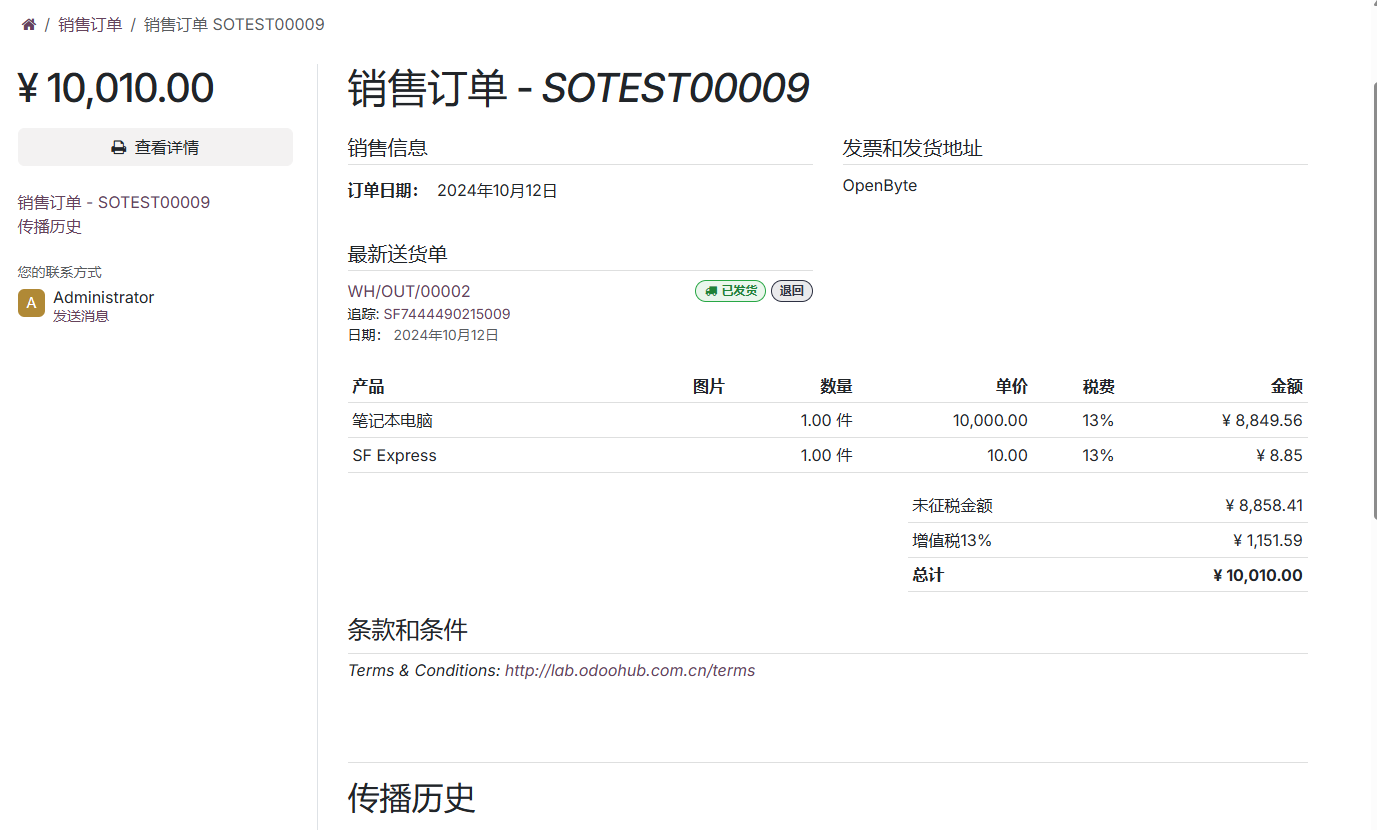
Native Odoo does not always show product images in portal order lines. In many businesses, however, customers expect to see the product picture directly on the order page. This is especially helpful for apparel, electronics, spare parts, gifts, and other visual products.
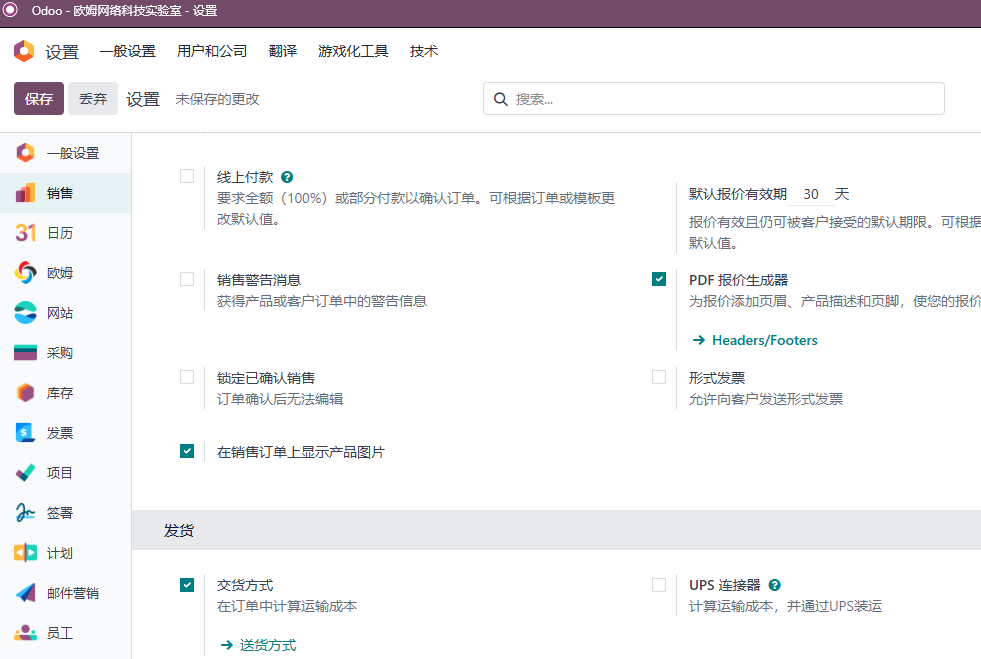
Our Portal Solution adds support for product images in portal sales orders. Go to Settings > Sales > Quotations & Orders, then enable the option to display product images on sales orders.
After saving the setting, product images appear in the portal sales order line details.
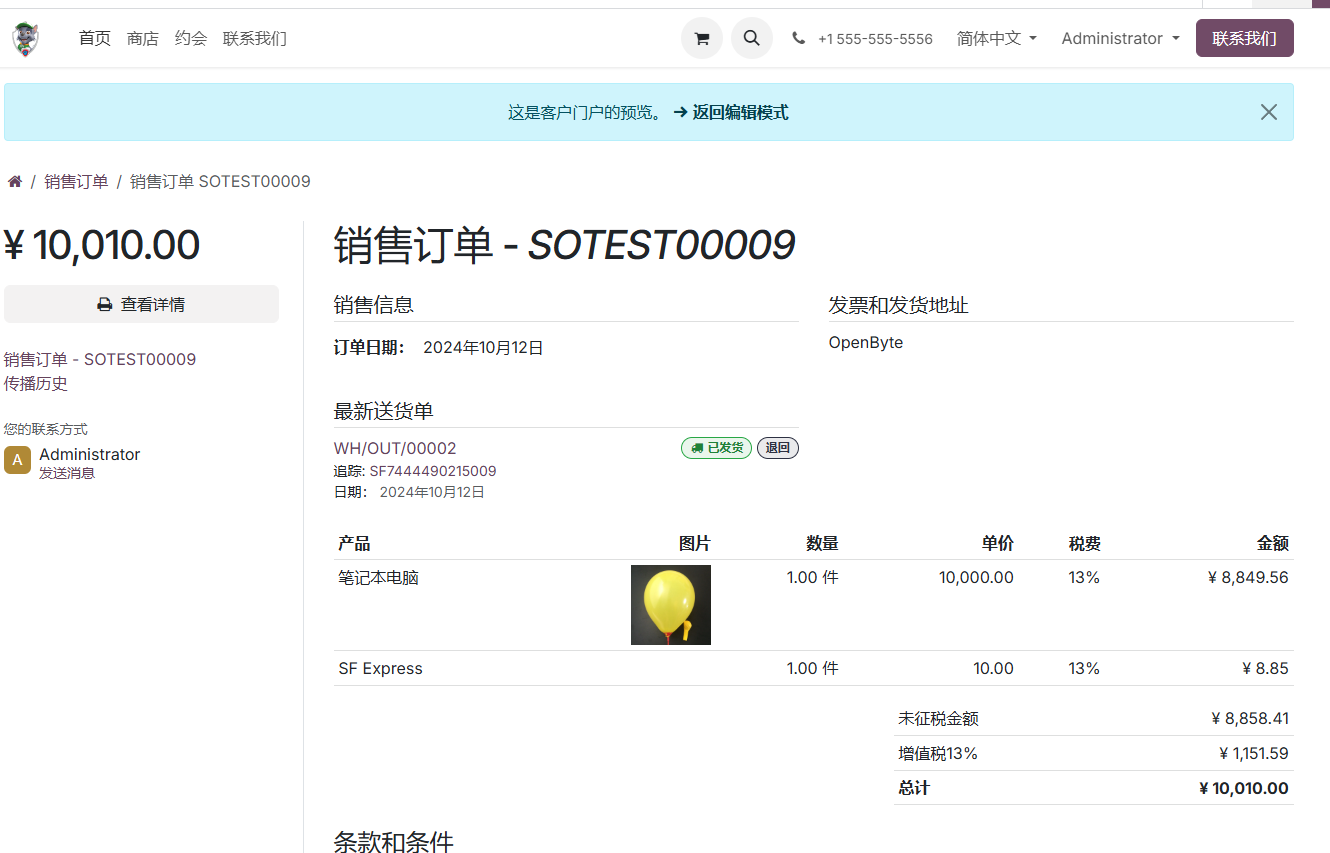
When the customer clicks the image, they can preview it, zoom in, zoom out, or download it.
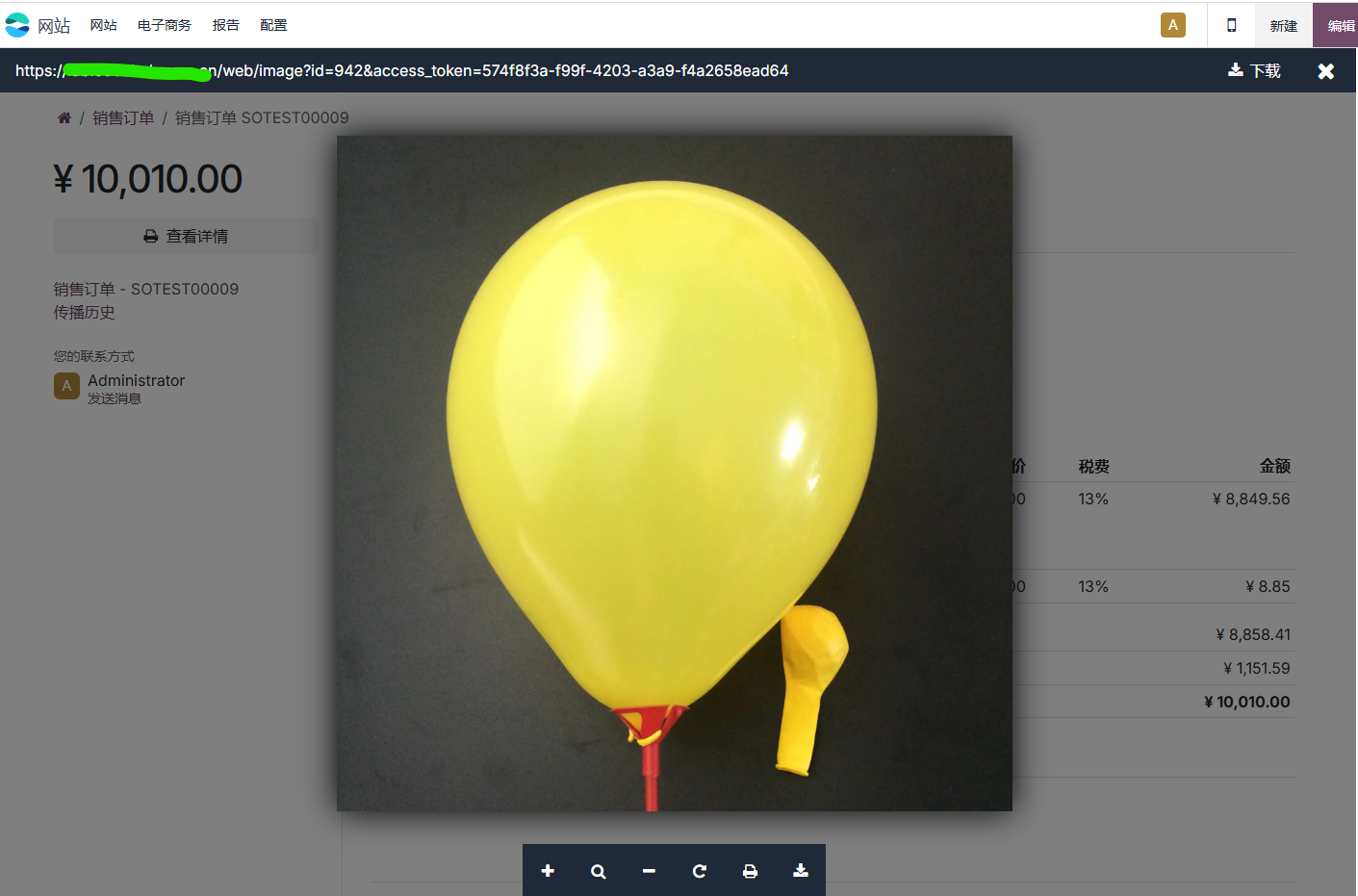
This keeps the portal order closer to the way customers recognize products in daily purchasing, instead of forcing them to rely only on internal product codes.
Portal Links In Multi-Company Environments
Some Odoo databases contain multiple companies and multiple websites. In this situation, portal links can easily become confusing if invitation emails, password reset emails, or shared document links use the wrong domain.
Native Odoo can determine the URL used in portal emails according to the following logic:
- If the customer contact is linked to a website, Odoo uses that website URL in the email link.
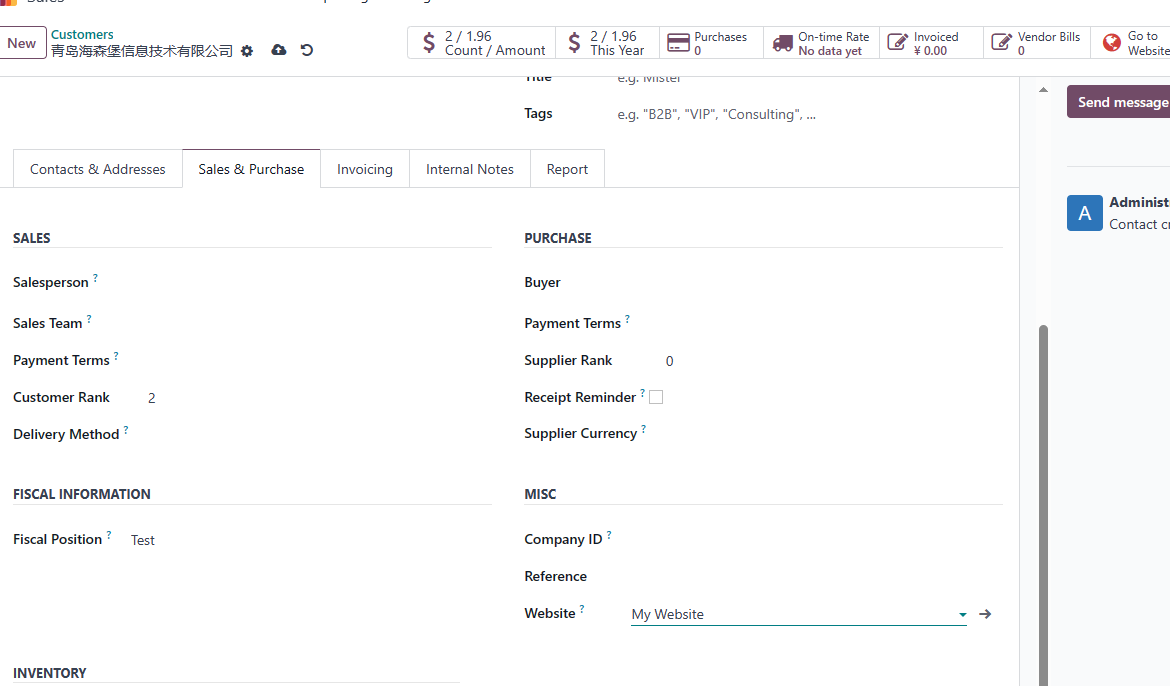
If the customer contact has no website, Odoo checks the website linked to the customer's company.
If neither condition is met, Odoo uses the system parameter
web.base.url.
In some projects, we want the invitation or reset link to be generated according to the current company instead. Our Ohm Network solution adds this configuration. Go to Settings > General Settings > Permissions, then enable the company-based portal link option.
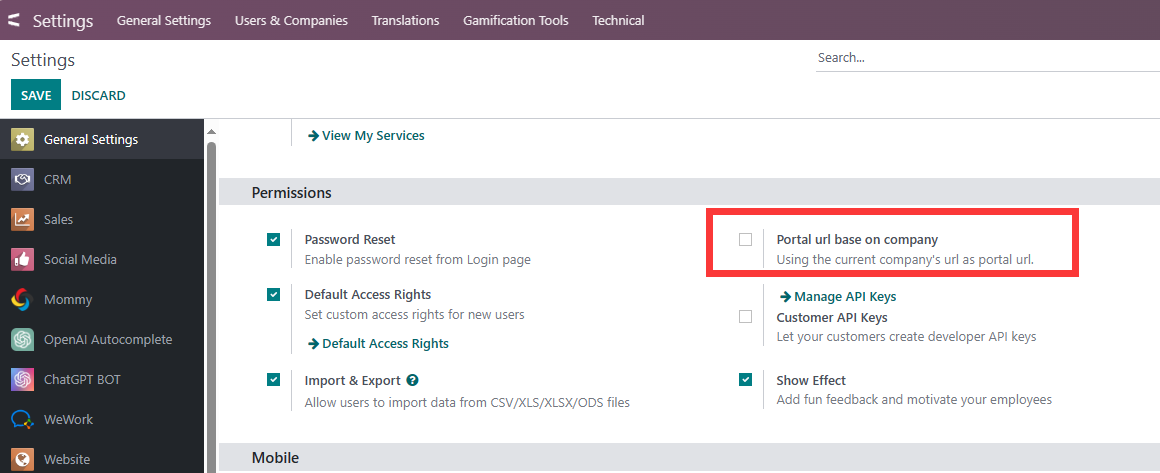
After this option is configured, generated invitation links use the website domain of the current company. This is useful for group companies, multiple brands, and companies that operate several storefront websites in the same Odoo database.
Sharing Documents
To make document sharing convenient, Odoo adds a share shortcut to many document models. Users can share a document link with customers, suppliers, or other external parties. Here we use a sales order as an example.
Open the document and click Action > Share. Odoo displays a sharing dialog.
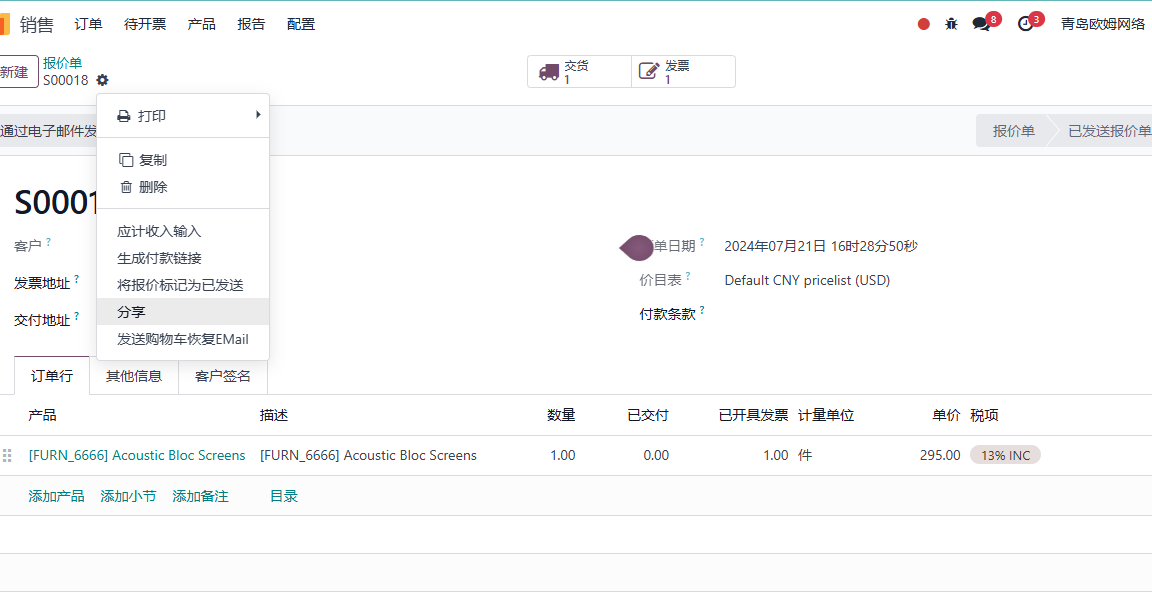
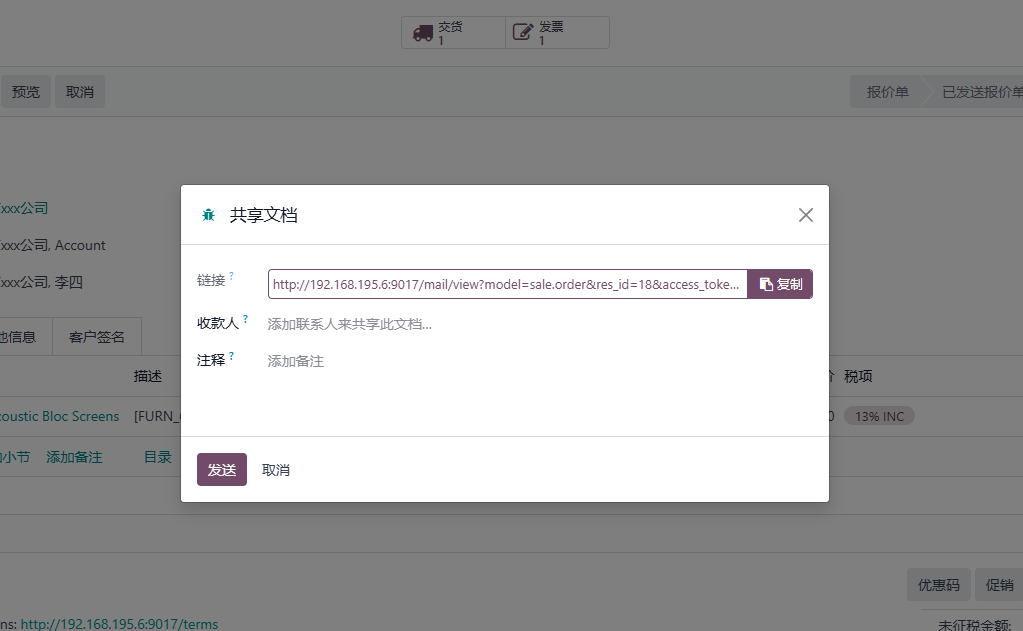
The dialog contains the following fields:
| Field | Purpose |
|---|---|
| Link | The share link. Users can copy it and send it to the customer. |
| Recipients | Email recipients who should receive the shared document. |
| Note | A short message included with the share email. |
Users can either send an email notification from Odoo or copy the link and send it through another communication channel. If email is used, the recipient receives a share email and can click the link to open the related sales order page.
Page Redirection Logic
By default, Odoo chooses the target page according to the current user's access rights. If the user has backend access to the document, Odoo redirects them to the backend document view and requires login. If the user does not have backend access, such as a public user, Odoo displays the frontend portal page directly.
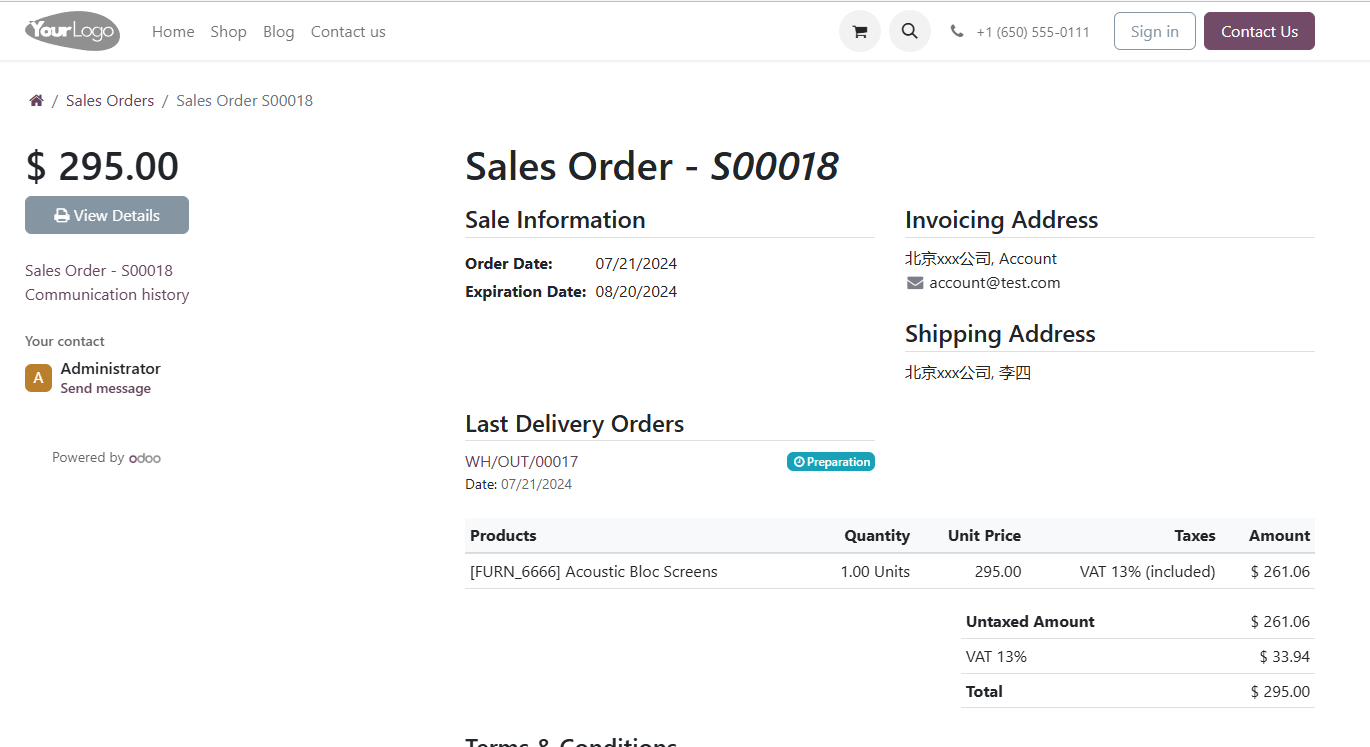
This is why portal permission design matters. If you do not want a customer to enter the backend, do not grant that customer backend access to the document model.
Access Tokens
Odoo uses an access token to make the sharing logic work. The access token is essentially a UUID assigned to the shared document when the user shares it.
When a user opens the shared link without normal document access rights, Odoo validates the access token in the URL. If the token is valid, the document can be displayed on the frontend portal page. If the token is invalid, the user is redirected to the login page.
In native behavior, each document usually has one token, and the token remains valid until it is refreshed. This is simple and convenient, but it does not provide fine-grained control when the same document needs to be shared with different people for different time windows.
Multiple Tokens And Token Management
Because a native document usually has only one access token, it cannot easily support this scenario: share the same document with Customer A for three days, with Customer B for one month, and revoke only one of the links later.
Our Portal Solution adds multi-token management and token expiration control.
First, go to Settings > Ohm > Portal and enable the portal extension.
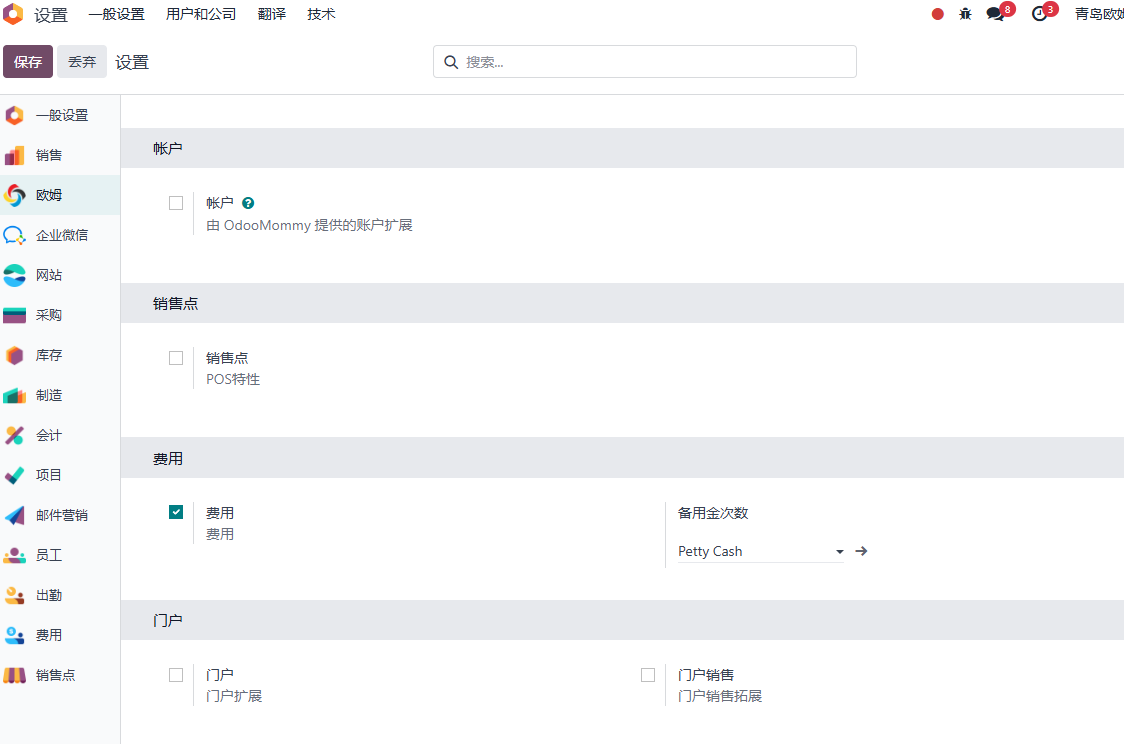
If you need sales order token control, enable the portal sales option and save the settings.
Manage Multiple Tokens
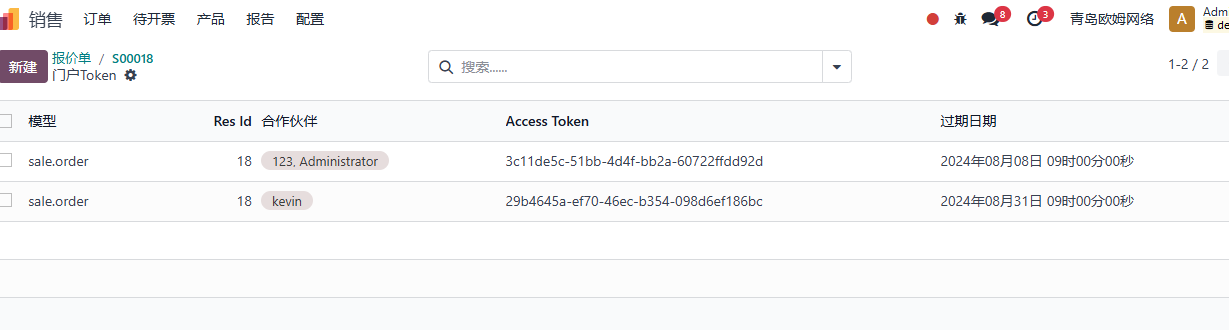
After the portal extension is installed, go to Settings > Technical > Database Structure > Portal Token to manage generated portal tokens.
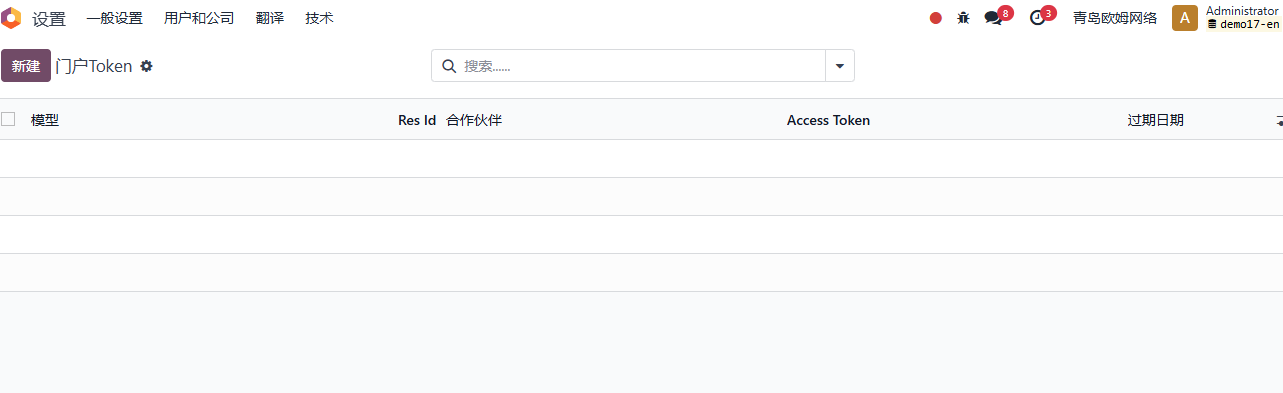
All portal tokens generated by the system are shown here. The main fields include:
| Field | Meaning |
|---|---|
| Model | The model of the shared document. |
res_id |
The database ID of the related document. |
| Partner | The partner who owns or receives the token. |
| Access Token | The token value used in the shared URL. |
| Expiration Date | The validity period. After this time, the token becomes invalid. |
Sales Order Token Control
After the portal sales extension is installed, the sales order sharing dialog includes token validity control.
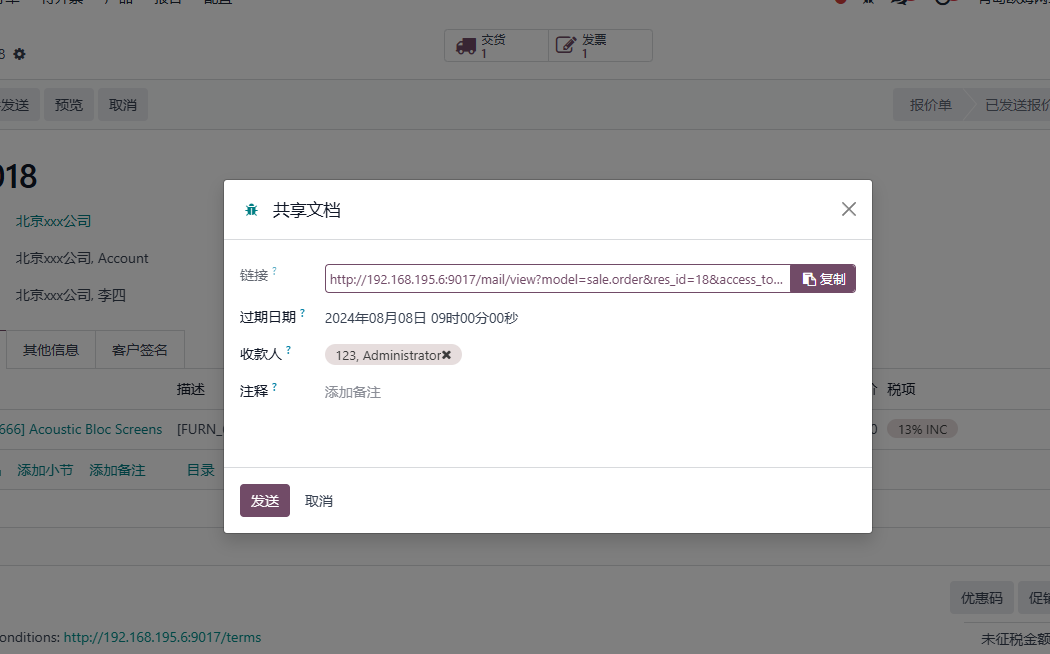
Users can define how long the shared token remains valid. After sending the link, tokens can also be managed directly from the sales order.
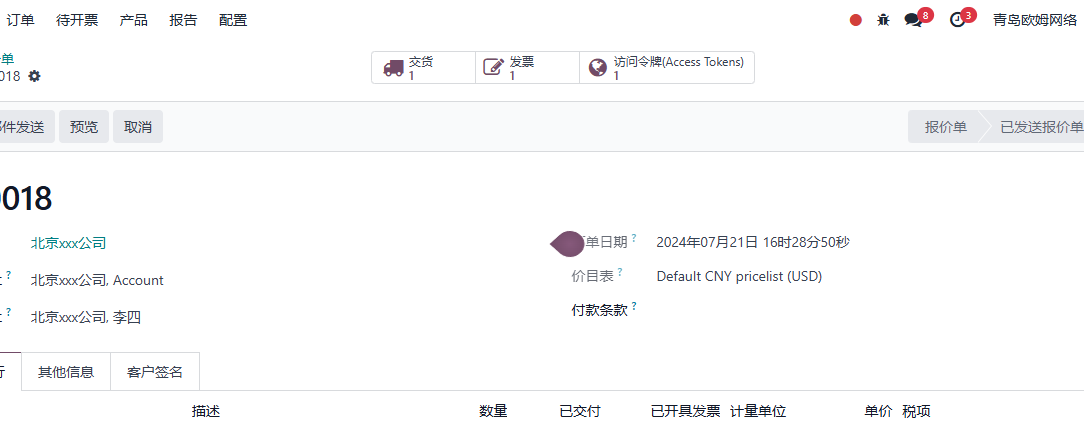
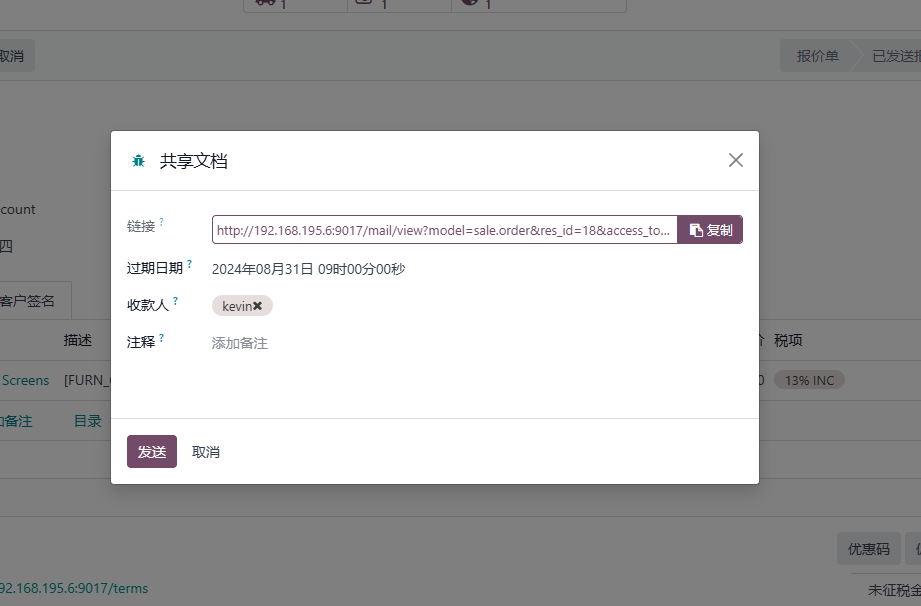
If the same order needs to be shared with another person for a longer period, click Share again and generate another token.
Existing tokens can be managed in the token list.
This chapter explained how the Odoo portal exposes documents to customers, how links and tokens work, and how extensions can improve search, images, multi-company URLs, and token control. The next chapter moves to eCommerce, where customers place orders directly from the website.