POS WeChat Pay
The previous chapter introduced WeChat Pay for online payments. This chapter explains how to use WeChat Pay in Odoo Point of Sale for counter payment and refund.
Module Installation
Go to Settings > POS Settings > Payment Terminals and enable WeChat Pay.
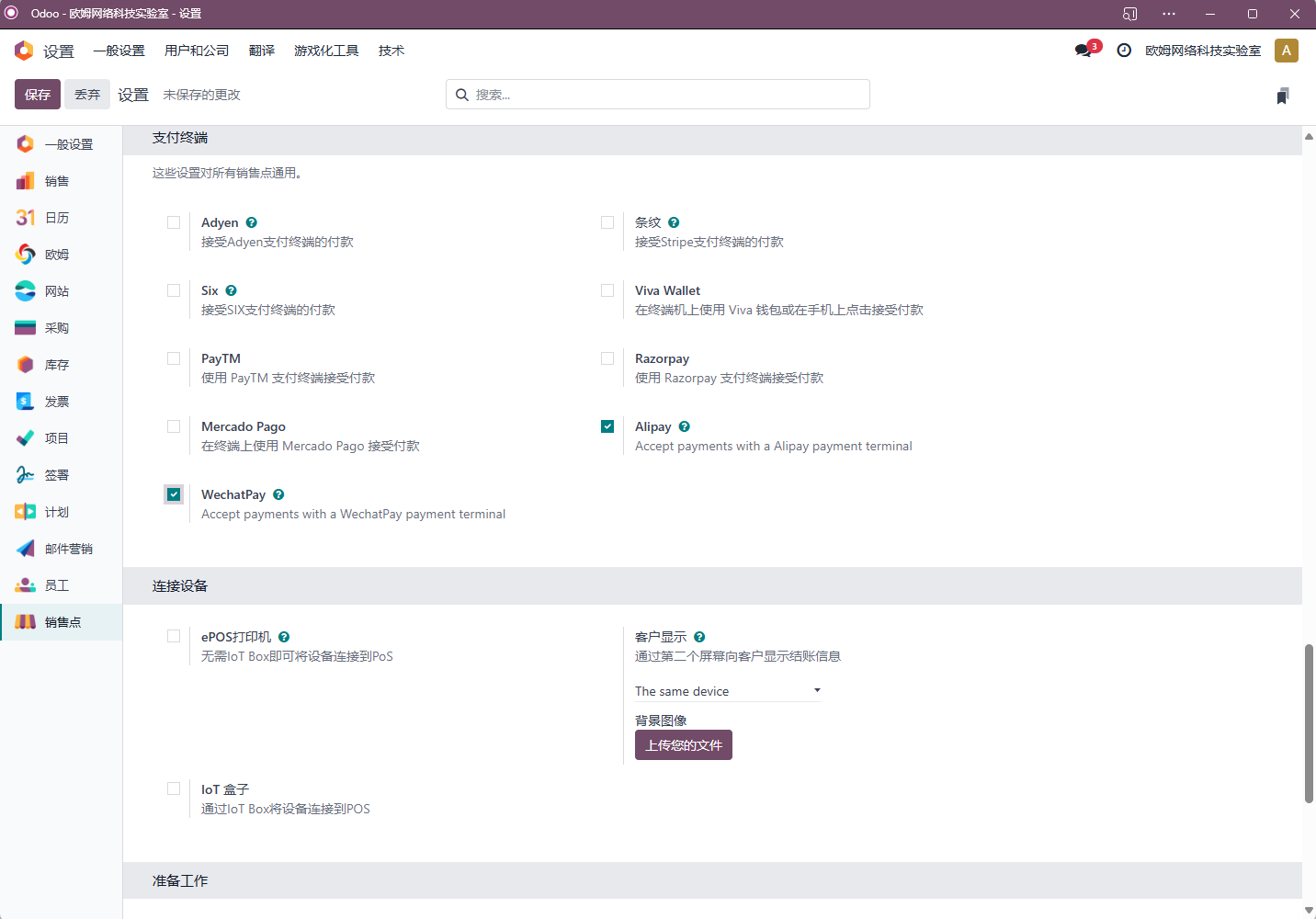
After saving, Odoo installs the POS WeChat Pay module automatically. POS WeChat Pay reuses the website WeChat Pay application settings, so the payment provider configuration is not repeated here.
Add A WeChat Payment Method
Go to Settings > Payment Methods and create a WeChat Pay payment method.
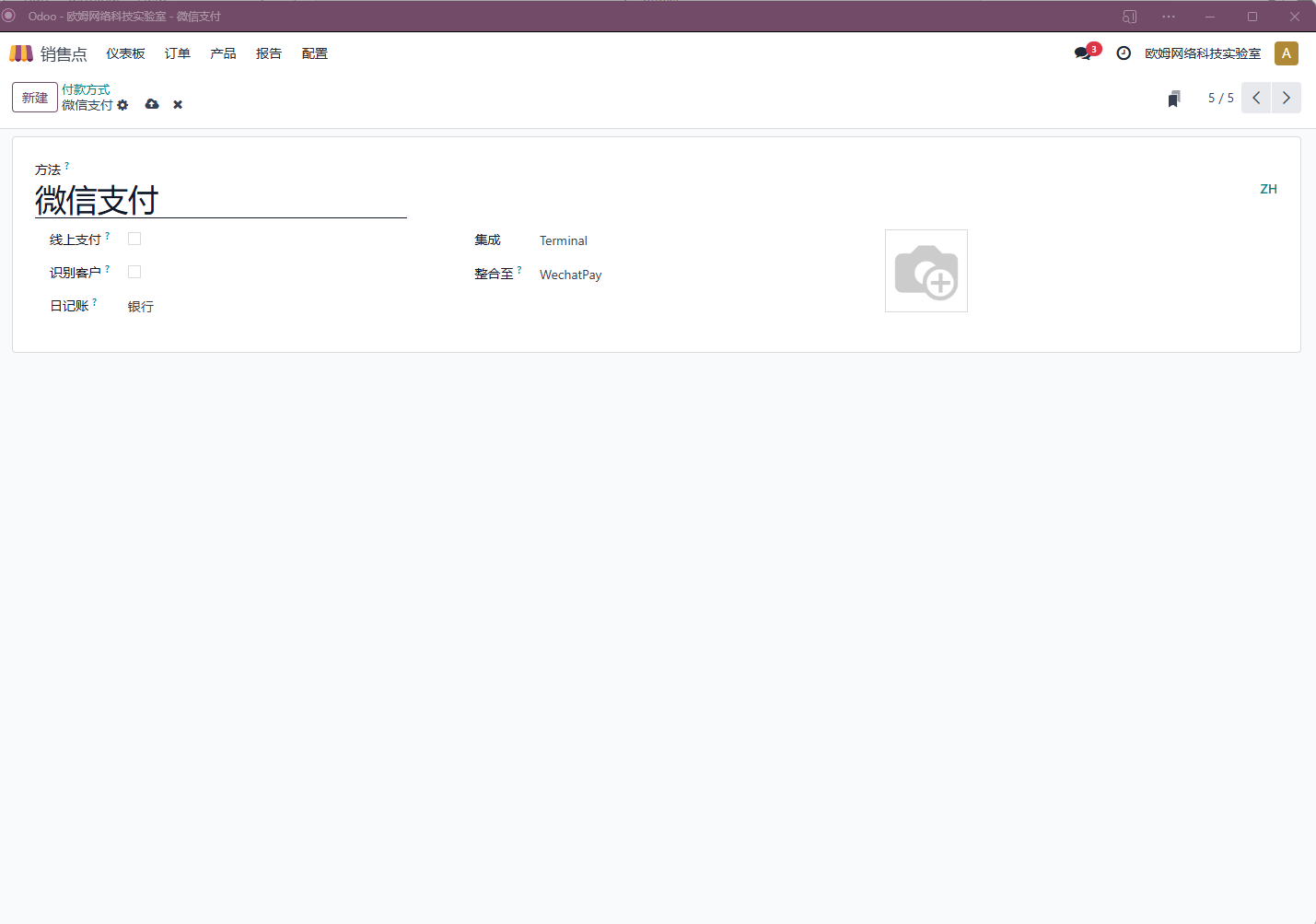
Add WeChat Pay To POS
When the POS session is closed, open the store configuration page and add the WeChat Pay payment method.
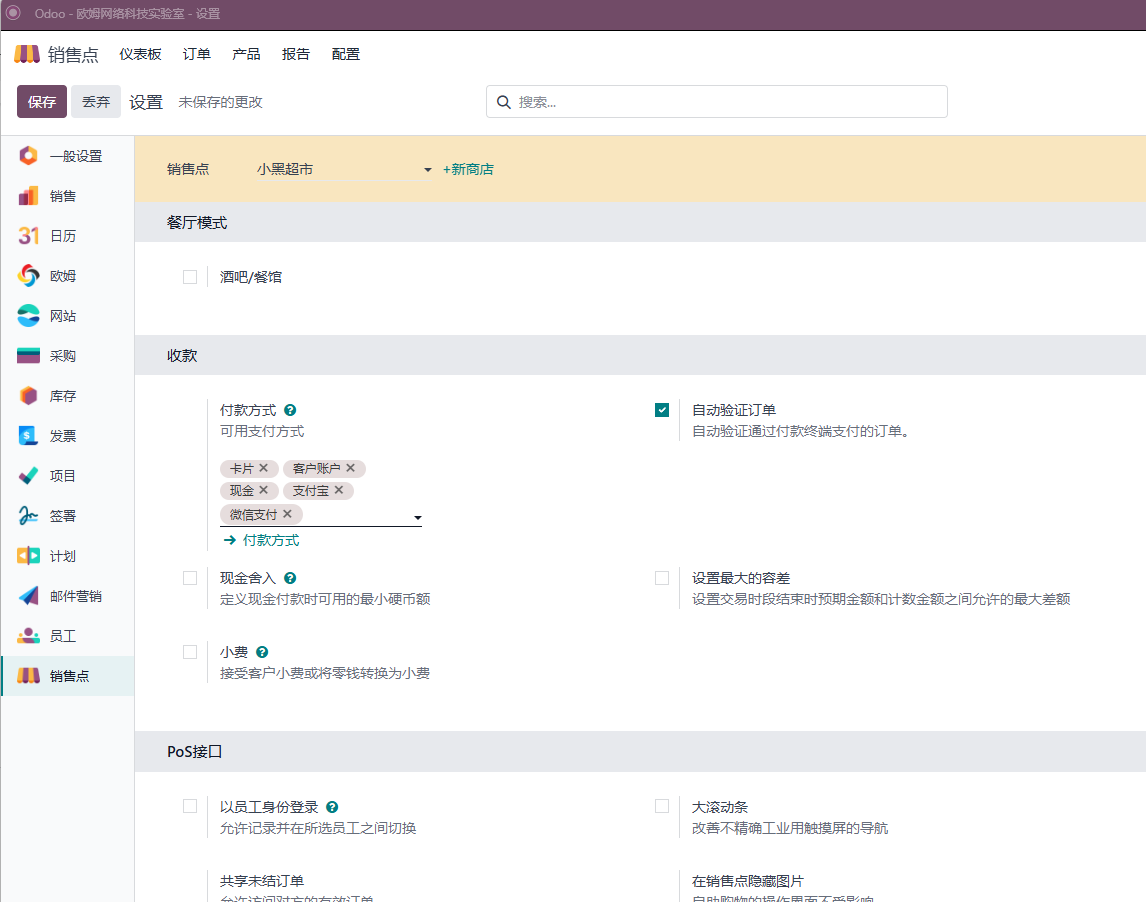
Receive Payment With WeChat Pay
Open the POS cashier interface and create an order. In this example, we sell a balloon for 0.01.
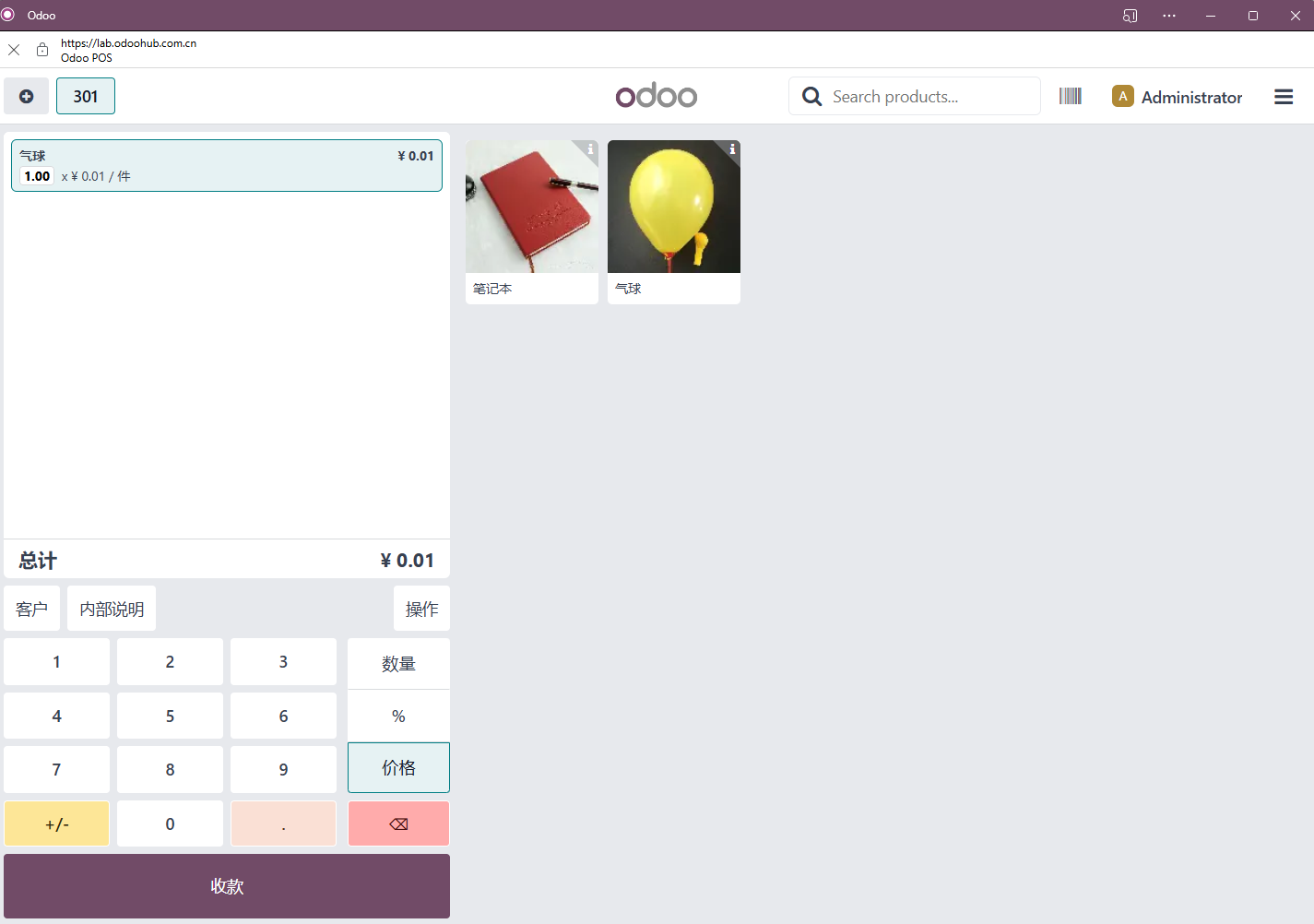
Click payment, enter the checkout screen, and select WeChat Pay.
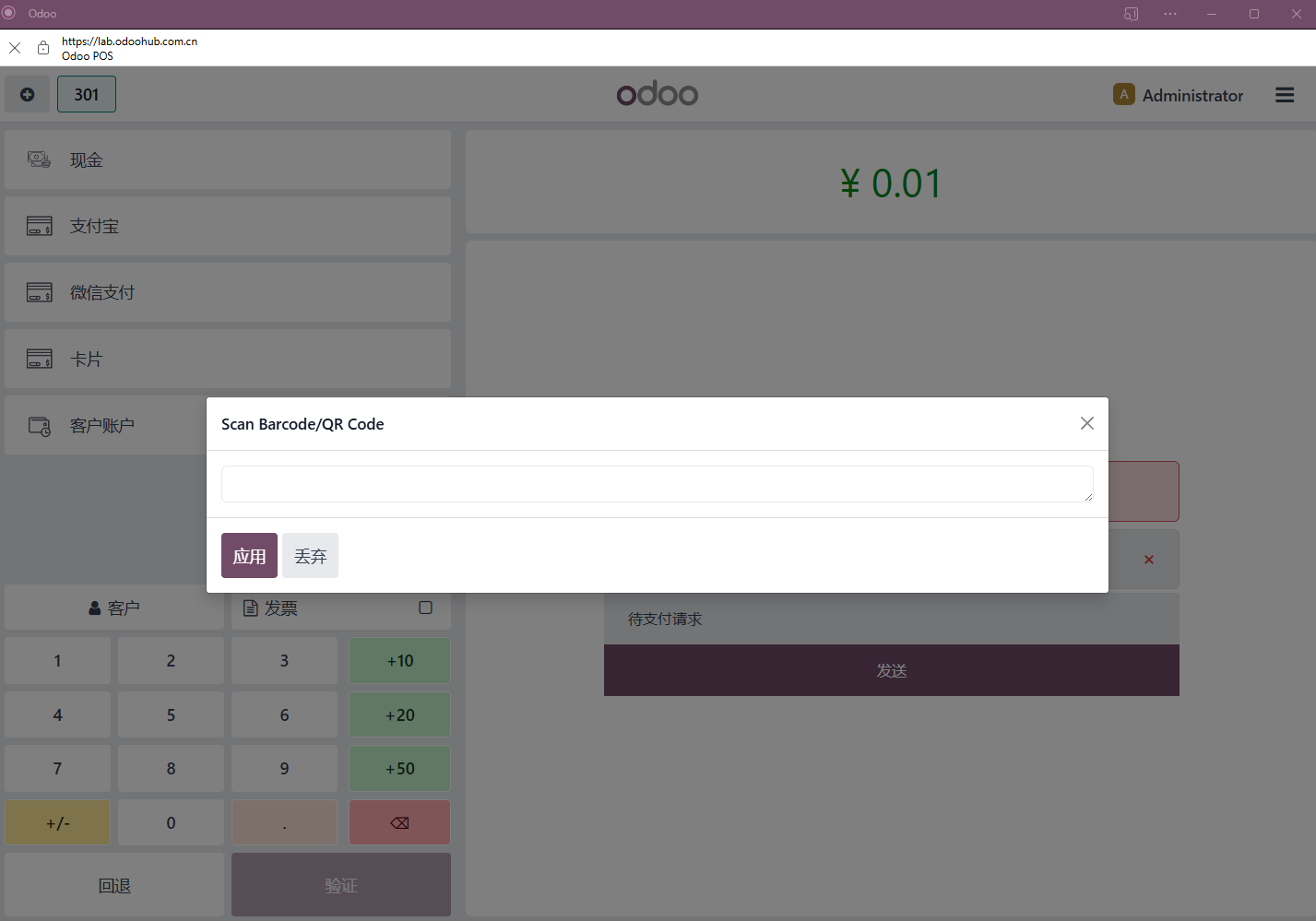
Scan the barcode or QR code provided by the customer, then click confirm to complete payment.
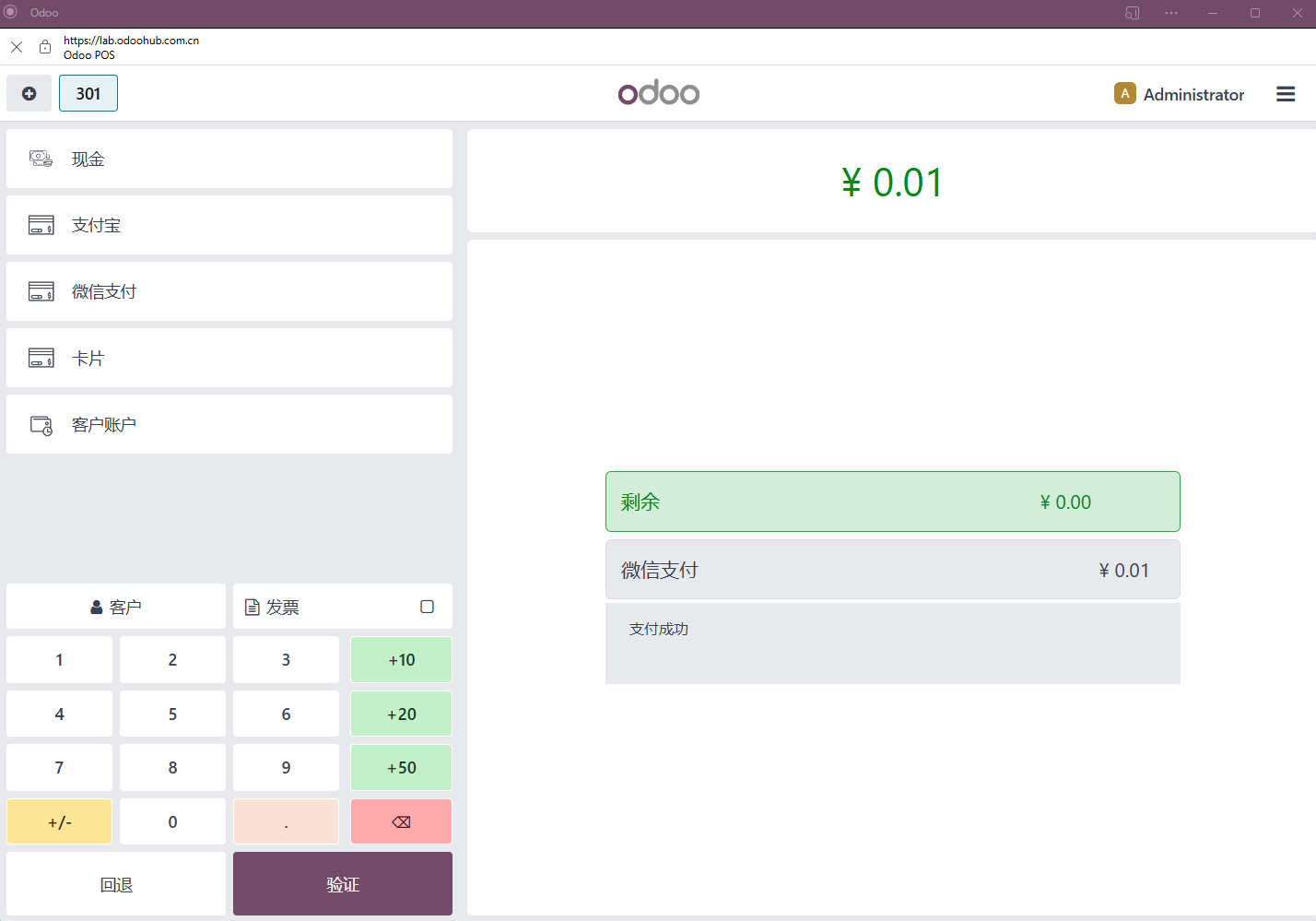
Finally, click validate.
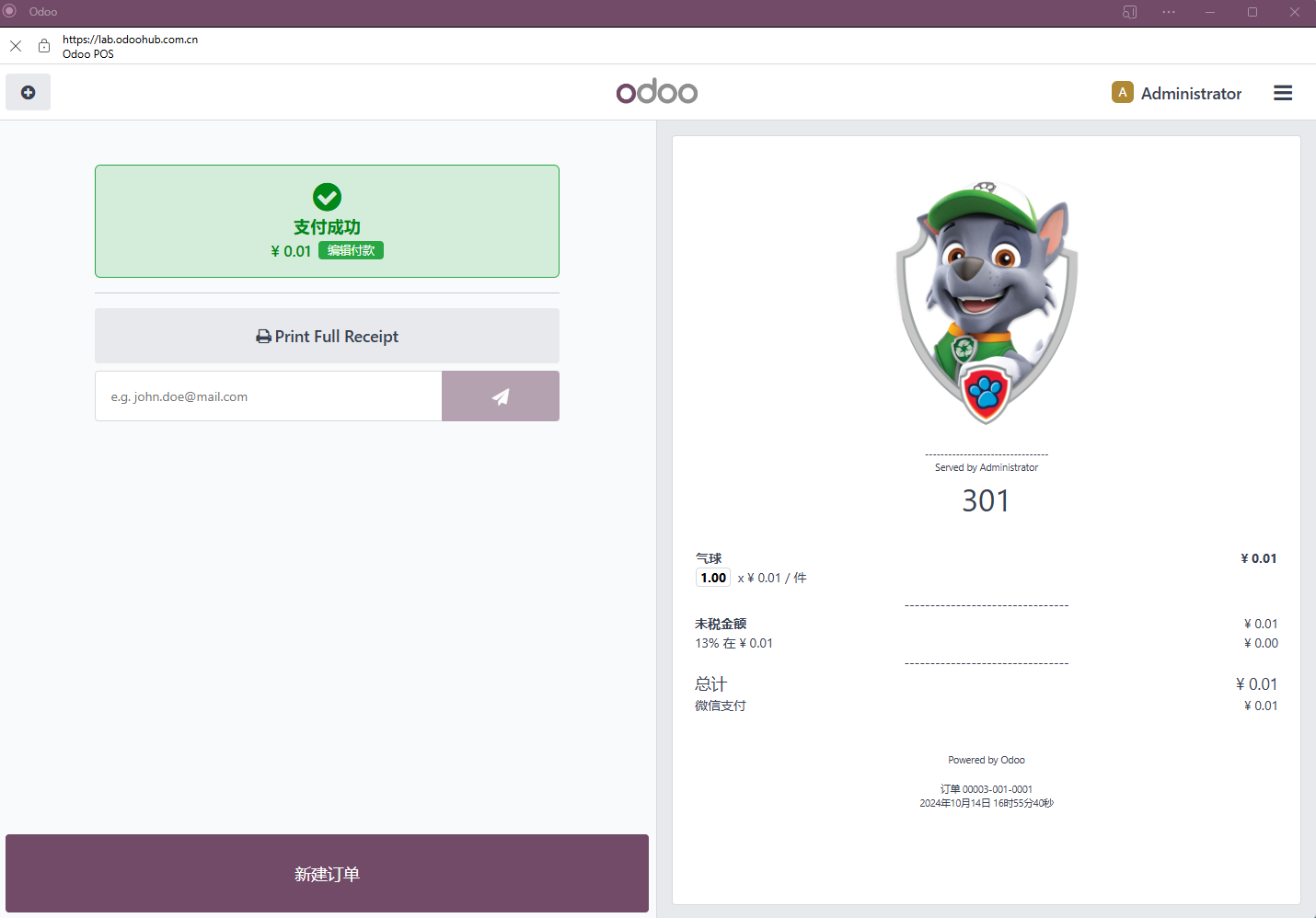
Then print the receipt for the customer.
Refund With WeChat Pay
For refunds, find the original order and click Refund.
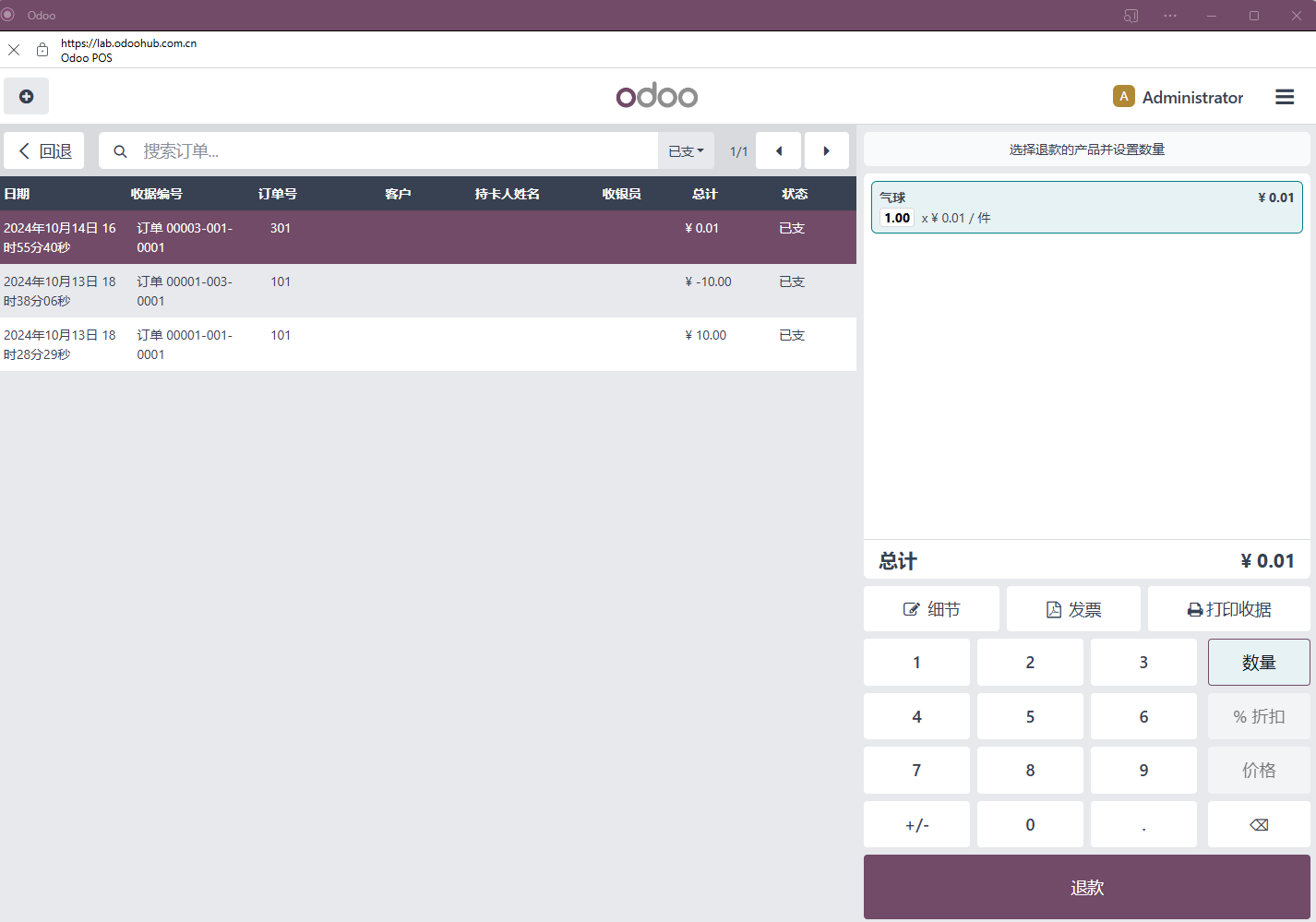
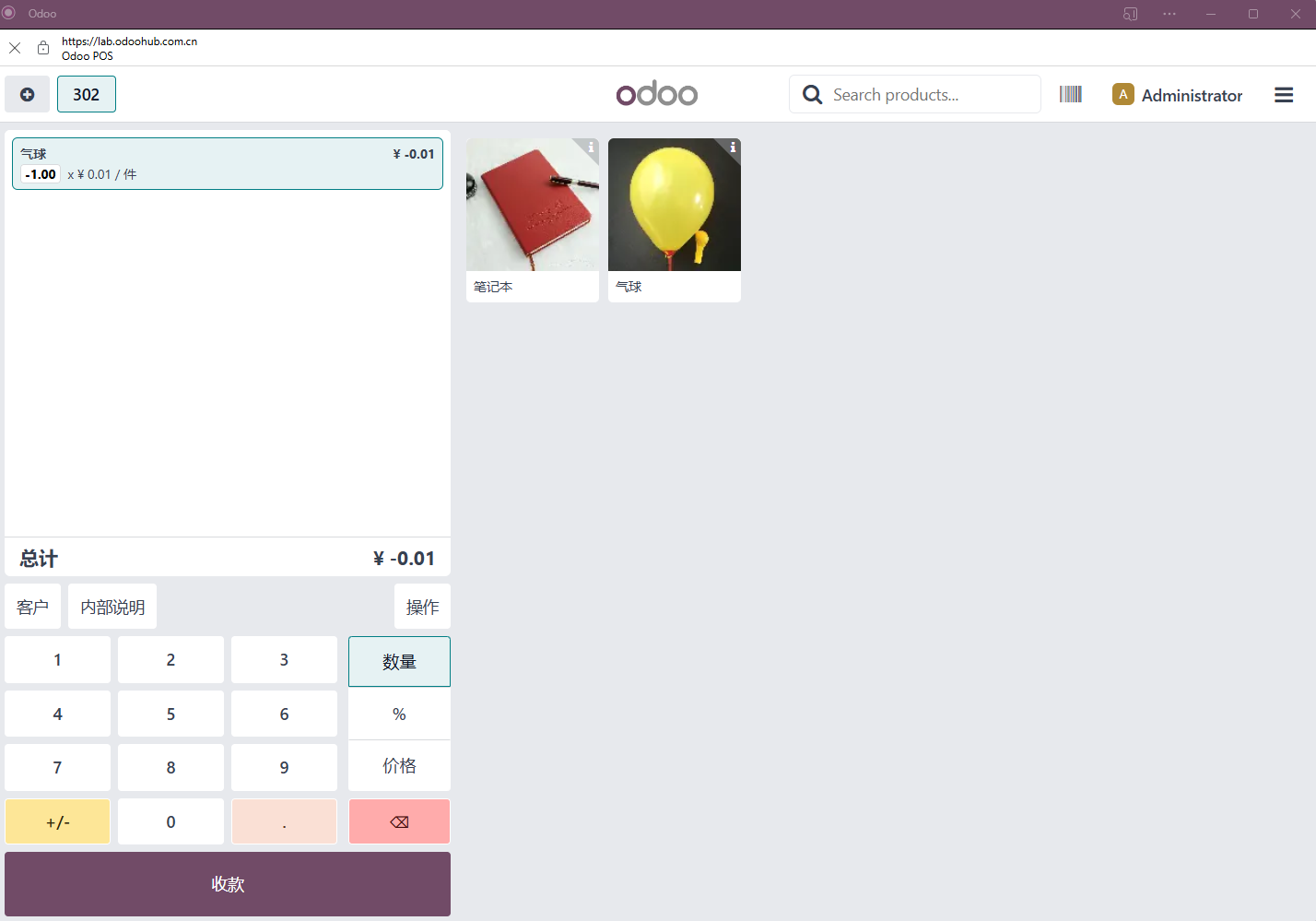
The POS screen shows a negative amount, indicating a return order. Click payment.
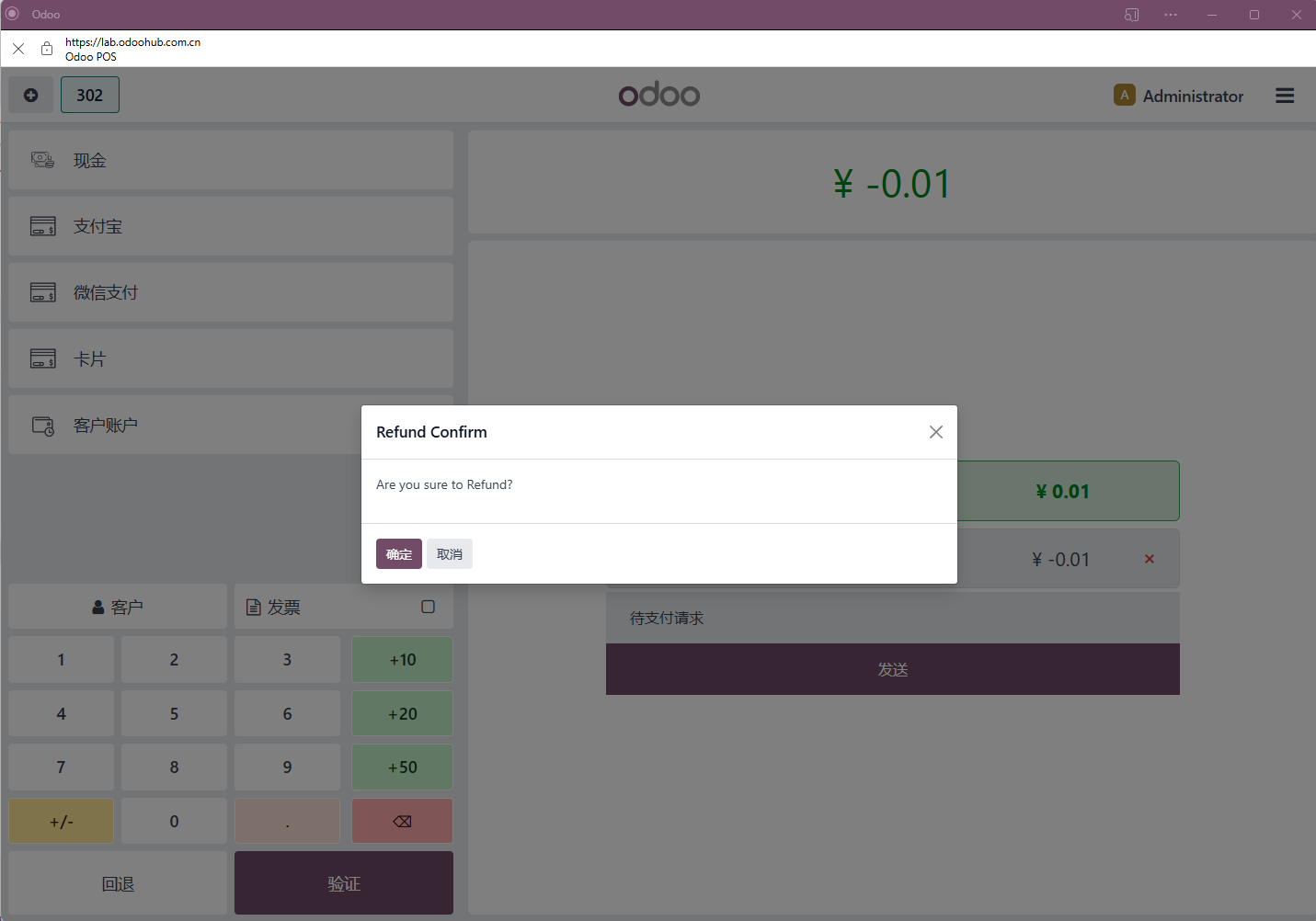
Odoo asks whether to confirm the refund.
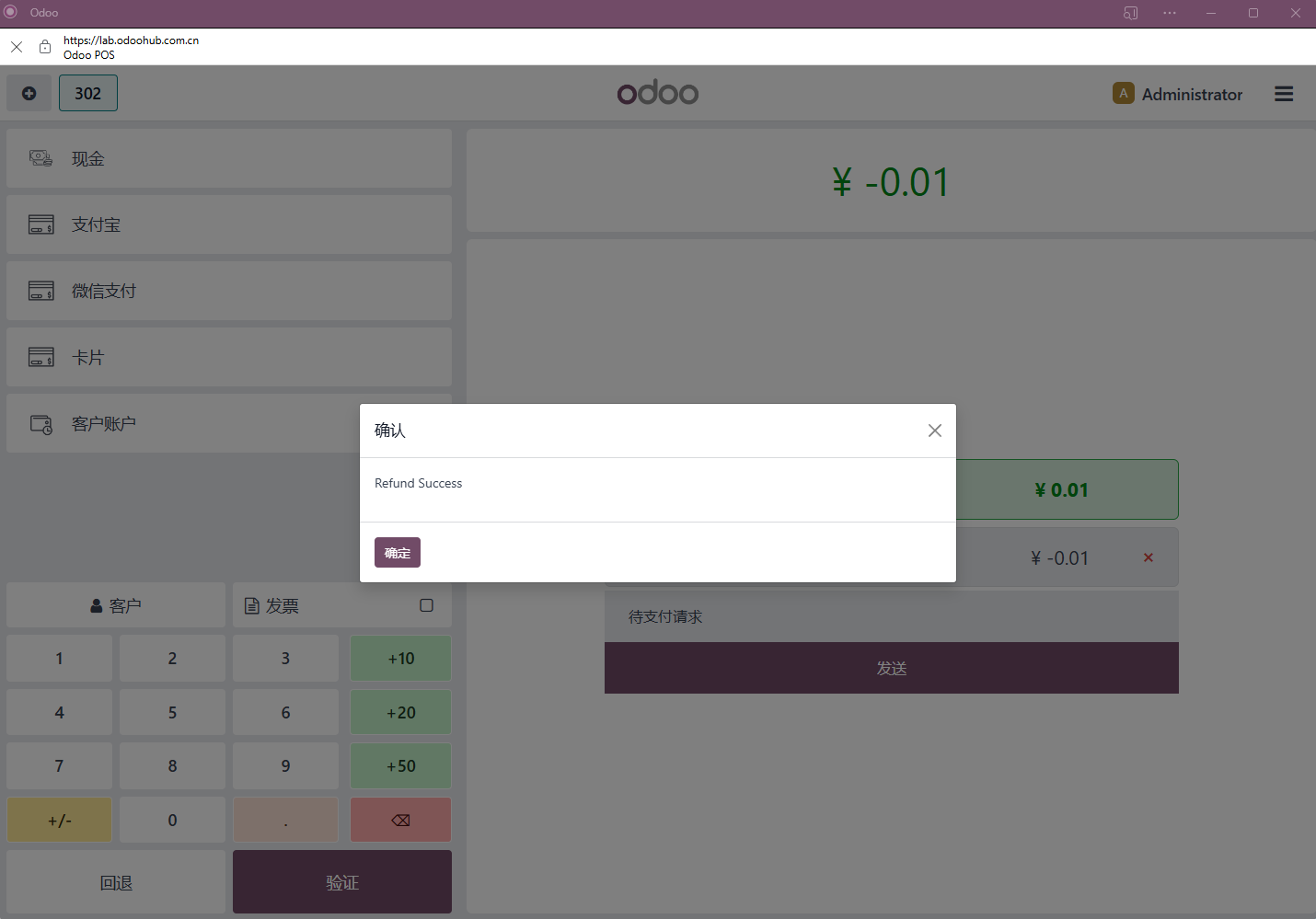
Click confirm to complete the refund.
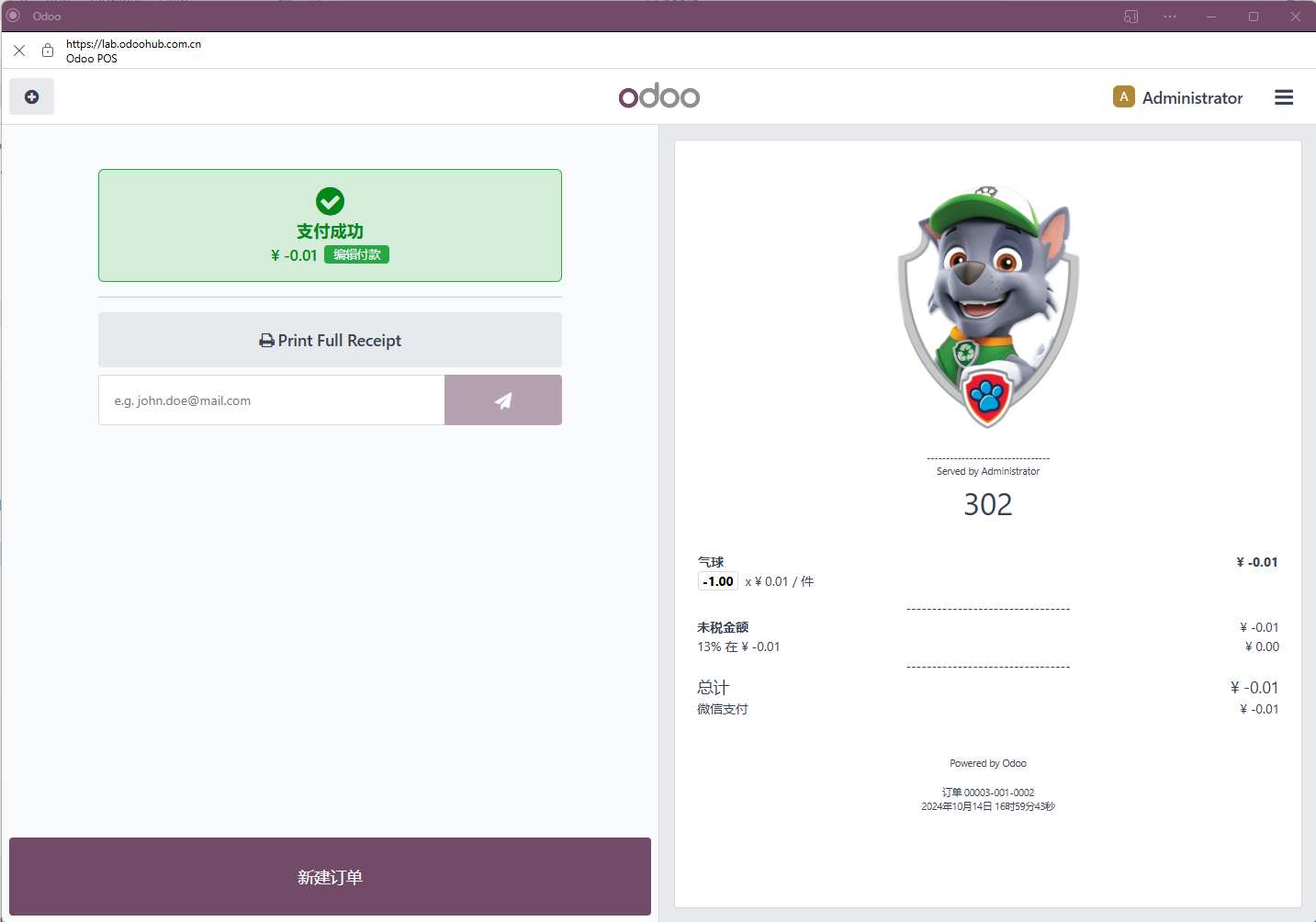
Finally, validate the order and print the refund receipt.
This chapter covered WeChat Pay collection and refund in POS. The next chapter introduces Alipay online payment for website, sales order, and invoice scenarios.