Chapter 2 Sales Products And Variants
Every line on a sales order depends on a product. The product decides whether it can be sold, whether inventory is needed, which price, tax, and invoicing policy apply, and how the later fulfillment flow works. If a product has differences such as color, size, capacity, or specification, product variants may also be involved.
This chapter explains product design from the sales perspective: which fields affect quotations and sales orders, when variants are useful, when a normal product is enough, and how to avoid later confusion in pricing, stock, and invoicing because the product structure was not designed clearly.
Product Variant Concept
Product variants are not enabled by default in Odoo. They appear only after enabling variants in Sales -> Configuration -> Settings -> Products.
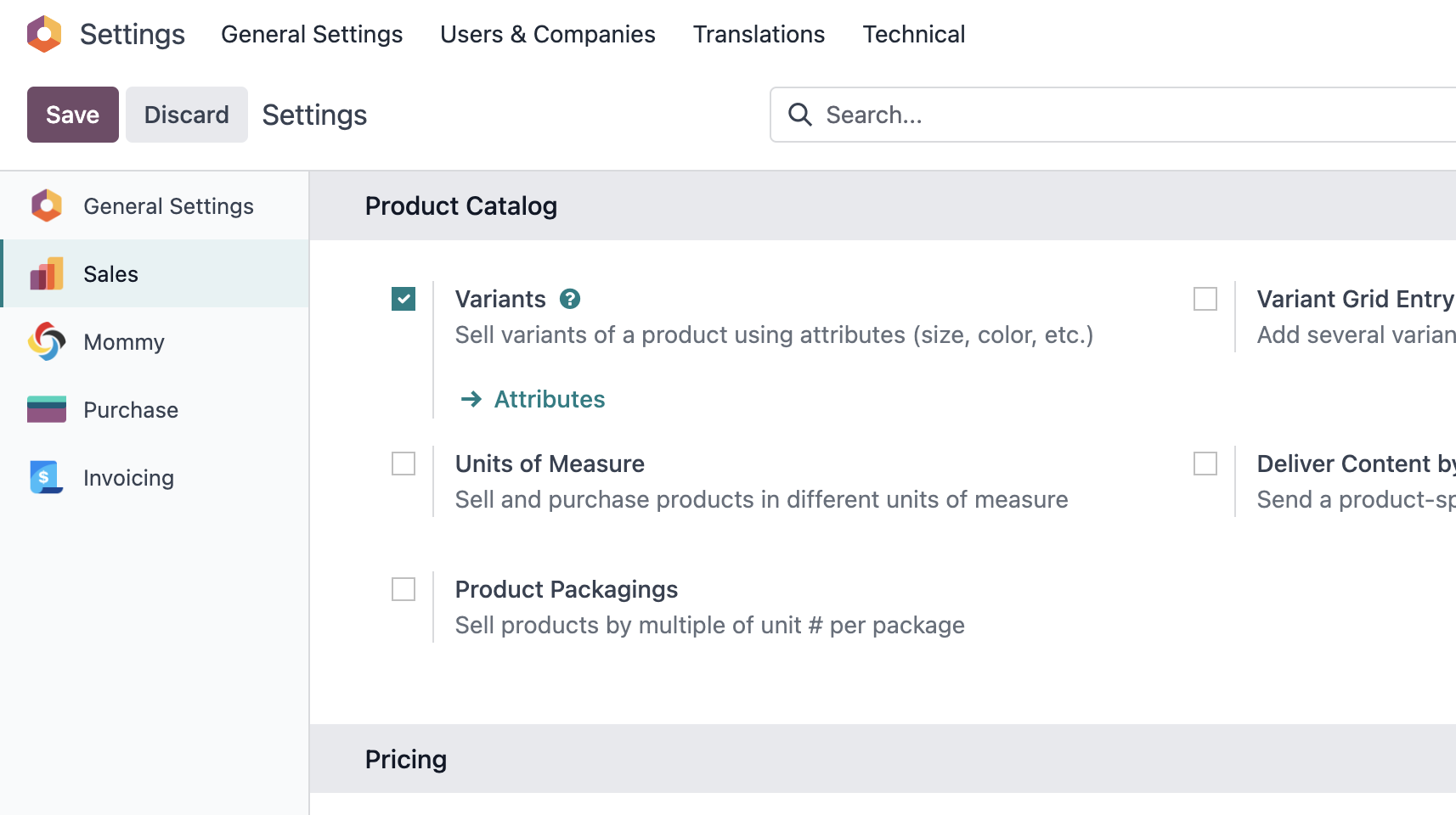
After variants are enabled, two menus become important: Product Templates and Product Variants. Technically, they correspond to two different models: product.template and product.product. Their forms look very similar. When a shared field is changed on the template or on a variant, the shared value is reflected on both sides. Only variant-specific fields exist only on variants and do not directly appear as template-level values.
Variant Attributes
Variant attributes describe configurable differences of a product. For example, an iPhone may have color, storage, and version attributes. Their values may be black, 128 GB, or iPhone 15.
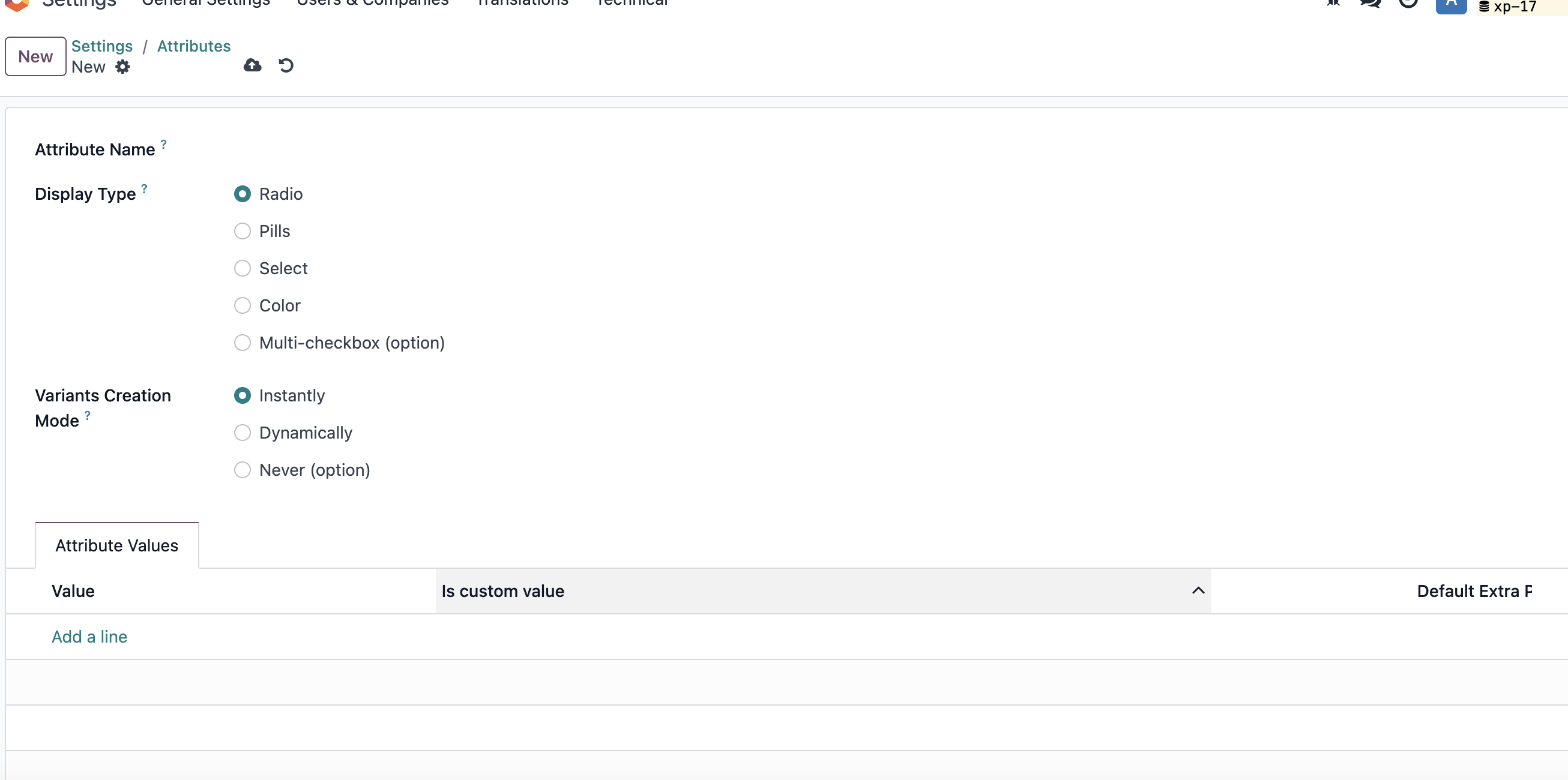
Attribute Display Types
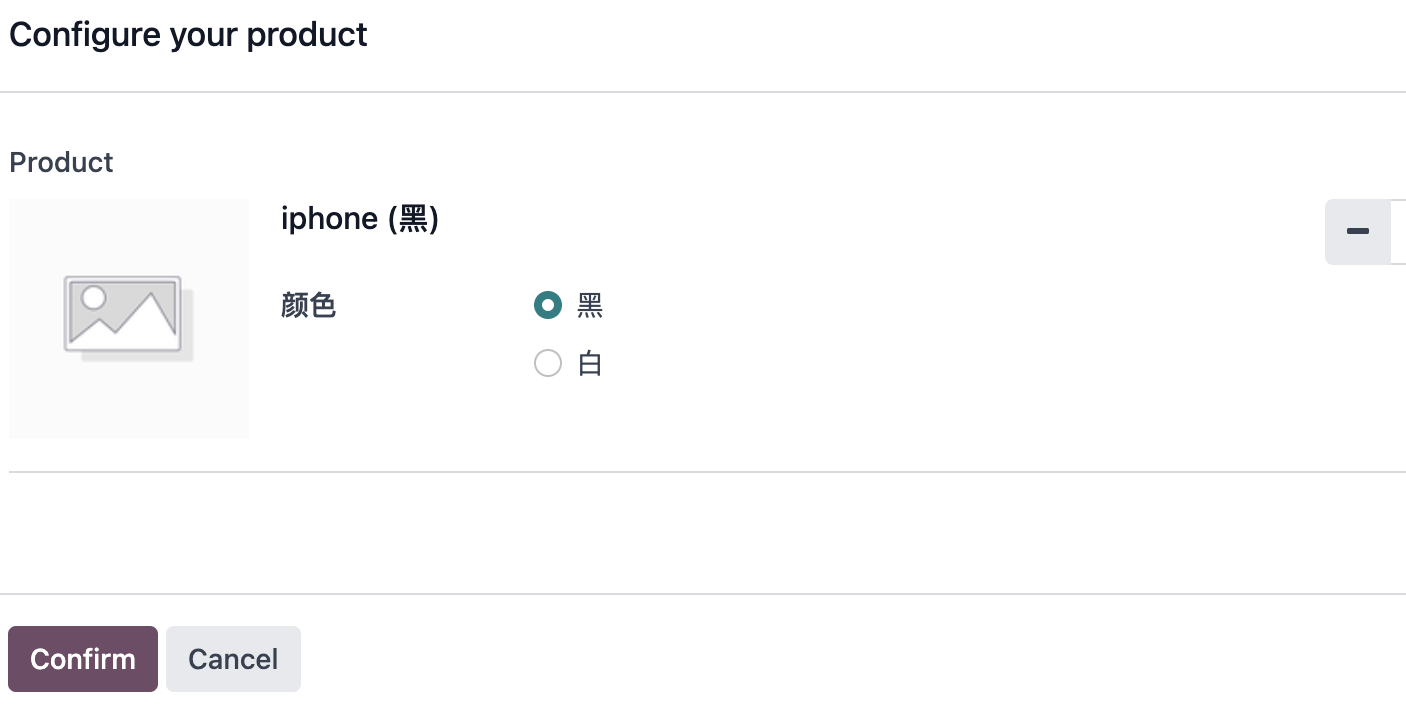
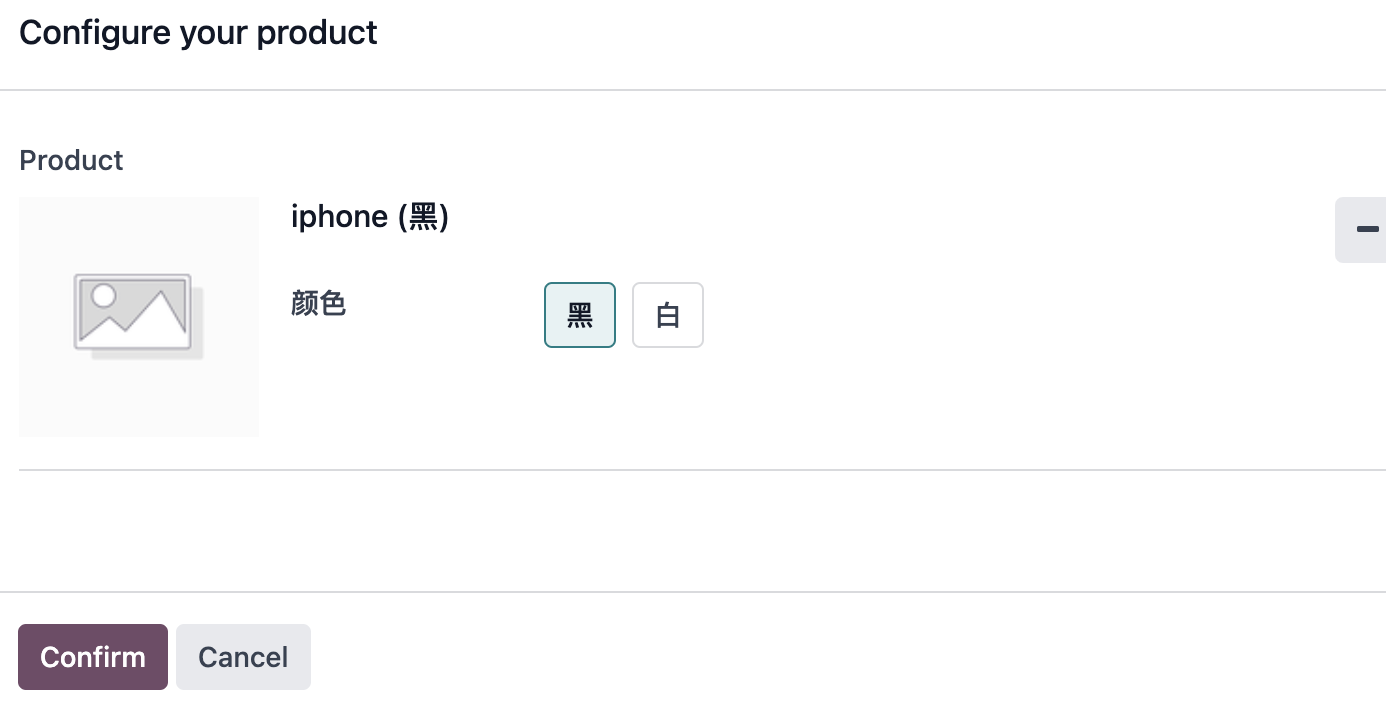
Odoo natively supports several display types for variant attributes.
Radio button:
Pills:
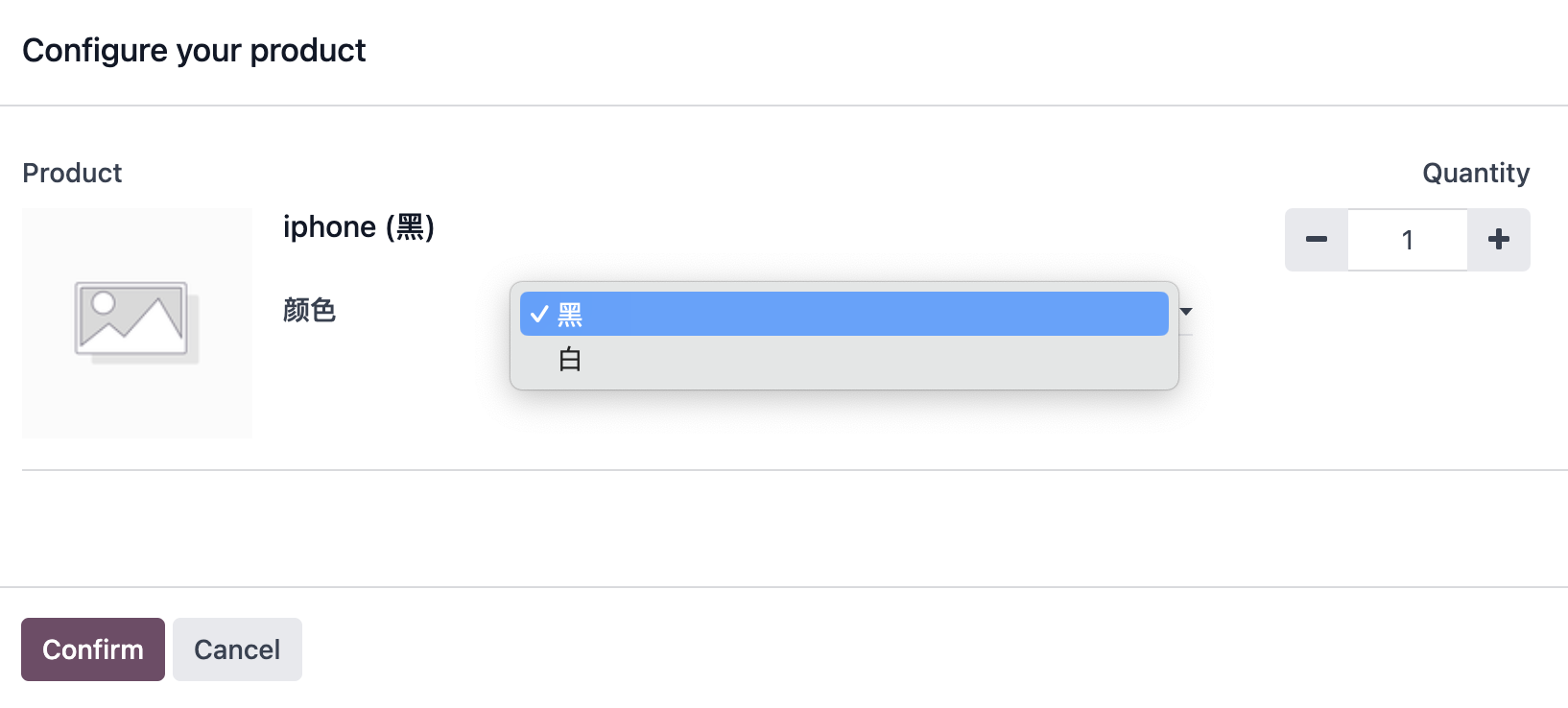
Select:
Color:
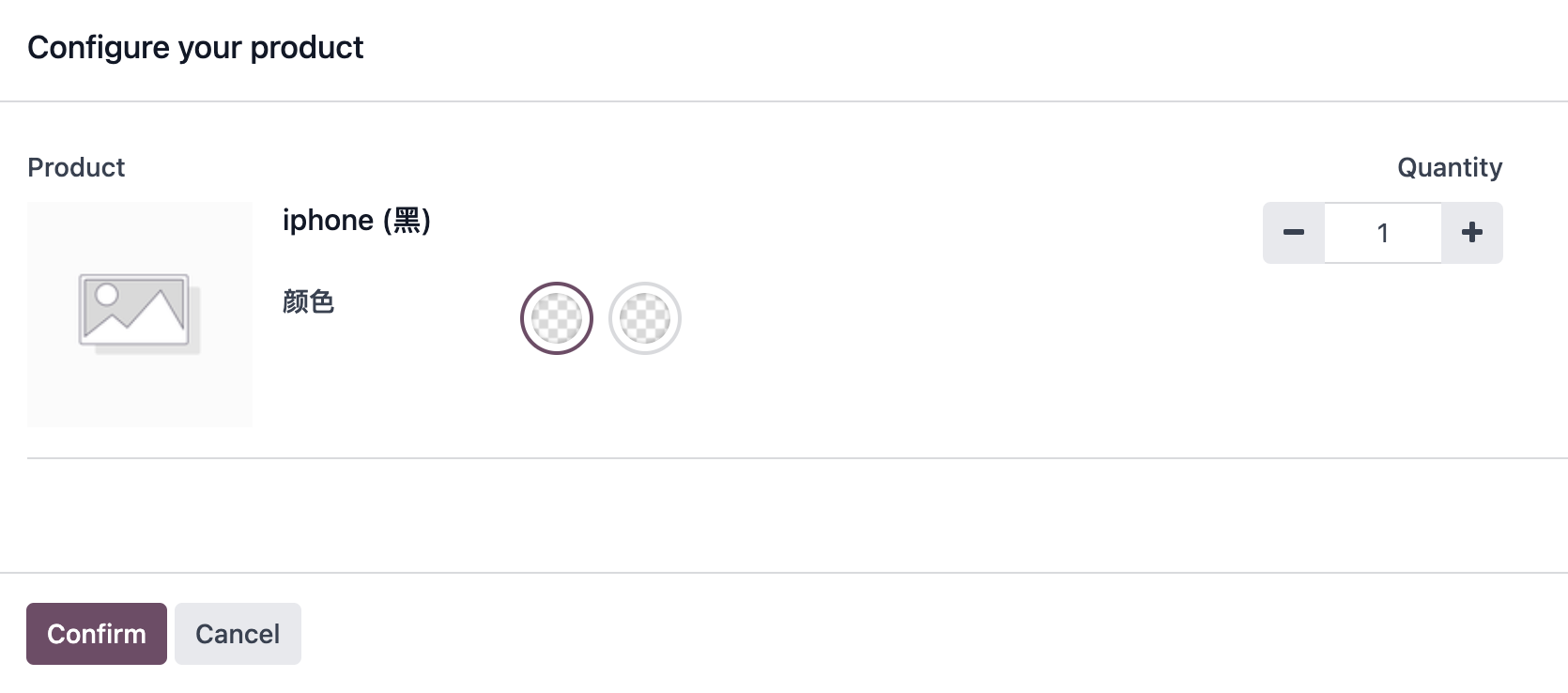
The display type affects how the salesperson or customer chooses variants in the product configurator. It does not change the business meaning of the attribute itself.
Custom Variant Attribute Values
Another variant usage pattern is to allow users to enter a custom attribute value. Attribute values include an "Is custom" option. After it is enabled, users can enter custom content when creating an order.
For example, if the system has only black and white iPhone colors, but sales sometimes needs to enter a special color, you can add a "Custom" value and mark it as custom.
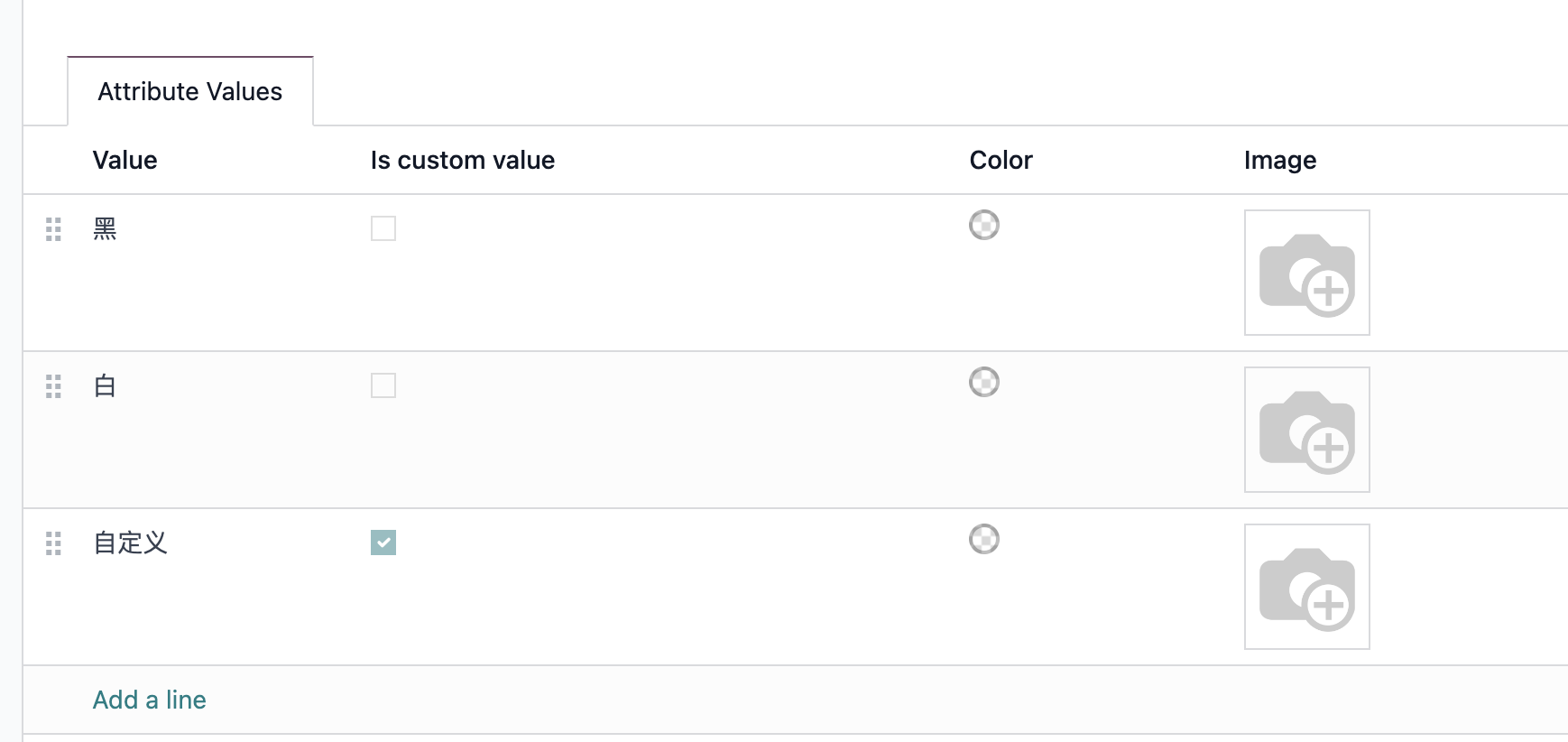
When creating an order, the user will see an extra custom option.
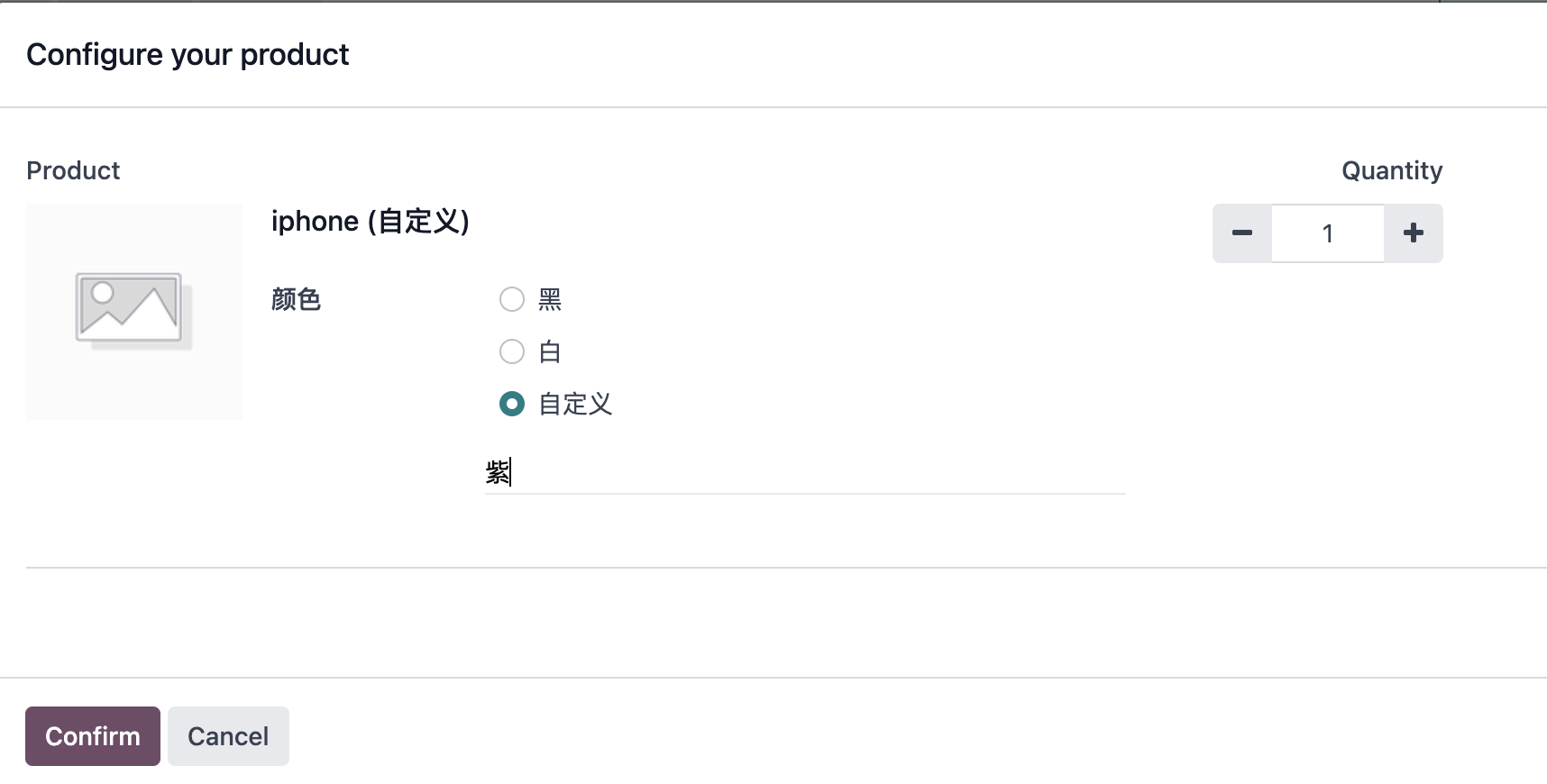
The user can enter the required value and create the order.
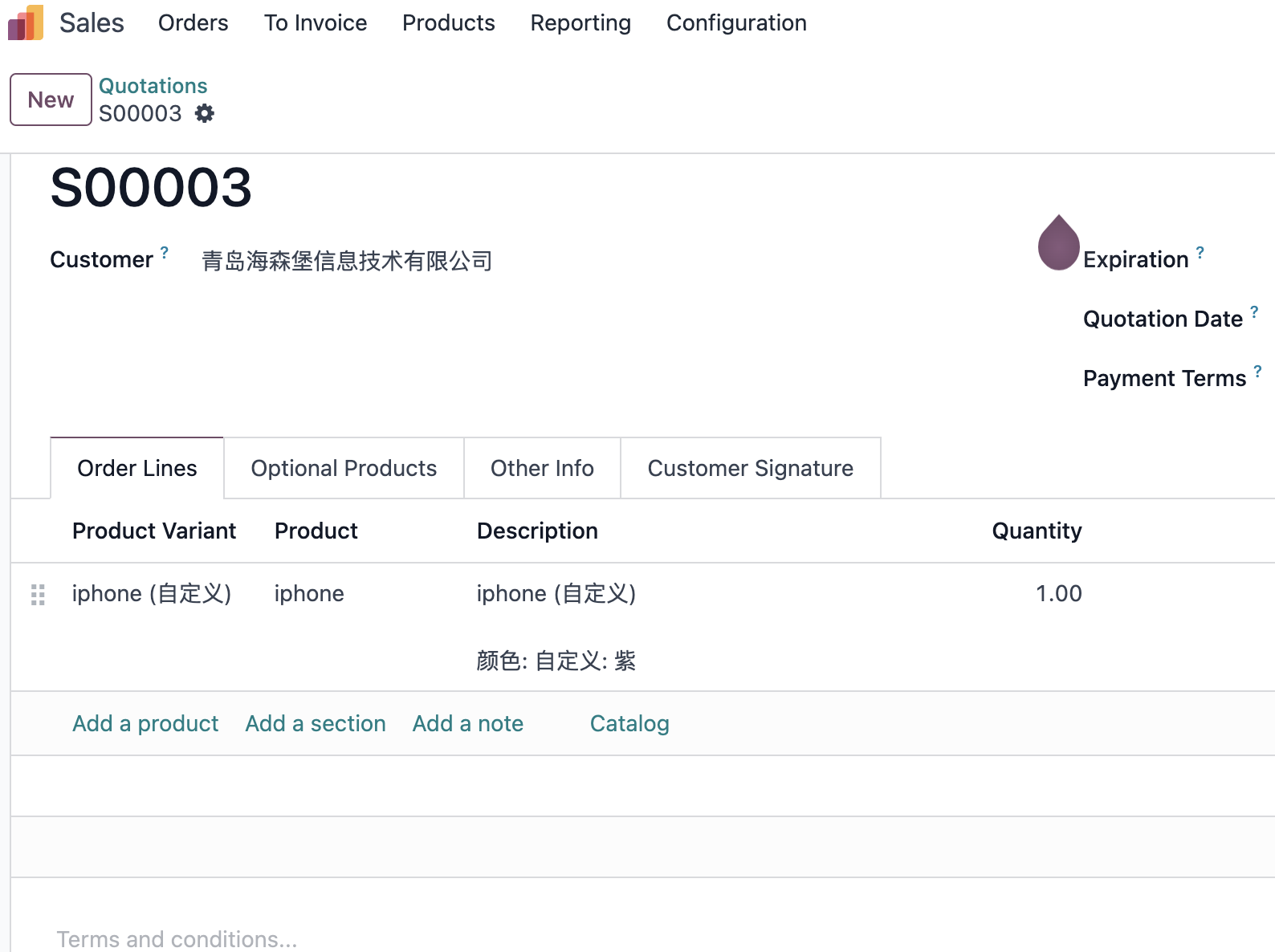
One detail is important: although a custom value is entered, Odoo does not necessarily create a real new product variant. In the native behavior, the custom value is generally stored as information on the sales order line, while the product variant still uses the predefined "Custom" variant.
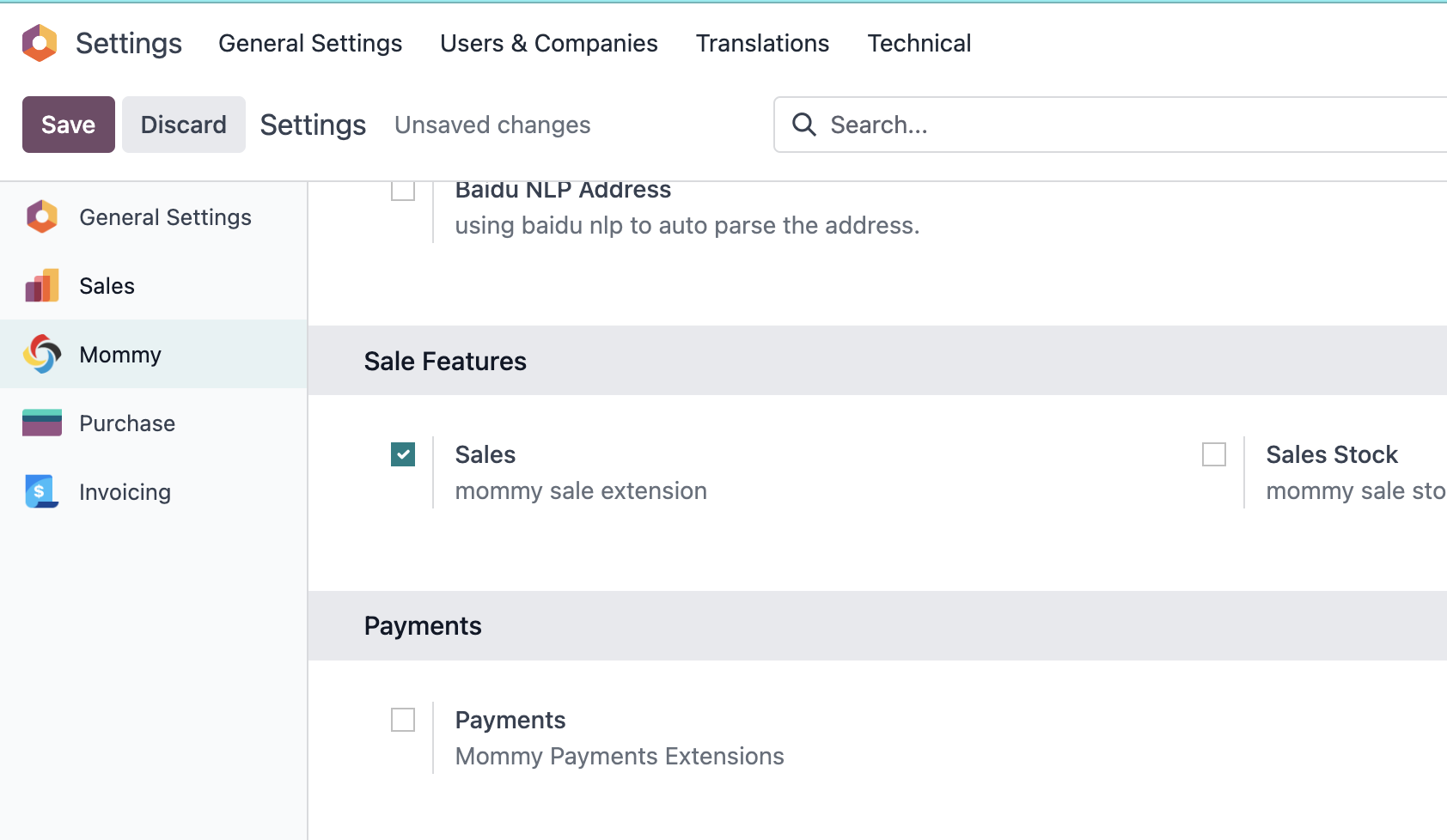
If the business needs to create a real variant in the system, one method is to create it manually. Another method is to use the automatic creation capability in Qingdao Ohm's sales solution. After enabling the sales extension under Settings -> Ohm -> Sales Features, the related feature becomes available.
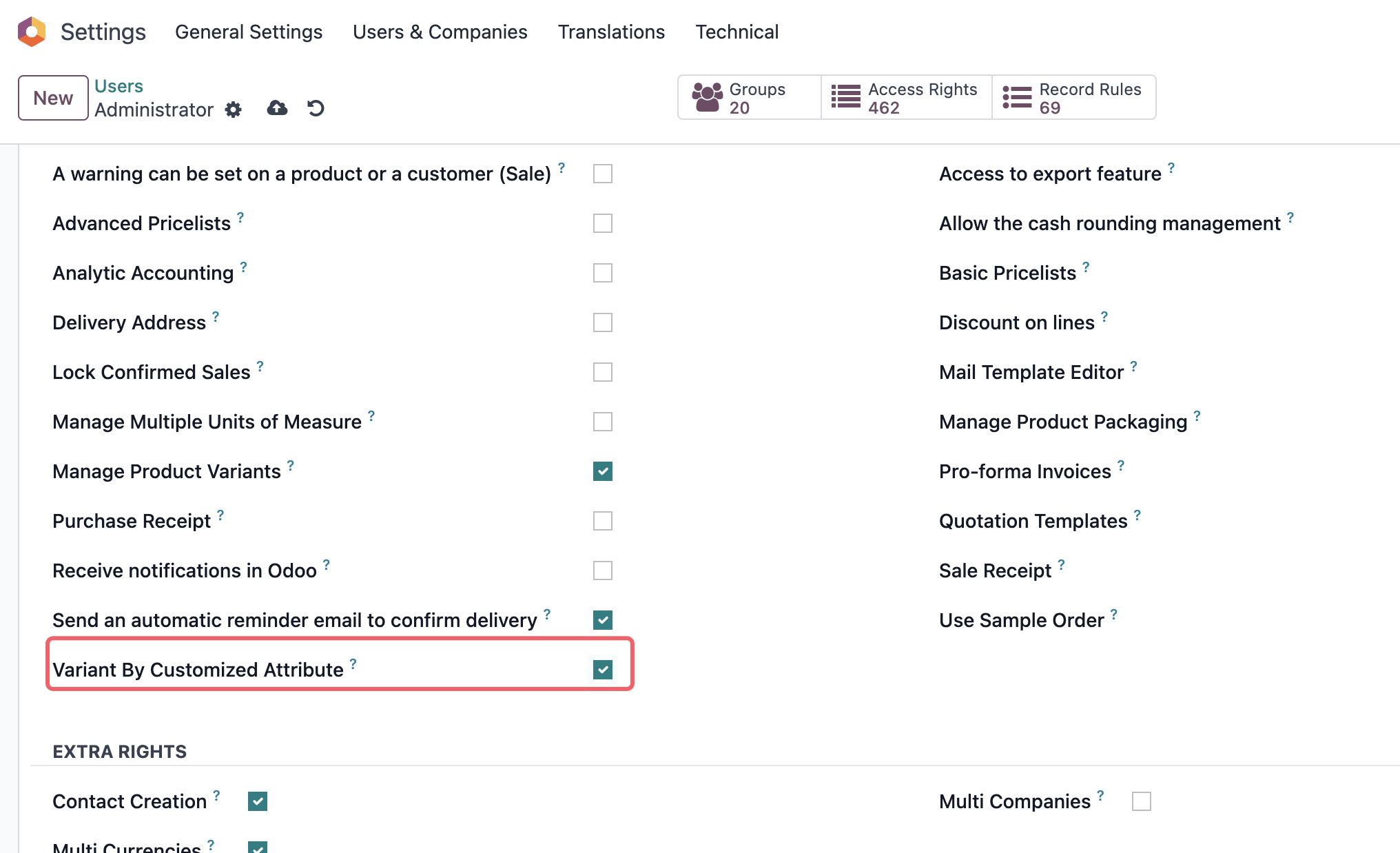
Then grant the user the permission to create variants from custom attributes.
The attribute value list will show an additional column.
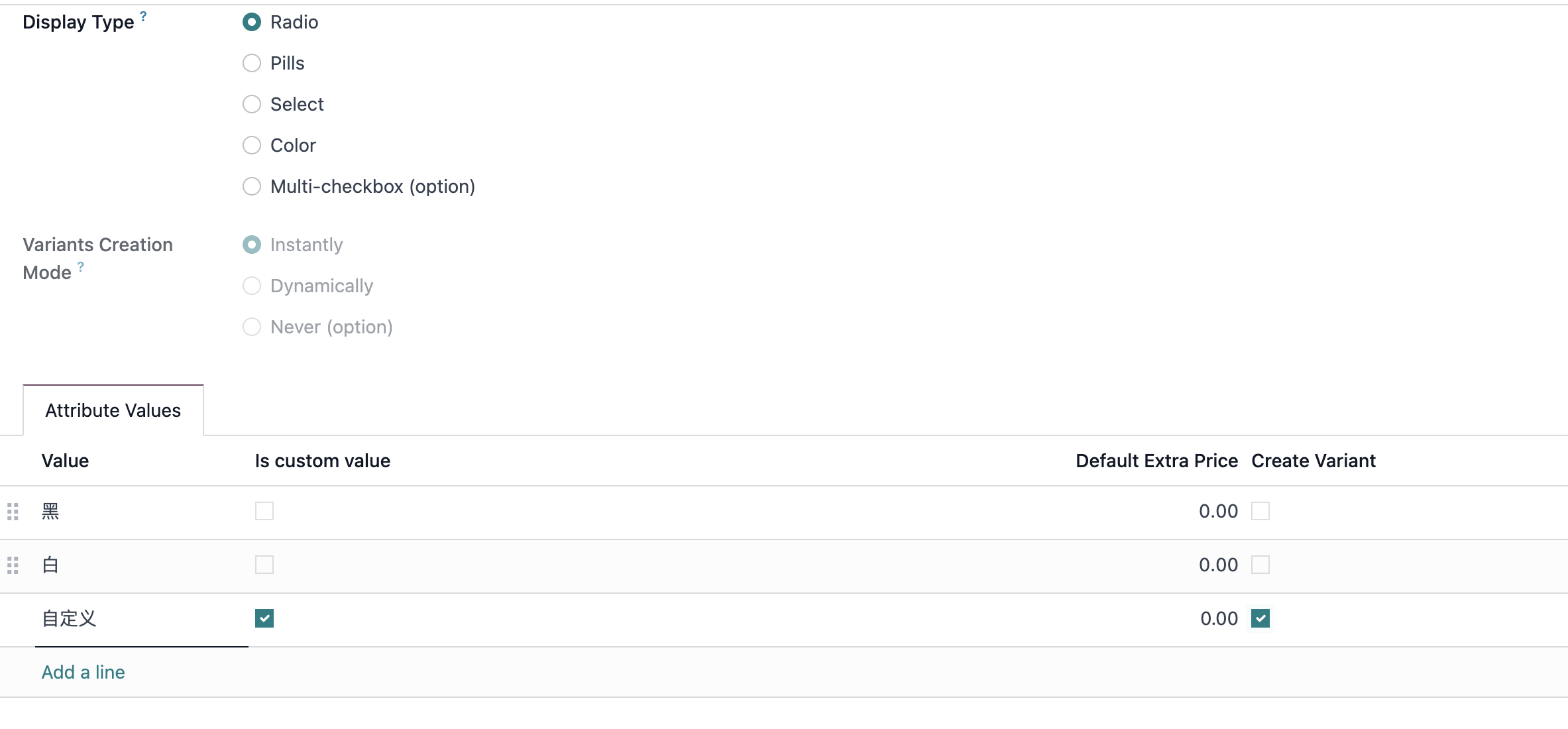
After selecting the create-variant option, the system can automatically create the custom-attribute variant when the order is confirmed.
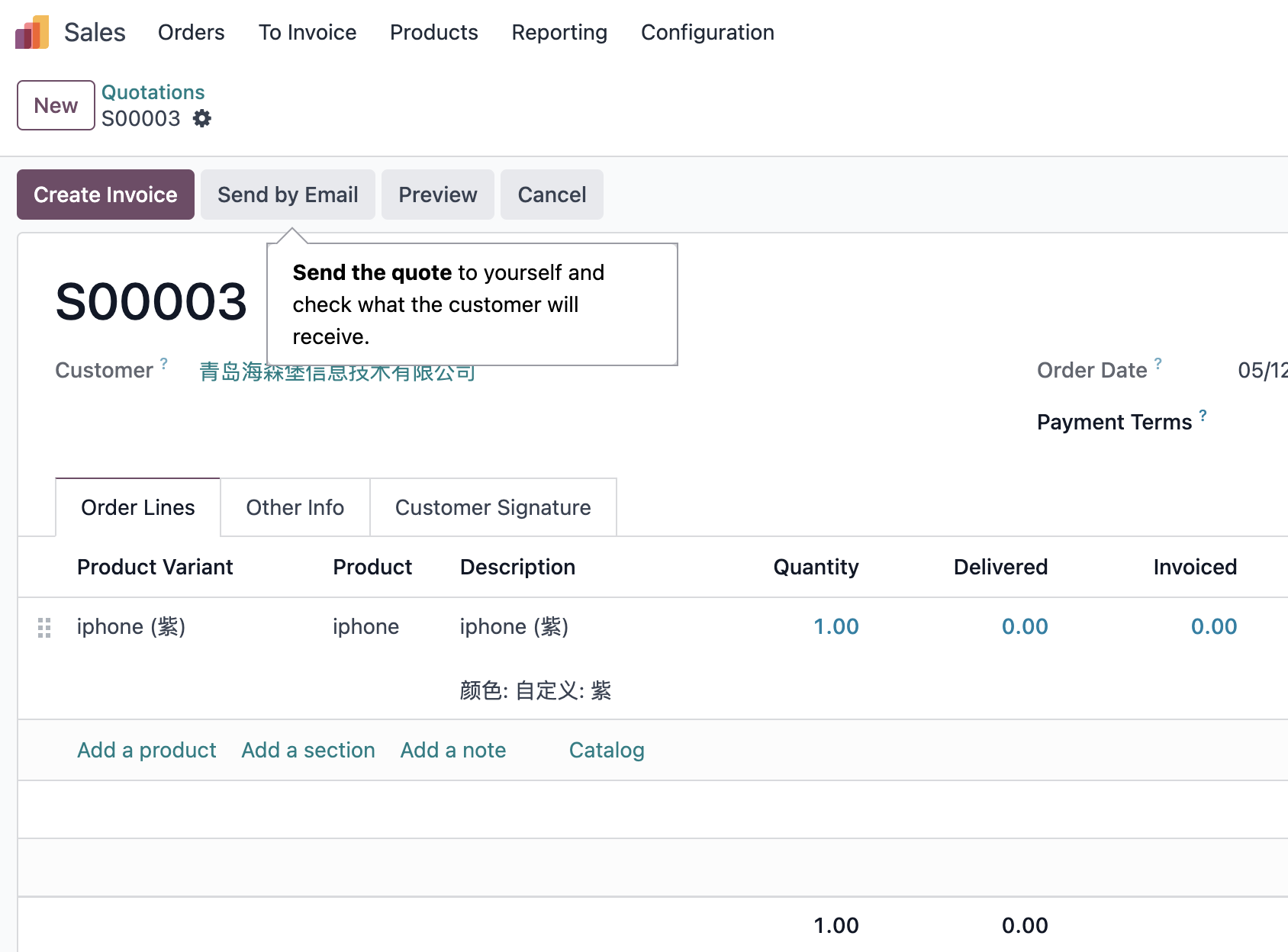
This kind of enhancement should be used only when the company really needs those custom combinations to become reusable stock, pricing, or reporting objects. If the custom value is only descriptive text for one order, storing it on the order line is usually enough.
Variant Creation Mode
Odoo supports three variant creation modes:
| Mode | Meaning |
|---|---|
| Instantly | Create variants immediately when the product is saved |
| Dynamically | Do not create all variants at product setup time; create a variant only when it is actually used |
| Never | Do not create variants for this attribute combination |
Once the variant creation mode has been used on a product, it can no longer be edited casually. This is why product structure should be designed before large-scale import or go-live.
Variant Configuration Mode
Variant configuration on orders supports two modes:
| Mode | Meaning |
|---|---|
| Product Configurator | A guided configurator, suitable for selecting one configured product at a time |
| Order Grid Entry | A grid configurator, suitable for entering multiple variant quantities at once |
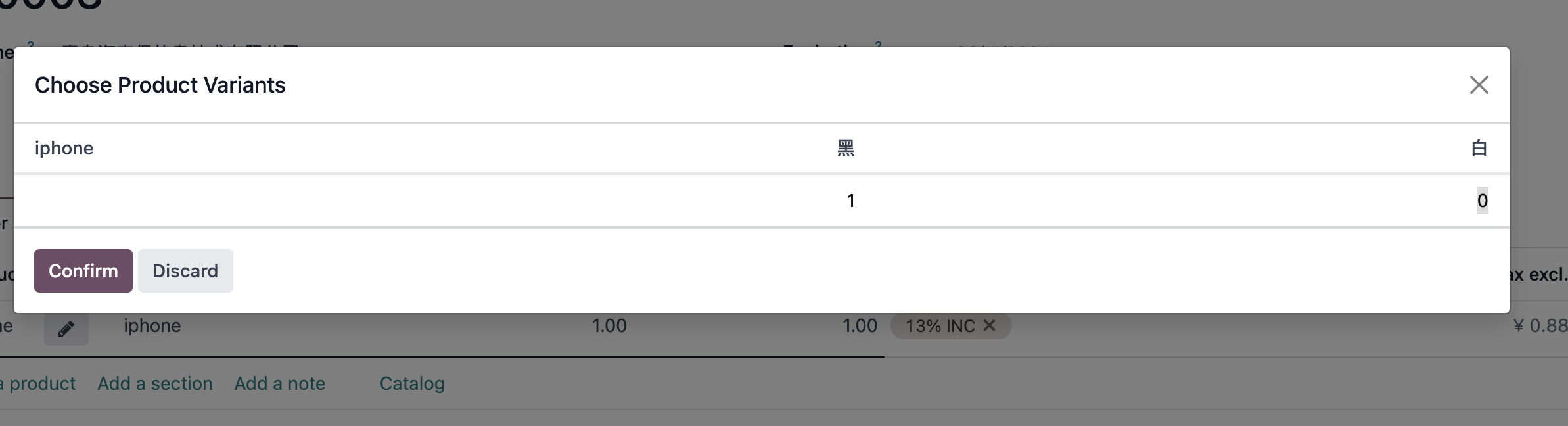
Grid entry is useful for products such as clothes, shoes, and items with size or color combinations. Product Configurator is more suitable when the salesperson needs to build one configured product with clear options.
Common Product Fields
The product form contains many settings that affect the sales flow. We start with the common fields.
Product Type
A product template can define whether the product can be sold or purchased, and it also stores product type, sales price, cost, taxes, and other information. The first concept to understand is product type.
In recent Odoo versions, product types can be understood as:
| Type | Meaning |
|---|---|
| Goods | Physical or consumable items. They may or may not be tracked in inventory. |
| Service | Non-stock services such as consulting, support, or implementation work. |
For goods, inventory tracking can be configured further. Depending on the product and version, common tracking modes include lots, serial numbers, or quantity-based stock management.
In Odoo 17 and earlier versions, product types were often shown as three categories:
| Older Type | Meaning |
|---|---|
| Consumable | A product that can be used without strict stock control, such as sand or water |
| Service | A non-physical service, such as consulting |
| Storable product | A physical product with controlled stock in and out |
Because product type affects delivery, stock reservation, invoicing, and cost, it should be decided carefully during master data preparation.
Product Category
Product category defines which category the product belongs to. Categories can have parent categories and can store advanced settings such as removal strategies, inventory valuation methods, and accounting accounts.
If a removal strategy is set on the product category, products under that category may follow the category strategy instead of the location-level strategy. Native strategies commonly include FIFO and LIFO. Detailed strategy behavior is explained in the inventory location and putaway/removal chapters.
Internal Reference
Internal Reference, also known as default_code, is usually the SKU used internally by the company. Odoo does not enforce uniqueness by default, but uniqueness can be added through technical control if required by the implementation.
Below Internal Reference is Barcode, which stores the product barcode or unified product code. Barcode also does not necessarily enforce uniqueness by default.
Other common sales-related fields include:
| Field | Purpose |
|---|---|
| Sales Price | The standard selling price of the product |
| Customer Taxes | The default sales tax used when selling the product |
| Cost | Cost basis used by margin, inventory valuation, or accounting flows |
| Invoicing Policy | Whether to invoice ordered quantities or delivered quantities |
If more than one selling price is needed, use pricelists rather than creating duplicate products.
Code
Odoo 18 introduced another field often translated as Code. Unlike Internal Reference, this code is a computed field. It is derived from the vendor product information on the product.
In simple terms: if the current partner is a vendor, the code may use the vendor product code from the vendor pricelist. Otherwise, Odoo falls back to the internal reference.
Product Image
A product can upload a default image. Images are useful for website sales, POS, rental, and product selection. For internal B2B sales, the image is not always required, but it can still help users choose the correct product quickly.
Product Price
The Sales Price or list price is the standard selling price of the product.
In Odoo 18 and earlier versions, the display precision of sales prices was commonly controlled by the Product Price decimal precision setting, with two decimal places by default. After February 2026, the standard sales price supports higher precision, although the minimum precision still defaults to two decimal places in normal usage.
Implementation Advice
Sales product design should serve the downstream process. In the first phase, do not rush to import every historical product and every old specification. Start with active products that are still sold, still stocked, or still invoiced.
Product variants should also be used with restraint. Standard combinations such as color, size, and capacity are good candidates for variants. Highly customized specifications that differ for every customer or every order are usually better handled through descriptions, configurators, secondary units, or custom solution design.
This chapter explained sales products, product templates, product variants, and common product fields. The next chapter moves into quotations and customer confirmation: how these products are placed into a quotation, and how templates, expiration dates, online signatures, and online payments turn a proposal into a real sales opportunity.