Chapter 3 Companies And Users
After creating a database, the first task is not to enter orders immediately. First configure the company, language, users, and permissions. These settings affect quotations, invoices, emails, reports, and daily employee operations.
Open Settings
In Odoo, company and user configuration usually starts from Settings.
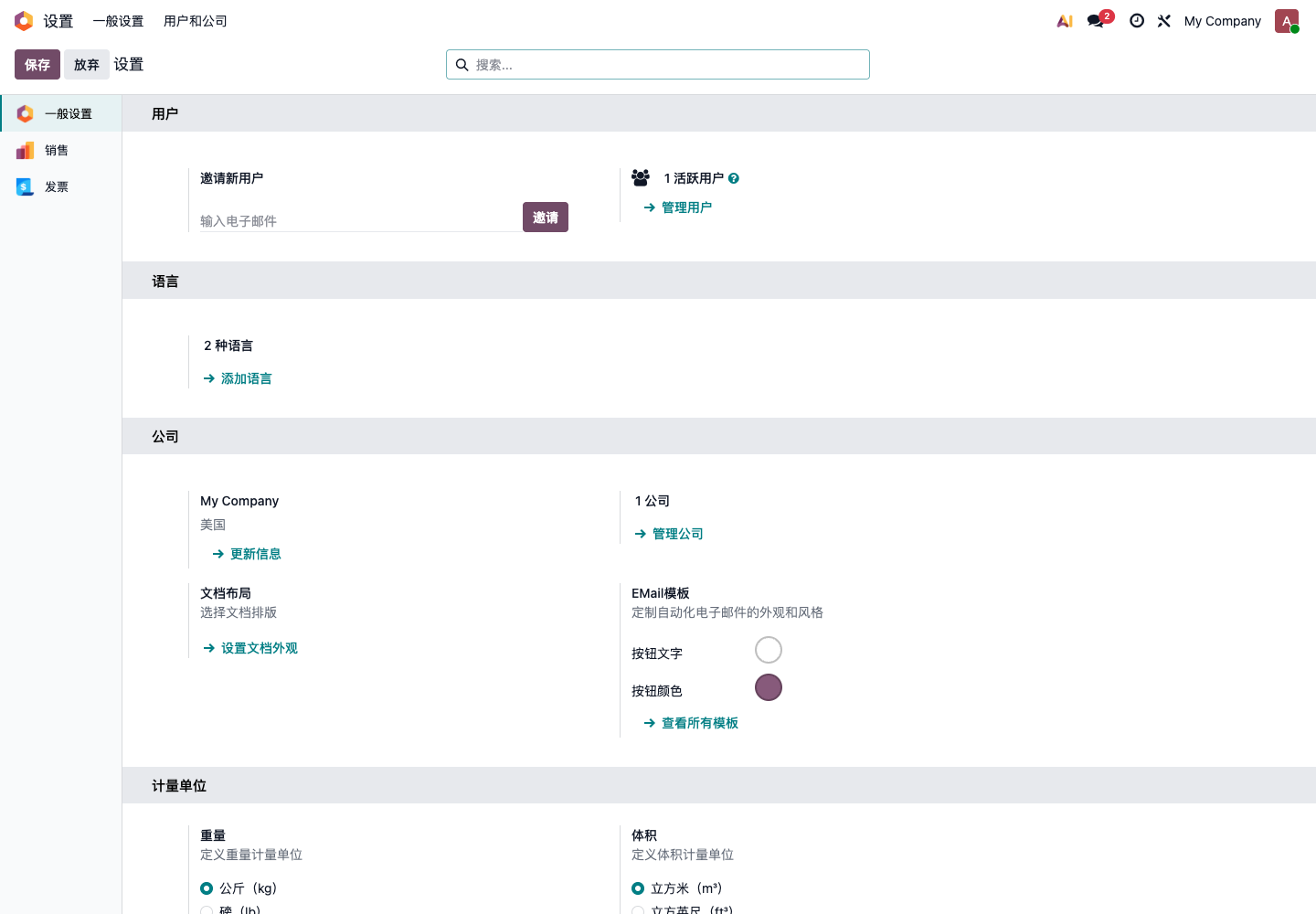
Common entries:
- General Settings: language, company, document layout, units of measure, email, and related settings;
- Users & Companies: users, companies, and multi-company access;
- Sales, Invoicing, and other app settings: basic settings for each application.
Configure company and users first, then configure Sales, Purchase, Inventory, and Accounting.
Company Information
Company information appears on external documents such as quotations, sales orders, invoices, delivery slips, and email signatures.
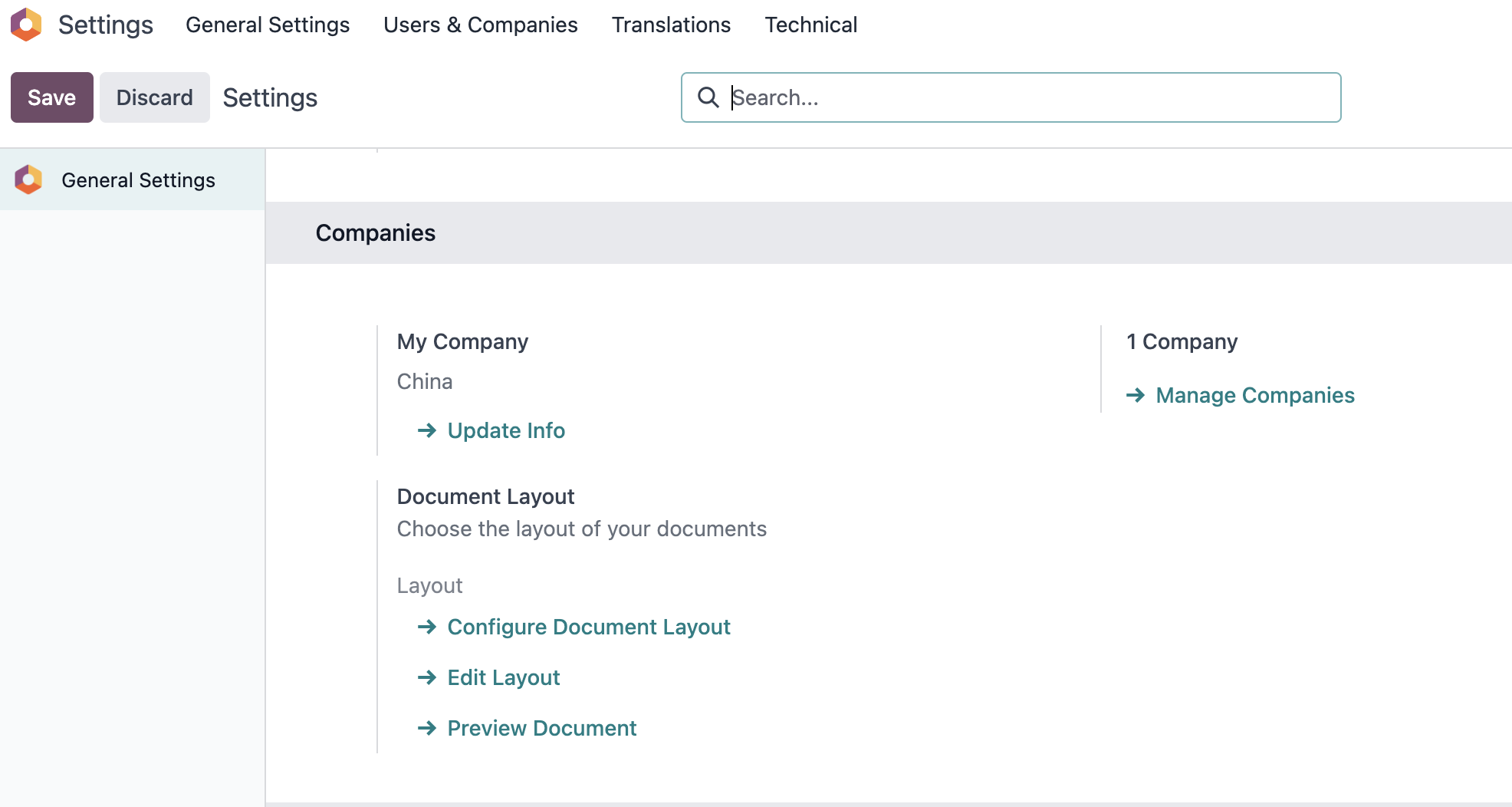
In Settings -> General Settings -> Company, use Update Info or Manage Companies to maintain company data.
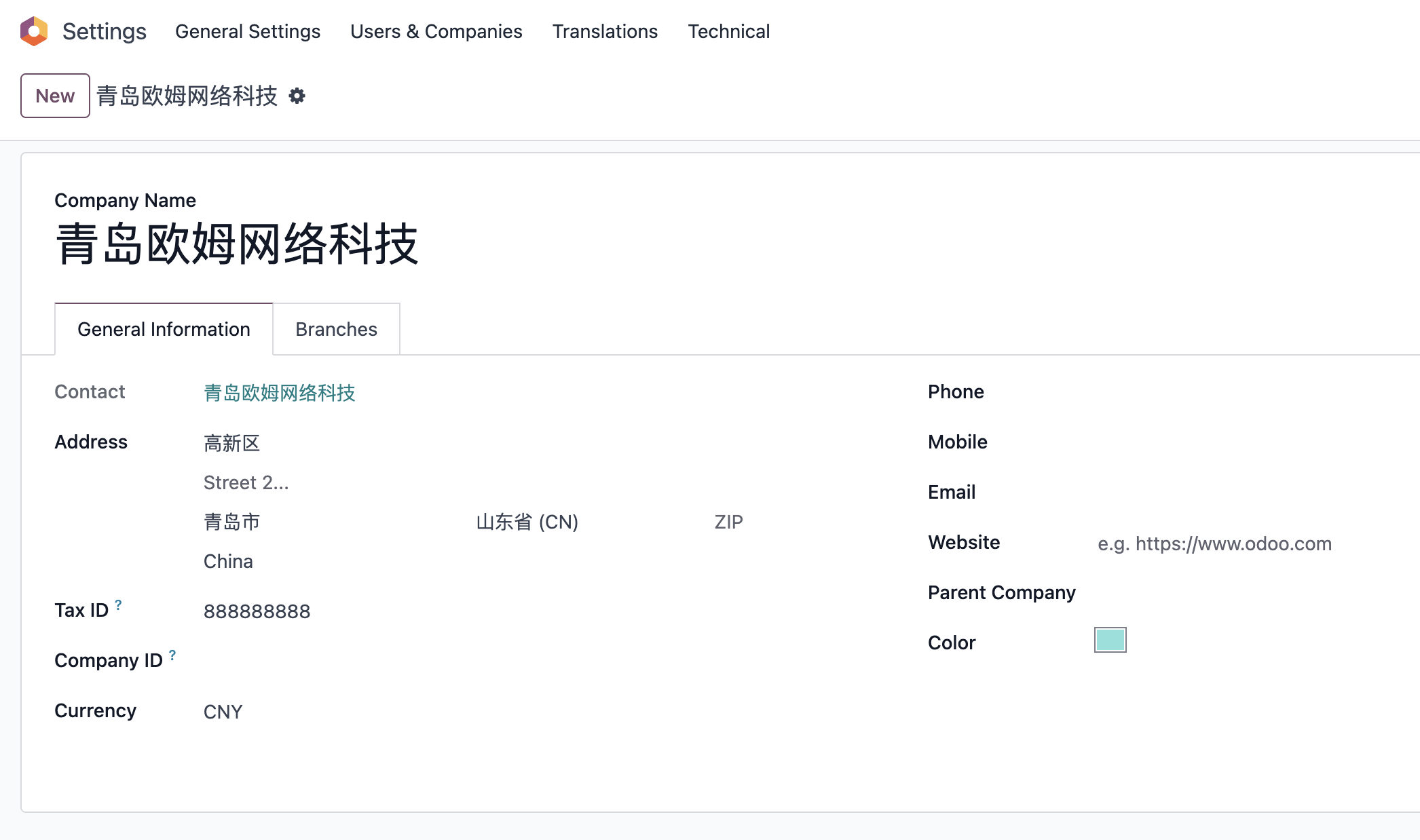
At minimum, fill in:
| Field | Usage |
|---|---|
| Company name | Report header and document party |
| Address | Quotations, invoices, delivery documents |
| Phone and email | Customer contact and email templates |
| Tax ID | Finance and invoice-related information |
| Website | Displayed on external documents and customer information |
| Bank accounts | May be used on invoices or payment instructions |
| Company logo | Quotations, invoices, email templates |
Do not casually create branches, stores, or warehouses as companies. In Odoo, a "company" usually represents a separate accounting entity. Stores are usually configured in POS or warehouses, and warehouses should be configured in Inventory.
Document Layout
Document layout controls the appearance of PDF files such as quotations and invoices. In Settings, look for Document Layout or Configure Document Layout.
Choose a clean template first and confirm:
- Is the logo clear?
- Are the company name and address correct?
- Is the footer contact information correct?
- Are quotations and invoices suitable to send to customers after printing?
- Are Chinese and English displayed correctly?
Do not change document layout frequently before go-live. Quotations and invoices already sent to customers should remain consistent.
Language And Time Zone
Domestic Chinese customers usually need a Chinese interface. If there is a foreign trade team, English can also be enabled at the same time.
Language settings affect:
- User interface display;
- System menu translations;
- Email template language;
- Customer portal display;
- Some PDF report content.
Each user can have their own language. The company default language is not the same as every user's language. It is possible to use English for foreign trade users and Chinese for domestic users in the same database.
User Management
A user is an account that can log in to Odoo. Open users from Settings -> Users & Companies -> Users.
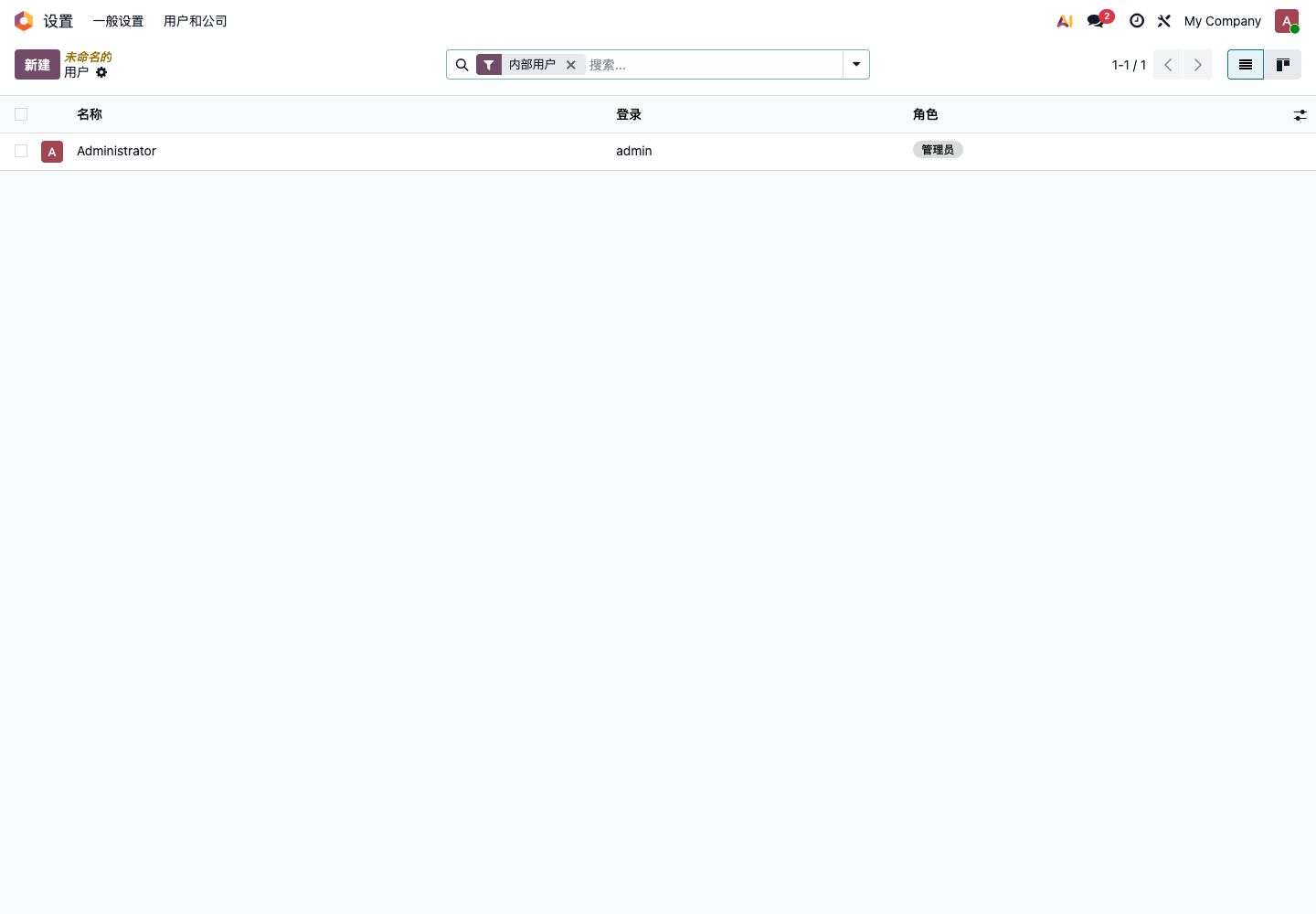
When creating a user, confirm at least:
| Field | Description |
|---|---|
| Name | Employee display name |
| Login | Usually an email address, but can also be an account such as admin |
| Used for notifications, password reset, and email sending | |
| Company | Especially important in multi-company environments |
| Permissions | Determines which applications the user can access |
| Language | Determines whether the user sees Chinese or English |
Do not let all employees share the administrator account. The administrator account should only be used for configuration and troubleshooting. Daily business should use each employee's own account.
User Types
Common Odoo user types:
| Type | Description | Typical Usage |
|---|---|---|
| Internal User | Company employee who can access backend applications | Sales, purchase, warehouse, finance |
| Portal User | External customer or vendor who can only access the portal | View quotations, orders, invoices, tickets |
| Public User | Visitor who is not logged in | Website browsing and eCommerce browsing |
During self-implementation, configure internal users first. Portal users are usually generated by customer invitation, website registration, or document sharing. Do not create a large number of portal users manually at the beginning.
Permission Principles
Odoo permissions are not automatically determined by job title. They are controlled by application permissions and user groups.
Simple examples:
- A sales user can create and process their own sales business;
- A sales administrator can see more sales configuration and reports;
- An inventory user can receive, deliver, and count stock;
- A finance user can handle invoices, payments, and reconciliation;
- A system administrator can install applications and change system settings.
Design permissions by role, not by temporary individual requests.
| Role | Suggested Permissions |
|---|---|
| Sales | Sales user, customer data maintenance |
| Sales manager | Sales administrator, sales reports and configuration |
| Purchase | Purchase user, vendors and purchase orders |
| Warehouse | Inventory user, receipts, deliveries, inventory counts |
| Finance | Invoices, payments, bank reconciliation |
| Owner / manager | Key report viewing and necessary approvals |
| Administrator | System settings, module installation, permission maintenance |
Do not grant too much access at once. Too much access can cause accidental deletion or incorrect changes. Too little access prevents employees from working. The right method is to grant what the role needs, then validate it with test processes.
Multi-Company
Odoo supports multi-company, but multi-company affects accounting, inventory, sales, purchase, permissions, and reports.
Suitable scenarios:
- There are multiple independent legal entities;
- Separate financial statements are required;
- There are internal transactions between companies;
- Employees need to switch between companies to process business.
Scenarios where multi-company is not recommended:
- Only multiple stores;
- Only multiple warehouses;
- Only multiple departments;
- Only wanting to classify customers.
If the business only has stores or warehouses, prioritize POS, warehouses, locations, analytic accounts, or tags. Do not enable multi-company too early.
Pre-Go-Live Check
After company and user configuration, use this checklist:
| Check Item | Passing Standard |
|---|---|
| Company information | Name, address, phone, email, and tax ID are correct |
| Document layout | Quotation and invoice print style is acceptable |
| Language | Chinese users can see the Chinese interface |
| Users | Every role has its own account |
| Permissions | Employees can complete their own process and cannot operate beyond their role |
| Administrator | Administrator account is only used for configuration and maintenance |
| Multi-company | Whether multi-company is truly needed has been confirmed |
After these settings are stable, contact and product configuration will be much safer.
Where Company Information Is Used
Company data affects more than the interface. It also affects report headers, email templates, invoice parties, and multi-company business.
Company settings entry:
Company basic information:
Report Layout
Odoo natively provides multiple document layout styles, such as Light, Boxed, Bold, and Striped. Customers can choose based on their brand style.
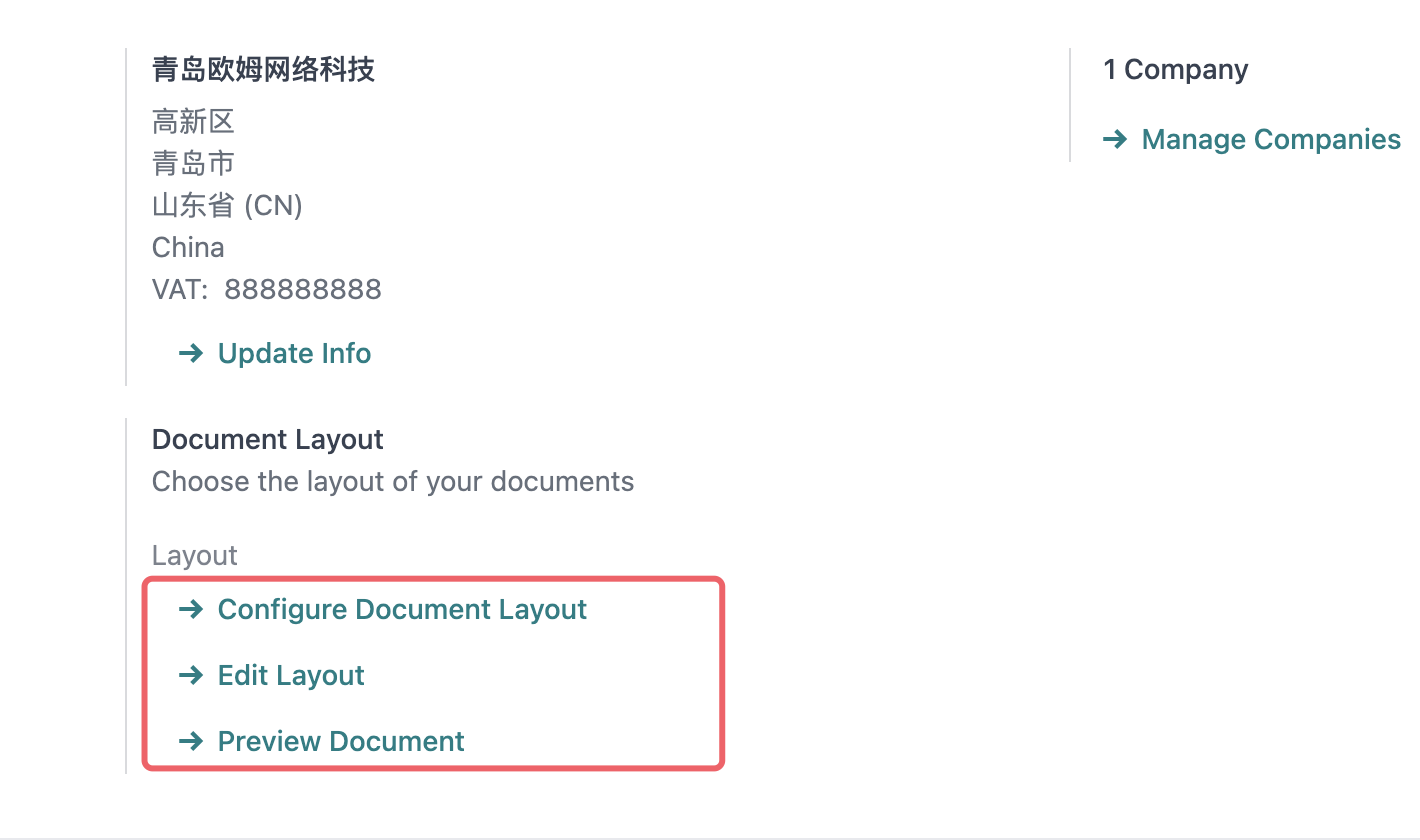
Document layout preview:
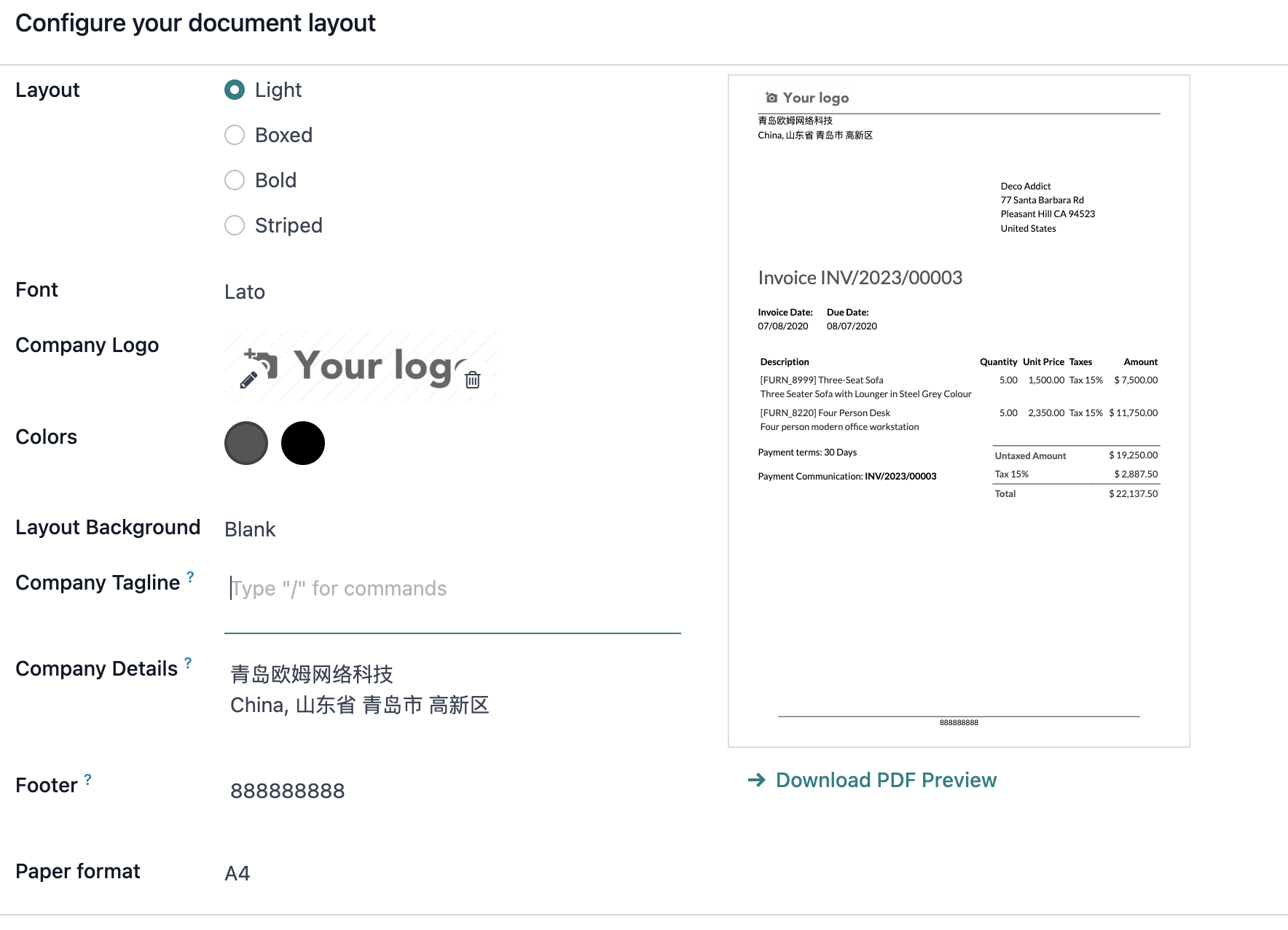
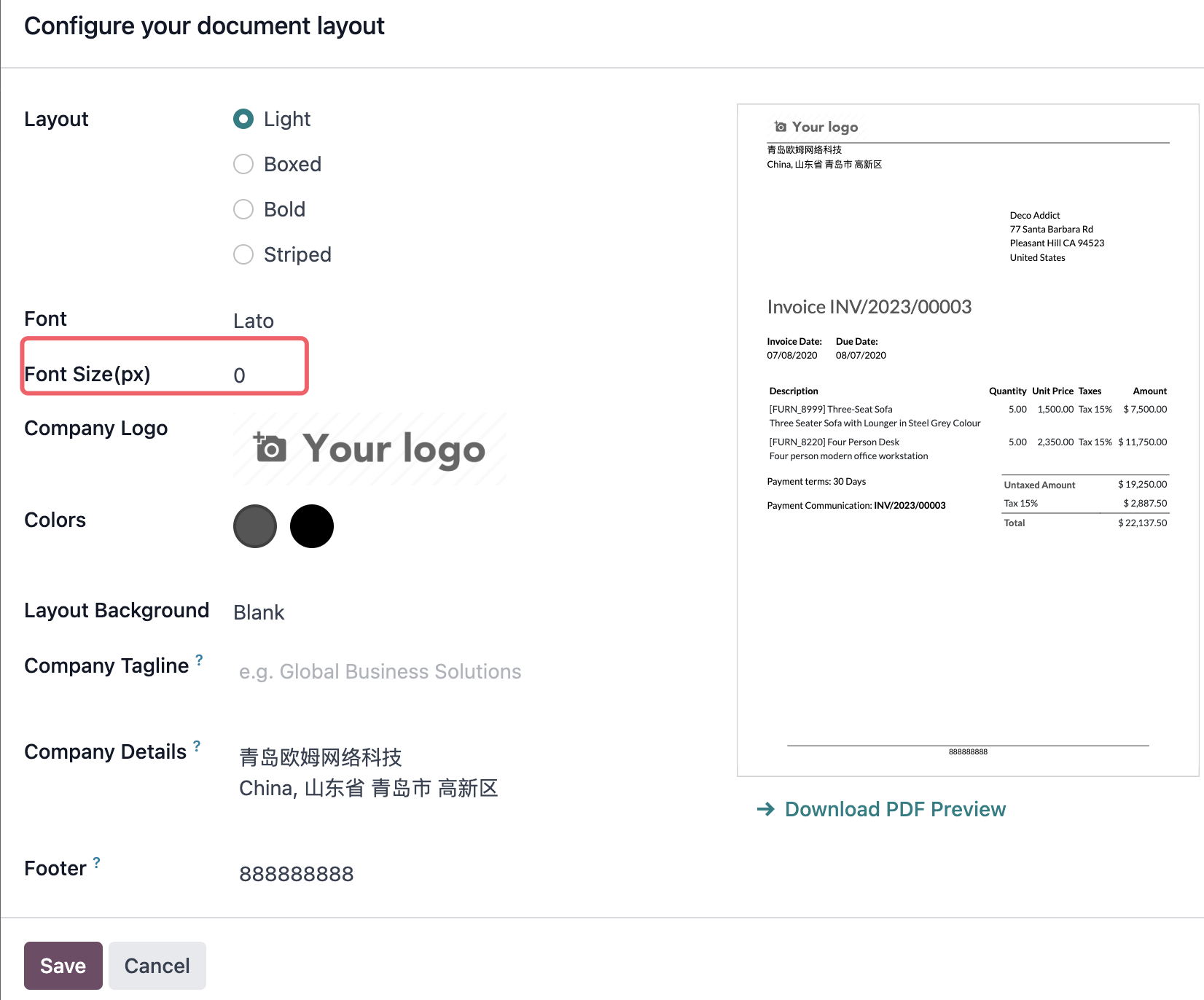
If the customer has detailed requirements for report font, size, header, or footer, native settings may not be enough. Report templates or extension modules may be required.
Accounting Localization Package
Before enabling finance formally, confirm the accounting localization package.
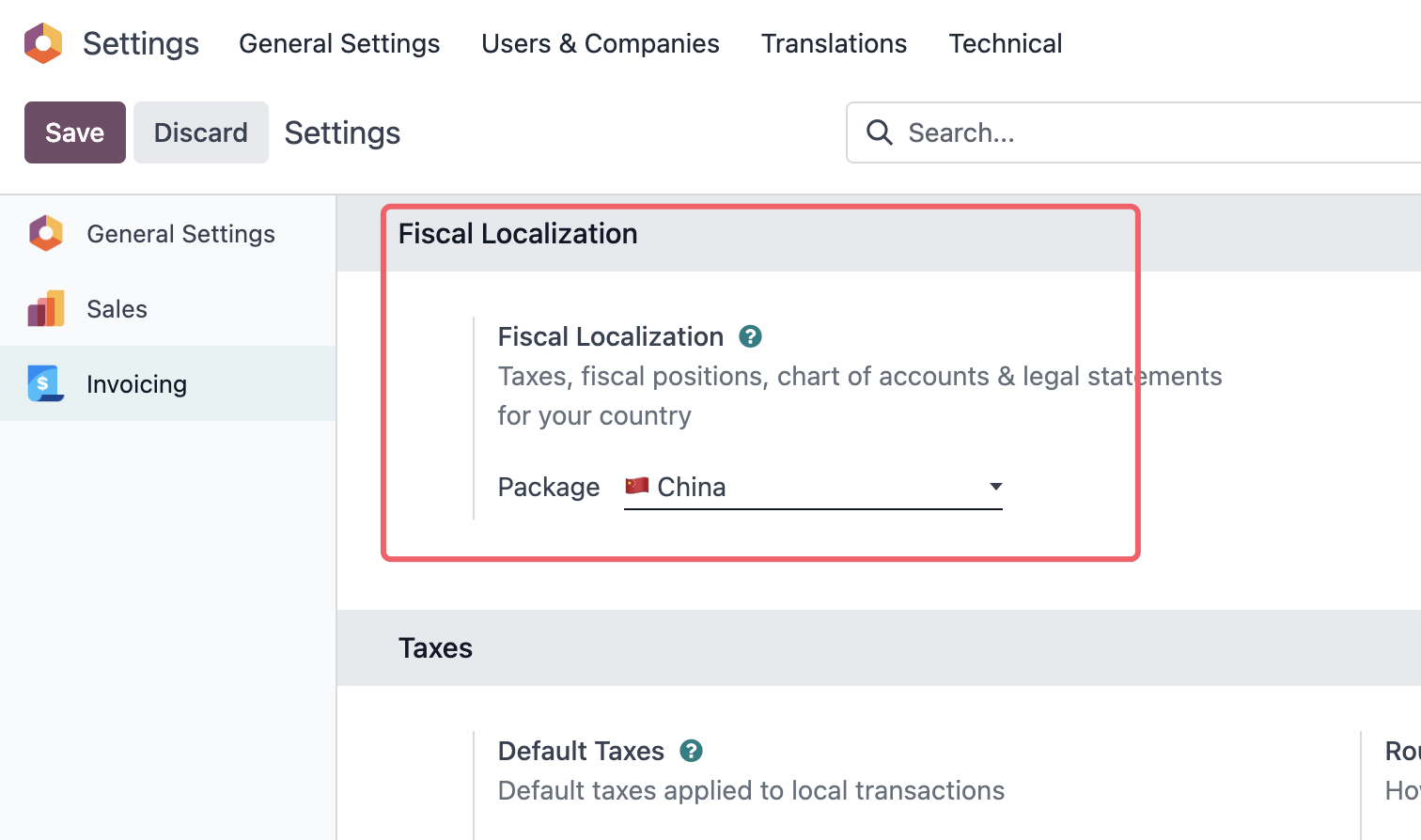
Choosing an accounting package must be done carefully. After formal accounting transactions have been created, changing localization and the chart of accounts becomes difficult and usually requires evaluation by a consultant and finance team.
Why Permissions Are Not A Simple Role
For a small team, assigning application permissions by role is usually enough. But when customers ask for requirements such as "sales can only see their own customers," "employees cannot see cost price," or "stores must isolate data from each other," the implementation team must understand Odoo's permission structure. Odoo permissions are not one simple role field; they combine user type, application permissions, user groups, access rights, and record rules.
In developer mode, you can see the user type and more detailed permission information.
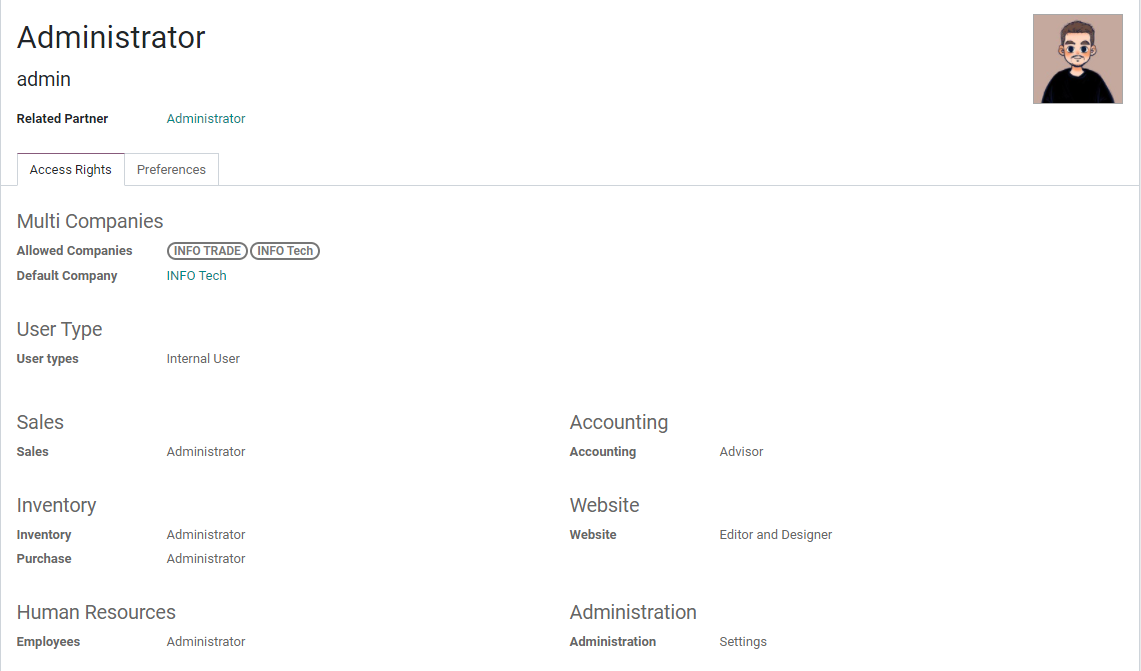
Administrators can reset user passwords.
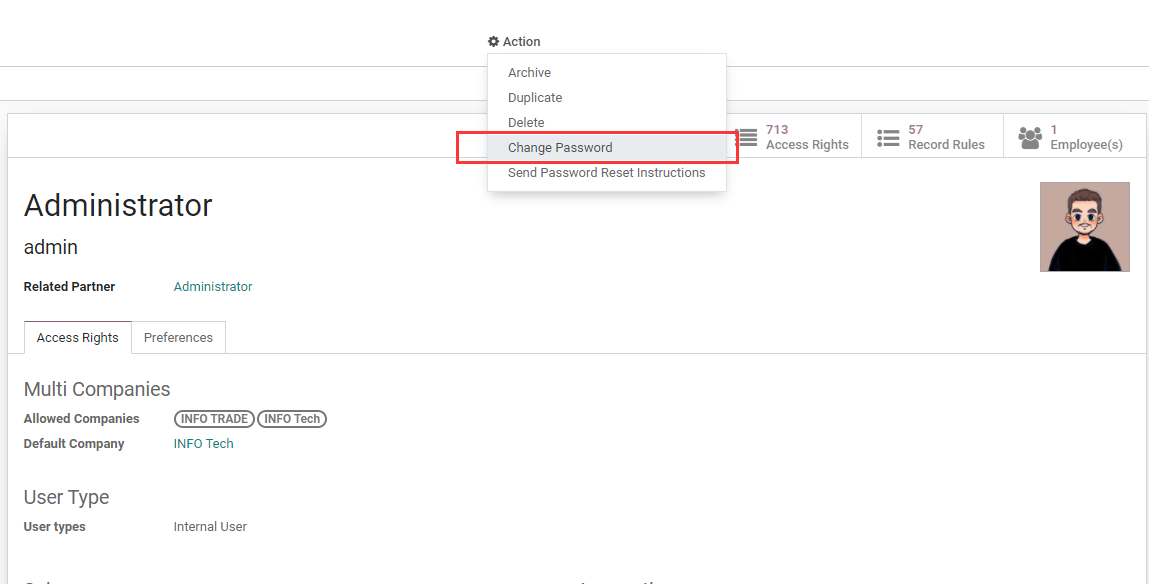
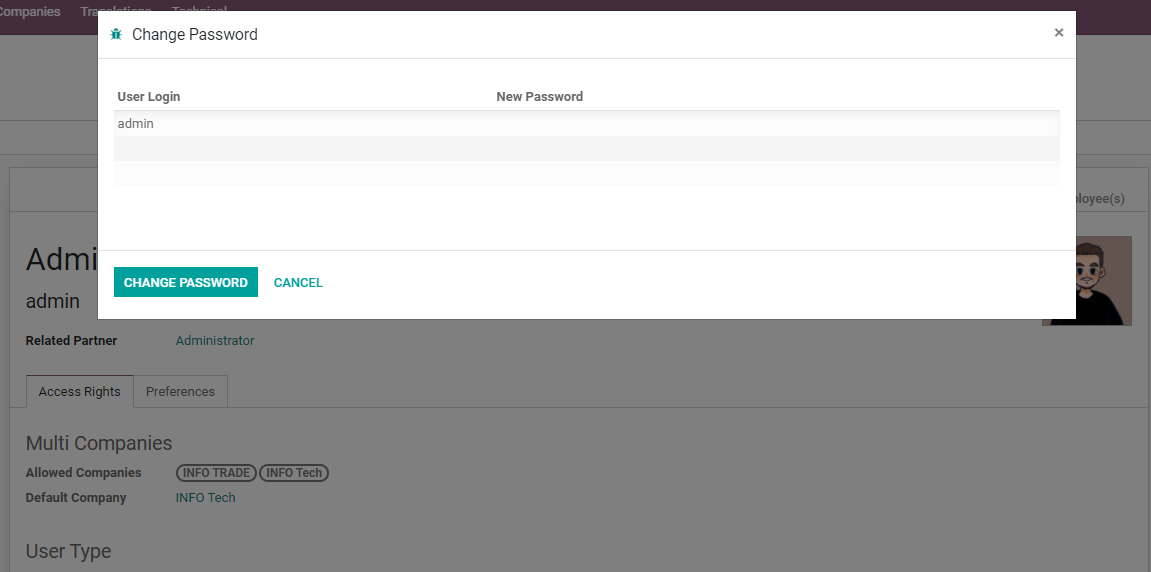
Reset password dialog:
Application permissions are usually displayed by module, such as Sales, Purchase, Inventory, and Accounting.
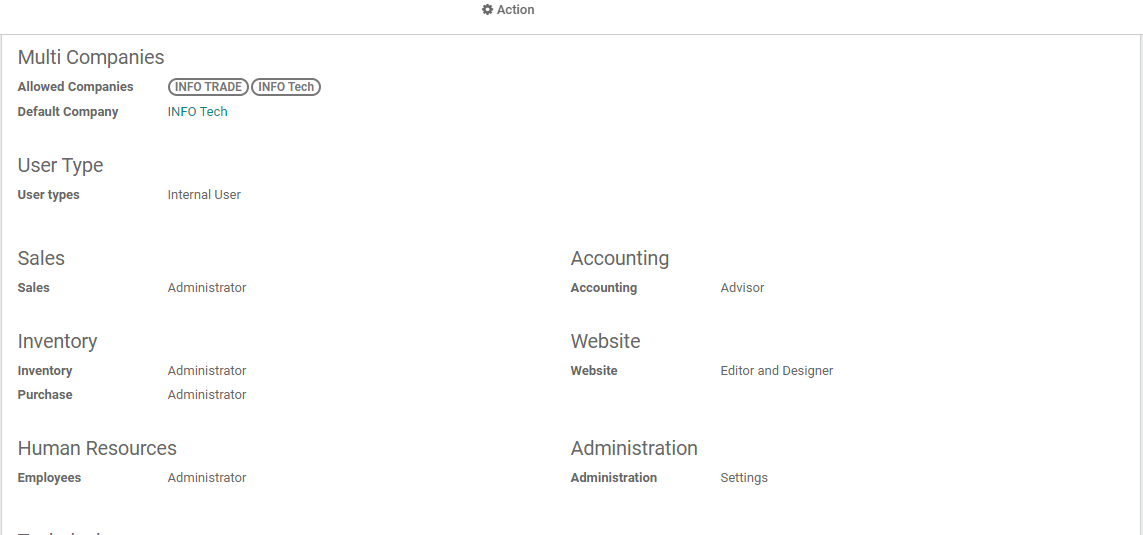
Permission groups under the same application often have inheritance relationships. Higher-level groups usually include lower-level abilities.
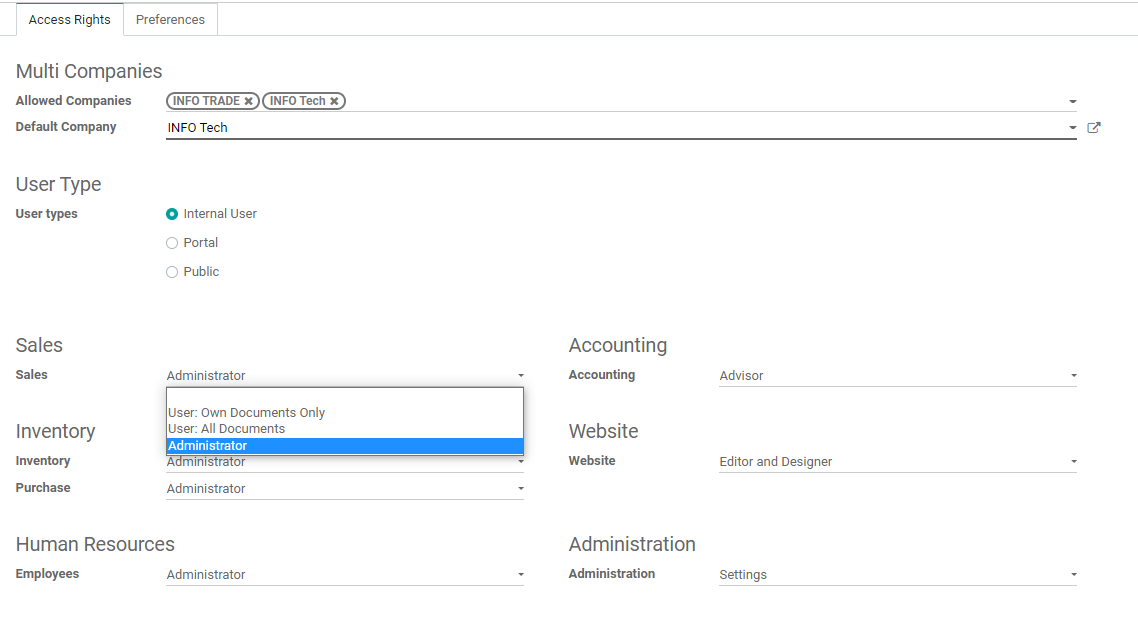
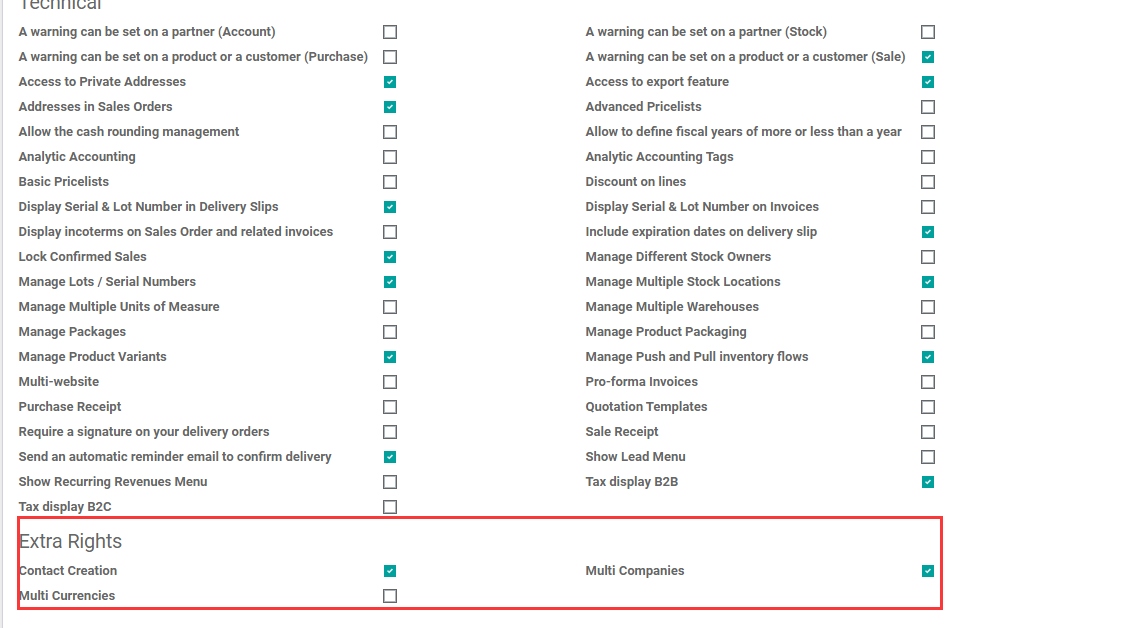
If some user groups do not inherit from each other, the interface may show multiple independent checkboxes.
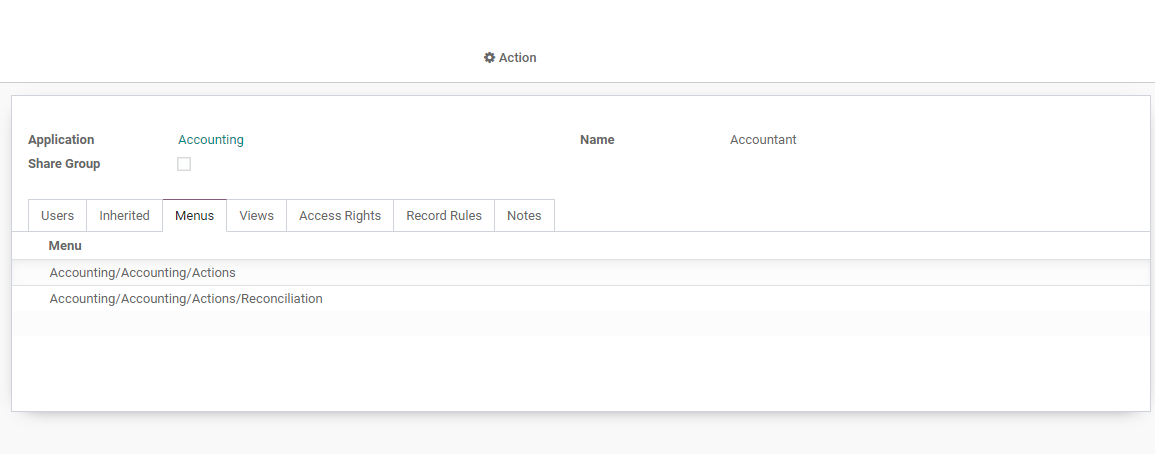
A user group itself consists of menus, views, access rights, record rules, and related settings.
For professional implementation, remember four permission layers:
| Layer | Purpose |
|---|---|
| Model access rights | Control whether users can create, read, write, or delete a type of record |
| Record rules | Control which records users can see, such as only their own customers |
| Menu and view permissions | Control whether menu entries and views are visible |
| Field permissions | Control whether specific fields are visible or editable, usually requiring development |
If the customer asks for "sales can only see their own customers," "stores can only see their own orders," or "employees cannot see cost price," simple group selection may not fully solve the requirement. Permission rules or customization assessment is needed.
Personalizing The Odoo Interface
After company, users, and permissions are stable, some customers may want to adjust interface details, such as hiding Odoo branding, changing the browser title, disabling quick create, or hiding help menus. These are interface personalization requirements, not core business processes.
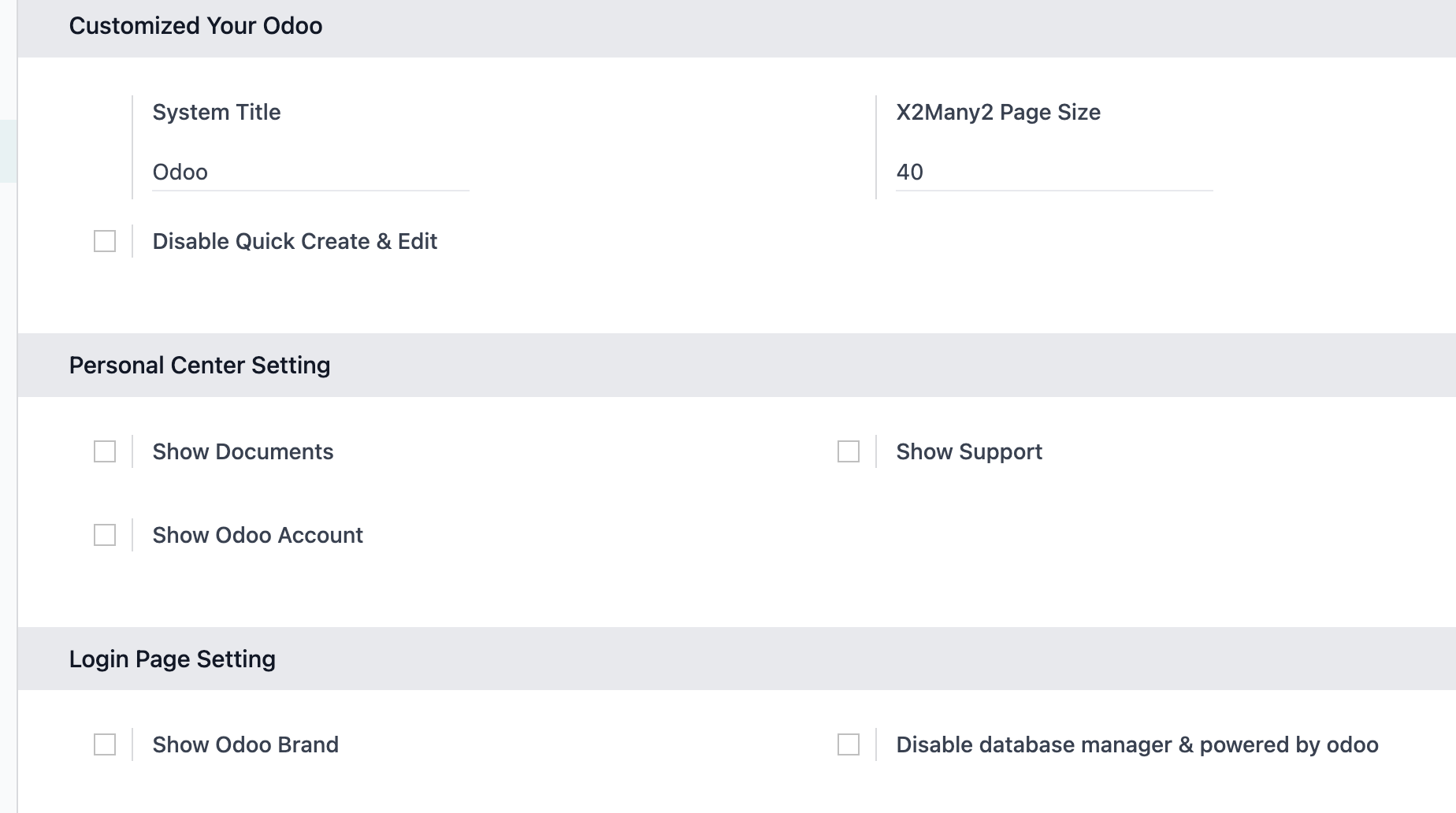
In phase one, make sure the business process is correct before handling branding and interface details. Interface personalization can be a value-added service from the implementation partner, but it should not block go-live.