Lark / Feishu Integration
Current versions:
16.0.1.0+,17.0.1.1+,18.0.1.0+,19.0.1.0+.
Feishu is one of the major enterprise IM tools in China, and its overseas version Lark is growing quickly in Japan, Singapore, India, and gradually in Europe. Compared with some other IM tools, Lark's multi-dimensional tables are also a strong differentiator.
This chapter explains how to integrate Odoo with Feishu / Lark.
Lark-Side Setup
Create A Lark Application
To connect Odoo with Lark, create an application in the Lark developer center and obtain the App ID and App Secret.
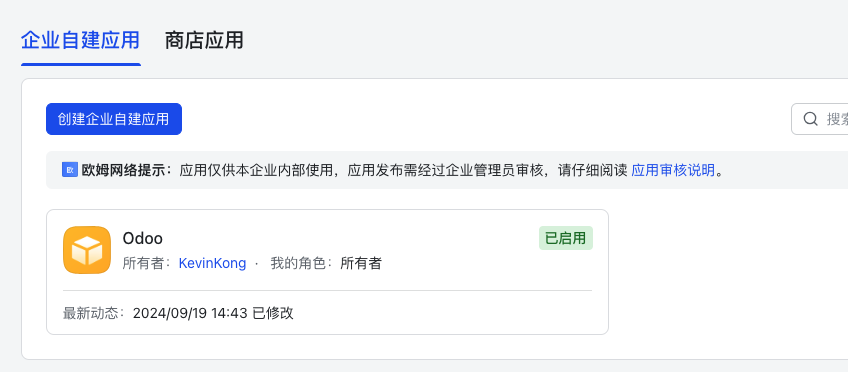
| Parameter | Meaning |
|---|---|
| App ID | Lark application ID. |
| App Secret | Lark application secret. |
After obtaining these parameters, create the corresponding application in Odoo.
Odoo-Side Setup
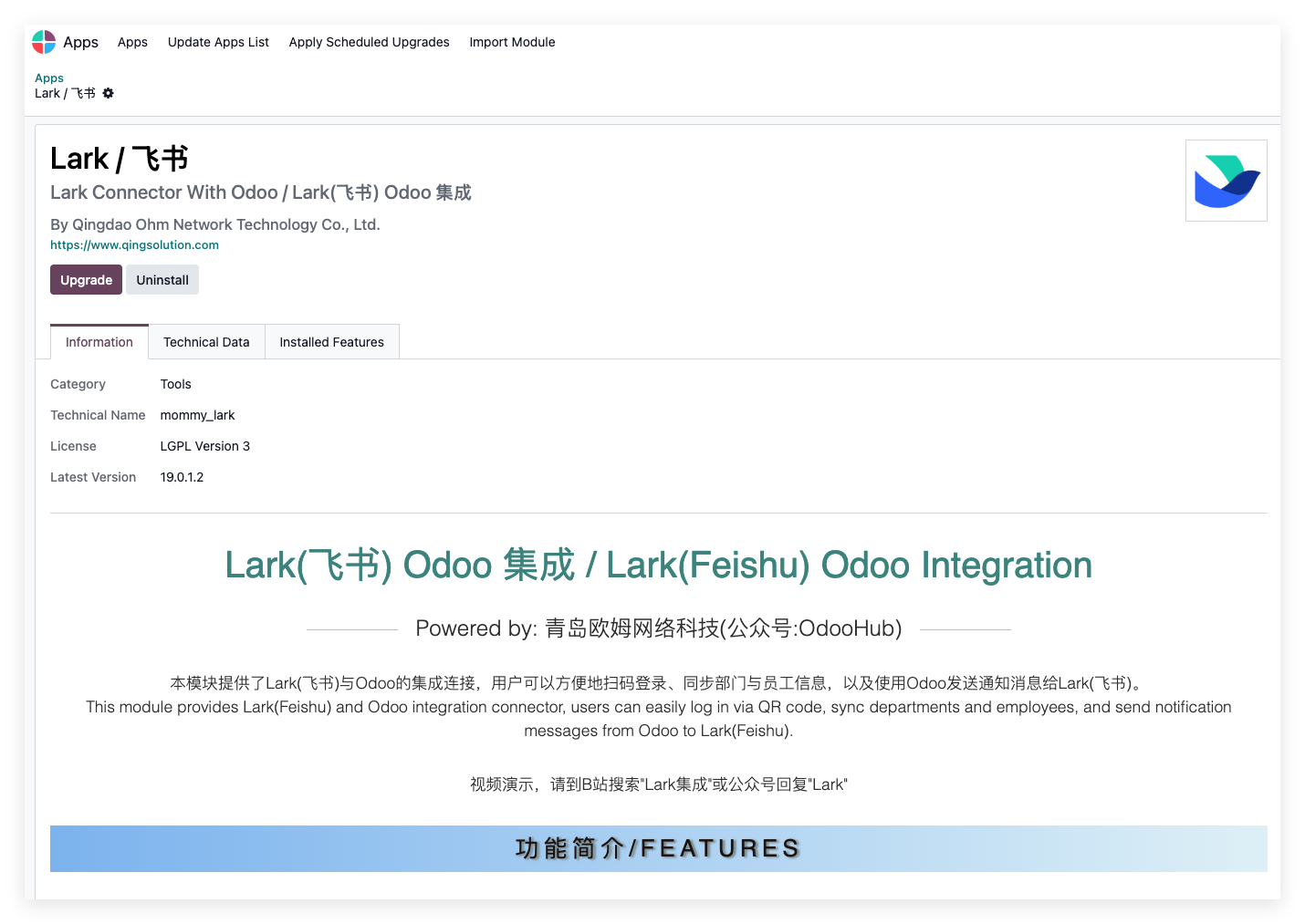
Install The Module
Install the Feishu / Lark integration module developed by Qingdao Ohm Network Technology.
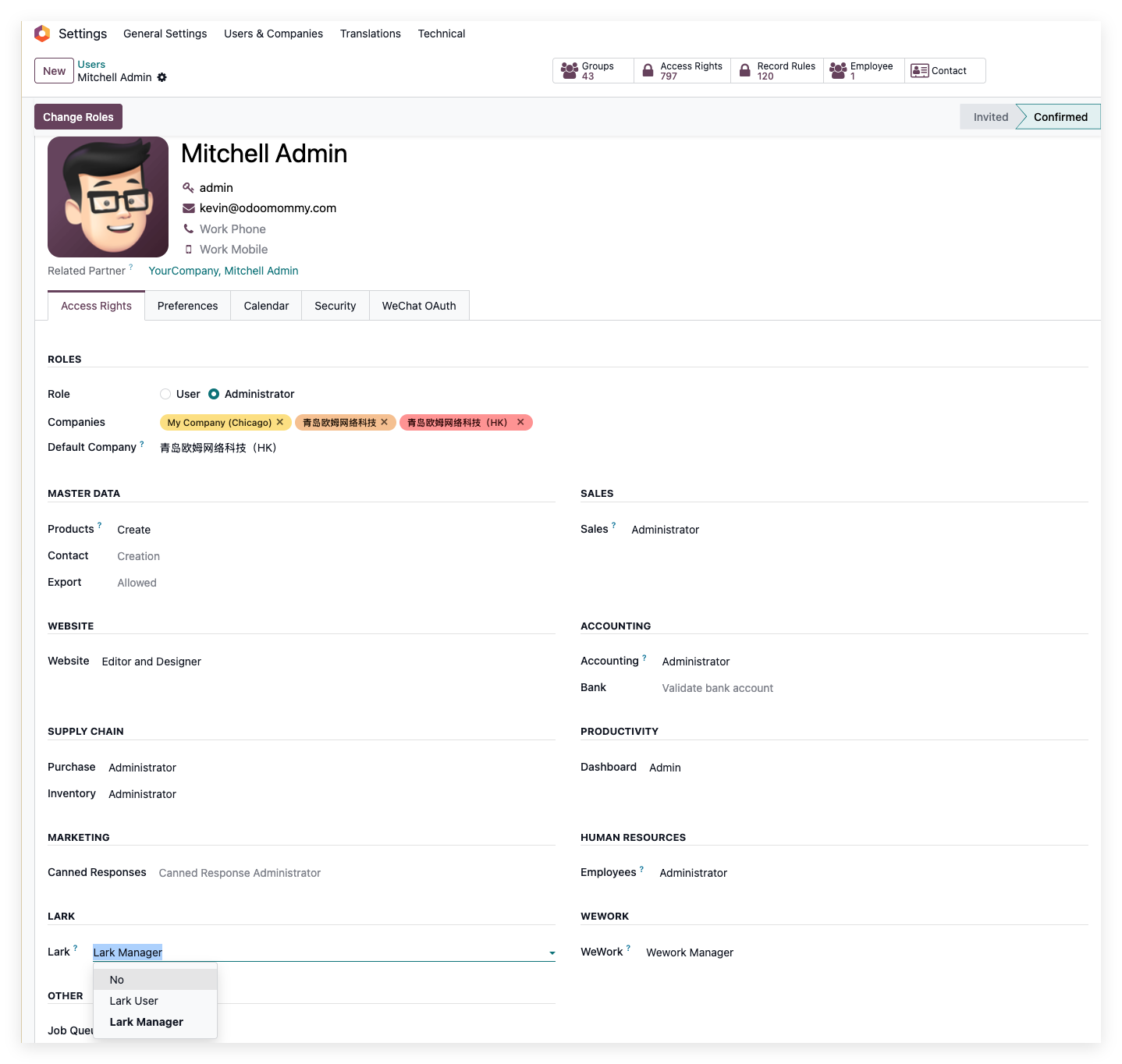
Set User Permissions
After installation, grant Lark permissions to the users who will manage the integration.
Basic Configuration
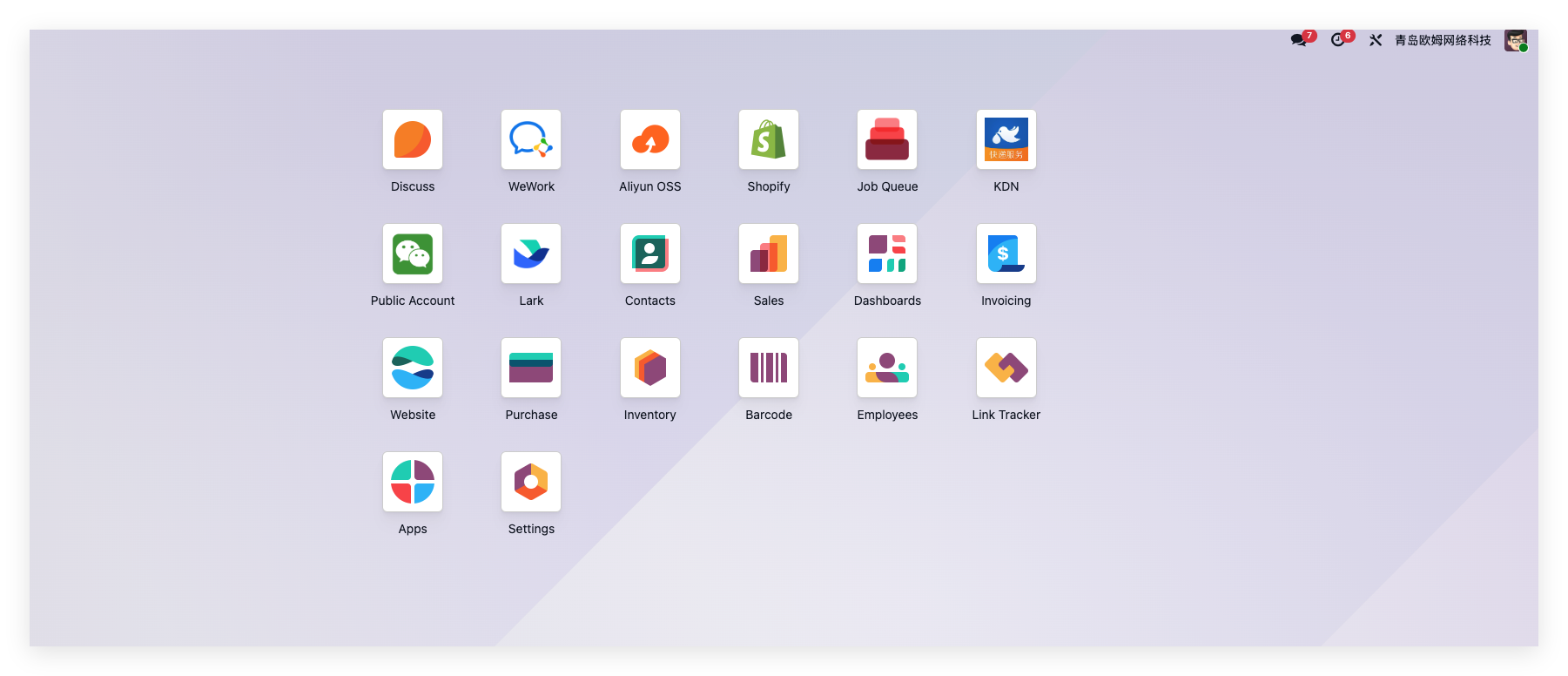
Return to the Odoo main interface and click the Feishu / Lark icon.
Enter the App ID and App Secret obtained from the Lark open platform.
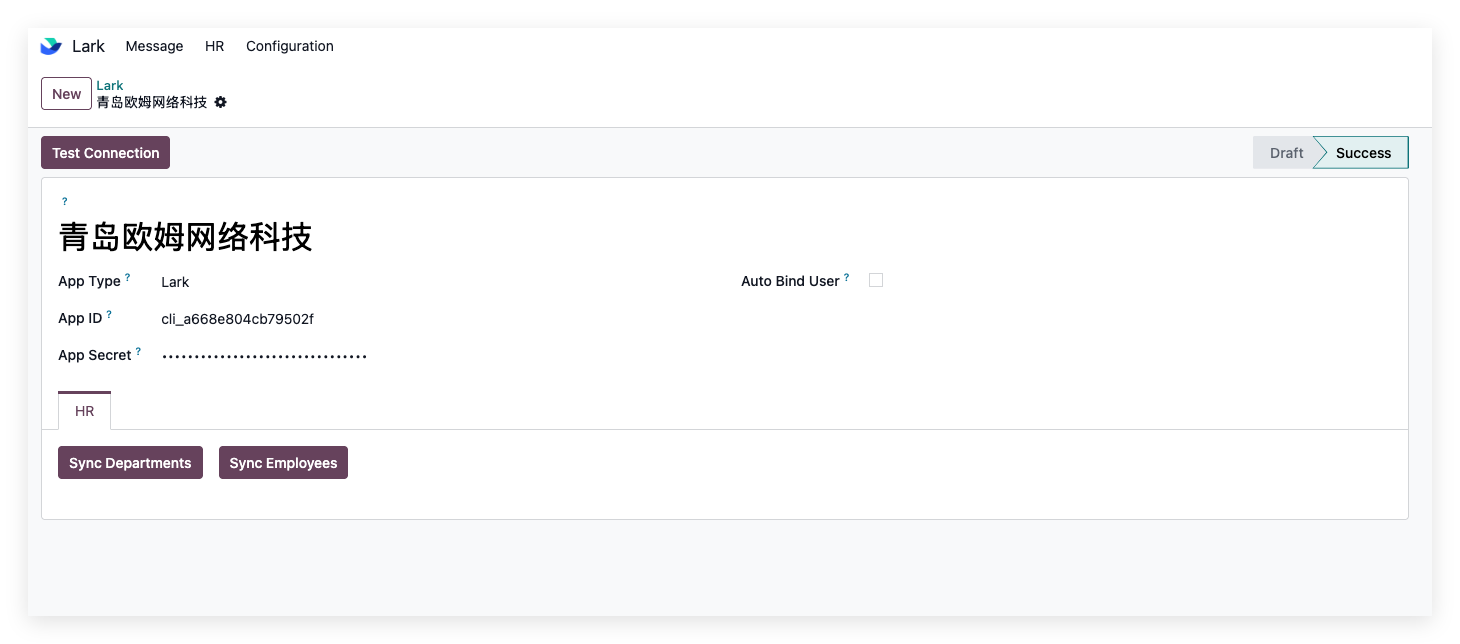
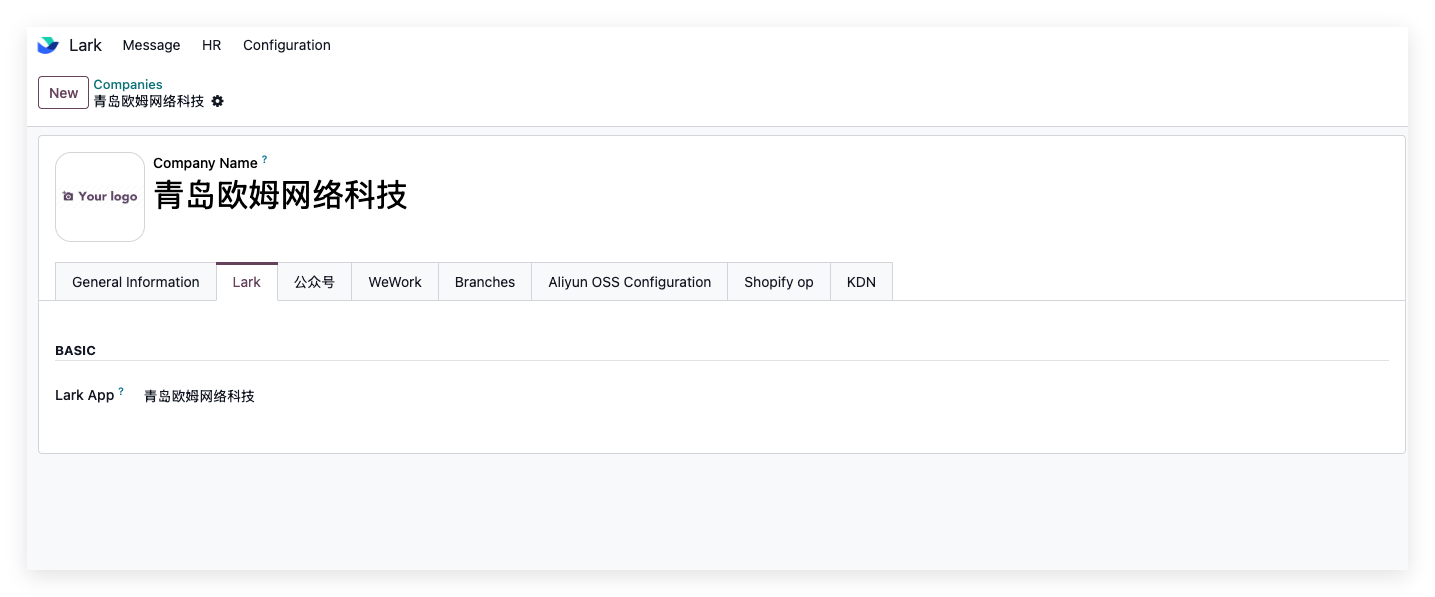
Bind Company
After creating the application, bind it to the company that will use it.
The basic configuration is complete. Click the test connection button to verify the configuration.
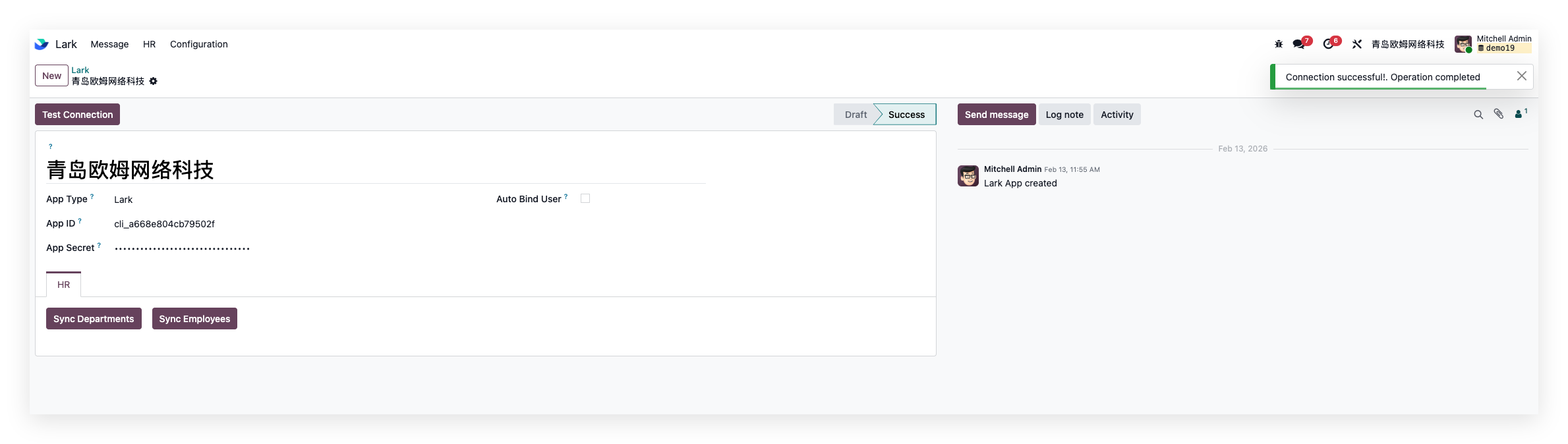
If the configuration is correct, Odoo shows a connection success message in the upper right corner.
Usage
Basic Data Synchronization
Synchronize department data from the settings menu.
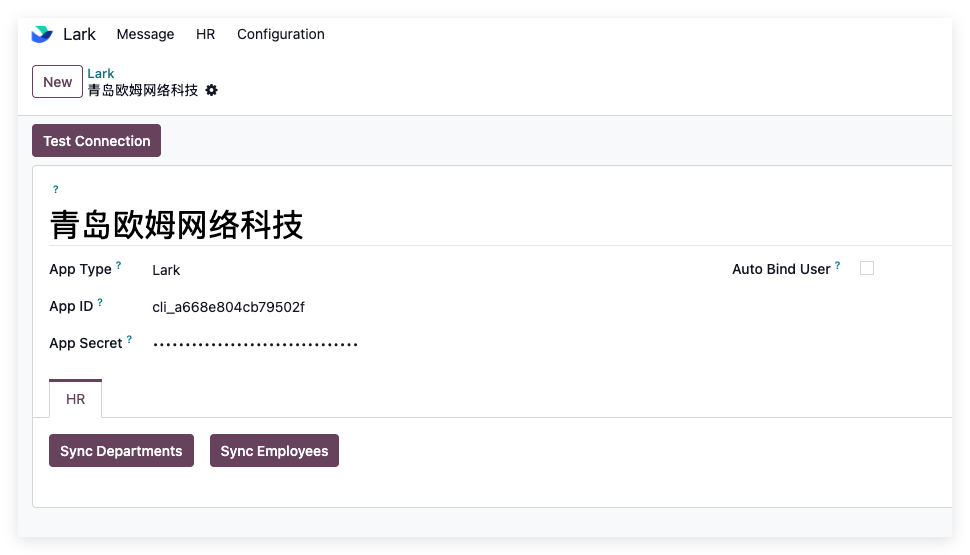
Open a synchronized department and click the button to synchronize employees.
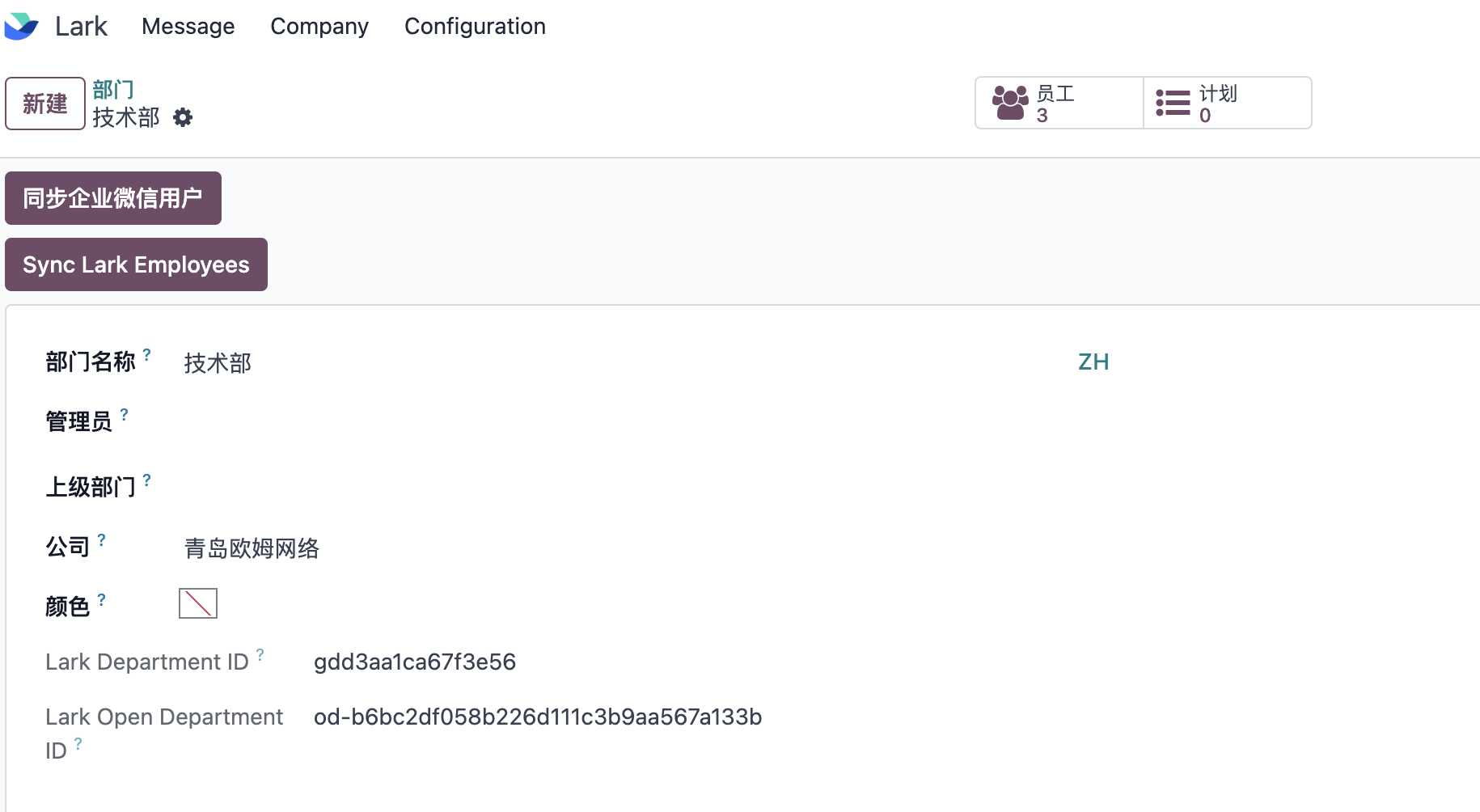
After these steps, base data synchronization is complete.
QR Code Login
Odoo supports Lark QR code login. First, add web application capability to the Lark application in the open platform.
Add Web App capability and configure the web URL.
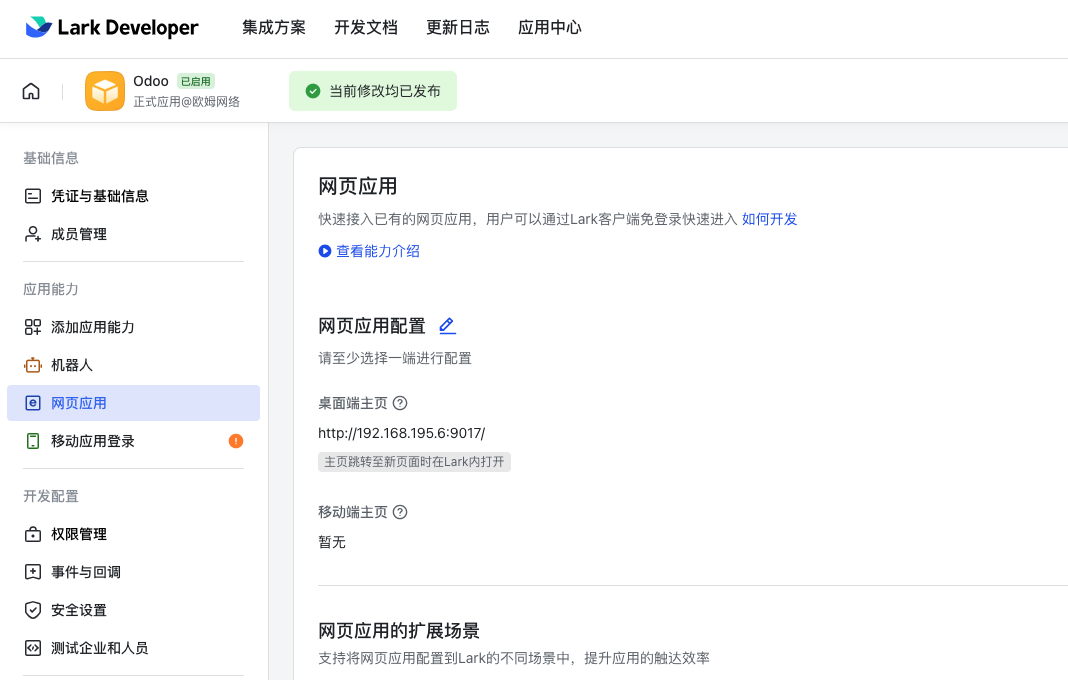
Set the Redirect URL to:
your_odoo_url/mommy_lark/authorizeyour_odoo_urlrefers to the value of theweb.base.urlsystem parameter.In Development Configuration > Permission Management, grant the
contact:contactpermission.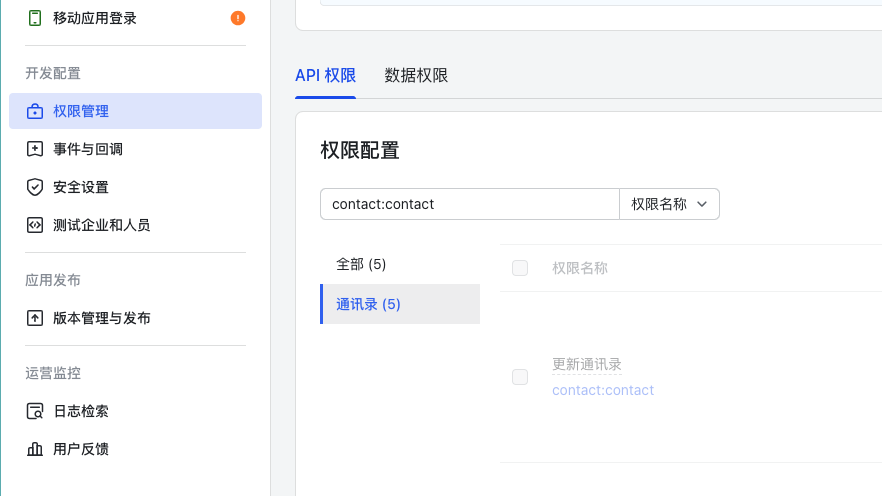
In Odoo developer mode, go to Users & Companies > OAuth Providers and activate Lark login.
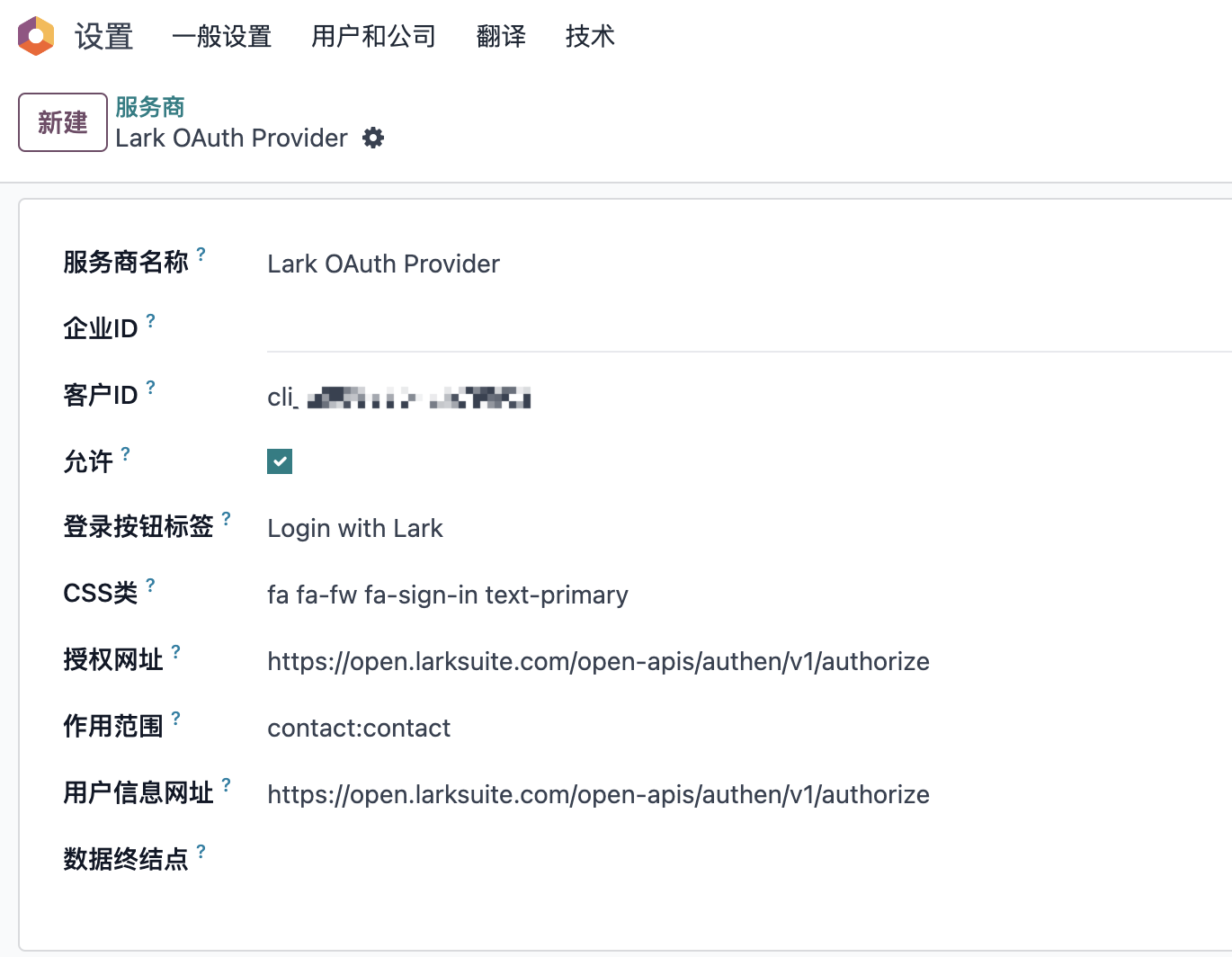
Users can then log in to Odoo with Lark QR code login.
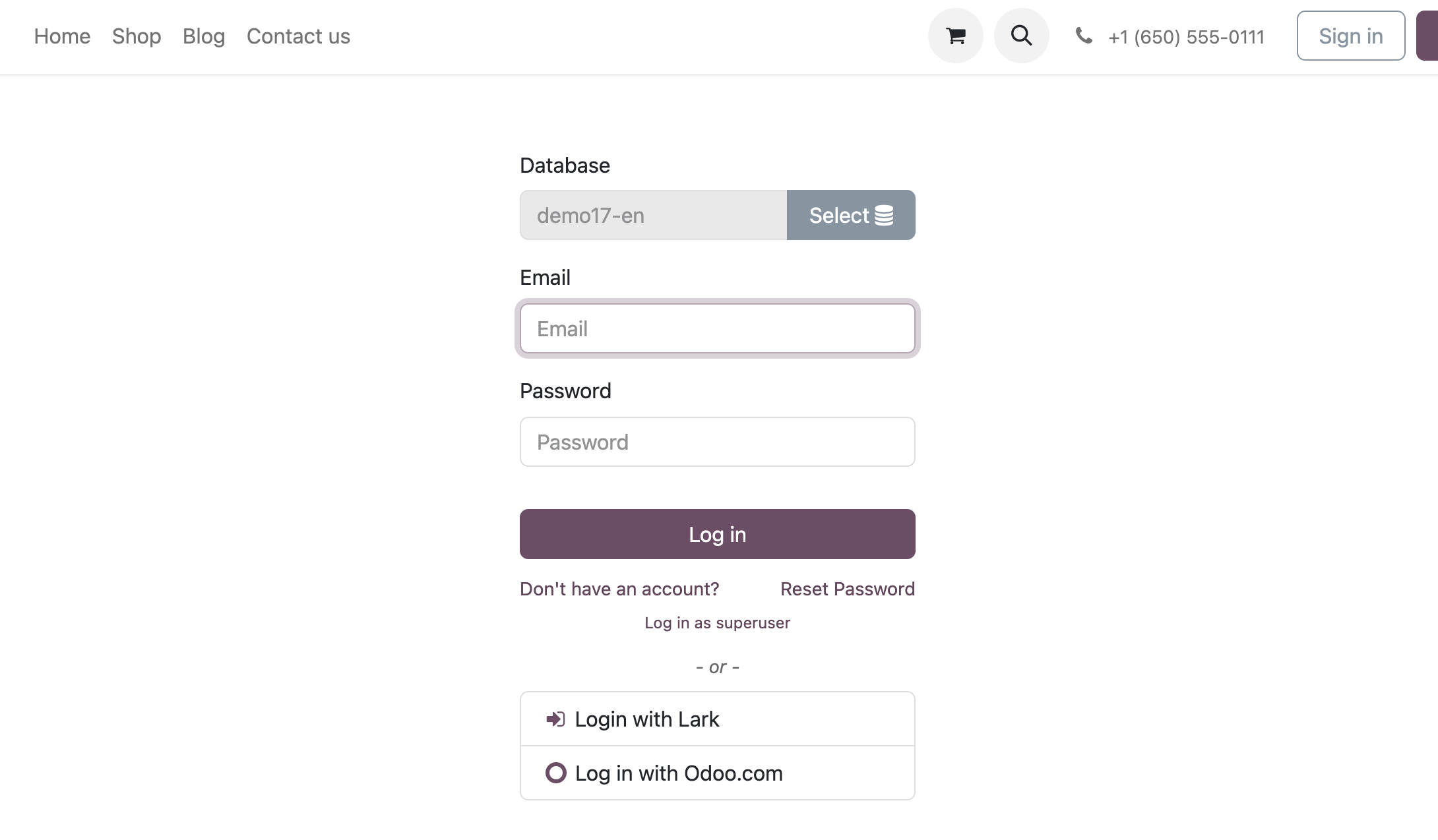
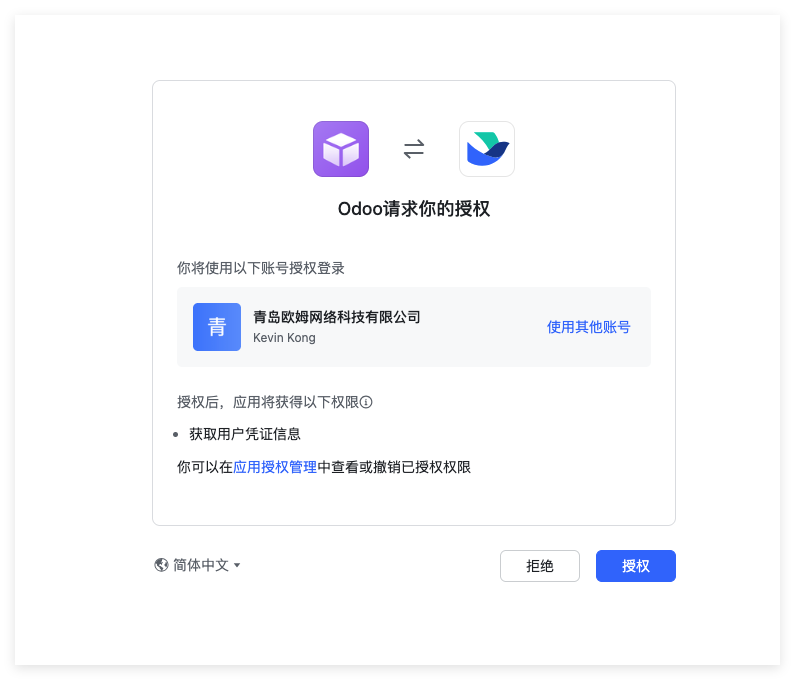
After authorization, the system redirects the user to the bound Odoo account.
Chatter Messages
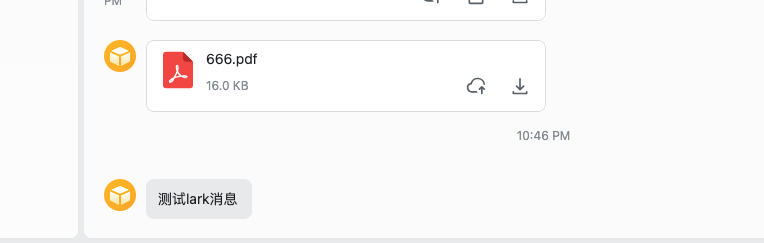
Lark also supports Odoo chatter message synchronization.
First, enable the setting for users who should receive chatter messages in Lark.
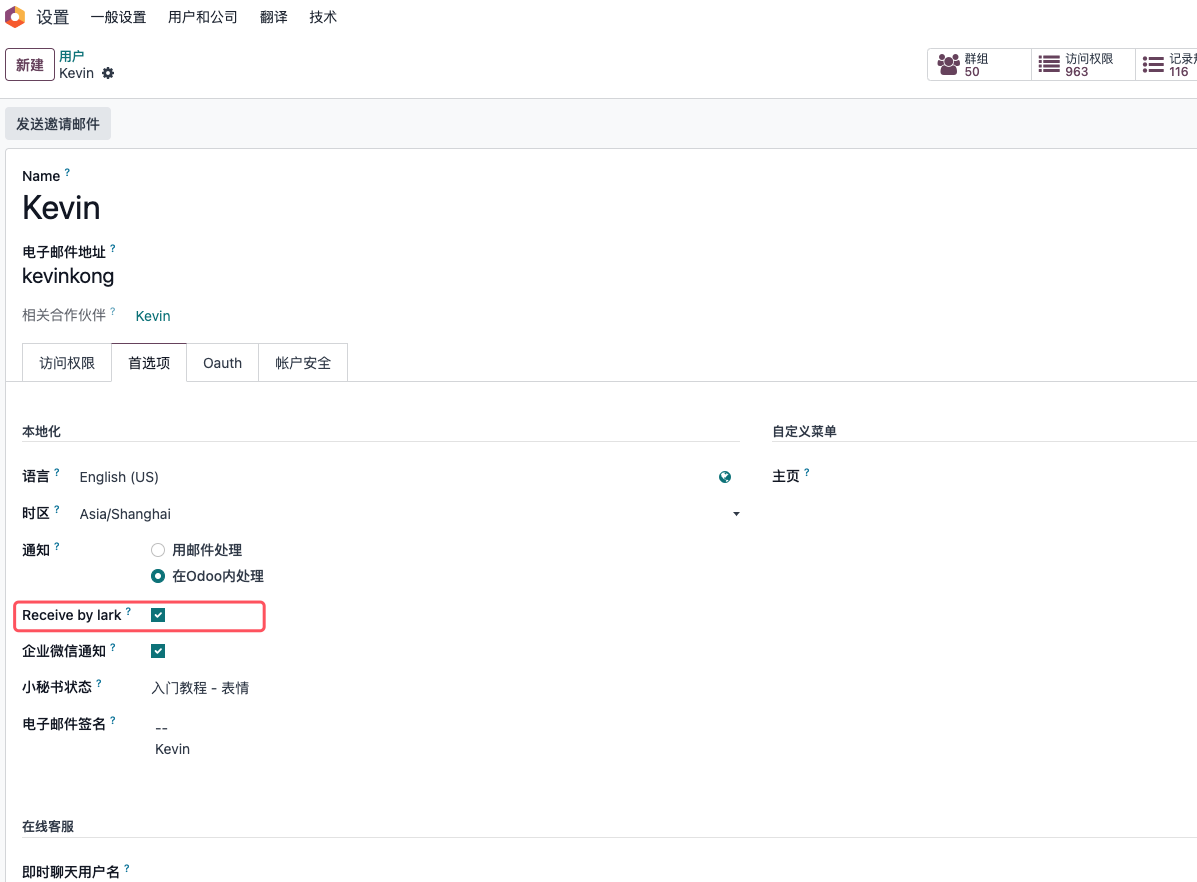
Then send a text message in the chatter of a document followed by that user.
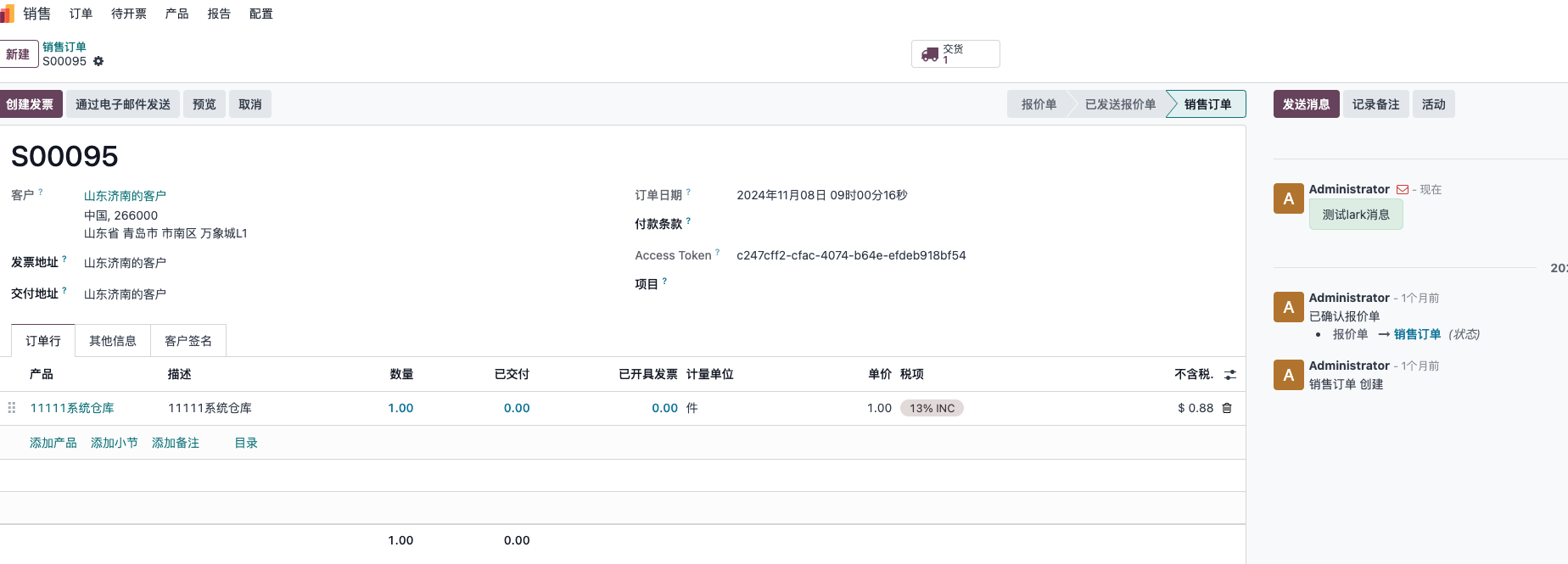
The user receives the message in Lark.
This chapter introduced Lark integration for base data, QR login, and chatter notifications.